Best HomeKit Accessories: The Ultimate Guide to Building Your Apple Smart Home
Apple HomeKit has evolved into one of the most refined, secure, and user-friendly smart home ecosystems available. If you own an iPhone, iPad, or Apple TV, you already have the foundation for a powerful smart home that prioritizes privacy, seamless integration, and effortless automation. But with hundreds of HomeKit-compatible devices on the market, choosing the right accessories can feel overwhelming.
This comprehensive guide covers the best HomeKit accessories across every category — from smart lighting and thermostats to security cameras, locks, and sensors. Whether you are just starting your smart home journey or looking to expand an existing setup, you will find expert recommendations, setup tips, automation ideas, and privacy insights to help you make the most of Apple's smart home platform.
Understanding Apple HomeKit: A Platform Overview
Apple HomeKit is a software framework that allows Apple users to control, configure, and automate smart home accessories using the Home app on iOS, iPadOS, and macOS devices. It also integrates deeply with Siri, Apple's voice assistant, enabling hands-free control of your entire home with simple voice commands.
What Makes HomeKit Different?
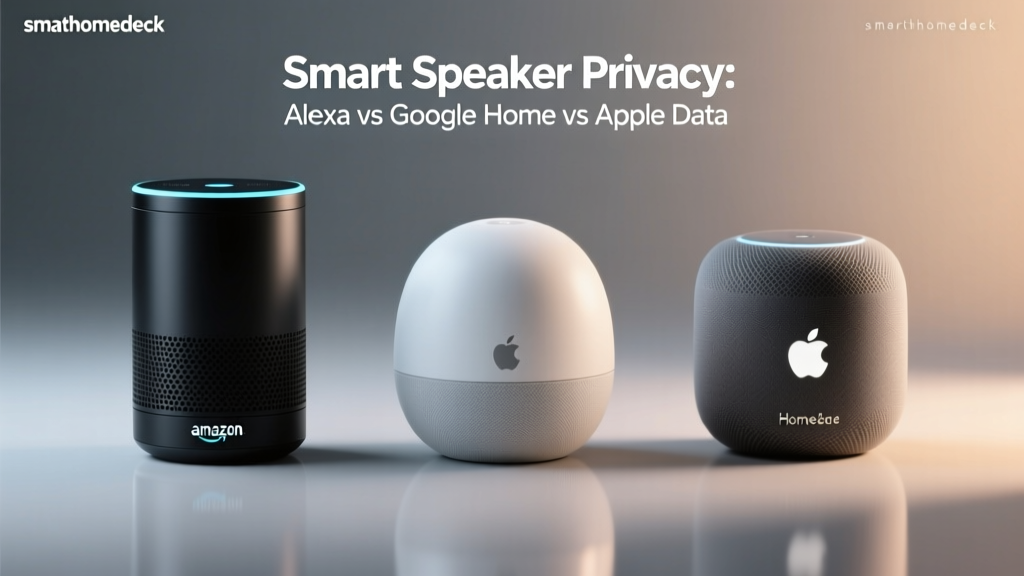
Unlike some competing platforms that prioritize data collection and advertising-driven business models, Apple has built HomeKit around a core principle: user privacy. HomeKit communications are end-to-end encrypted, and Apple does not sell your smart home data to third parties. This privacy-first approach is a major reason many users choose HomeKit over alternatives like Google Home or Amazon Alexa.
HomeKit also benefits from Apple's tight hardware and software integration. Because Apple controls both the devices (iPhone, iPad, Apple TV, HomePod) and the software (iOS, Home app, Siri), the experience is remarkably polished. Devices respond quickly, automations trigger reliably, and the interface is intuitive even for family members who may not be tech-savvy.
HomeKit Requirements
To get started with HomeKit, you need:
- An iPhone or iPad running a recent version of iOS or iPadOS
- The built-in Home app (pre-installed on all Apple devices)
- A home hub for remote access and automation — this can be a HomePod, HomePod mini, or Apple TV (4th generation or later)
- HomeKit-compatible accessories (look for the "Works with Apple Home" badge)
For a deeper dive into how Apple's ecosystem compares to other platforms, check out our smart home ecosystem comparison guide to see which platform fits your needs best.
Matter and the Future of HomeKit
Apple has embraced the Matter smart home standard, which allows devices from different ecosystems to work together seamlessly. Many newer HomeKit accessories support Matter, meaning you get the best of both worlds: Apple's privacy protections and broad cross-platform compatibility. When shopping for new accessories, look for devices that support both HomeKit and Matter to future-proof your investment.
Best HomeKit Accessories by Category
The HomeKit ecosystem spans dozens of product categories. Below, we break down the best HomeKit accessories in each major category, highlighting standout features, pricing considerations, and what makes each device worth adding to your smart home.
Smart Lighting
Smart lighting is often the first category people explore when building a HomeKit setup, and for good reason. It is affordable, easy to install, and delivers an immediate impact on the ambiance and functionality of your home.
Philips Hue remains the gold standard for HomeKit smart lighting. The Hue ecosystem includes bulbs (standard, filament, outdoor), light strips, lamps, and switches. The Hue Bridge is required for full HomeKit integration, and it enables advanced features like geofencing, motion-activated lighting, and dynamic scenes that sync with music or movies. The color accuracy, brightness, and reliability of Hue bulbs are unmatched in the industry.
LIFX bulbs are an excellent alternative if you prefer a hub-free setup. LIFX bulbs connect directly to your Wi-Fi network and offer vibrant colors, high brightness levels, and built-in HomeKit support. They are slightly more expensive per bulb than Hue, but the lack of a required bridge makes them appealing for smaller installations.
Nanoleaf offers unique decorative lighting options that work beautifully with HomeKit. Their Shapes, Lines, and Canvas panels can be arranged in custom patterns on your walls, creating stunning ambient lighting that responds to music, touch, or automations. Nanoleaf Essentials bulbs and light strips also support HomeKit via Thread, offering fast and reliable connectivity.
For smart switches that work with your existing bulbs, Lutron Caséta is the top recommendation. The Caséta system replaces your wall switches with smart versions, meaning anyone can use the lights normally without needing an app. The Lutron Smart Bridge Pro is required, but the system is rock-solid reliable and supports HomeKit scenes and automations flawlessly. Explore our smart lighting reviews for detailed breakdowns of these and other options.
Smart Thermostats
A smart thermostat is one of the most impactful HomeKit accessories you can add. It saves energy, maintains comfort, and can be controlled remotely or via Siri.
The Ecobee SmartThermostat Premium is widely regarded as the best HomeKit-compatible thermostat. It features a built-in smart speaker with Alexa (in addition to HomeKit support), room sensors for multi-zone temperature management, and excellent energy-saving algorithms. The SmartSensor included with the Premium model detects occupancy and adjusts temperatures room by room, ensuring comfort where you actually are.
The Ecobee SmartThermostat Enhanced is a more budget-friendly option that still delivers full HomeKit integration, geofencing, and smart scheduling. It lacks the built-in speaker and includes fewer sensors, but the core thermostat experience is excellent.
For those who prefer a more minimalist design, the Honeywell Home T9 offers HomeKit compatibility, smart room sensors, and a clean interface. While it does not have the same depth of smart features as Ecobee, it is a reliable and well-priced option for straightforward temperature control.
Visit our thermostat comparison page for head-to-head reviews and energy-saving tips.
Smart Locks
Smart locks bring convenience and security together, letting you lock and unlock your door with Siri, the Home app, automations, or even your Apple Watch.
The August Wi-Fi Smart Lock is a top pick for HomeKit users. It retrofits over your existing deadbolt, so you do not need to replace your entire lock hardware. It supports HomeKit Secure Video for doorbell integration, auto-lock and auto-unlock based on your location, and guest access codes managed through the August app.
The Schlage Encode Plus is another outstanding option that supports Apple Home Key, allowing you to tap your iPhone or Apple Watch to unlock your door — just like using Apple Pay. This is one of the most seamless smart lock experiences available, and it also supports traditional keypads, key cards, and the Schlage app for guest management.
The Yale Assure Lock 2 offers a sleek, key-free design with a touchscreen keypad and HomeKit support. It integrates well with the Yale Access app and supports auto-lock, scheduling, and remote access when paired with a home hub.
For a detailed comparison of features, pricing, and installation requirements, see our smart lock buyer's guide.
Security Cameras and Video Doorbells
HomeKit Secure Video is one of Apple's most compelling features. It processes video locally on your home hub, encrypts footage end-to-end, and stores recordings securely in iCloud — with no additional subscription fees if you have an iCloud+ plan.
The Logitech Circle View Wired Doorbell is one of the best HomeKit Secure Video doorbells available. It offers crisp video quality, a wide field of view, reliable person detection, and seamless integration with the Home app. Installation requires existing doorbell wiring, but the setup process is straightforward.
The Eufy Security Solo IndoorCam P24 is an excellent indoor camera with HomeKit Secure Video support. It features pan-and-tilt functionality, 2K resolution, and on-device person detection. Eufy cameras are known for their competitive pricing and strong privacy features.
The Aqara Camera Hub G3 serves double duty as both a security camera and a HomeKit hub. It supports Zigbee devices, has a built-in IR blaster for controlling air conditioners and other appliances, and offers HomeKit Secure Video recording. This makes it an excellent all-in-one device for expanding your HomeKit ecosystem.
For outdoor monitoring, the Eufy SoloCam S40 and Aqara G2H Pro are strong contenders with weatherproof designs and HomeKit compatibility. Browse our security camera reviews for in-depth analysis and installation tips.
Sensors, Plugs, and Smart Accessories
Sensors are the unsung heroes of a smart home. They trigger automations based on motion, temperature, humidity, door/window state, and even water leaks.
Aqara is the dominant brand in HomeKit sensors. Their lineup includes motion sensors, door and window sensors, temperature and humidity sensors, water leak sensors, vibration sensors, and air quality monitors. Aqara sensors are compact, affordable, and use Zigbee communication for fast, low-latency responses. They require an Aqara hub (such as the M2 or M1S), but a single hub can support dozens of sensors throughout your home.
The Eve Motion Sensor and Eve Door & Window Sensor are premium alternatives that use Thread connectivity for faster response times and better reliability. Eve products are designed exclusively for HomeKit, offering deep integration and a polished app experience. The Eve app also provides detailed historical data and analytics that go beyond what the native Home app offers.
Smart plugs are the simplest way to make any device smart. The Eve Energy smart plug supports HomeKit, Thread, and energy monitoring, letting you track power consumption for any connected device. The Meross Smart Plug Mini is a budget-friendly alternative with reliable HomeKit support, though it lacks energy monitoring.
For window treatments, the Lutron Serena Shades and IKEA Fyrtur smart blinds integrate with HomeKit for automated light control and privacy. The Serena shades are premium and custom-made, while the Fyrtur blinds offer an accessible entry point into smart window coverings.
Setting Up Your HomeKit Accessories for Success
Getting the most out of your HomeKit accessories requires thoughtful setup and configuration. Here are the key steps and best practices to ensure a smooth experience.
Planning Your HomeKit Network
A reliable smart home starts with a reliable network. Most HomeKit accessories connect via Wi-Fi, Zigbee, Thread, or Bluetooth, and each protocol has different requirements:
- Wi-Fi devices (LIFX bulbs, Ecobee thermostats) connect directly to your router. If you have many Wi-Fi devices, consider upgrading to a mesh Wi-Fi system to prevent congestion.
- Zigbee devices (Aqara sensors, Philips Hue) require a dedicated hub but create their own mesh network that does not burden your Wi-Fi.
- Thread devices (Eve products, Nanoleaf Essentials) form a self-healing mesh network and require a Thread border router, which is built into HomePod mini, Apple TV 4K, and some third-party hubs.
- Bluetooth devices have limited range and typically require a home hub for remote access.
For optimal performance, aim for a mix of protocols. Use Zigbee or Thread for sensors and small accessories to keep your Wi-Fi network free for bandwidth-heavy devices like cameras and streaming boxes.
Organizing Rooms and Zones in the Home App
The Home app allows you to organize accessories into rooms and zones. Take the time to set this up properly — it makes voice commands and automations much more intuitive.
- Rooms represent physical spaces (Living Room, Kitchen, Bedroom). Assign each accessory to the correct room so you can say "Hey Siri, turn off the lights in the kitchen."
- Zones group multiple rooms together (Downstairs, Outside). This lets you control larger areas with a single command, like "Hey Siri, set the Downstairs temperature to 72 degrees."
- Names matter. Give each accessory a clear, descriptive name. "Front Door Lock" is much better than "Schlage Encode Plus" when you are barking commands at Siri while carrying groceries.
Setting Up a Home Hub
A home hub is essential for remote access, automations, and HomeKit Secure Video. Without a hub, your accessories only work when you are on the same Wi-Fi network. With a hub, you can control everything from anywhere and run automations 24/7.
Your options for a HomeKit hub include:
- HomePod or HomePod mini — the best option for most users, offering excellent Siri performance, intercom features, and Thread border router support
- Apple TV 4K — ideal if you also want a streaming device, with Thread support on newer models
- Apple TV HD — a functional hub, but lacks Thread support and is being phased out
If you have a large home, consider placing multiple hubs in different areas to ensure reliable connectivity. A HomePod mini in the bedroom and an Apple TV in the living room provide excellent coverage and redundancy.
Adding Accessories to the Home App
Adding a new HomeKit accessory is straightforward:
- Open the Home app on your iPhone or iPad
- Tap the "+" button and select "Add Accessory"
- Scan the HomeKit setup code (usually found on the device or in the manual)
- Follow the on-screen prompts to assign the accessory to a room and configure settings
If the setup code is lost or unreadable, many accessories allow you to reset and re-pair. Keep your setup codes in a safe place — you will need them if you ever need to re-add a device or transfer your HomeKit configuration.
HomeKit Automations: Making Your Smart Home Truly Smart
Accessories are just the beginning. The real magic of HomeKit lies in automations — rules that trigger actions automatically based on conditions like time, location, sensor data, or the state of other devices.
Types of HomeKit Automations
The Home app supports several automation triggers:
- Time-based: Trigger actions at a specific time or at sunrise/sunset. Example: Turn on porch lights at sunset every day.
- Location-based: Trigger actions when you arrive home or leave. Example: Set the thermostat to eco mode when the last person leaves.
- Sensor-based: Trigger actions when a sensor detects motion, a door opens, or a temperature threshold is crossed. Example: Turn on the hallway light when motion is detected after 10 PM.
- Accessory state: Trigger actions when another accessory changes state. Example: Turn on the coffee maker smart plug when the bedroom light turns on before 7 AM.
Powerful Automation Ideas for Every Room
Morning Routine: At 6:30 AM on weekdays, gradually brighten the bedroom lights over 15 minutes, set the thermostat to your preferred daytime temperature, start the coffee maker (via smart plug), and read out your calendar events via HomePod.
Leaving Home: When the last person leaves (detected via geofencing), turn off all lights, lock all doors, set the thermostat to eco mode, arm security cameras, and close smart blinds.
Movie Night: When you say "Hey Siri, it's movie time," dim the living room lights to 10%, close the blinds, set the thermostat two degrees cooler, and turn on the TV (via a smart IR blaster or HDMI-CEC integration).
Bedtime: At 10:30 PM, lock all doors, turn off all lights except a dim hallway nightlight, set the thermostat to sleep temperature, arm exterior cameras, and enable Do Not Disturb on your iPhone.
Security Alert: If a door or window sensor is triggered while the home is in "away" mode, flash all interior lights, sound the HomePod alarm, and send a notification to all household members.
Advanced Automation with Third-Party Apps
While the native Home app covers most automation needs, power users may want more advanced capabilities. Third-party apps like Controller for HomeKit and Home+ unlock additional features:
- Conditional logic (if/then/else statements)
- Variable delays and timers
- Notifications based on custom conditions
- Detailed accessory diagnostics and firmware management
- Backup and restore of your HomeKit configuration
These apps are invaluable for complex setups and troubleshooting. Controller for HomeKit, in particular, is essential if you manage a large number of accessories or need to migrate your setup between homes.
For more ideas on creating the perfect smart home routines, explore our smart home automation guide.
Privacy and Security: Why HomeKit Leads the Industry
Privacy is arguably the single biggest advantage of choosing Apple HomeKit over competing platforms. In an era where smart home devices are increasingly scrutinized for data collection practices, Apple's approach stands apart.
End-to-End Encryption
All HomeKit communications between your devices and accessories are encrypted end-to-end. This means that even Apple cannot see the data flowing between your iPhone and your smart lock. Video from HomeKit Secure Video cameras is encrypted before being uploaded to iCloud, and only your authorized devices hold the decryption keys.
HomeKit Secure Video
HomeKit Secure Video is a standout feature that processes video locally on your home hub. The hub analyzes footage for person, animal, and vehicle detection without sending raw video to the cloud. Only encrypted clips are stored in iCloud, and they count toward your iCloud+ storage plan rather than requiring a separate camera subscription.
With an iCloud+ plan (64GB or higher), you can support up to five HomeKit Secure Video cameras. The 200GB plan supports ten cameras, and the 2TB plan supports unlimited cameras. This represents significant savings compared to competitors that charge monthly fees per camera.
HomeKit Accessory Protocol Security
Every HomeKit accessory must pass Apple's certification process, which includes strict security requirements. Accessories use secure authentication to pair with your home, firmware updates are verified, and communication is encrypted. This certification process is more rigorous than competing platforms, which is why you may find fewer cheap, no-name accessories with HomeKit support — but it also means the accessories that do carry the badge are trustworthy.
Local Processing and Minimal Data Collection
Unlike platforms that send voice recordings and usage data to cloud servers for processing, HomeKit processes most automations and commands locally on your home hub. Siri requests related to HomeKit are handled with minimal data collection, and Apple does not build advertising profiles based on your smart home usage.
If privacy is your top priority when building a smart home, HomeKit is the clear winner. For more on protecting your digital life, check out our smart home privacy and security guide.
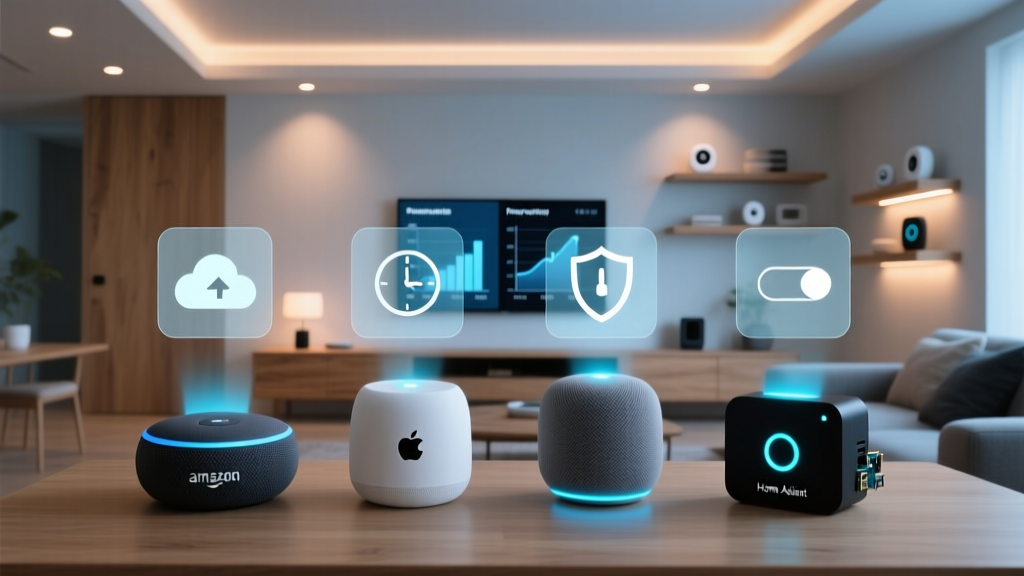
HomeKit vs. Other Smart Home Ecosystems: A Detailed Comparison
Choosing a smart home ecosystem is a significant decision that affects which accessories you can use, how you interact with your home, and what data is collected. Here is how HomeKit stacks up against the competition.
HomeKit vs. Google Home
Google Home (now Google Home) supports a wider range of accessories and offers more powerful voice assistant capabilities through Google Assistant. Google's natural language processing is generally superior to Siri's, and the Google Home app provides more granular control over devices.
However, Google's business model is built on advertising and data collection. Your smart home usage data may be used to improve Google's services and target ads. Google Nest cameras also require a Nest Aware subscription for video recording features, adding ongoing costs.
Choose HomeKit if: Privacy is your priority, you are deeply invested in the Apple ecosystem, and you value seamless integration with your iPhone, Apple Watch, and Mac.
Choose Google Home if: You want the widest device compatibility, prefer Google Assistant's intelligence, or use Android as your primary phone.
HomeKit vs. Amazon Alexa
Amazon Alexa has the largest ecosystem of compatible devices by far, including thousands of budget-friendly options that may not support HomeKit. Alexa's routines are flexible, and the platform supports a wide range of third-party skills and integrations.
The downside is similar to Google: Amazon collects significant data from Alexa interactions, and the app experience is less polished than Apple's Home app. Alexa devices also tend to be more intrusive in terms of always-on microphones and data collection.
Choose HomeKit if: You want a cleaner, more private experience and are willing to pay a premium for higher-quality accessories.
Choose Alexa if: You want the broadest device selection, need specific integrations that HomeKit does not support, or prefer Amazon's ecosystem of services.
HomeKit vs. Samsung SmartThings
Samsung SmartThings is a hub-based platform that supports Zigbee, Z-Wave, Wi-Fi, and now Matter devices. It offers the most protocol diversity of any platform and is popular among advanced users who want to mix and match devices from different manufacturers.
SmartThings is less polished than HomeKit in terms of user experience, and the app can feel cluttered. However, it supports advanced automation features that the Home app does not, and it works with a wider range of protocols out of the box.
Choose HomeKit if: You want simplicity, privacy, and a premium experience.
Choose SmartThings if: You need Z-Wave support, want maximum protocol flexibility, or have a large, complex smart home with dozens of devices from different brands.
For a comprehensive breakdown of all major platforms, visit our ecosystem comparison hub.
Tips for Expanding Your HomeKit Ecosystem
Once you have the basics in place, there are several strategies for getting even more value from your HomeKit setup.
Start Small and Scale Gradually
Do not try to outfit your entire home at once. Start with one or two categories — smart lighting and a smart plug, for example — and learn how automations work before adding more complexity. This approach helps you identify which smart home features genuinely improve your daily life and which are merely gimmicks.
Invest in Quality Over Quantity
HomeKit accessories tend to be more expensive than their Alexa-only counterparts, but the quality difference is usually significant. A $50 Philips Hue bulb will last longer, perform better, and integrate more reliably than a $10 no-name bulb. Focus on buying fewer, higher-quality devices rather than filling your home with cheap accessories that may fail or lose support.
Use Scenes to Simplify Control
Scenes let you control multiple accessories with a single command. Create scenes like "Good Morning," "Movie Time," "Dinner Party," and "Good Night" to adjust lights, thermostats, locks, and more simultaneously. You can trigger scenes via Siri, the Home app, Apple Watch, or NFC tags placed around your home.
Leverage NFC Tags for Quick Actions
Apple's Shortcuts app supports NFC tag triggers that can activate HomeKit scenes or automations. Place an NFC tag on your nightstand to trigger your bedtime scene with a single tap of your iPhone. Place one by the front door to toggle your away mode. NFC tags cost just a few dollars each and add a convenient, physical interface to your smart home.
Keep Firmware Updated
Regularly check for firmware updates on your HomeKit accessories. Updates often include security patches, performance improvements, and new features. The Home app will notify you when updates are available, but third-party apps like Controller for HomeKit make it easier to manage updates across many devices.
Frequently Asked Questions About HomeKit Accessories
Do I need a HomePod to use HomeKit accessories?
No, you do not need a HomePod to use HomeKit accessories. You can control HomeKit devices directly from your iPhone or iPad when you are on the same Wi-Fi network. However, a home hub (HomePod, HomePod mini, or Apple TV) is required for remote access when you are away from home, for running automations, and for HomeKit Secure Video features. For the best experience, a home hub is strongly recommended, and the HomePod mini is the most affordable entry point.
How many HomeKit accessories can I have in one home?
Apple's HomeKit supports a very large number of accessories per home — well over 100 devices in most configurations. In practice, the limiting factor is usually your network infrastructure rather than any HomeKit restriction. If you plan to install many accessories, use a combination of Zigbee and Thread devices (which create their own mesh networks) alongside a robust Wi-Fi mesh system to ensure reliable connectivity. Users with 50 or more accessories should consider a mesh Wi-Fi system and dedicated hubs for Zigbee and Thread devices.
Can I use HomeKit accessories with Android devices?
HomeKit accessories are designed primarily for Apple devices, and the Home app is only available on iOS, iPadOS, and macOS. However, many HomeKit accessories also support other platforms. For example, Philips Hue bulbs work with Android via the Hue app, and Ecobee thermostats have their own cross-platform app. Additionally, accessories that support the Matter standard can be controlled from Android devices using Google Home or other Matter-compatible apps. If you have a mixed-device household, look for accessories that support both HomeKit and Matter for the broadest compatibility.
What is the difference between HomeKit and Matter?
HomeKit is Apple's proprietary smart home platform, while Matter is an open, cross-platform standard developed by the Connectivity Standards Alliance (CSA) that includes Apple, Google, Amazon, Samsung, and hundreds of device manufacturers. Matter devices can work with Apple HomeKit, Google Home, Amazon Alexa, and Samsung SmartThings simultaneously. Apple has embraced Matter, and newer HomeKit accessories often support both standards. Think of HomeKit as Apple's curated, privacy-focused experience, and Matter as a universal compatibility layer that ensures your devices work across all major platforms.
Are HomeKit accessories more expensive than other smart home devices?
HomeKit accessories generally carry a price premium compared to Alexa-only or Google Home-only devices. This is partly because Apple's certification process is more rigorous, requiring higher-quality hardware and security features. However, the price gap has narrowed significantly in recent years, and many HomeKit accessories are competitively priced. Brands like Aqara, Meross, and IKEA offer affordable HomeKit-compatible products that deliver excellent value. When you factor in the lack of subscription fees for features like HomeKit Secure Video (included with iCloud+), the total cost of ownership for a HomeKit smart home is often lower than competing platforms over time.
Final Thoughts: Building Your Ideal HomeKit Smart Home
Apple HomeKit offers a uniquely polished, private, and integrated smart home experience. While the accessory selection may be smaller than Alexa or Google Home, the devices that carry the HomeKit badge are consistently high-quality, secure, and reliable. By choosing the right accessories, setting up thoughtful automations, and leveraging Apple's privacy protections, you can build a smart home that enhances your daily life without compromising your personal data.
Start with the essentials — smart lighting, a smart thermostat, and a reliable home hub — then expand gradually as you discover which smart home features matter most to you. Whether you are looking for convenience, energy savings, security, or all three, the HomeKit ecosystem has the accessories to make it happen.
Ready to start building? Explore our smart home starter kit guide for a curated list of the best beginner-friendly HomeKit accessories, or browse our complete device reviews for detailed, hands-on analysis of every product we recommend.