The Ultimate Guide to the Apple Smart Home Ecosystem
When it comes to building a connected home, the Apple smart home ecosystem stands in a league of its own. Often referred to by its underlying framework, HomeKit, or its user-facing interface, the Apple Home app, this platform is renowned for its stringent security standards, seamless integration with Apple hardware, and a premium user experience. Unlike competitors that prioritize sheer volume of compatible devices, Apple has historically curated a "walled garden" approach, ensuring that every accessory bearing the "Works with Apple Home" badge meets strict reliability and privacy benchmarks.
Whether you are a longtime iPhone user looking to dip your toes into smart lighting, or a dedicated home automation enthusiast planning a whole-house overhaul, understanding the nuances of the Apple ecosystem is critical. In this comprehensive guide, we will explore the core architecture of Apple Home, the best devices to populate your space, advanced automation techniques, and how Apple's uncompromising stance on privacy shapes the entire smart home landscape.
The Core of the Apple Smart Home: Understanding HomeKit, Matter, & Thread
To master the Apple smart home ecosystem, you must first understand the terminology and the underlying technologies that make it tick. The platform is built on a foundation of local processing, secure networking, and standardized communication protocols.
HomeKit vs. Apple Home
Historically, HomeKit was the name of Apple's software framework and API that allowed third-party developers to create smart home accessories. It dictated how devices communicated with iOS devices and how data was encrypted. Today, Apple has largely transitioned to the consumer-facing branding of Apple Home. While HomeKit still exists under the hood as the security and communication architecture, the Apple Home app is the centralized dashboard where users control devices, create automations, and manage home settings.
The Role of the Home Hub
Unlike some ecosystems that rely entirely on cloud servers to process commands, Apple Home relies heavily on a local Home Hub. A Home Hub acts as the brain of your smart home when you are away from your house. It enables remote access, runs automations locally (reducing latency), and manages connections for Thread and Bluetooth accessories. Currently, Apple designates the HomePod, HomePod mini, and Apple TV 4K as official Home Hubs. Setting up a hub is mandatory if you want your automations to run while you are at work or on vacation.
Thread & Matter: The Modern Foundation
The introduction of Matter and Thread has revolutionized the Apple smart home ecosystem. Matter is the universal application layer that allows devices from different brands to talk to each other seamlessly, while Thread is the low-power, mesh networking protocol that transports those commands. Apple was a founding member of the Connectivity Standards Alliance (CSA) that created Matter. By integrating Thread border routers into the HomePod mini and Apple TV 4K, Apple ensures that Thread-enabled accessories (like smart bulbs and sensors) connect directly to your home network without needing a proprietary third-party hub. For a deeper dive into how these protocols interact, check out our guide on Matter vs HomeKit.
Best Devices for Your Apple Home Ecosystem
Building a reliable smart home requires selecting hardware that plays nicely with Apple's stringent requirements. Below are the top categories and the best devices that define a premium Apple Home experience.
Smart Lighting
Lighting is the gateway to smart home automation. In the Apple ecosystem, you generally have two choices: hub-based systems and Thread-native systems.
- Philips Hue: Despite requiring its own Bridge, Philips Hue remains the gold standard for reliability, color accuracy, and advanced features like Adaptive Lighting. The Hue Bridge connects to your router and exposes all bulbs to the Apple Home app seamlessly.
- Nanoleaf Essentials: For those who want to avoid extra hubs, Nanoleaf's Thread-enabled bulbs and light strips connect directly to your HomePod or Apple TV border router. They offer incredible brightness, vibrant colors, and instant response times via the Thread mesh network. Explore more top HomeKit lighting options in our dedicated review.
Smart Locks & Access Control
Apple's integration with smart locks is arguably the best in the industry, thanks to a feature called Apple Home Key. This allows you to tap your iPhone or Apple Watch against the lock to open your door, utilizing the same secure NFC technology as Apple Pay.
- Schlage Encode Plus: A heavy-duty, ANSI Grade 1 certified deadbolt that natively supports Home Key and Thread. It is incredibly fast and requires no external bridge.
- Level Lock+: If you care about aesthetics, Level's smart locks are virtually invisible. The Level Lock+ hides all the smart technology inside a standard-looking deadbolt while offering full Home Key support. See our full breakdown of the best HomeKit smart locks for every door type.
Climate Control & Sensors
Automating your home's temperature and monitoring air quality is effortless with Apple Home.
- Ecobee SmartThermostat Premium: Ecobee has long been the premier choice for Apple users. It features a beautiful glass interface, built-in Siri (on the Premium model), and remote room sensors that ensure your home is heated or cooled based on occupancy, not just the thermostat's location. Read our review of the best Apple HomeKit thermostats.
- Eve Room & Eve Weather: Eve is a pioneer in Thread and HomeKit. Their sensors provide hyper-accurate data on indoor air quality (VOCs), temperature, and humidity, which can be used as triggers for complex automations.
Cameras & Security
Apple takes a unique approach to home security cameras through HomeKit Secure Video (HKSV). Instead of sending your footage to a third-party cloud server, HKSV encrypts video locally and stores it securely in your iCloud account. Devices like the Eve Outdoor Cam and Logitech Circle View are purpose-built for this. Learn how to set up and optimize your cameras in our HomeKit Secure Video guide.
Step-by-Step Setup Tips for a Flawless Apple Home
A smart home is only as reliable as the network it runs on. Apple's ecosystem is highly dependent on a robust local network architecture. Follow these setup tips to ensure your accessories never show the dreaded "No Response" status.
1. Optimize Your Network for IoT
Smart home devices, especially those on Wi-Fi, can quickly congest a standard home router. To prevent this:
- Separate your bands: Most smart plugs, switches, and cameras require a 2.4GHz Wi-Fi connection. Ensure your router's 2.4GHz and 5GHz bands are either clearly separated or utilize a smart IoT VLAN (Virtual Local Area Network) to keep smart home traffic isolated from your personal computers and streaming devices.
- Invest in Wi-Fi 6 or Mesh: If you have a larger home, a mesh Wi-Fi system ensures that devices in the garage or backyard maintain a stable connection to your Home Hub.
2. Establish Your Home Hub Early
Before adding dozens of accessories, set up your Home Hub. Plug in your Apple TV 4K or HomePod mini, ensure it is connected to your primary network, and verify its status in the Apple Home app. Go to Home Settings > Hubs & Bridges to confirm it is listed as "Connected" and acting as the primary hub.
3. Organize Rooms and Zones Strategically
The Apple Home app allows you to group devices into Rooms (e.g., Kitchen, Living Room) and Zones (e.g., Downstairs, Outdoor). Proper organization is vital for Siri voice commands. If you tell Siri to "Turn off the Downstairs lights," Siri relies on your Zone configuration to know exactly which bulbs to target. Take the time to name your devices logically (e.g., "Kitchen Sink Light" instead of just "Light 1").
4. Leverage Thread Wherever Possible
When buying new accessories, prioritize Thread-enabled devices. Because Thread creates a self-healing mesh network, every plugged-in Thread device (like a smart plug) acts as a repeater, strengthening the signal for battery-powered sensors and locks. For help setting up your primary hub and border router, visit our HomePod setup guide.
Mastering Automations & Siri Shortcuts
The true magic of any smart home lies in automation—the ability for your home to react to your life without you lifting a finger. The Apple Home app provides a robust, albeit sometimes restrictive, automation engine.
Native Home App Automations
In the Automation tab of the Home app, you can create routines based on four primary triggers:
- Time of Day: Trigger actions at a specific time, or dynamically at sunrise/sunset.
- People Arrive or Leave: Utilize the geofencing capabilities of your iPhone to turn off all lights and lock the doors when the last person leaves the house.
- An Accessory is Controlled: For example, if you turn on the living room TV via a smart plug, the lights automatically dim to 20%.
- A Sensor Detects Something: Use motion sensors, contact sensors, or light sensors to trigger actions. A classic example is turning on the hallway lights at 10% brightness if motion is detected between 11 PM and 6 AM.
Advanced Logic with Third-Party Apps
While the native Home app is great for basics, power users often require conditional logic (e.g., "Turn on the AC only if the temperature is above 75 degrees and someone is home"). Because Apple restricts complex "IF/THEN" logic in the native app, the community relies on powerful third-party iOS apps like Controller for HomeKit and Home+. These apps unlock the full potential of the HomeKit database, allowing for variables, math operations, and complex conditional automations that sync right back to the native Apple Home app.
Siri Shortcuts & NFC Tags
Apple's Shortcuts app is a powerhouse for smart home control. You can build multi-step routines that combine smart home actions with iOS functions. For instance, a single "Goodnight" shortcut can lock the doors, arm your security system, turn off the lights, and start a sleep sounds playlist on your HomePod. Furthermore, you can write these Shortcuts to inexpensive NFC tags. By tapping your iPhone on an NFC tag stuck to your nightstand, you can instantly trigger your entire bedtime routine without saying a word.
Privacy & Security: The Apple Advantage
The defining characteristic of the Apple smart home ecosystem is its uncompromising stance on user privacy. In an era where smart devices are often accused of harvesting user data for targeted advertising, Apple treats the home as a private sanctuary.
End-to-End Encryption
All communication between your Apple devices, your Home Hub, and your accessories is secured with end-to-end encryption. When you pair a HomeKit accessory, a unique cryptographic key is generated. This means that even Apple cannot see the status of your smart locks, the layout of your rooms, or the schedules of your automations. Your home data is synced across your iPhone, iPad, and Mac via iCloud, but it is encrypted in transit and at rest.
Local Processing vs. Cloud Reliance
Many competing ecosystems rely on cloud servers to process voice commands and automations. If your internet goes down, your smart home breaks. Apple Home is designed to process the vast majority of commands locally via your Home Hub. When you ask Siri to turn off the lights, the audio is processed locally on the HomePod (for supported commands), and the signal is sent directly over your local network to the bulb. This results in lightning-fast response times and ensures your home remains functional during internet outages.
HomeKit Secure Video (HKSV)
HKSV is Apple's masterstroke in home security. Traditional smart cameras send video feeds to the manufacturer's cloud for motion analysis. HKSV, however, uses the local Home Hub (Apple TV or HomePod) to analyze the video feed for people, animals, and vehicles. Once analyzed, the video is encrypted and sent directly to your private iCloud storage. It never touches a third-party server. Depending on your iCloud+ storage tier, you can connect multiple cameras without paying additional monthly subscription fees to the camera manufacturer.
Apple Home vs. The Competition
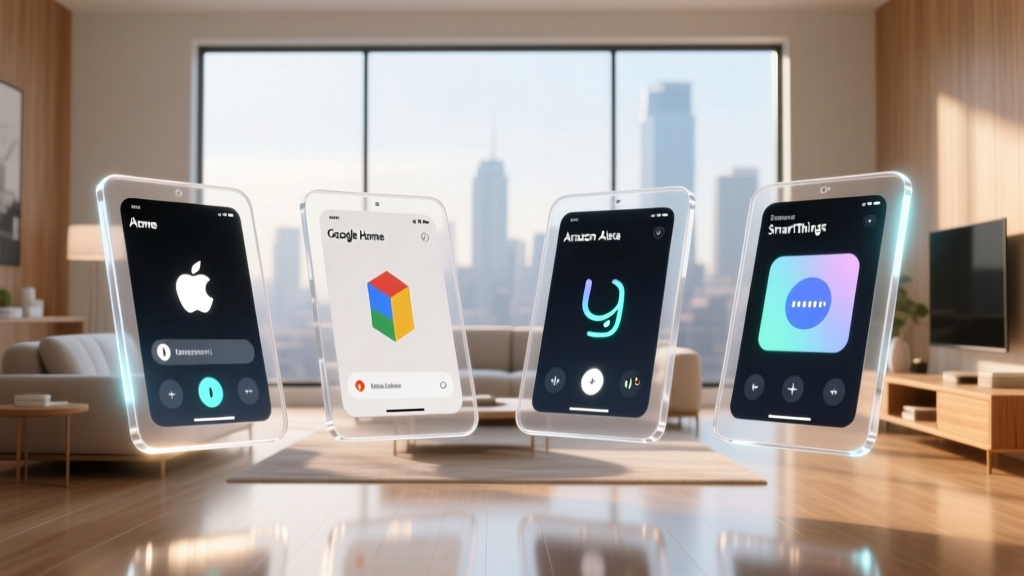
How does the Apple ecosystem stack up against the industry giants? Let's compare Apple Home with the Amazon Alexa ecosystem and the Google Home ecosystem.
Device Compatibility & The Walled Garden
Amazon and Google operate on an "open floodgates" model. If a manufacturer wants to build an Alexa or Google Assistant device, the barrier to entry is relatively low. This results in thousands of compatible devices, ranging from premium brands to ultra-cheap, unreliable generics. Apple, conversely, requires manufacturers to implement specific security chips and pass rigorous testing (though Matter is slowly easing this restriction). As a result, Apple Home has fewer compatible devices, but the overall quality, reliability, and app integration of those devices are significantly higher.
Voice Assistant Intelligence
This is Apple' most notable weakness. Amazon Alexa and Google Assistant are vastly superior in natural language processing, general knowledge queries, and conversational context. Siri is primarily designed as a smart home controller and a quick-information retrieval tool. If your primary goal is to have complex conversations with your AI assistant, Google or Amazon will serve you better. If your goal is reliable, private control of your home hardware, Siri is more than adequate.
Hardware Costs & Ecosystem Lock-In
Building an Apple smart home is undeniably more expensive. You need an iPhone to set it up, a HomePod or Apple TV to act as a hub, and accessories that often carry a "HomeKit tax" due to the required security hardware. Amazon and Google offer entry-level hubs and smart speakers for a fraction of the cost, often subsidizing the hardware to get users into their data-gathering ecosystems. Apple charges a premium for hardware, but rewards you with a system that respects your privacy and integrates flawlessly with the Apple Watch and CarPlay.
Frequently Asked Questions (FAQ)
Do I need an iPhone to use the Apple smart home ecosystem?
Yes, an iPhone or iPad running a recent version of iOS/iPadOS is required for the initial setup and configuration of the Apple Home app and its accessories. While you can control devices later using a HomePod (via voice), an Apple Watch, or a Mac, the administrative duties, network configurations, and accessory pairing processes are strictly tied to Apple's mobile operating systems. You cannot set up or manage an Apple Home using an Android device or a Windows PC.
What is the difference between HomeKit and Matter?
HomeKit is Apple's proprietary framework and security architecture for the smart home. Matter is an open-source, universal standard developed by the Connectivity Standards Alliance (which Apple is a part of) that allows devices to work across all major platforms (Apple, Google, Amazon, Samsung) simultaneously. Apple Home now supports Matter natively. This means you can buy a "Matter-certified" smart plug and add it directly to your Apple Home app without it needing the traditional "Works with Apple HomeKit" certification, vastly expanding your hardware options.
Why are Apple HomeKit devices often more expensive?
Historically, manufacturers had to include a dedicated Apple authentication chip inside every HomeKit device to handle the stringent end-to-end encryption requirements. This added to the bill of materials. Furthermore, brands targeting the Apple demographic tend to focus on premium build quality, superior aesthetics, and long-term software support, which commands a higher price point. While the advent of Matter is reducing the need for proprietary chips, the "HomeKit tax" is still somewhat prevalent due to the premium nature of the brands that prioritize Apple integration.
Can I use Android devices with Apple Home?
No. The Apple Home ecosystem is deeply integrated into the fabric of iOS, iPadOS, macOS, and watchOS. There is no Apple Home app for Android, and Android devices cannot be used to control Apple Home accessories or receive HomeKit Secure Video notifications. The ecosystem is designed exclusively for users within the Apple hardware ecosystem.
How do I fix unresponsive accessories in the Apple Home app?
The "No Response" error is usually a network or hub communication issue. To fix it:
- Check your Home Hub: Ensure your Apple TV or HomePod is online and listed as "Connected" in Home Settings.
- Reboot your Router: A simple network reboot often clears IP conflicts that cause accessories to drop off the network.
- Move the Device: If it is a Bluetooth or Thread accessory, it may be out of range of your hub or border router.
- Use a Third-Party App: Apps like Controller for HomeKit can scan your network for "ghost" devices and force a database cleanup, which often resolves persistent unresponsive errors without needing to factory reset the hardware.
Conclusion: Is the Apple Smart Home Ecosystem Right for You?
The Apple smart home ecosystem is not for everyone. If you want the cheapest possible hardware, the widest array of obscure gadget compatibility, or a voice assistant that can double as a trivia champion, you may be better served by Amazon or Google. However, if you are already invested in the Apple hardware ecosystem and value privacy, local processing, and a beautifully unified user interface above all else, Apple Home is unmatched.
By leveraging the power of Thread, the universality of Matter, and the ironclad security of HomeKit Secure Video, Apple has built a smart home platform that feels less like a collection of gadgets and more like a natural extension of your living space. Start with a solid Home Hub, invest in quality Thread-enabled accessories, and take the time to build thoughtful automations. Your home will not just be smart; it will be secure, responsive, and entirely your own.