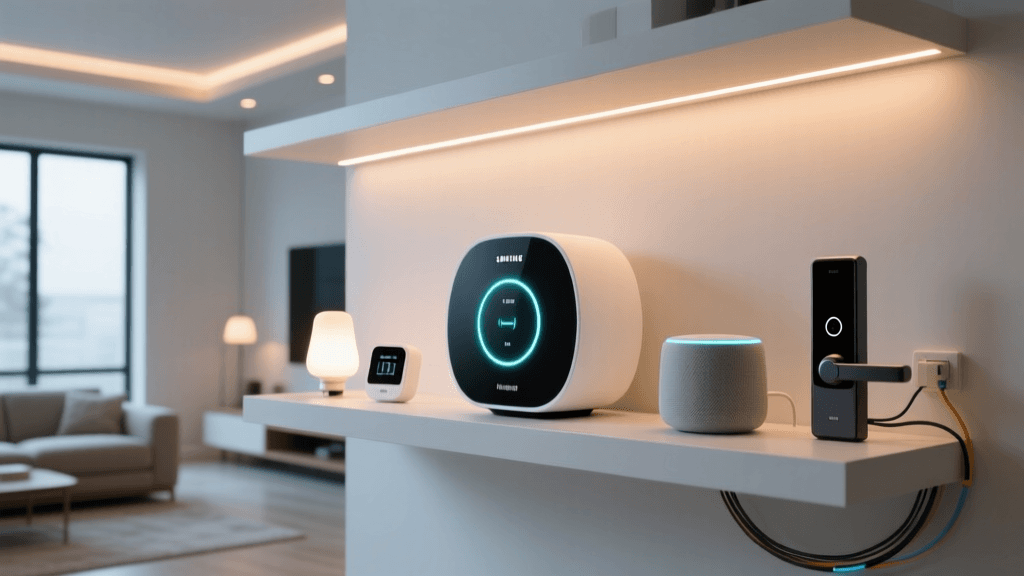
Introduction to Budget Smart Home Assembly
Building a smart home no longer requires a massive budget or a professional installation crew. In the past, creating a cohesive ecosystem meant locking yourself into a single, expensive brand like Philips Hue or Lutron. Today, the landscape has shifted dramatically. With the rollout of the Matter smart home standard, championed by the Connectivity Standards Alliance (CSA), interoperability between budget-friendly brands has never been better. You can now mix and match devices from different manufacturers, ensuring your investment is future-proofed without breaking the bank.
For DIY installers and homeowners looking to dip their toes into home automation, assembling a budget smart home starter kit under $150 is entirely feasible. This guide will walk you through selecting a cost-effective hub, choosing reliable budget lighting and sensors, configuring your network for optimal performance, and physically installing the devices for a seamless, automated experience.
The Core: Choosing a Budget-Friendly Hub
Every smart home needs a brain. The hub translates commands from your phone or voice assistant into the specific radio frequencies (Zigbee, Thread, or Wi-Fi) your devices understand. For a budget build, you want a hub that offers multiple protocols without requiring a monthly subscription.
Our top recommendation for a budget starter kit is the Amazon Echo Dot (5th Gen). Priced around $30 to $50 (frequently on sale), it features a built-in Zigbee radio and acts as a Matter controller. This eliminates the need to buy a standalone bridge for many popular budget sensors and bulbs. Alternatively, if you prefer to keep your smart home local and away from cloud reliance, the SwitchBot Hub Mini or the Aqara M2 are excellent alternatives, though they may limit you to their specific brand ecosystems for certain advanced features.
| Hub Model | Protocols Supported | Estimated Cost | Best For |
|---|---|---|---|
| Amazon Echo Dot (5th Gen) | Wi-Fi, Zigbee, Matter, Bluetooth | $30 - $50 | Voice control & multi-brand Zigbee |
| SwitchBot Hub Mini | Wi-Fi, Bluetooth, IR, Matter | $30 - $40 | IR blaster & SwitchBot ecosystem |
| Aqara Hub M2 | Wi-Fi, Zigbee 3.0, IR | $50 - $60 | Local automations & Aqara sensors |
Essential Components and Cost Breakdown
To stay under our $150 limit while maximizing functionality, we will focus on high-impact devices: smart lighting, entry sensors, and smart plugs. Smart plugs are particularly important in a Zigbee network because they act as mains-powered repeaters, extending the mesh network's range to the far corners of your home.
- Smart Hub: Amazon Echo Dot (5th Gen) — $35
- Smart Bulbs: TP-Link Kasa KL125M (Matter-Compatible, 4-pack) — $40
- Door/Window Sensors: Aqara Door and Window Sensor (Zigbee, 2-pack) — $40
- Smart Plugs: TP-Link Kasa EP25M (Matter-Compatible, 2-pack) — $30
Total Estimated Cost: $145
Step-by-Step Installation and Network Setup
Step 1: Network Preparation
Before unboxing your devices, you must optimize your home network. Most budget smart home devices operate exclusively on the 2.4GHz Wi-Fi band because it offers superior range and wall penetration compared to 5GHz. However, modern mesh routers often use 'band steering,' combining 2.4GHz and 5GHz under a single SSID (network name). This frequently causes setup failures, as the smart device tries to connect to the 5GHz band and drops the handshake.
Actionable Advice: Log into your router's admin panel and create a dedicated IoT SSID (e.g., 'MyHome_IoT') that is strictly locked to the 2.4GHz band. Connect your smartphone to this new network temporarily during the setup process to ensure a frictionless pairing experience.
Step 2: Hub Placement and Configuration
Place your Echo Dot or dedicated hub in a central location in your home. Avoid placing it inside metal cabinets, near microwaves, or directly behind large aquariums, as water and metal absorb 2.4GHz signals. Plug the hub into a power source, download the Alexa app (or respective companion app), and follow the on-screen prompts to connect it to your newly created 2.4GHz IoT network.
Step 3: Pairing Zigbee and Matter Devices
With the hub online, it is time to add the peripherals. Because we selected Matter and Zigbee devices, the pairing process is streamlined.
- Smart Plugs First: Plug in your Kasa EP25M smart plugs. Open the Kasa app, add the devices via Wi-Fi, and then use the 'Matter' sharing feature to expose them to your Alexa app. Because they are mains-powered, they will immediately begin acting as Zigbee repeaters, strengthening your mesh network for the battery-powered sensors you will add next.
- Door/Window Sensors: Pull the battery isolation tab from the Aqara sensors. In the Alexa app, go to Devices > Add Device > Zigbee. The hub will scan for the sensors. Once discovered, name them logically (e.g., 'Front Door', 'Garage Window').
- Smart Bulbs: Screw in the Kasa KL125M bulbs. Turn the physical wall switch on. The bulbs should blink, indicating pairing mode. Add them via the Kasa app and share them to your primary smart home controller via Matter.
Physical Installation Tips for Sensors and Bulbs
Hardware installation is where many DIYers run into long-term reliability issues. Follow these physical installation best practices to ensure your devices stay online.
Door and Window Sensor Alignment
Zigbee door sensors rely on a magnetic reed switch. The gap between the main sensor body and the smaller magnet must typically be less than 15mm (about 5/8 of an inch) when the door is closed. If the gap is too wide, the sensor will report the door as 'open' even when it is shut, ruining your automations.
Pro Tip: If you are installing sensors on metal doors or metal-framed windows, the metal will interfere with the magnetic field and the radio antenna. Use a thick double-sided foam tape or a 3D-printed spacer to push the sensor at least 10mm away from the metal surface. Always clean the mounting surface with isopropyl alcohol before applying the adhesive backing to ensure it survives temperature fluctuations.
Smart Bulb Heat Dissipation
Smart bulbs contain Wi-Fi or Zigbee radios and power supplies inside their bases. They generate significantly more heat than standard LED bulbs. Avoid installing budget smart bulbs in fully enclosed, airtight fixtures (like flush-mount ceiling domes or enclosed outdoor sconces). The trapped heat will degrade the internal electronics and drastically shorten the lifespan of the bulb's radio transmitter. Stick to open-air lamps, recessed cans with adequate ventilation, or exposed fixtures.
Creating Your First Automations
The true value of a smart home lies in automation. With your budget kit assembled, you can create routines that add genuine convenience and security. According to industry analyses covered by The Verge's comprehensive Matter guide, cross-brand automations are now smoother than ever, reducing the latency that used to plague budget cloud-based setups.
Automation 1: The 'Arrival' Routine
- Trigger: Aqara Front Door Sensor changes to 'Open' between 5:00 PM and 11:00 PM.
- Action: Kasa Living Room Bulbs turn on to 80% brightness, warm white (2700K).
- Action: Kasa Smart Plug (connected to a floor fan or accent lamp) turns on.
Automation 2: Security Deterrent
- Trigger: Aqara Garage Window Sensor changes to 'Open' while the system is in 'Away' mode (or based on a virtual geofence).
- Action: All Kasa Bulbs flash red three times, then turn on to 100% brightness.
- Action: Echo Dot announces, 'Garage window opened.'
Power Consumption and Energy Impact
A common concern among homeowners assembling a smart home is the phantom power draw of these devices. Will adding twenty smart bulbs and sensors noticeably increase your electric bill? The short answer is no, but the nuance is important.
Smart bulbs draw a small amount of standby power (typically 0.2W to 0.5W) to keep their radios listening for commands. While this is negligible per bulb, the real energy savings come from automation. By ensuring lights are never left on in empty rooms via motion sensors or door triggers, you offset the standby draw. Furthermore, utilizing smart plugs to cut power to 'vampire' appliances (like older entertainment centers or coffee makers) can save significant energy. The U.S. Department of Energy notes that upgrading to efficient LEDs and utilizing automated controls is one of the most effective ways to reduce residential lighting energy consumption.
Troubleshooting Common Setup Issues
Even the best-planned budget installations hit snags. Here is how to troubleshoot the most common issues encountered during setup.
Device Keeps Dropping Offline
If a Zigbee sensor frequently drops offline, it is usually a mesh routing issue, not a defective device. Zigbee networks rely on mains-powered devices (like your smart plugs or hub) to route signals from battery-powered sensors. Ensure you have at least one smart plug placed roughly halfway between your hub and the furthest sensor to act as a signal bridge. Avoid moving the hub or plugs immediately after pairing; Zigbee networks take up to 24 hours to 'heal' and map the most efficient routing paths.
Wi-Fi Band Steering Errors
If your Kasa smart plugs refuse to connect during the initial Wi-Fi setup, your router's band steering is likely handing the plug a 5GHz IP address, which the plug's 2.4GHz radio cannot process. Temporarily disable the 5GHz band in your router settings, complete the plug setup, and then re-enable 5GHz. The plug will remember the network credentials and reconnect to the 2.4GHz band automatically.
USB 3.0 Interference
If you eventually decide to upgrade from an Echo Dot to a dedicated Home Assistant server using a USB Zigbee dongle, be aware of USB 3.0 interference. Unshielded USB 3.0 ports and hard drives emit broadband noise that directly overlaps the 2.4GHz spectrum, effectively deafening your Zigbee radio. Always use a USB 2.0 extension cable to move your Zigbee dongle at least three feet away from your server and external hard drives.
Expanding Your Budget Ecosystem
Once your starter kit is running smoothly, you can expand your ecosystem incrementally without blowing your budget. Because you utilized Matter-compatible devices and a Zigbee hub, you are not locked into a single brand. You can add budget Thread-based sensors, Wi-Fi cameras, or even a smart thermostat down the line. The foundation you have built ensures that every new device integrates seamlessly into your existing automations, proving that a premium smart home experience is accessible to any DIYer willing to plan their network and choose their hardware wisely.