The Foundation of Smart Home Automation: Hubs and Networks
Before you install a single smart bulb, mount a video doorbell, or wire a smart thermostat, you must build the invisible foundation that makes it all work: your network and your smart home hub. Many DIY installers make the critical mistake of buying devices first and figuring out the infrastructure later. This approach inevitably leads to dropped connections, laggy automations, and a frustrating user experience. A smart home is only as reliable as the network it operates on and the central brain that coordinates it.
In this comprehensive guide, we will walk you through the essential steps of selecting, configuring, and optimizing your smart home hub and network infrastructure. Whether you are building a cloud-dependent ecosystem using Amazon Alexa and Google Home, or a privacy-focused, local-processing powerhouse using Home Assistant and Hubitat, the principles of robust network design and proper hub placement remain universally critical. By the end of this article, you will have a professional-grade foundation ready to support dozens—or even hundreds—of connected devices.
Choosing the Right Hub Ecosystem
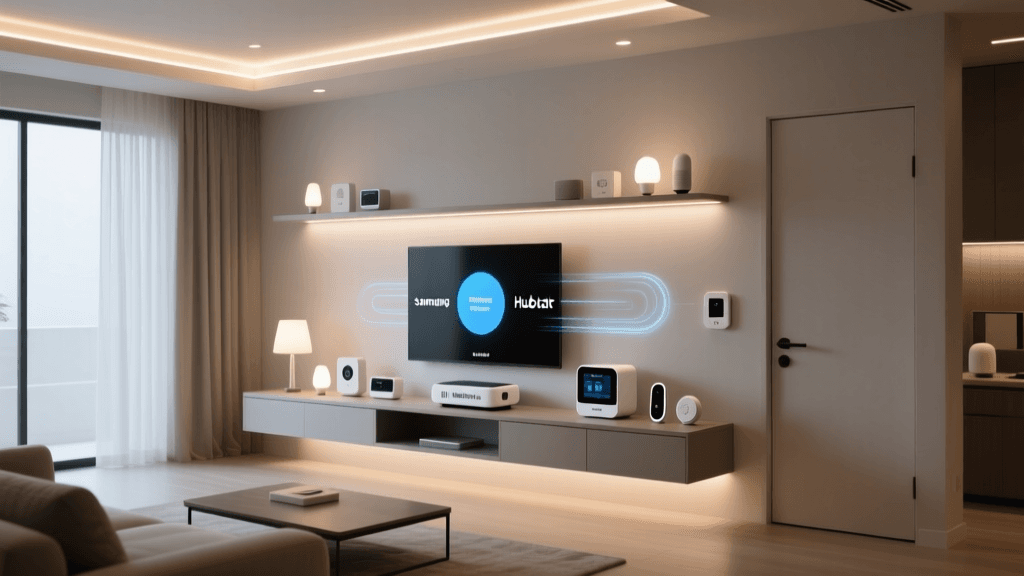
The smart home hub acts as the central translator and traffic cop for your devices. While many modern devices connect directly to Wi-Fi, relying solely on Wi-Fi for dozens of smart plugs, sensors, and switches will quickly overwhelm your router. Dedicated hubs utilize low-power, mesh-networking protocols like Zigbee, Z-Wave, and the newer Thread protocol to keep Wi-Fi bandwidth free for your phones, laptops, and streaming devices.
When selecting a hub, you must decide between cloud-dependent ecosystems and local-processing hubs. Cloud hubs (like standard Amazon Echo or Google Nest devices) are easy to set up but rely on external servers; if your internet goes down, your automations stop working. Local hubs (like Home Assistant or Hubitat) process commands entirely within your home network, ensuring instant response times and uninterrupted operation even during internet outages.
| Hub Ecosystem | Protocol Support | Local Processing | Avg. Cost | Best For |
|---|---|---|---|---|
| Home Assistant Green | Matter, Zigbee (via dongle), Thread | 100% Local | $99 - $150 | Advanced DIYers, Privacy, Complex Automations |
| Apple TV 4K (Ethernet) | Matter, Thread, HomeKit | Mostly Local | $129 - $149 | Apple Users, Seamless Integration, Thread Border Routing |
| Hubitat Elevation | Zigbee, Z-Wave, Matter | 100% Local | $149 - $199 | Reliability, Z-Wave Legacy Support, Rule Machine |
| Amazon Echo (4th Gen) | Zigbee, Matter, Thread | Hybrid / Cloud | $99 | Beginners, Voice Control, Budget Setups |
According to the Connectivity Standards Alliance, the introduction of the Matter protocol is unifying these ecosystems, allowing devices to communicate across different hubs seamlessly. However, the underlying hub you choose will still dictate the speed, privacy, and complexity limits of your automations.
Upgrading Your Network Foundation
Your Wi-Fi router is the unsung hero of the smart home. A standard ISP-provided router is typically designed to handle 15 to 20 simultaneous connections. A modest smart home with smart bulbs, switches, cameras, and voice assistants can easily push 50 to 100 IoT (Internet of Things) endpoints. When you exceed your router's NAT table limits or DHCP lease capacity, devices will randomly drop offline, and automations will fail without warning.
To support a modern smart home, upgrading to a Wi-Fi 6 (802.11ax) Mesh system is highly recommended. The Wi-Fi Alliance notes that Wi-Fi 6 introduces OFDMA (Orthogonal Frequency-Division Multiple Access) and Target Wake Time (TWT). OFDMA allows the router to communicate with multiple low-bandwidth IoT devices simultaneously in a single transmission, while TWT drastically reduces the power consumption of battery-operated smart sensors by scheduling exactly when they should wake up to transmit data.
Implementing an IoT VLAN for Security
Security is paramount when dealing with cheap, often poorly secured IoT devices. As highlighted by NIST's IoT Cybersecurity guidelines, isolating your smart home devices from your primary network is a critical best practice. By setting up a dedicated IoT VLAN (Virtual Local Area Network) or a specialized IoT SSID on your router, you ensure that a compromised smart bulb cannot be used as a bridge to access your personal computers or network-attached storage (NAS).
Configure your router to block the IoT VLAN from accessing your main LAN, while still allowing your main LAN to initiate connections to the IoT VLAN (so you can control your devices from your phone). Furthermore, restrict the IoT VLAN's access to the open internet, allowing only the specific ports required by your hub and cloud services.
IoT Device Capacity by Network Type
Understanding Wireless Protocols: Zigbee, Z-Wave, and Thread
Once your Wi-Fi network is robust and secured, it is time to populate your dedicated hub's mesh networks. Understanding the differences between the primary low-power protocols is essential for optimal device placement and network healing.
Zigbee and the 2.4GHz Conflict
Zigbee operates on the 2.4GHz radio frequency, which is the exact same frequency used by Wi-Fi, Bluetooth, and microwave ovens. This shared spectrum is the number one cause of smart home reliability issues. Zigbee utilizes channels 11 through 26, while Wi-Fi uses channels 1, 6, and 11. If your Wi-Fi router is broadcasting on channel 6, it will directly overlap and interfere with Zigbee channels 15 through 20. To prevent this, manually set your 2.4GHz Wi-Fi to channel 1 or 11, and configure your Zigbee hub to use channel 15, 20, or 25. This simple step resolves the vast majority of 'ghost device' and pairing failures.
Z-Wave: The Sub-GHz Advantage
Z-Wave operates on a sub-GHz frequency (typically 908.42 MHz in the US). Because it does not share spectrum with Wi-Fi, it is virtually immune to wireless interference from your router or Bluetooth devices. Z-Wave also boasts superior wall penetration, making it the ideal choice for smart locks, garage door controllers, and outdoor sensors. However, Z-Wave requires region-specific hubs and devices, meaning you cannot easily import Z-Wave devices from other countries.
Thread and the Matter Evolution
Thread is the newest mesh protocol, designed specifically to support the Matter standard. Like Zigbee, it uses 2.4GHz, but it is natively IPv6, meaning every Thread device has its own IP address on your network. Thread requires a 'Border Router' (such as an Apple TV 4K, Nest Hub, or specific Thread dongles) to bridge the Thread mesh to your Wi-Fi/Ethernet network. Thread is self-healing and incredibly fast, representing the future of local smart home communication.
Strategic Hub Placement and Configuration
Where you physically place your smart home hub dictates the performance of your entire Zigbee, Z-Wave, or Thread mesh. A common mistake is hiding the hub inside a metal media cabinet, a server rack, or behind a large television. Metal acts as a Faraday cage, severely attenuating radio signals and crippling your mesh network's range.
- Elevation: Place the hub at least 3 to 4 feet off the ground. Radio waves propagate outward and slightly downward; placing the hub on the floor limits its effective range.
- Centrality: Position the hub in the geographic center of your home. If your home is multi-story, place it on the middle floor, ideally near the staircase or an open central hallway to allow vertical signal propagation.
- Interference Avoidance: Keep the hub at least 3 feet away from Wi-Fi routers, microwaves, cordless phones, and large metal appliances like refrigerators.
For large homes (over 2,500 square feet) or homes with dense building materials like brick, concrete, or metal lath, a single hub will not suffice. You must strategically place mains-powered Zigbee or Z-Wave devices (like smart plugs or in-wall switches) to act as 'mesh repeaters.' These repeaters catch the signal from the hub and bounce it further into the periphery of your home, ensuring that battery-operated window sensors in distant bedrooms maintain a stable connection.
Best Practices for Device Onboarding
As your smart home grows beyond 20 devices, disorganization becomes a major hurdle. Adopting a strict naming convention and room-mapping strategy from day one will save you hours of frustration when building automations or using voice assistants.
The Naming Schema
Voice assistants and automation dashboards rely on exact text matching. Avoid clever or ambiguous names like 'The Good Lamp' or 'Bob's Light.' Instead, use a structured schema: [Room]-[Device Type]-[Identifier]. For example: living-room-floor-lamp-01, kitchen-sink-sensor-01, or master-bedroom-ceiling-fan. This ensures that when you ask your voice assistant to 'turn on the living room floor lamp,' it targets the exact device without triggering a similarly named device in another room.
Room and Zone Assignment
Always assign devices to their correct virtual rooms within your hub's application immediately after pairing. Furthermore, group devices into 'Zones' for broader automations. For example, group all exterior smart plugs and lights into an 'Outdoor Zone' to trigger a single 'Goodnight' automation that secures the perimeter of your home with one command.
Troubleshooting Common Setup Hurdles
Even with perfect planning, you will encounter setup hurdles. Here is how to troubleshoot the most common smart home installation issues:
The 'Ghost Device' Phenomenon
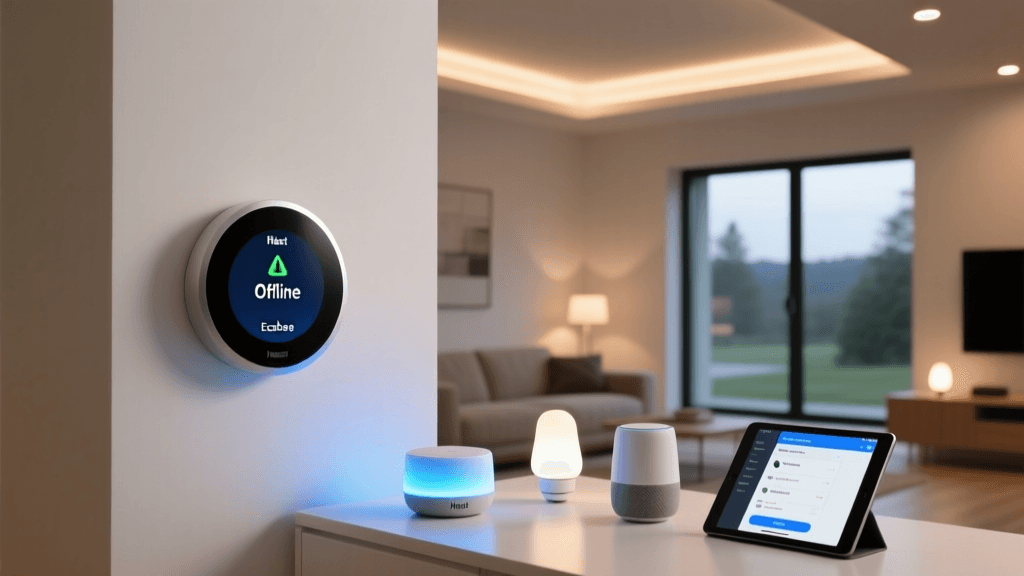
A ghost device is a node that appears offline in your hub's dashboard but is actually functioning, or vice versa. This usually occurs when a device is moved or loses power, causing the mesh routing table to become confused. To fix this, initiate a 'Mesh Heal' or 'Network Repair' from your hub's settings. This forces all mains-powered devices to recalculate the most efficient route back to the central hub. Note: Always perform a mesh heal during the day when battery-operated sensors are awake, or manually wake the battery devices during the healing process.
Pairing Failures
If a new Zigbee or Z-Wave device refuses to pair, it is almost always due to one of three reasons: 1) The device is too far from the hub or nearest repeater. Bring the device within 3 feet of the hub for initial pairing, then move it to its permanent location and run a mesh heal. 2) The device is still bonded to an old hub or the manufacturer's cloud app. You must perform a hard factory reset on the device (usually by holding the physical button for 10-15 seconds until the LED blinks rapidly) to clear its old network credentials. 3) Your Zigbee channel is overlapping with your Wi-Fi, causing the pairing handshake to drop packets.
The Proper Power-Cycling Sequence
When your entire smart home acts erratically, a full network reboot is required. However, the order in which you reboot matters immensely. Always follow this sequence: 1) Unplug your modem and wait 60 seconds. 2) Plug in the modem and wait for a full internet connection. 3) Reboot your Wi-Fi router/mesh nodes and wait for the SSID to broadcast. 4) Reboot your smart home hub. 5) Finally, power cycle any problematic smart switches or plugs. This ensures that the hub receives a valid IP address and DNS resolution before it attempts to reconnect to your mesh devices.
Conclusion
Building a smart home is a marathon, not a sprint. By investing time and resources into a robust Wi-Fi 6 mesh network, implementing IoT VLAN security, and selecting a local-processing hub suited to your technical comfort level, you eliminate the foundational bottlenecks that plague amateur installations. Remember to respect the physics of radio frequencies, avoid 2.4GHz spectrum overlap, and maintain strict naming conventions. With this infrastructure in place, you are now ready to confidently install, wire, and automate the rest of your smart home ecosystem.