Introduction to Smart Home Foundations
Building a reliable smart home is less about the individual gadgets you buy and more about the invisible infrastructure that connects them. Many DIY installers and homeowners make the critical mistake of purchasing dozens of smart bulbs, locks, and sensors, only to connect them to a standard ISP-provided router. The result is a sluggish network, dropped connections, and automated routines that fail at the worst possible times. To achieve a truly seamless whole-home automation experience, you must establish a robust foundation. This guide will walk you through the essential steps of selecting the right smart hub, upgrading your network infrastructure, and configuring your system for maximum stability and security.
Understanding Smart Home Protocols
Before selecting a hub, it is vital to understand the wireless languages your devices use to communicate. Unlike your laptop or smartphone, most smart home devices do not use standard Wi-Fi. Instead, they rely on low-power mesh networking protocols designed specifically for IoT (Internet of Things) environments.
- Zigbee 3.0: A low-power, mesh networking protocol that operates on the 2.4 GHz band. It is widely used in smart lighting (like Philips Hue) and sensors. Zigbee devices act as repeaters, extending the network's range with every plugged-in device you add.
- Z-Wave Plus V2: Operating on the sub-1 GHz band (908.42 MHz in the US), Z-Wave avoids interference with crowded Wi-Fi networks. It is the gold standard for smart locks, security sensors, and garage door controllers due to its high reliability and strict certification standards.
- Thread and Matter: The newest evolution in smart home tech. Thread is a low-power mesh networking protocol, while Matter is the universal application layer that runs on top of it (and Wi-Fi). Backed by the Connectivity Standards Alliance (CSA), Matter promises to break down the walled gardens between Apple, Amazon, Google, and Samsung ecosystems.
- Wi-Fi (802.11): Best reserved for high-bandwidth devices like security cameras, smart displays, and heavy appliances. According to the Wi-Fi Alliance, newer standards like Wi-Fi 6 and 6E drastically improve how routers handle dozens of low-bandwidth IoT devices simultaneously, but standard Wi-Fi remains too power-hungry for battery-operated sensors.
Choosing the Right Smart Hub
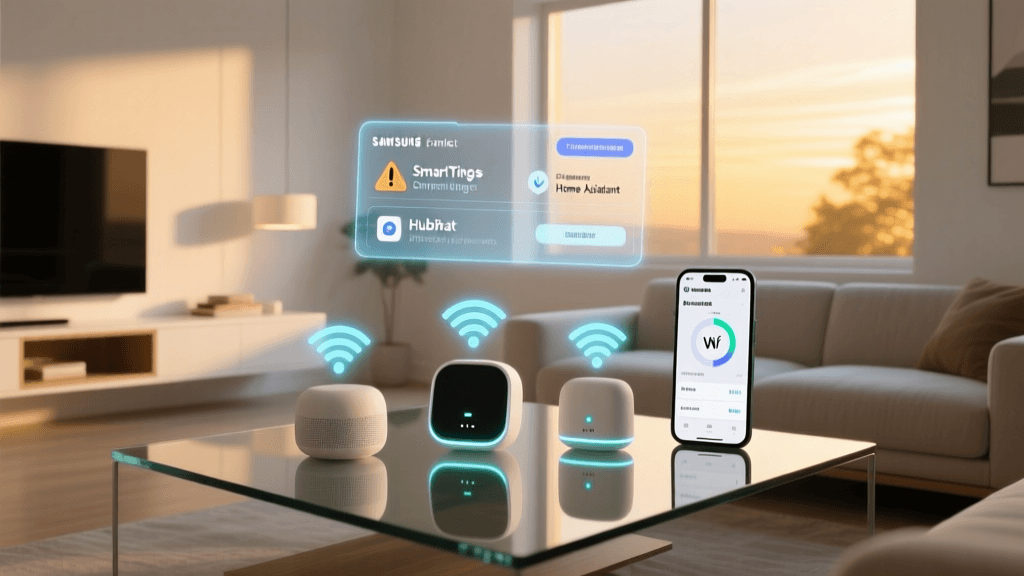
Your smart hub acts as the translator and central brain for your home. It bridges the gap between your high-speed Wi-Fi network and the low-power Zigbee, Z-Wave, or Thread devices scattered throughout your rooms. When selecting a hub, you must decide between cloud-dependent hubs and local-processing hubs.
| Smart Hub | Primary Protocols | Local Processing | Estimated Cost |
|---|---|---|---|
| Home Assistant Green | Matter, Thread, Zigbee (via dongle) | Yes (100%) | $99 |
| Samsung SmartThings Station | Matter, Thread, Zigbee | Partial | $80 |
| Hubitat Elevation | Zigbee, Z-Wave, LAN | Yes (100%) | $150 |
| Apple HomePod mini | Matter, Thread, HomeKit | Partial | $99 |
For beginners wanting a plug-and-play experience, the Samsung SmartThings Station or Apple HomePod mini are excellent entry points. However, if your internet connection frequently drops, or if you prioritize privacy and instant automation execution, a local-processing hub like the Home Assistant Green or Hubitat Elevation is mandatory. Local hubs ensure your motion-triggered lights turn on instantly, even if your ISP is experiencing an outage.
Upgrading Your Network Infrastructure
A standard mesh network from your cable provider is typically designed to handle 15 to 20 devices. A modern smart home can easily exceed 70 connected devices, including smart bulbs, switches, sensors, and cameras. When a router's DHCP table fills up, devices will randomly drop offline.
Upgrading to a dedicated Mesh Wi-Fi system is non-negotiable for whole-home automation. Systems like the TP-Link Deco XE75 or Eero Pro 6E utilize a dedicated wireless backhaul, ensuring that your IoT devices do not compete with your 4K Netflix stream for bandwidth. As highlighted in Wirecutter's Mesh Networking Guide, placing mesh nodes strategically across your home eliminates dead zones and ensures that a smart lock on your back door has the same signal strength as a smart TV in your living room.
The Importance of an IoT SSID
Most smart home devices, particularly smart plugs and budget Wi-Fi cameras, only support the 2.4 GHz Wi-Fi band. Modern mesh routers often combine 2.4 GHz and 5 GHz bands into a single SSID (network name) using 'band steering.' This frequently causes setup failures, as the device tries to connect to a 5 GHz network it cannot read. During your router setup, you must create a dedicated 'IoT Network' or enable a specific 2.4 GHz SSID solely for smart home devices. This isolates the traffic and prevents band-steering conflicts.
Strategic Device and Hub Placement
Radio frequency (RF) interference is the silent killer of smart home reliability. Where you place your hub and mesh nodes dictates the performance of your entire system.
- Centralize the Hub: Place your Zigbee/Z-Wave hub in the geographic center of your home, ideally on the main floor. Do not hide it inside a metal media cabinet or a basement server rack, as metal acts as a Faraday cage, blocking RF signals.
- Elevate the Antennas: RF signals propagate outward and slightly downward. Placing your hub on a high shelf or mounting it on a wall yields significantly better range than placing it on the floor.
- Avoid Interference Sources: Keep your smart hub at least 10 feet away from microwaves, baby monitors, cordless phones, and large aquariums. Water absorbs 2.4 GHz signals, and microwaves operate on the exact same frequency as Zigbee and Wi-Fi.
- Mesh Node Spacing: Place Wi-Fi mesh nodes no more than 30 to 40 feet apart, with a clear line of sight or separated by only one standard drywall wall. Avoid placing nodes in kitchens or bathrooms where large metal appliances and mirrors cause signal reflection and degradation.
Step-by-Step Hub and Network Configuration
Once your hardware is physically placed, follow this configuration workflow to ensure a stable environment.
Step 1: Network Segmentation
Log into your mesh router's admin panel. Create a secondary network (often called a Guest Network or IoT Network). Set this network to broadcast exclusively on the 2.4 GHz band. Connect your smart hub, smart plugs, and Wi-Fi cameras to this network. Keep your smartphones and laptops on the primary 5 GHz/6 GHz network. This prevents IoT broadcast storms from slowing down your personal devices.
Step 2: DHCP Reservations
Every device on your network is assigned an IP address. If your router restarts, it may assign a new IP to your smart hub or Wi-Fi cameras, breaking local automations and port-forwarding rules. Access your router's DHCP settings and create 'Static IP Reservations' for your smart hub, smart thermostats, and security cameras. This ensures they always retain the same local IP address.
Step 3: Hub Onboarding and Pairing
Connect your smart hub to your network via an Ethernet cable whenever possible. Wi-Fi-connected hubs introduce unnecessary latency. Once powered on, open the hub's companion app and begin pairing devices. Always pair devices in their final physical location. If you pair a Zigbee sensor in the living room and then move it to the far bedroom, it may not update its routing path, leading to connection drops.
Visualizing Protocol Efficiency and Limits
Understanding the theoretical versus practical limits of your chosen protocols is crucial for network planning. While some protocols boast massive theoretical node limits, real-world interference and router processing power dictate much lower thresholds. The chart below illustrates the recommended practical device limits per hub or router to maintain sub-100ms latency and 99.9% reliability in a residential environment.
As visualized, Thread and Matter offer a massive advantage in device density due to their advanced mesh routing algorithms and IPv6 native support. If you are planning a whole-home installation with over 100 sensors and switches, prioritizing Thread-compatible devices will significantly reduce the load on your primary Wi-Fi router.
Troubleshooting Common Setup Issues
Even with meticulous planning, DIY installers will encounter roadblocks. Here is how to resolve the most common smart home setup issues.
Issue: Device Fails to Connect to Wi-Fi During Setup
Cause: The router is using WPA3 security, or the 2.4 GHz and 5 GHz bands are merged. Solution: Temporarily disable WPA3 on your IoT SSID, reverting to WPA2-AES. Ensure your smartphone is connected to the dedicated 2.4 GHz IoT SSID before initiating the pairing process in the device's app.
Issue: Zigbee or Z-Wave Devices Respond Slowly or Drop Offline
Cause: A weak mesh network with too many battery-powered endpoints and not enough mains-powered repeaters. Solution: Zigbee and Z-Wave require 'routers' (repeater devices) to pass signals back to the hub. Battery-operated motion sensors do not act as repeaters. To fix dead zones, plug in a smart bulb, a smart plug, or a dedicated Zigbee range extender in the hallway between the hub and the dropping sensor.
Issue: Automations Trigger with Noticeable Latency
Cause: Cloud-based processing bottlenecks or Wi-Fi congestion. Solution: Move your critical automations (like motion-triggered lighting) to a local-processing hub like Home Assistant or Hubitat. Ensure that the smart bulb and the motion sensor are on the same Zigbee/Z-Wave mesh network, allowing them to communicate directly via local binding without querying a remote server.
Securing Your IoT Network
IoT devices are notorious for having weak default security protocols, making them prime targets for botnets and network snooping. Never expose your smart hub's web interface to the internet via port forwarding. Instead, utilize secure remote access methods provided by the manufacturer, or set up a secure WireGuard VPN tunnel to access your home network remotely. Furthermore, change all default passwords on your hubs and cameras immediately upon unboxing, and ensure automatic firmware updates are enabled to patch known vulnerabilities.
Conclusion
A successful smart home installation is a marathon, not a sprint. By investing time in selecting a capable local hub, upgrading to a robust mesh Wi-Fi system, and strategically segmenting your network traffic, you eliminate the vast majority of connectivity headaches. Whether you are installing a few smart bulbs in your living room or wiring a comprehensive whole-home automation system with dozens of Thread and Zigbee sensors, a strong foundation ensures your home remains responsive, secure, and truly intelligent for years to come.