Introduction to Hardwired Smart Lighting Systems
Upgrading your home lighting is one of the most impactful smart home projects you can undertake. While smart bulbs offer an easy entry point, they suffer from a fundamental flaw: if someone flips the physical wall switch, the bulb loses power and drops off your network. Hardwired smart switches solve this problem by replacing the actual wall switch, ensuring that your lighting remains connected, automated, and voice-controlled at all times, regardless of physical user interaction.
Installing a hardwired smart switch might seem intimidating to the average homeowner, but with the right tools, a methodical approach, and a basic understanding of residential electrical wiring, it is a highly rewarding DIY project. This comprehensive guide will walk you through the entire process, from cutting the power at the breaker panel to configuring complex automation workflows in your smart home hub.
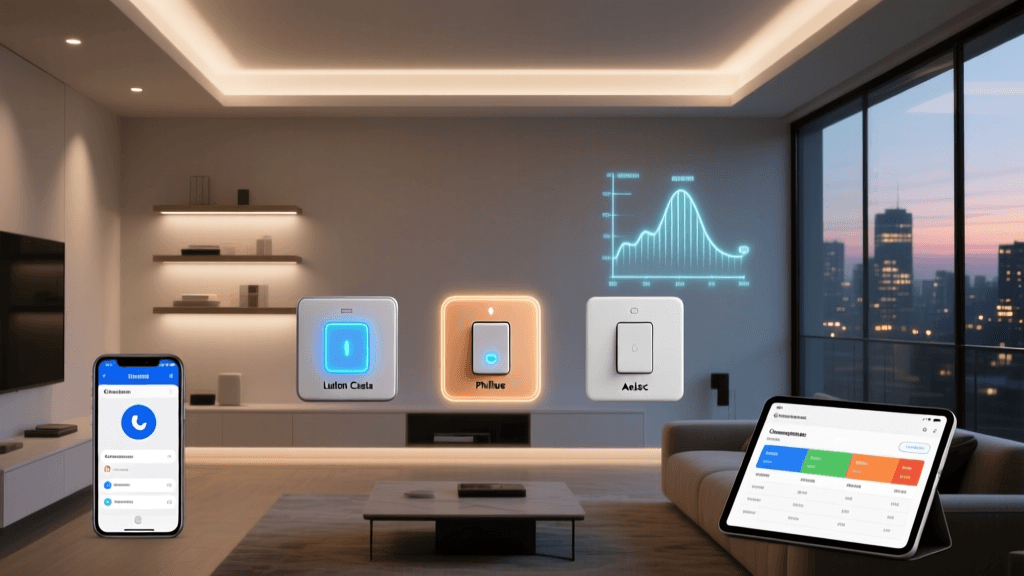
Whether you are installing a Lutron Caseta system, a Leviton Decora Smart switch, or a TP-Link Kasa Wi-Fi switch, the foundational principles of electrical safety, wiring identification, and network integration remain remarkably consistent. Let us dive into the step-by-step process of transforming your dumb switches into intelligent home automation nodes.
Pre-Installation Checklist and Required Tools
Before you unscrew a single faceplate, you must gather the necessary tools and verify that your home electrical system is compatible with the smart switches you have purchased. Most modern smart switches require a 'neutral' wire to function, which is standard in homes built after the mid-1980s but may be absent in older properties.
| Tool / Material | Purpose | Estimated Cost |
|---|---|---|
| Non-Contact Voltage Tester | Verifies power is completely off before touching wires | $15 - $25 |
| Wire Strippers / Cutters | Strips insulation and cuts 14 or 12-gauge copper wire | $20 - $30 |
| Needle-Nose Pliers | Bends wire loops and tightens wire nuts | $10 - $15 |
| Flathead & Phillips Screwdrivers | Removes faceplates and secures terminal screws | $10 - $20 |
| Wire Nuts / Wago Connectors | Secures wire splices and pigtails safely | $5 - $10 |
| Electrical Tape | Wraps terminal screws for added safety | $3 - $5 |
Additionally, ensure you have purchased the correct switch for your circuit. Standard lighting circuits are typically 15-amp (using 14-gauge wire), while some modern homes or kitchens may use 20-amp circuits (12-gauge wire). Never install a 15-amp rated smart switch on a 20-amp circuit.
Step 1: Power Shutoff and Electrical Safety
Electrical safety is non-negotiable. According to the Consumer Product Safety Commission (CPSC), electrical fires and shocks are significant risks during unpermitted or careless DIY home modifications. Your very first step is to locate your main electrical panel and turn off the breaker corresponding to the room where you are working.
Do not rely solely on the wall switch being in the 'off' position. Flip the breaker, then use your non-contact voltage tester to confirm the power is dead. Place the tip of the tester against the existing wall switch faceplate screws, then remove the faceplate and test the wires connected to the side of the old switch. The tester should remain completely dark and silent. If it beeps or lights up, you have turned off the wrong breaker. Return to the panel and try again.
Pro Tip: Use a piece of painter's tape over the breaker switch in your electrical panel with a note that says 'DO NOT TOUCH - WORKING ON WIRING'. This prevents family members or roommates from accidentally restoring power while your hands are inside the gang box.
Step 2: Identifying Your Wiring Configuration
Once the old switch is unscrewed and pulled gently out of the wall box, you will be greeted by a bundle of wires. To successfully install a smart switch, you must correctly identify four potential wire types: Line, Load, Neutral, and Ground.
Line (Power Source)
The Line wire brings continuous 120V power from the breaker panel to the switch box. In standard US wiring, this is typically a black wire. If you are unsure which black wire is the Line and which is the Load, you can temporarily restore power and carefully use your voltage tester to see which wire is 'hot' before disconnecting them (only do this if you are experienced and comfortable; otherwise, consult an electrician).
Load (To the Fixture)
The Load wire carries the power from the switch up to the light fixture or ceiling fan. This is also usually a black wire, or sometimes red in a 3-way switch configuration.
Neutral (Return Path)
Smart switches contain internal radios (Wi-Fi, Zigbee, Z-Wave) and processors that require constant standby power, even when the light is turned off. To complete this low-power circuit, they need a Neutral wire, which is almost always white or a bundle of white wires capped together in the back of the box. Note: Systems like Lutron Caseta Clear Connect are uniquely engineered to operate without a neutral wire, making them the gold standard for older homes.
Ground (Safety)
The Ground wire is either bare copper or wrapped in green insulation. It provides a safe path for stray electrical current in the event of a short circuit. Every smart switch must be connected to the ground wire.
Step 3: Wiring the Smart Switch (Single-Pole Setup)
For a standard single-pole setup (one switch controlling one light), the wiring process is straightforward. First, connect the bare copper ground wire from the wall to the green ground screw or wire on your smart switch. Next, connect the white neutral wire from the switch to the bundle of white neutral wires in the back of the box using a wire nut or a Wago lever connector. If you need to add a 'pigtail' (a short extension wire) to reach the bundle, ensure it is the same gauge as the house wiring.
Connect the black Line wire from the wall to the black 'Line' or 'Hot' terminal on the smart switch. Finally, connect the black or red Load wire from the wall to the 'Load' terminal on the switch. Wrap the sides of the switch with electrical tape to cover the exposed terminal screws, a crucial safety step that prevents accidental shorts when pushing the bulky smart switch body back into the metal or plastic gang box.
Step 4: Hub Configuration and Network Integration
With the physical installation complete and the breaker turned back on, the switch will power up. If you are using a Wi-Fi switch (like TP-Link Kasa), it connects directly to your 2.4GHz router. However, for robust whole-home automation, hub-based systems utilizing Zigbee, Z-Wave, or the new Thread protocol are vastly superior. They reduce Wi-Fi congestion and create a self-healing mesh network.
The industry is currently undergoing a massive shift toward the Matter protocol, championed by the Connectivity Standards Alliance (CSA). Matter ensures that devices from different manufacturers can communicate seamlessly over Thread or Wi-Fi without relying on proprietary cloud hubs. If you are buying new switches today, prioritizing Matter-compatible or Thread-enabled devices will future-proof your installation.
To set up a proprietary hub (such as the Lutron Smart Bridge or a Samsung SmartThings Station), connect the hub directly to your primary router via an Ethernet cable. This ensures the lowest possible latency when sending commands from the cloud to your local network. Download the manufacturer's app, create an account, and follow the on-screen prompts to put the hub into pairing mode, then press the physical button on your newly installed smart switch to link them.
Step 5: App Pairing and Automation Workflows
Once paired, the immediate next step is to check for firmware updates. Manufacturers frequently release patches to improve radio range, fix connectivity bugs, and enhance security protocols. Allow the switch to update, which may take 5 to 10 minutes; do not cut the power during this process.
Name your switch logically. Instead of 'Switch 1', use room-based naming conventions like 'Kitchen Main Lights' or 'Master Bedroom Overhead'. This makes voice assistant integration (via Amazon Alexa, Apple HomeKit, or Google Assistant) significantly more intuitive. When creating automation workflows, leverage the 'Local Control' features of your hub to ensure routines execute even if your internet service provider experiences an outage.
Cost and Brand Comparison
When planning a whole-home smart switch installation, the per-unit cost scales quickly. Below is a visual breakdown of the average hardware costs associated with the most popular smart switch ecosystems on the market today.
While TP-Link Kasa offers the most budget-friendly entry point via direct Wi-Fi connectivity, Lutron Caseta commands a premium due to its patented Clear Connect RF technology, unmatched reliability, and the ability to function without a neutral wire. Leviton Decora sits comfortably in the middle, offering excellent Matter-over-Thread support for users deeply invested in the Apple HomeKit or SmartThings ecosystems.
Troubleshooting Common Installation Issues
Even meticulous DIY installers encounter hiccups. Here is how to resolve the most common smart switch installation issues:
1. The Light Flickers or Ghosts
If your LED bulbs flicker when the smart switch is off, or strobe briefly before turning on, you are likely experiencing 'ghosting'. This happens when the smart switch leaks a tiny amount of current through the circuit to power its internal radio, which is enough to partially charge low-wattage LED drivers. The Fix: Install a Lutron LUT-MLC load resistor across the light fixture at the ceiling, or switch to smart bulbs that are explicitly rated for use with smart dimmers.
2. The Switch Frequently Drops Offline
If your Wi-Fi switch constantly loses connection, your 2.4GHz network may be congested, or the signal may be degraded by the metal gang box or thick drywall. The Fix: Ensure your router's 2.4GHz and 5GHz bands are separated by distinct SSIDs. Alternatively, migrate to a Zigbee or Z-Wave hub-based system, which operates on less crowded frequencies and utilizes mesh networking to route signals through neighboring switches.
3. The Hub Cannot Find the Switch
If your app cannot discover the switch during pairing, the switch may be too far from the hub, or it might already be bound to a previous network. The Fix: Perform a factory reset on the switch (usually by holding the physical paddle up or down for 10-15 seconds until the LED blinks rapidly). Temporarily move your hub closer to the switch for the initial pairing handshake, then move the hub back to its permanent location.
Final Thoughts on Whole-Home Automation
Replacing your standard toggle switches with hardwired smart switches is a foundational upgrade that dramatically increases the functionality, security, and energy efficiency of your home. By taking the time to properly identify your wiring, securely terminate your connections, and integrate your devices into a robust local hub, you are building an automation infrastructure that will serve you reliably for years to come.
Remember that electrical work carries inherent risks. If you open a wall box and find a chaotic nest of unmarked wires, aluminum wiring, or a missing ground, there is absolutely no shame in capping the box and calling a licensed electrician. A smart home should be a safe home first and foremost. Once your hardware is securely installed, the true fun begins: crafting motion-triggered lighting scenes, geofenced arrival routines, and voice-activated environments that make your house feel truly alive.