The Evolution of Smart Home Logic
Gone are the days when smart home automation was limited to a simple single-trigger routine, such as turning on a light when the sun sets. Modern DIY installers and advanced homeowners demand sophisticated, multi-trigger workflows that respond dynamically to a combination of environmental data, user presence, and device states. Transitioning from basic app-based toggles to complex, locally processed automation workflows requires a deep understanding of logic gates, network topologies, and protocol interoperability.
In this comprehensive guide, we will explore how to configure advanced multi-trigger automation workflows using Home Assistant, the industry standard for local smart home processing. We will cover the hardware prerequisites, the anatomy of complex logic trees, protocol comparisons between Zigbee and Matter, and provide a step-by-step YAML configuration for a robust "Departure Routine" that secures your home and optimizes energy usage without relying on cloud servers.
Core Architecture: Triggers, Conditions, and Actions
Before building complex workflows, it is critical to understand the fundamental triad of smart home logic. According to the Home Assistant Automation Documentation, every workflow consists of three distinct phases:
- Triggers (The "When"): Triggers are the events that initiate the workflow evaluation. In advanced setups, you will use multiple triggers (e.g., a geofence exit, an NFC tag scan, or a physical button press) that all lead to the same logical evaluation block. Triggers operate on an "OR" basis by default; any single trigger can start the workflow.
- Conditions (The "If"): Conditions act as logical gatekeepers. Once a trigger fires, the system evaluates the conditions. If all conditions are met (operating on an "AND" basis by default), the workflow proceeds. Conditions are where complex logic lives, utilizing time windows, numerical state thresholds, and template matching.
- Actions (The "Then"): Actions are the final execution steps. Advanced workflows utilize parallel execution, delays, and conditional branching within the action phase to control multiple devices across different protocols simultaneously.
Hardware Prerequisites for Local Processing
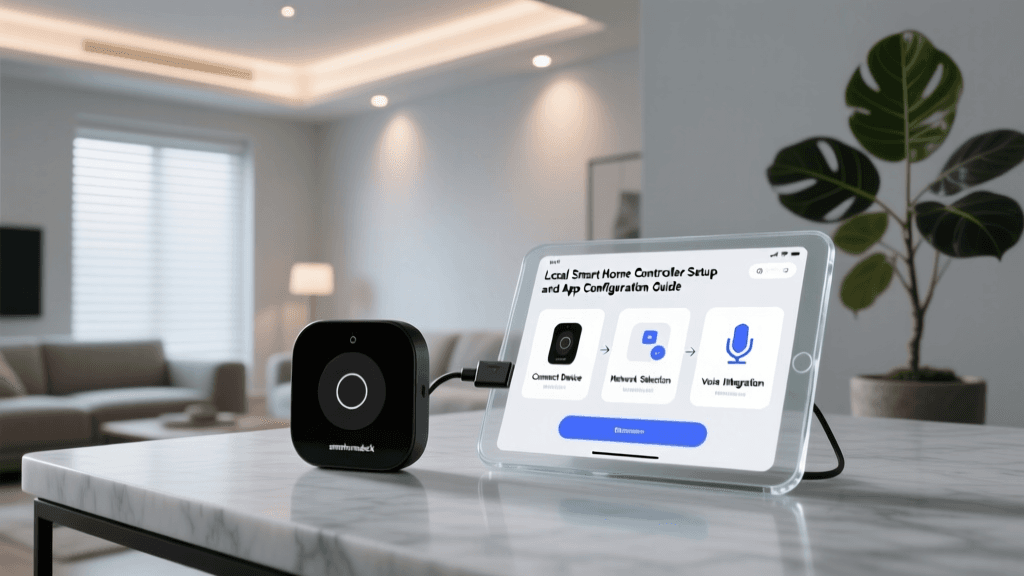
To execute multi-trigger workflows with sub-100ms latency, cloud-dependent hubs (like standard Wi-Fi smart plugs) are insufficient. You need a local coordinator and a robust mesh network. Here is the recommended hardware stack for advanced workflow configuration:
1. The Local Server
A dedicated local server is mandatory for complex logic evaluation. The Home Assistant Green (approx. $99) or a Raspberry Pi 5 (approx. $80) provides the necessary compute power to evaluate Jinja2 templates and manage large device registries without the latency of cloud round-trips.
2. Multi-Protocol Coordinators
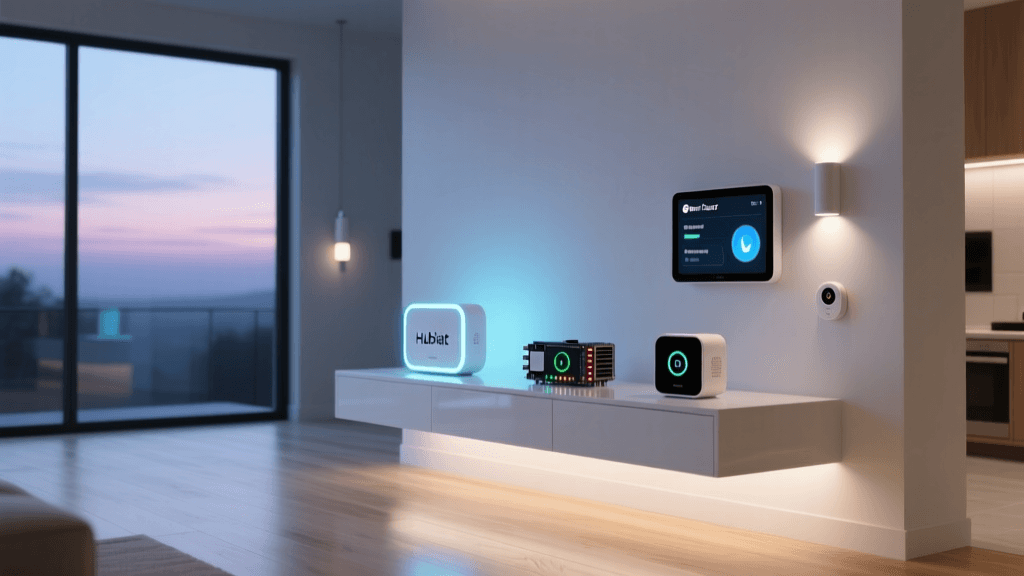
To bridge different device ecosystems into a single workflow, you need multi-protocol radios. The Home Assistant SkyConnect ($29) is a USB dongle capable of running both Zigbee 3.0 and Matter-over-Thread simultaneously via the Silicon Labs Multiprotocol firmware. Alternatively, the ConBee II ($45) remains a highly stable, dedicated Zigbee coordinator favored by veteran installers.
3. End Devices and Routers
Your workflow is only as reliable as the network delivering the state changes. Utilize mains-powered devices (like smart switches and plugs) as mesh routers to extend the range of battery-powered sensors. For Matter integration, ensure you have a Thread Border Router (such as an Apple TV 4K or Nest Hub Pro) to bridge Thread sensor data into your local network.
Designing a Multi-Trigger Departure Workflow
Let us construct a complex "Leaving Home" workflow. The goal is to arm the security system, lower the HVAC temperature, and turn off all interior lights. However, we want to prevent false triggers and ensure the house is actually empty before executing.
Defining the Triggers
We will use three distinct triggers to accommodate different user behaviors:
- Geofencing: The primary user's phone exits the home zone.
- NFC Tag: The user taps an NFC tag by the front door as a manual override.
- Physical Button: A Zigbee button mounted in the hallway is double-pressed.
Defining the Conditions
To prevent the house from shutting down while someone is still inside, or during a late-night snack run, we apply strict conditions:
- Time Window: The routine should only execute between 07:00 AM and 10:00 PM.
- Presence Tracking: No other tracked persons are currently in the "Home" zone.
- Media State: The living room TV and audio receivers are not actively playing media.
The YAML Configuration
Below is the structured YAML code required to implement this logic in Home Assistant. This configuration leverages the Zigbee Home Automation (ZHA) integration for the physical button and standard device trackers for presence.
alias: "Advanced Departure Routine"
description: "Secures home and optimizes climate when all users leave."
mode: single
trigger:
  - platform: zone
    entity_id: person.admin
    zone: zone.home
    event: leave
  - platform: tag
    tag_id: "nfc-tag-departure-01"
  - platform: device
    domain: zha
    device_id: 8f7a9b2c3d4e5f6a
    type: remote_button_double_press
    subtype: button_1
condition:
  - condition: time
    after: "07:00:00"
    before: "22:00:00"
  - condition: numeric_state
    entity_id: zone.home
    below: 1
  - condition: state
    entity_id: media_player.living_room_tv
    state: "idle"
action:
  - service: alarm_control_panel.alarm_arm_away
    target:
      entity_id: alarm_control_panel.home_security
  - service: climate.set_preset_mode
    target:
      entity_id: climate.main_hvac
    data:
      preset_mode: "away"
  - service: light.turn_off
    target:
      entity_id: light.group_interior_all
  - service: notify.mobile_app_admin
    data:
      message: "Home secured and HVAC set to Away mode."
Protocol Comparison for Workflow Reliability
When configuring the devices that feed data into your triggers, choosing the right wireless protocol is paramount. Relying on Wi-Fi for battery-powered sensors will result in missed triggers and network congestion. Below is a comparison of the primary mesh protocols used in advanced smart home setups.
| Protocol | Topology | Power Profile | Max Bandwidth | Ideal Use Case in Workflows |
|---|---|---|---|---|
| Zigbee 3.0 | Mesh | Ultra-Low (Battery years) | 250 kbps | Door/Window sensors, motion detectors, physical buttons. |
| Z-Wave 800 | Mesh | Low (Battery months/years) | 100 kbps | Smart locks, garage door tilt sensors (high penetration). |
| Matter (Thread) | Mesh (IP-based) | Ultra-Low (Battery years) | 250 kbps | Next-gen sensors, cross-ecosystem interoperability. |
| Wi-Fi 6 | Star | High (Mains power only) | Gbps | Smart plugs, high-bandwidth cameras, mains-powered lighting. |
Execution Latency Across Protocols
One of the primary reasons DIY installers move to local multi-trigger workflows is the drastic reduction in execution latency. Cloud-based routines must send a signal from your device, to the manufacturer's server, to the cloud automation engine, and back down to your target device. Local processing eliminates the WAN round-trip. The chart below illustrates the average execution latency (from trigger event to action initiation) across different network configurations.
Average Local Execution Latency by Protocol and Hub Type
As demonstrated, local Matter and Zigbee executions occur in under 100 milliseconds, providing a tactile, instantaneous response that cloud-dependent Wi-Fi routines simply cannot match. This low latency is especially critical when configuring motion-activated lighting workflows, where delays over 200ms are perceptible and frustrating to the user.
Advanced Workflow Concepts: Helpers and Templates
To push your automation workflows beyond basic IF/THEN logic, you must utilize Helpers and Jinja2 Templating.
Using Helpers as Logic Variables
Helpers are virtual entities that store state without being tied to a physical device. A common use case in advanced workflows is the input_boolean (a virtual toggle switch). For example, you can create a "Guest Mode" helper. In your departure workflow, you can add a condition that checks if "Guest Mode" is OFF. If guests are present (helper is ON), the security system will not arm, and the HVAC will remain at a comfortable temperature, preventing the workflow from alienating visitors.
Jinja2 Templating for Dynamic Actions
Templates allow you to calculate values on the fly based on the state of other entities. Suppose you have a workflow that adjusts window blinds based on the sun's elevation. Instead of hardcoding the blind positions, you can use a template to map the solar elevation angle directly to the blind tilt percentage. According to the Connectivity Standards Alliance, as Matter devices become more prevalent, exposing standardized state attributes will make templating across different manufacturer ecosystems significantly more reliable and uniform.
Troubleshooting Automation Failures
Even the most meticulously planned multi-trigger workflows will occasionally fail due to network drops or state mismatches. When troubleshooting, follow this systematic approach:
- Check the Trace Timeline: Home Assistant records every execution attempt. Open the automation trace to see exactly which trigger fired, which condition blocked the execution, or which action threw an error. This is the single most valuable tool for debugging complex logic.
- Verify Device State vs. UI State: Sometimes the dashboard shows a light as "off", but the actual Zigbee state is "unavailable". Use the Developer Tools > States menu to view the raw, unfiltered state of the entity. Workflows will not trigger on "unavailable" entities unless explicitly programmed to do so.
- Inspect Mesh Routing: If a Zigbee trigger is delayed or missed, the sensor may have dropped off the mesh. Ensure that mains-powered routers are evenly distributed throughout the home, and avoid placing the central coordinator inside a metal server rack or directly behind a television.
Conclusion
Configuring advanced multi-trigger automation workflows is the hallmark of a true smart home enthusiast. By moving away from rigid, single-condition cloud routines and embracing local processing, multi-protocol mesh networks, and complex logic trees, you create a living space that anticipates needs rather than merely reacting to commands. Whether you are integrating Zigbee motion sensors, Matter-over-Thread door locks, or NFC physical triggers, the foundation remains the same: robust local hardware, precise condition gating, and a deep understanding of your network's topology. Start small, utilize the trace timeline to refine your logic, and gradually scale your workflows to achieve a truly autonomous home environment.