Introduction to Advanced Smart Home Routines
Transitioning from a basic smart home to a truly automated living space requires moving beyond simple voice commands and manual app toggles. The core of a sophisticated smart home lies in its routines—complex, multi-variable sequences that anticipate your needs based on time, location, and environmental data. While a 'scene' simply groups device states together (e.g., turning off all lights and locking doors), a 'routine' dictates exactly when and why those scenes should trigger without human intervention.
For DIY installers and advanced homeowners, mastering scene routine and schedule creation is the difference between a home that requires constant management and one that operates seamlessly in the background. This guide dives deep into the architecture of advanced automations, exploring cross-platform hub configurations, precision geofencing, solar-based scheduling, and the conditional logic required to build bulletproof smart home routines.
Choosing the Right Hub for Complex Automations
The foundation of any reliable routine is the hub or controller executing the logic. Cloud-dependent hubs often suffer from latency (200ms to 500ms delays) and will fail entirely if your internet connection drops. For advanced routines, local processing is mandatory. Local execution ensures that a motion-triggered lighting routine fires in under 50ms, regardless of your ISP's status.
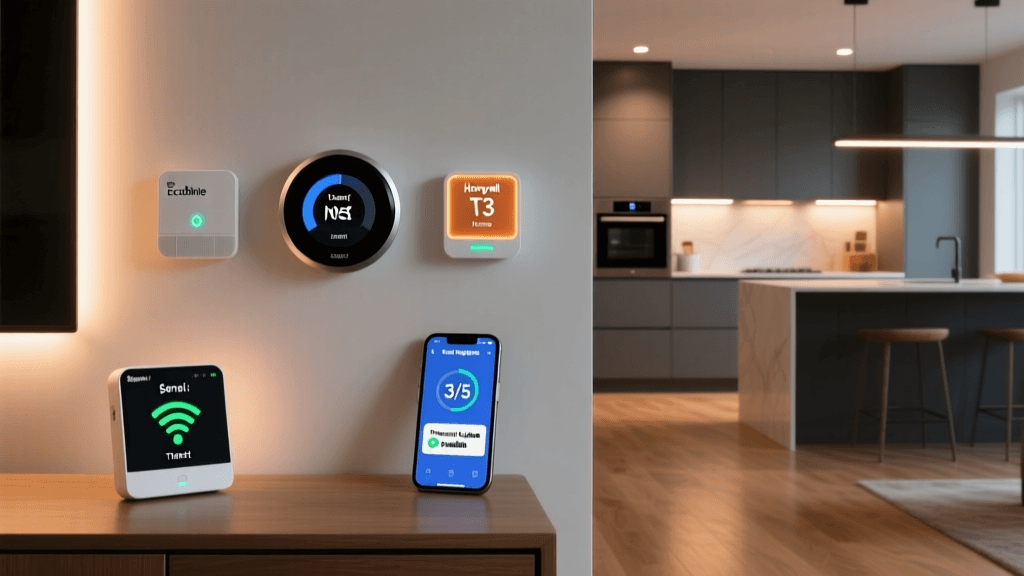
When configuring your setup, consider the following hub ecosystems and their automation capabilities:
| Hub Model | Processing | Protocol Support | Approx. Cost | Automation Strength |
|---|---|---|---|---|
| Home Assistant Green | 100% Local | Matter, Thread, Zigbee (via dongle), Z-Wave, Wi-Fi | $99 | Unmatched (YAML & Visual Editor) |
| Hubitat Elevation C-8 | Local (Cloud for remote) | Zigbee 3.0, Z-Wave 800, Thread, Matter | $149 | Excellent (Rule Machine) |
| Samsung SmartThings Station | Hybrid Cloud/Local | Matter, Thread, Zigbee, Wi-Fi | $69 | Good (Limited local logic) |
| Apple HomePod mini | Local (via Thread/Matter) | Thread, Matter, HomeKit, Wi-Fi | $99 | Moderate (Siri Shortcuts) |
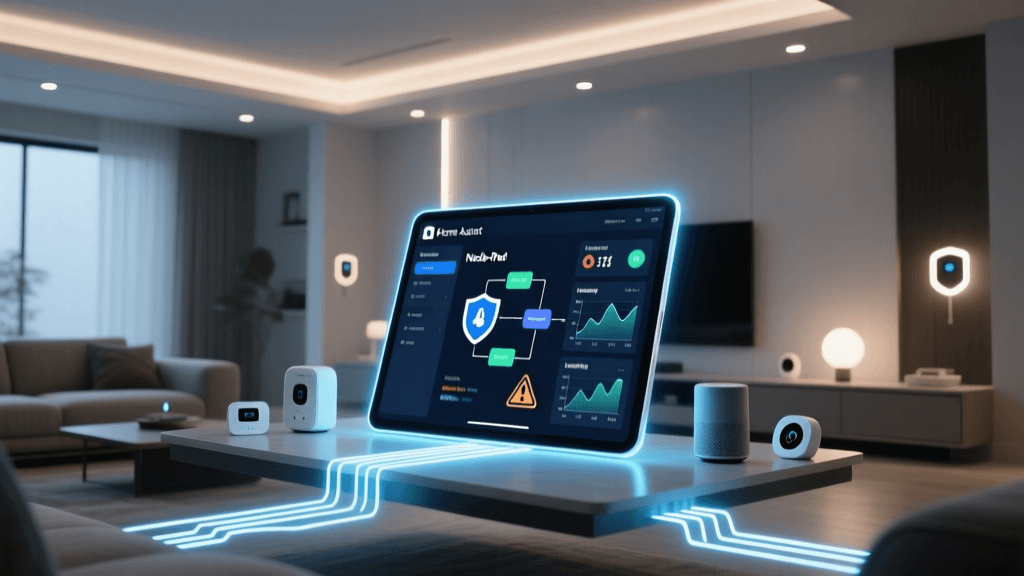
For users demanding granular control over conditional logic, Home Assistant Automation Documentation remains the gold standard. Its ability to parse complex JSON states and execute parallel actions makes it ideal for whole-home automation workflows.
Setting Up Time-Based Schedules and Solar Triggers
Basic schedules rely on static clock times (e.g., 'Turn on porch light at 6:00 PM'). However, static schedules fail to account for seasonal shifts in daylight, leading to lights turning on when the sun is still blazing, or turning off while you are still reading. Advanced setup configurations utilize solar elevation and circadian rhythms.
Implementing Solar Elevation Triggers
Instead of using a fixed time, configure your hub to trigger routines based on the sun's position relative to the horizon. Most advanced hubs calculate this using your GPS coordinates.
- Sunset/Sunrise Offset: Trigger exterior lighting when the solar elevation drops below -0.83 degrees (official sunset), or add a 15-minute offset to account for local topography like mountains or tall buildings.
- Circadian Lighting: Use routines to adjust the color temperature of your Philips Hue or Lutron Ketra bulbs throughout the day. Set a schedule that shifts from 5000K (cool daylight) at 10:00 AM to 2700K (warm white) at 7:00 PM, and finally to 1800K (amber) at 9:30 PM to promote melatonin production.
Handling Daylight Saving Time (DST)
When setting up schedules in hub interfaces that do not automatically poll NTP (Network Time Protocol) servers for DST updates, always configure your routines using UTC (Coordinated Universal Time) offsets, or ensure your hub's firmware is set to automatically sync with regional time zones. A missed DST update can cause your 'Good Morning' coffee routine to brew an hour late.
Mastering Geofencing for Location-Based Triggers
Geofencing uses the GPS radios in your smartphone to create a virtual perimeter around your home. When you cross this boundary, it triggers an 'Arrive' or 'Depart' routine. While conceptually simple, geofencing is notoriously prone to 'false triggers' and 'GPS drift' if not configured correctly.
Optimizing Geofence Radii
The size of your geofence boundary dictates both battery consumption and trigger reliability. Setting the radius too small (e.g., 50 meters) means the routine might not trigger before you pull into the driveway. Setting it too large (e.g., 500 meters) means your HVAC system might start cooling the house when you are merely driving past your neighborhood.
- Urban Environments: Set the radius to 150 meters. Tall buildings cause GPS multipath errors, bouncing signals off glass and steel. A 150m buffer absorbs this drift while remaining close enough to trigger before you reach the front door.
- Suburban/Rural Environments: Set the radius to 250 to 300 meters. With clear lines of sight to GPS satellites, the signal is more accurate, and a larger radius gives your smart garage door or HVAC system ample time to prepare for your arrival.
Multi-User Presence Logic
A common mistake in geofencing setup is triggering the 'Away' routine when the first person leaves, rather than when the last person leaves. In your hub's logic engine, you must differentiate between 'Anyone' and 'Everyone' states.
Configure your 'Depart' routine with an AND condition: Trigger when User A leaves AND User B's device state is 'Not Home'. According to the U.S. Department of Energy, properly automating your smart thermostat based on accurate whole-house occupancy can save up to 10% to 15% on heating and cooling costs annually. False geofencing triggers completely negate these savings by conditioning an empty house or failing to prep the home upon arrival.
Visualizing Routine Efficiency and Energy Savings
Not all automation triggers yield the same return on investment. While time-based schedules are easy to set up, they lack context. Sensor-based and hybrid routines offer vastly superior energy management and convenience. The chart below illustrates the average efficiency gains based on routine trigger types.
As the data suggests, Hybrid Logic—which combines geofencing, time, and environmental sensors—yields the highest dividends. For example, a hybrid routine might dictate: 'Turn on the HVAC when the primary user enters the 200m geofence, BUT ONLY IF the indoor temperature is above 74°F AND the time is between 2:00 PM and 10:00 PM.'
Combining Triggers: The Power of AND/OR Logic
To build robust routines, you must separate Triggers (the event that starts the automation) from Conditions (the rules that must be true for the action to execute).
Example: The Midnight Security Routine
Let's configure a routine to illuminate a pathway if the front door opens late at night.
- Trigger: Schlage Encode Plus deadbolt state changes to 'Unlocked' OR Ecobee SmartSensor detects motion in the foyer.
- Condition 1 (Time): Current time is between 11:00 PM and 5:30 AM.
- Condition 2 (State): Living room Philips Hue lights are currently 'Off'.
- Action: Turn on hallway Hue bulbs to 15% brightness, 2200K color temperature, with a 3-minute auto-off timer.
By using conditions, you prevent the lights from flashing on during the day or when the lights are already active. In platforms like Hubitat's Rule Machine or Home Assistant's Visual Editor, structuring your logic this way prevents 'looping' errors where an action inadvertently triggers its own sensor, causing an infinite on/off cycle.
Step-by-Step Guide: Creating a 'Goodnight' Security Routine
A 'Goodnight' routine is a staple of smart home setups, but it requires careful sequencing to ensure doors lock properly and devices don't overwhelm your mesh network simultaneously.
- Initiate the Trigger: Set the trigger to a virtual switch (e.g., 'Goodnight Mode'), an Apple HomeKit button, or a specific voice command phrase.
- Sequence the Actions (Staggering): Do not send all commands at the exact same millisecond. Z-Wave and Zigbee networks can experience 'packet collisions' if flooded with 20 simultaneous commands. Stagger your actions by 1 to 2 seconds.
- 0.0s: Turn off all main living area lights and smart plugs.
- 1.5s: Set Ecobee thermostat to 'Sleep' schedule (65°F).
- 3.0s: Lock all exterior smart deadbolts (Schlage, Yale, or Level).
- 4.5s: Arm the security system to 'Stay' mode (e.g., Ring Alarm or Abode).
- 6.0s: Close all smart blinds (e.g., SwitchBot or Lutron Serena).
- Add Error Handling: Create a secondary routine that checks the state of the deadbolts 5 minutes later. If a door is still unlocked (perhaps due to a misaligned strike plate preventing the deadbolt from extending), trigger a push notification to your phone and flash the bedroom lights red to alert you.
Troubleshooting Common Routine Failures
Even the most meticulously planned routines can fail due to underlying network or hardware issues. Use this checklist to diagnose broken automations:
- Zigbee/Wi-Fi Interference: Zigbee operates on the 2.4 GHz band, directly competing with Wi-Fi. If your motion-sensor routines are delayed, ensure your Wi-Fi router is set to channels 1, 6, or 11, and your Zigbee coordinator is set to channel 15, 20, or 25 to avoid signal overlap.
- Device Polling Intervals: Battery-powered Z-Wave and Zigbee sensors sleep to conserve battery. They may only report their state every 15 to 30 minutes unless physically triggered. Do not use battery-powered contact sensors for time-critical security routines; use hardwired sensors or ensure the device supports instant 'wake-on-interrupt'.
- Cloud API Rate Limits: If your routine controls devices across multiple cloud ecosystems (e.g., sending a command from SmartThings to a cloud-based TP-Link Kasa plug), you may hit API rate limits. Whenever possible, migrate devices to local LAN control or use Matter over Thread to bypass cloud servers entirely.
- IP Address Changes: If you are using local LAN integrations (like controlling an AVR or a smart TV via IP), ensure the device has a static IP or a DHCP reservation in your router. If the TV reboots and gets a new IP address, your 'Movie Time' routine will fail to find the endpoint.
Conclusion
Creating advanced smart home routines is an iterative process. By moving away from rigid, time-based schedules and embracing hybrid logic—combining precise geofencing, solar elevation data, and conditional AND/OR states—you transform your home from a collection of remote-controlled gadgets into a cohesive, intelligent environment. Whether you are utilizing the open-source power of Home Assistant or the robust local processing of Hubitat, taking the time to properly configure your triggers, stagger your network commands, and troubleshoot mesh interference will result in a smart home that is as reliable as it is automated.