Understanding the Difference: Scenes vs. Schedules vs. Automations
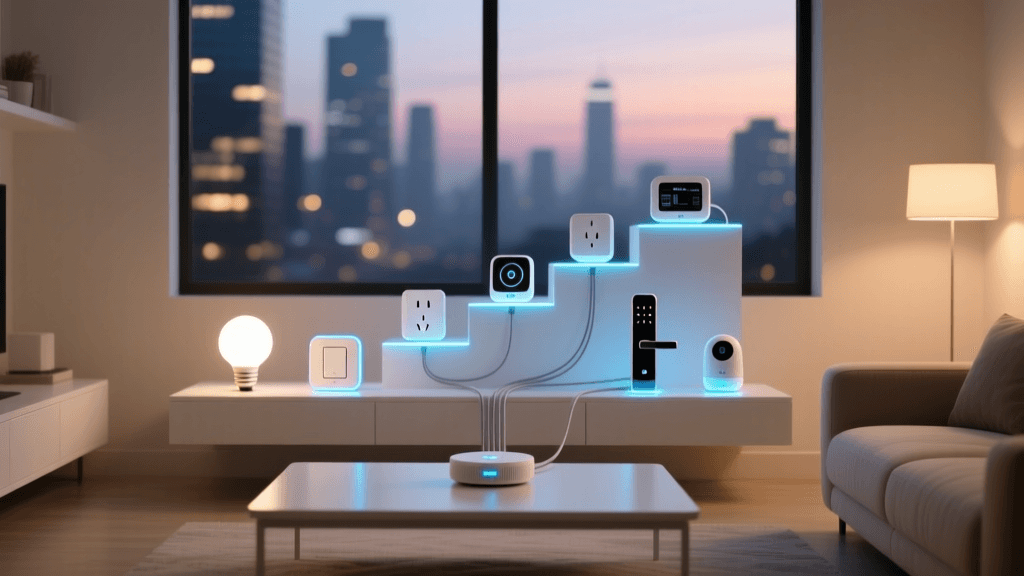
Setting up a smart home goes far beyond simply screwing in a Wi-Fi bulb or plugging in a smart speaker. The true magic of home automation lies in the seamless orchestration of multiple devices working in concert. This is achieved through the creation of scenes, schedules, and automations. While these terms are often used interchangeably by beginners, they represent distinct concepts in the setup and configuration phase of any smart home ecosystem.
A scene is a snapshot of specific device states triggered manually or by a single event. For example, a "Movie Night" scene might dim your Philips Hue lights to 20%, close your Lutron Serena shades, and turn on your smart TV.
A schedule is a time-based trigger that executes a scene or a specific action at a predetermined time, such as turning on the porch light at sunset or adjusting the Ecobee thermostat to 68°F at 10:00 PM.
An automation is a broader workflow that includes triggers, conditions, and actions. An automation might trigger when a door sensor opens, check the condition of whether it is nighttime, and then execute the action of turning on the hallway lights.
Choosing the Right Hub for Advanced Routines
To create complex routines that span across different brands and protocols (like Zigbee, Z-Wave, and Matter), a centralized hub is essential. Relying solely on cloud-based Wi-Fi devices often results in latency and routine failures if your internet connection drops. Below is a comparison of the top platforms for scene and schedule configuration.
| Platform | Hub Required | Local Execution | Complexity | Best For |
|---|---|---|---|---|
| Apple HomeKit | HomePod / Apple TV | Yes | Low | Apple Ecosystem Users |
| Samsung SmartThings | Station / Hub v3 | Partial | Medium | Broad Device Compatibility |
| Home Assistant | Raspberry Pi / Mini PC | Yes | High | Advanced Tinkerers & Privacy |
| Hubitat Elevation | Hubitat Hub | Yes | Medium | Local Processing & Zigbee/Z-Wave |
Apple HomeKit offers the most user-friendly interface and robust local execution, provided you have a HomePod or Apple TV acting as a home hub. Samsung SmartThings excels in device compatibility, supporting a massive array of third-party sensors and switches. Home Assistant, running on a Raspberry Pi or dedicated mini-PC, is the undisputed king of customization, allowing for complex logic, local polling, and complete privacy.
Building the Ultimate "Good Morning" Scene
Let us walk through the configuration of a multi-device "Good Morning" scene, designed to wake you up naturally while optimizing energy usage. This setup typically requires an initial investment of $300 to $600, depending on the brands you choose.
Lighting Configuration: Circadian lighting is crucial for morning routines. Configure your Philips Hue White and Color Ambiance bulbs ($50 each) or Lutron Caseta dimmers ($60 each) to start at a warm 2200K (amber) at 6:00 AM, gradually transitioning to a crisp 5000K (daylight) by 6:30 AM. This mimics the natural sunrise and helps regulate your circadian rhythm. Ensure your hub supports gradual transition commands; otherwise, the lights will snap to 5000K abruptly.
Climate Control: Pair your scene with an Ecobee SmartThermostat ($250) or Google Nest Learning Thermostat ($230). Instead of keeping the house at a comfortable 72°F all night, schedule the thermostat to drop to 65°F at 11:00 PM. The "Good Morning" scene should trigger the thermostat to resume the daytime comfort schedule 30 minutes before your alarm goes off, ensuring the house is warm when your feet hit the floor.
Window Treatments: If you have motorized blinds like the SwitchBot Curtain ($100) or Lutron Serena ($600+), set them to open to exactly 50% at the start of the scene. This allows natural light to filter in without causing immediate glare on your bedroom screens.
Audio & Information: Integrate a smart speaker like the Sonos Era 100 ($250) to play a gentle acoustic playlist at 15% volume, and trigger a smart display to show the daily weather and calendar.
Designing Time-Based and Sun-Based Schedules
Fixed-time schedules (e.g., "Turn on lights at 6:00 PM") are inherently flawed because they do not account for the changing seasons. Sunset in December occurs hours earlier than sunset in June.
To fix this, configure Sun Elevation Schedules. Most advanced hubs, including SmartThings and Home Assistant, allow you to trigger routines based on the sun's exact position relative to your GPS coordinates.
For exterior lighting, set your porch and pathway lights to turn on when the sun's elevation drops below -3 degrees (civil twilight). This ensures your lights turn on at the exact moment it starts getting dark, regardless of the month.
For interior lighting, use a combination of sun elevation and lux sensors. If a room's lux sensor detects that natural light has dropped below 200 lux, the hub will trigger the overhead lights to turn on, provided the room's motion sensor has detected presence within the last 15 minutes.
Incorporating Advanced Conditions and Geofencing
A schedule is only useful if someone is home to experience it. Running the "Good Morning" scene while you are away on vacation wastes energy and creates predictable patterns that could attract unwanted attention.
This is where Geofencing becomes critical. By using the GPS location of your smartphone, your hub can create a virtual perimeter (typically a 150-meter radius around your home).
Condition Logic:
Trigger: Time is 6:00 AM.
Condition: At least one registered user's device is inside the home geofence.
Action: Execute "Good Morning" scene.
If the condition fails, the hub can instead execute an "Away Mode" scene, which keeps the blinds closed, leaves the lights off, and sets the thermostat to an eco-friendly 60°F.
Security and Vacation Schedules: When you are away for extended periods, static schedules are a security risk. Burglars can easily spot a home where the porch light turns on at exactly 6:00 PM and the TV flickers on at 8:00 PM every night. To counter this, configure "Presence Simulation" routines. Many hubs, including SmartThings and Home Assistant, offer a feature that records your lighting usage patterns over a two-week period and then replays them with randomized offsets (e.g., +/- 15 minutes) while you are on vacation. This creates a highly realistic illusion of occupancy that is far more effective than simple fixed-time schedules.
For even greater reliability, combine geofencing with local network presence detection. Smartphones often drop GPS signals to save battery, which can cause geofencing delays. By configuring your router or Home Assistant to ping your phone's MAC address on the local Wi-Fi network, you create a dual-verification system that eliminates false triggers.
Visualizing Energy Savings Through Automation
One of the most compelling reasons to invest time in configuring schedules is the measurable impact on your utility bills. By automating climate setbacks and eliminating phantom loads, a well-configured smart home pays for itself over time.
Estimated Annual Energy Savings by Automation Type
According to the U.S. Department of Energy, you can save as much as 10% a year on heating and cooling by simply turning your thermostat back 7°-10°F for 8 hours a day from its normal setting. Automated smart thermostats make this effortless. Furthermore, ENERGY STAR certified smart thermostats are proven to deliver significant energy savings by learning your habits and adjusting schedules dynamically.
For advanced users looking to minimize phantom power draw from entertainment centers and home offices, scheduling smart plugs (like the Kasa EP25 or Wyze Plug) to cut power completely between 1:00 AM and 5:00 AM can yield noticeable reductions in baseline electrical consumption. The Home Assistant Automation Documentation provides extensive guides on integrating energy monitoring dashboards to track these savings in real-time.
Troubleshooting Routine Failures and Latency
Even the most meticulously planned automations can fail if the underlying network and protocols are not optimized. Here are the most common issues encountered during the setup and configuration phase, and how to resolve them.
1. Cloud Latency and Timeout Errors: If your routines rely on cloud-to-cloud integrations (e.g., triggering a Wi-Fi smart plug via an Alexa routine), you may experience 1-3 second delays or occasional timeouts. To resolve this, migrate devices to local protocols like Zigbee, Z-Wave, or the new Matter over Thread standard. Using a local hub ensures that the command travels directly from the hub to the device via your local mesh network, resulting in sub-200ms latency.
2. Conflicting Automations: A common beginner mistake is creating overlapping schedules. For example, a motion sensor turns the bathroom light off after 5 minutes of no motion, but a separate "Nightlight" schedule turns it on to 10% brightness. If the motion sensor triggers after the schedule runs, it will turn the light completely off. Always use state conditions (e.g., "Only turn off if brightness is > 50%") to prevent routines from overriding one another.
3. Device Offline Status: Battery-powered Zigbee sensors (like the Aqara Door/Window sensor or Thirdreality motion sensor) may drop off the network if they are too far from a router or repeater. Before finalizing your automations, check the mesh network map in your hub's dashboard. Ensure that mains-powered devices (like smart plugs and switches) are distributed evenly throughout the home to act as signal repeaters for the battery-powered endpoints.
Network and Protocol Considerations for the Future
As you expand your scene and schedule library, the underlying communication protocol will dictate the reliability of your setup.
Zigbee and Z-Wave remain the workhorses of smart home automation. They operate on separate radio frequencies (2.4 GHz for Zigbee, 908.42 MHz for Z-Wave in the US), meaning they will not interfere with your crowded Wi-Fi network. Z-Wave is particularly renowned for its strict certification process, ensuring that a schedule created on a Hubitat or SmartThings hub will execute flawlessly with any certified Z-Wave switch.
Matter and Thread represent the future of scene execution. Thread creates a low-power, self-healing mesh network similar to Zigbee, but it uses IP-based routing. This means that a Matter-over-Thread device can communicate directly with your border router (like an Apple TV 4K or Nest Hub Pro) without needing a proprietary third-party hub. When configuring scenes in a Matter-enabled home, you will notice significantly faster execution times and improved reliability, as the network dynamically routes commands around interference or offline nodes.
Conclusion
Mastering smart home scenes and schedules transforms a collection of disparate gadgets into a cohesive, intelligent environment. By understanding the distinction between manual scenes, time-based schedules, and conditional automations, you can tailor your home to your exact lifestyle. Whether you are leveraging the simplicity of Apple HomeKit, the broad compatibility of SmartThings, or the granular control of Home Assistant, the key to success lies in local execution, intelligent conditions, and robust mesh networking. Take the time to map out your daily routines, test your geofencing boundaries, and monitor your energy savings, and your smart home will work for you, not the other way around.