The Foundation of a Resilient Smart Home: Hub Bridges and Network Architecture
As the modern smart home evolves from a handful of Wi-Fi connected light bulbs to a comprehensive ecosystem of hundreds of sensors, locks, and environmental monitors, the underlying network architecture must evolve in tandem. Relying solely on a standard consumer Wi-Fi router to manage dozens of Internet of Things (IoT) devices is a recipe for network congestion, dropped connections, and severe security vulnerabilities. This is where dedicated hub bridges and strategic network segmentation become critical components of any professional-grade DIY installation.
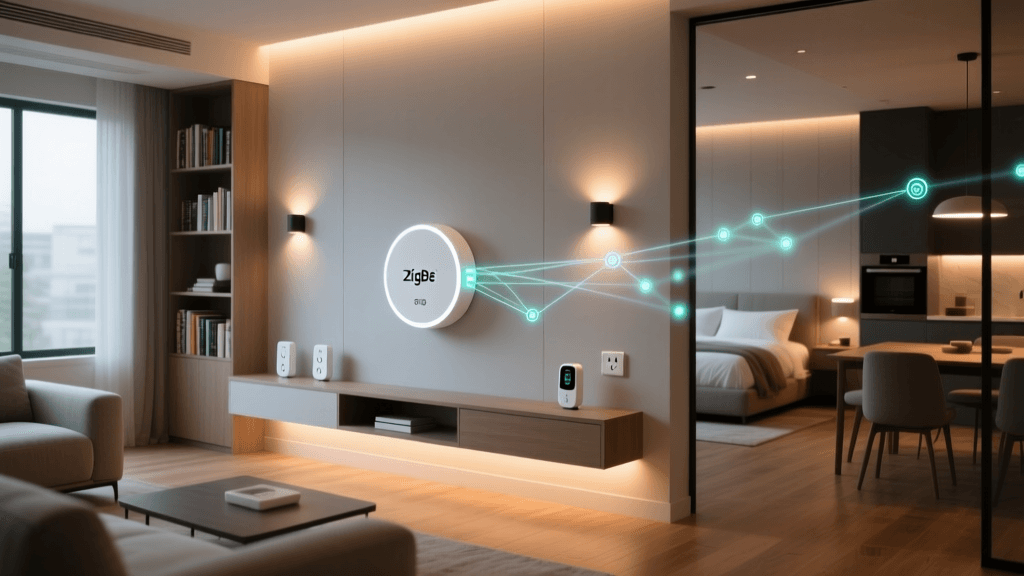
A hub bridge acts as a translator and traffic controller, moving device communication off your primary Wi-Fi band and onto dedicated low-power mesh protocols like Zigbee, Z-Wave, or Thread. Furthermore, isolating these devices on a dedicated Virtual Local Area Network (VLAN) ensures that a compromised smart plug cannot serve as a gateway for malicious actors to access your personal computers or network-attached storage. In this comprehensive guide, we will explore the technical nuances of configuring hub bridges, optimizing mesh network topology, and implementing robust VLAN isolation for your smart home.
Understanding Hub Bridge Protocols: Zigbee, Z-Wave, and Thread
Before configuring your network, it is essential to understand the RF (Radio Frequency) protocols that your hub bridges will manage. Unlike Wi-Fi, which requires high bandwidth and significant power, smart home mesh protocols are designed for low-latency, low-power command and control. According to the Connectivity Standards Alliance (CSA), the push toward unified standards like Matter relies heavily on Thread and Wi-Fi, but legacy and highly reliable protocols like Zigbee and Z-Wave remain foundational to whole-home automation.
When selecting a hub bridge—whether you are using a dedicated hardware hub like the Hubitat Elevation, a Home Assistant Green with a Sonoff Zigbee 3.0 USB Dongle Plus, or an Aeotec Z-Stick 7—you are essentially building a localized mesh network. In a mesh topology, every mains-powered device (like a smart switch or relay) acts as a repeater, extending the range of the network. Battery-powered devices (end devices) sleep to conserve energy and rely on these routers to pass messages back to the central hub bridge.
| Protocol | Frequency Band | Max Range (Line of Sight) | Max Theoretical Nodes | Mesh Routing | Primary Interference Sources |
|---|---|---|---|---|---|
| Zigbee 3.0 | 2.4 GHz | ~100 meters | 65,000+ | Source Routing & Many-to-One | Wi-Fi routers, Microwaves, USB 3.0 ports |
| Z-Wave Plus v2 | Sub-GHz (908.4 MHz US) | ~150 meters | 232 | Explorer Framing | Thick masonry, metal HVAC ducts |
| Thread (802.15.4) | 2.4 GHz | ~100 meters | 250+ (per router) | IPv6 Native Mesh | Wi-Fi routers, Bluetooth LE |
Strategic Hub Placement and Interference Mitigation
The physical placement of your hub bridge is arguably the most common point of failure in DIY smart home installations. Placing a Zigbee or Z-Wave USB dongle directly into the back of a Raspberry Pi, Mini PC, or server rack is a critical error. USB 3.0 ports and data cables generate significant broadband RF noise in the 2.4 GHz spectrum, which can completely deafen a Zigbee or Thread receiver, reducing its effective range from 30 meters to less than 2 meters.
The USB Extension Cable Rule
Always use a shielded USB 2.0 extension cable (typically 1 to 2 meters in length) to position your hub bridge dongle away from the host computer's motherboard and SSD enclosures. Elevating the dongle to a central, unobstructed location in your home—such as on top of a bookshelf in the central hallway—will dramatically improve mesh routing and device battery life, as sensors will not need to transmit at maximum power to reach the coordinator.
Channel Optimization
Zigbee and Thread operate on the 2.4 GHz band, sharing airspace with your Wi-Fi network. To prevent packet collisions, you must coordinate your Zigbee channel with your Wi-Fi channels. Wi-Fi channels 1, 6, and 11 are the standard non-overlapping channels. Zigbee channel 11 overlaps with Wi-Fi channel 1. Therefore, if your 2.4 GHz Wi-Fi is set to channel 6 or 11, you should configure your Zigbee hub bridge to use channel 15, 20, or 25. This physical layer separation is vital for maintaining low latency in your automation workflows.
Network Isolation: Configuring a Dedicated IoT VLAN
IoT devices are notorious for lacking robust security updates and utilizing unencrypted local communication. The National Institute of Standards and Technology (NIST) strongly recommends network segmentation to mitigate the risk of lateral movement by malicious actors. By placing your smart home hubs, Wi-Fi IoT devices, and bridges on a dedicated Virtual Local Area Network (VLAN), you create a secure boundary between your untrusted smart devices and your trusted personal devices (laptops, phones, NAS).
Step-by-Step VLAN Configuration
To implement this, you will need a managed network setup, such as a Ubiquiti UniFi Dream Machine, a TP-Link Omada router, or a pfSense/OPNsense firewall. Here is the standard architecture for IoT isolation:
- Create the VLAN: Define a new VLAN ID (e.g., VLAN 20) and assign it a distinct subnet (e.g., 192.168.20.1/24).
- Map an SSID: Create a dedicated Wi-Fi network named "SmartHome-IoT" and bind it exclusively to VLAN 20. Ensure WPA2/WPA3 is enabled, but disable features like "Client Device Isolation" if your devices need to communicate locally with a hub bridge.
- Establish Firewall Rules: This is the most critical step. You must create rules on the VLAN 20 interface that block traffic destined for your primary LAN subnet (e.g., 192.168.1.1/24) and your WAN DNS servers, while allowing traffic to the internet for cloud-dependent devices.
- Allow Established/Related: Ensure your firewall allows "Established and Related" sessions so that devices on your main LAN can initiate connections to the IoT VLAN (e.g., your phone sending a command to a smart bulb via the hub), but the IoT VLAN cannot initiate unsolicited connections to your main LAN.
Solving the mDNS Broadcasting Challenge
When you segment your network, you will immediately notice that device discovery breaks. Your phone on the main LAN will no longer "see" your Chromecast, Apple TV, or smart speakers on the IoT VLAN. This is because Multicast DNS (mDNS) broadcasts do not cross VLAN boundaries by default. To resolve this without compromising security, you must configure an mDNS reflector. In the UniFi ecosystem, this is a simple toggle in the Settings > Networks menu called "Multicast DNS". For pfSense users, installing the Avahi package and configuring it to reflect between the LAN and IoT interfaces will restore seamless casting and discovery capabilities.
Bar chart comparing the maximum theoretical device capacity and typical real-world limits of common smart home network protocols.
Thread Border Routers and the Matter Ecosystem
As the smart home industry transitions toward the Matter standard, Thread has emerged as the premier low-power mesh protocol. Unlike Zigbee, which requires a dedicated hub bridge coordinator, Thread utilizes "Border Routers" to bridge the 802.15.4 mesh network to your IP-based LAN. Devices like the Apple TV 4K, HomePod Mini, and Nest Hub v2 act as Thread Border Routers. When configuring your network for Matter over Thread, it is vital to ensure that your VLAN setup permits IPv6 multicast traffic, as Thread relies heavily on IPv6 for device discovery and mesh routing. Blocking IPv6 on your IoT VLAN will completely break Thread device commissioning and local control.
Furthermore, managing multiple Thread Border Routers from different ecosystems (e.g., Apple and Google) can lead to partitioned mesh networks if not configured correctly. The Thread specification includes a mechanism for merging partitions, but this requires that the Border Routers share the same Thread credentials. For DIY installers using Home Assistant, the OpenThread Border Router add-on allows you to create a unified Thread network and seamlessly share credentials with your Apple or Google ecosystems, ensuring a single, robust mesh covers your entire property.
Advanced Hub Bridge Configurations: Home Assistant and Hubitat
For advanced DIY installers utilizing platforms like Home Assistant or Hubitat Elevation, the hub bridge is not just a radio; it is the central nervous system of local automation. When configuring these hubs, it is highly recommended to assign them static IP addresses via DHCP reservation on your IoT VLAN. This prevents IP drift, which can break local API integrations with Node-RED, HomeKit Controller, or third-party dashboards.
Furthermore, when integrating a hub bridge with Home Assistant via the Zigbee Home Automation (ZHA) integration or Zigbee2MQTT, ensure that your MQTT broker is hosted on a server that is accessible to both the IoT VLAN and the primary LAN, or securely bridge the MQTT topics across the network boundary. Utilizing TLS encryption for MQTT traffic is a best practice, even on local networks, to prevent credential sniffing by compromised IoT sensors.
Troubleshooting Common Hub and Network Bridge Issues
Devices Dropping Off the Mesh
If battery-powered sensors consistently drop offline, the issue is rarely the battery itself. It is usually a lack of nearby mains-powered mesh routers. Adding a few Zigbee smart plugs in strategic locations between the hub and the distant sensors will stabilize the routing tables and drastically reduce dropouts.
IP Conflicts and DHCP Exhaustion
Consumer routers often have a limited DHCP pool and struggle with the rapid lease renewals of flaky IoT devices. By moving these devices to a dedicated VLAN on a prosumer router (like a UniFi or Omada setup), you benefit from enterprise-grade DHCP servers that can handle hundreds of concurrent leases without exhausting the pool or causing IP conflicts that crash the hub bridge's local discovery protocols.
Cloud Latency vs. Local Control
Whenever possible, configure your hub bridge to utilize local APIs rather than cloud polling. Devices from brands like Shelly, Aqara (via local hubs), and Inovelli offer robust local control options. Relying on cloud bridges for critical automations (like security lighting or leak detection) introduces unnecessary latency and points of failure. According to cybersecurity best practices highlighted by CISA's Internet of Things (IoT) guidelines, minimizing external dependencies not only improves speed but significantly reduces the attack surface of your smart home network.
Conclusion
Building a reliable smart home requires looking beyond the devices themselves and focusing on the invisible infrastructure that connects them. By strategically deploying dedicated hub bridges, optimizing RF channel allocation, and enforcing strict VLAN isolation, you transform a fragile collection of gadgets into a resilient, secure, and blazing-fast automated ecosystem. Whether you are retrofitting a single room or wiring a whole-home automation system, mastering your network setup is the most valuable investment you can make in your smart home journey.