Introduction to Advanced Smart Home Workflows
When most homeowners first dip their toes into smart home technology, their automation experience is limited to basic 'If This, Then That' (IFTTT) logic. A single trigger, such as a time of day or a motion sensor trip, leads to a single action, like turning on a light bulb. While this provides a taste of convenience, it quickly falls apart in real-world scenarios where context matters. True smart home intelligence requires multi-condition automation workflows—routines that evaluate multiple environmental factors, device states, and temporal variables before executing a sequence of actions.
Configuring these advanced workflows transforms a house from a collection of remote-controlled gadgets into a cohesive, context-aware environment. According to the National Institute of Standards and Technology (NIST), the true value of Internet of Things (IoT) ecosystems is realized when devices interoperate seamlessly to make autonomous decisions based on complex data inputs. In this guide, we will explore the architecture of multi-condition routines, compare hub capabilities, and walk through a practical configuration for a context-aware 'Leaving Home' workflow.
The Core Architecture: Triggers, Conditions, and Actions
To build robust automations, you must understand the tripartite structure that governs modern smart home logic engines. Whether you are using Home Assistant, SmartThings, or Hubitat, the underlying philosophy remains consistent.
1. Triggers (The 'When')
Triggers are the events that initiate the evaluation of your automation. In a multi-condition setup, you can utilize multiple triggers operating on an 'OR' logic basis. For example, a trigger could be a state change (a door contact sensor opening), a time-based event (the sun setting below the horizon), or an event-based webhook (a GPS geofence breach). The trigger does not execute the action; it merely wakes up the automation engine to check the conditions.
2. Conditions (The 'If')
Conditions are the logic gates that determine whether the automation should proceed. As detailed in the Home Assistant Condition Documentation, conditions evaluate the current state of your ecosystem at the exact millisecond the trigger fires. You can chain conditions using 'AND', 'OR', and 'NOT' operators. For instance, a motion sensor might trigger an automation, but the condition dictates that the lights will only turn on IF the time is between 6:00 PM and 11:00 PM AND the living room media player is currently paused.
3. Actions (The 'Then')
Actions are the payloads executed once all conditions are met. Advanced workflows utilize sequential actions, parallel execution, delays, and loops. This might involve dimming lights over a 10-minute transition, sending a push notification, adjusting a smart thermostat, and waiting for a specific state before proceeding to the next step.
Comparing Smart Home Hubs for Complex Logic
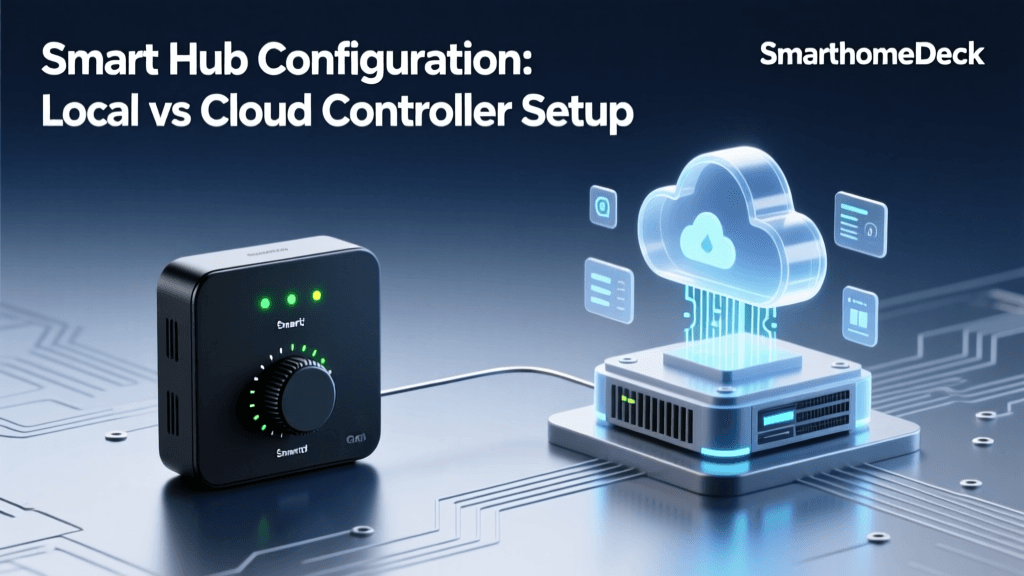
Not all smart home hubs are created equal when it comes to processing multi-condition logic. Cloud-dependent hubs often struggle with latency and fail during internet outages, whereas local hubs excel in reliability and complexity. Below is a comparison of the leading platforms for advanced workflow configuration.
| Hub Platform | Logic Depth | Local Execution | Setup Cost Range | Best For |
|---|---|---|---|---|
| Home Assistant | Extreme (YAML/Visual) | 100% Local | $100 - $300 | DIY Enthusiasts & Complex Logic |
| Hubitat Elevation | High (Rule Machine) | 100% Local | $130 - $180 | Reliability & Zigbee/Z-Wave Mesh |
| SmartThings | Medium (Advanced Rules) | Hybrid/Cloud | $70 - $150 | Mainstream Users & Broad Compatibility |
| Apple HomeKit | Low-Medium (Home App) | Local (via Hub) | $100+ (Apple TV/HomePod) | Apple Ecosystem & Privacy Focus |
Network Protocols: The Backbone of Automation
Before configuring software workflows, you must ensure your hardware communication protocols can handle the traffic. Multi-condition automations often require polling multiple sensors simultaneously. If your network is congested, conditions may time out or return false negatives.
- Zigbee & Z-Wave: Ideal for battery-operated sensors (contact, motion, temperature). They form a localized mesh network that doesn't interfere with your Wi-Fi. A network of 20+ Zigbee devices requires a dedicated coordinator dongle (like the Sonoff Zigbee 3.0 USB Dongle Plus) rather than a hub's built-in radio.
- Thread / Matter: The emerging standard for low-latency, IP-based mesh networking. Thread devices route data efficiently and are highly recommended for new installations.
- Wi-Fi: Best reserved for high-bandwidth devices (cameras, smart displays) or mains-powered relays (like Shelly Plus 1PM). Avoid using Wi-Fi for critical trigger sensors, as router latency can cause automation delays.
Step-by-Step: Building a Context-Aware 'Leaving Home' Routine
Let us build a practical, multi-condition workflow designed to secure the home and optimize energy usage when the last person leaves. According to the U.S. Department of Energy, properly automating your HVAC system based on occupancy can yield significant annual energy savings. We will use a logic structure that ensures the home is only secured when specific, compounding criteria are met.
Defining the Triggers
We want the automation to evaluate the home's status the moment a departure is suspected. We will use two triggers:
- Geofence Breach: The primary user's smartphone exits the 150-meter home zone.
- Physical Action: The Z-Wave deadbolt on the front door is manually locked from the outside keypad.
Setting the Logic Conditions
This is where multi-condition logic prevents false alarms. The automation will only proceed if ALL of the following conditions are true (AND logic):
- Condition 1 (Presence): No other tracked smartphones are currently inside the home zone.
- Condition 2 (State): The 'Guest Mode' input boolean helper is turned OFF.
- Condition 3 (Time): The current time is between 7:00 AM and 9:00 PM (preventing the house from arming if you step outside to grab the mail at midnight).
Executing Sequential Actions
Once the conditions pass, the hub executes a sequenced payload:
- Action 1: Set Ecobee SmartThermostat to 'Away' mode (Target temp: 68°F/20°C).
- Action 2: Turn off all Philips Hue lights and smart plugs associated with the 'Living Room' and 'Kitchen' groups.
- Action 3 (Delay): Wait 10 seconds (allowing the door to fully close and latch).
- Action 4: Send a command to the smart lock to ensure it is fully engaged.
- Action 5: Arm the SimpliSafe security system to 'Away' mode via API integration.
- Action 6: Send a push notification to the primary user: 'Home secured. HVAC adjusted for energy savings.'
Visualizing Workflow Efficiency and Energy Impact
Upgrading from basic routines to multi-condition and predictive workflows drastically impacts both energy consumption and daily convenience. The chart below illustrates the estimated annual savings based on automation complexity levels in a standard 2,500 sq. ft. home.
Advanced Configuration: Wait Templates and Helper Entities
To truly master workflow configuration, you must move beyond simple delays and utilize dynamic waiting and memory states.
Wait Templates
A 'Wait Template' pauses an automation until a specific condition becomes true, rather than waiting for an arbitrary number of seconds. For example, if you have a 'Goodnight' routine that turns off the lights, you might want to wait until the bedroom door is closed before locking the deadbolt. A wait template monitors the door sensor and only proceeds when the state changes to 'closed'. If the door is never closed, the automation can be configured to time out after 15 minutes and send an alert, preventing the system from hanging indefinitely.
Helper Entities (Input Booleans and Datetime)
Helper entities act as the 'memory' of your smart home. An Input Boolean is a virtual switch that doesn't control a physical device but stores a state (True/False). You can create an Input Boolean called 'Cleaning Mode'. When your robotic vacuum starts, it turns 'Cleaning Mode' ON. Your multi-condition lighting automations can then include a condition that prevents lights from turning off when motion stops, as long as 'Cleaning Mode' is active. This prevents the vacuum from getting stuck in the dark while navigating the house.
Pro Tip: Always name your helper entities with a clear prefix, such as
input_boolean.guest_modeorinput_boolean.vacation_mode. This makes them easily searchable when building complex condition trees in your hub's visual editor.
Troubleshooting Common Configuration Errors
Even the most meticulously planned multi-condition workflows can fail. Here is how to troubleshoot the most common issues encountered during setup:
- Overlapping Triggers (Infinite Loops): If an automation turns on a smart plug, and a second automation turns it off based on power draw, you can create an infinite loop that crashes your hub. Always use 'State' conditions to check if a device is already in the desired state before sending a command.
- Sensor Latency & Debounce: Cheap Zigbee motion sensors may report 'clear' for a split second when a person shifts in their chair, triggering a 'lights off' condition. Implement a 'Wait for Trigger' (motion clear for 5 continuous minutes) rather than a simple state condition.
- Cloud API Timeouts: If your workflow relies on a cloud-based action (like arming a Wi-Fi security camera), network hiccups can cause the automation to stall. Always place cloud-dependent actions at the end of your sequence, and utilize 'Continue on Error' toggles so a failed camera arm doesn't prevent your smart lock from engaging.
- Trace Tools: Platforms like Home Assistant feature an 'Automation Trace' tool. This visual timeline shows exactly which condition failed and what the state of every sensor was at the exact millisecond the trigger fired. Use this to debug 'false negative' condition failures.
Conclusion
Configuring multi-condition smart home automation workflows is the bridge between a novelty tech setup and a genuinely intelligent living space. By mastering the interplay between diverse triggers, strict logic conditions, and sequenced actions, you eliminate false triggers, optimize energy consumption, and create a home that anticipates your needs. Start by mapping your routines on paper, identify the necessary sensor data, choose a local hub for reliable processing, and leverage helper entities to give your automations the context they need to succeed.