Introduction to Multi-Trigger Workflows
Setting up a smart home goes far beyond turning on lights with a voice command or scheduling a thermostat. The true power of home automation lies in multi-trigger workflows—complex, conditional logic sequences that respond dynamically to a combination of environmental changes, user behaviors, and system states. While basic automations rely on a single trigger (e.g., 'turn on the light when motion is detected'), advanced workflows layer multiple triggers, conditions, and actions to create seamless, invisible experiences.
For DIY installers and advanced homeowners, Home Assistant has emerged as the gold standard for configuring these intricate workflows. Its local processing, agnostic protocol support, and robust YAML-based scripting engine allow for unparalleled customization. In this guide, we will explore how to design, configure, and troubleshoot multi-trigger automation workflows, ensuring your smart home operates with zero latency and maximum reliability.
Core Components of Advanced Workflows
Before diving into complex configurations, it is essential to understand the triad of Home Assistant automation architecture. According to the Home Assistant Automation Documentation, every workflow consists of three distinct pillars:
- Triggers: The events that initiate the workflow. In advanced setups, you will use multiple triggers such as state changes, numeric thresholds (e.g., humidity exceeding 65%), time patterns, and webhooks.
- Conditions: The logical gates that determine if the automation should proceed. Conditions prevent false positives. For example, a motion trigger might only execute an action if the condition 'sun is below horizon' AND 'media player is idle' are both met.
- Actions: The execution phase. Advanced workflows utilize scenes, scripts, delays, wait templates, and conditional branching (choose actions) to manipulate devices.
Mastering the interplay between these three components is what separates a novice smart home user from an advanced automation architect.
Hardware Selection for Reliable Triggering
A multi-trigger workflow is only as reliable as the sensors feeding it data. When configuring workflows that require precise timing or environmental awareness, selecting the right protocol and hardware is critical. Zigbee 3.0 and Matter over Thread are currently the preferred standards for low-latency, local sensor networks.
Here is a comparison of top-tier sensors used in complex automation workflows:
| Sensor Model | Protocol | Primary Use Case | Approx. Cost | Latency Profile |
|---|---|---|---|---|
| Aqara FP2 Presence Sensor | Wi-Fi / Thread | Zone-based human presence | $69.00 | Ultra-Low (Local) |
| Philips Hue Motion Sensor | Zigbee 3.0 | Basic room occupancy | $39.00 | Low (Mesh dependent) |
| Aeotec MultiSensor 7 | Z-Wave Plus | Multi-data (UV, Temp, Motion) | $55.00 | Medium |
| Eve Motion (Matter) | Thread / Matter | Privacy-first occupancy | $49.00 | Low (Thread Mesh) |
For workflows requiring continuous presence detection (such as keeping a bathroom fan running while someone is in the shower, even if they are perfectly still), millimeter-wave (mmWave) sensors like the Aqara FP2 are mandatory. Standard PIR (Passive Infrared) sensors will time out and trigger false 'room empty' events, breaking your workflow logic.
Network Topology and Mesh Reliability
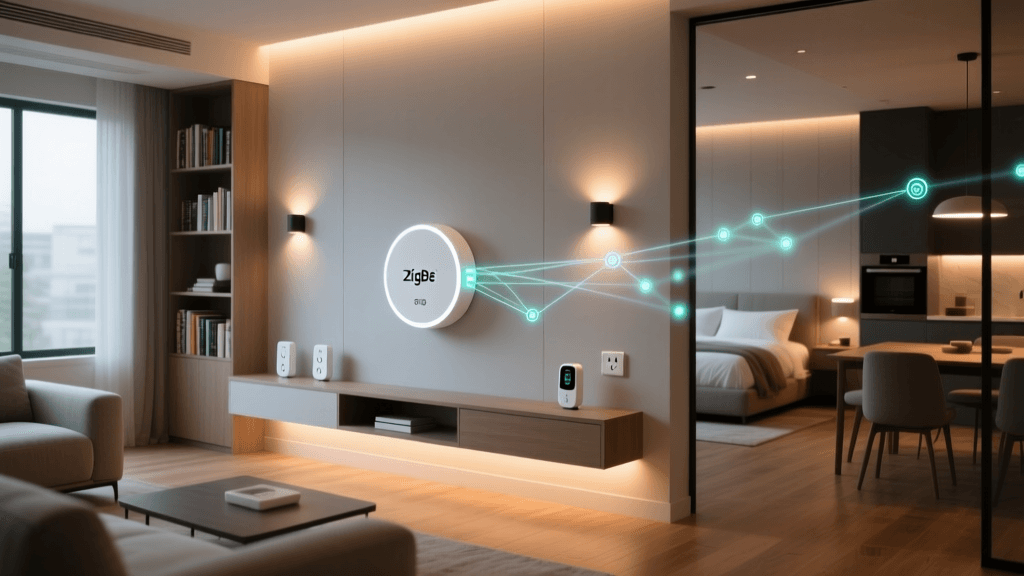
When configuring multi-trigger setups, network topology plays a hidden but vital role. The Connectivity Standards Alliance (CSA) highlights that Matter over Thread creates a self-healing mesh network, which is highly beneficial for multi-sensor workflows. If a Zigbee or Thread router drops offline, the mesh automatically reroutes sensor data to the nearest hub or repeater.
To ensure your triggers fire without delay, you must strategically place mains-powered Zigbee/Thread devices (like smart plugs or hardwired light switches) to act as routers. A sensor that is three hops away from the coordinator will experience latency and packet loss, which can cause conditional logic in your workflows to fail or timeout.
Step-by-Step: Building a Smart Bathroom Workflow
Let us build a practical, high-value multi-trigger workflow: The Smart Bathroom Climate Controller. This automation manages the exhaust fan based on a combination of humidity spikes, presence, and manual overrides.
The Logic:
- Turn ON the fan if humidity rises by 10% within 5 minutes OR if manual switch is pressed.
- Keep the fan ON as long as presence is detected OR humidity remains above 60%.
- Turn OFF the fan only when the room is vacant for 10 minutes AND humidity drops below 55%.
YAML Configuration Breakdown:
alias: Smart Bathroom Climate Controller
description: Multi-trigger humidity and presence fan control
trigger:
  - platform: numeric_state
    entity_id: sensor.bathroom_humidity
    above: 60
    id: humidity_high
  - platform: state
    entity_id: binary_sensor.bathroom_presence
    to: 'off'
    for:
      minutes: 10
    id: room_empty
  - platform: state
    entity_id: switch.bathroom_fan_manual
    to: 'on'
    id: manual_override
condition: []
action:
  - choose:
      - conditions:
          - condition: trigger
            id: humidity_high
          - condition: or
            conditions:
              - condition: state
                entity_id: switch.bathroom_fan
                state: 'off'
        sequence:
          - service: switch.turn_on
            target:
              entity_id: switch.bathroom_fan
      - conditions:
          - condition: trigger
            id: room_empty
          - condition: numeric_state
            entity_id: sensor.bathroom_humidity
            below: 55
        sequence:
          - service: switch.turn_off
            target:
              entity_id: switch.bathroom_fan
    default: []
mode: restart
Notice the use of the mode: restart parameter. In multi-trigger workflows, if a new trigger fires while the automation is already running (e.g., humidity spikes again while the fan is already on), the restart mode ensures the logic evaluates the newest state without throwing a conflict error. For deeper scripting capabilities, referencing the Home Assistant Scripts Documentation is highly recommended.
Visualizing Automation Latency and Reliability
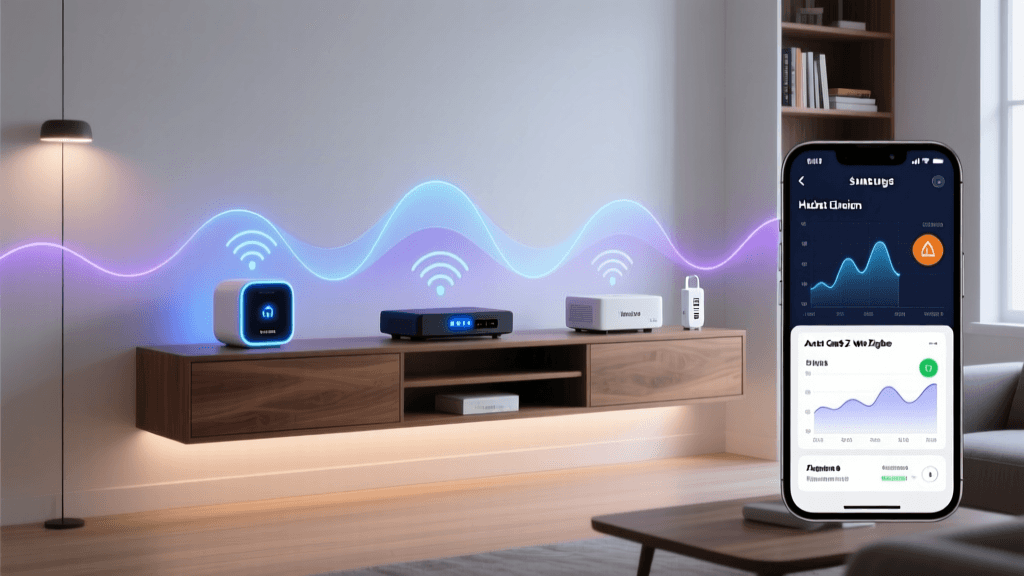
When designing workflows that chain multiple triggers together (e.g., motion detected -> check lux level -> check TV state -> adjust lights), network latency compounds. Below is a visualization of average local network latency across popular smart home protocols when executing multi-trigger evaluations.
Comparison of average network latency across smart home protocols in multi-trigger setups
As the chart illustrates, Matter over Thread and Zigbee 3.0 offer the lowest latency, making them ideal for workflows where immediate physical feedback is required, such as lighting transitions or security alarm triggers.
Advanced Logic: Wait Templates and Choose Actions
To create truly dynamic workflows, you must master wait_template and choose actions. A wait_template pauses the execution of an automation until a specific condition is met. This is crucial for preventing race conditions.
For example, if you have a 'Goodnight' workflow that locks the doors, arms the security system, and turns off the lights, you might want the system to wait until all doors are physically closed before arming. If a door is open, the workflow pauses, sends a notification to your phone, and waits for the door sensor to change to 'closed'.
- wait_template: "{{ is_state('binary_sensor.front_door', 'off') }}"
  timeout: '00:05:00'
  continue_on_timeout: false
If the door does not close within 5 minutes, the timeout triggers, and the workflow aborts the arming sequence, preventing a false alarm. Combining wait_template with choose allows you to build branching logic trees that mimic professional, hardwired commercial control systems.
Troubleshooting Common Workflow Errors
Even the most carefully planned multi-trigger workflows can fail due to edge cases. Here are the most common issues and how to resolve them:
1. Sensor Debouncing
Mechanical switches or vibrating doors can send rapid 'on/off/on' state changes in a matter of milliseconds. This 'bouncing' can trigger a workflow multiple times, causing lights to flicker or speakers to restart. To fix this, implement a for: seconds: 2 delay on your state triggers, ensuring the state is stable before the workflow executes.
2. The Trace Timeline Tool
Home Assistant features a built-in Trace Timeline. When a workflow fails or behaves unexpectedly, navigate to Settings > Automations & Scenes, select your workflow, and click 'Traces'. This visual graph shows exactly which trigger fired, which condition blocked the action, and how long each step took to process. It is the single most valuable tool for debugging complex YAML logic.
3. Entity ID Mismatches
A common error occurs when a device is replaced or re-paired, generating a new Entity ID (e.g., sensor.motion_2 instead of sensor.motion). The workflow will silently fail because the original trigger entity no longer exists. Always use the Home Assistant UI to verify Entity IDs after hardware replacements.
Conclusion
Configuring multi-trigger automation workflows transforms a collection of disparate smart devices into a cohesive, intelligent ecosystem. By selecting low-latency hardware like Thread and Zigbee sensors, utilizing advanced YAML logic such as wait templates and choose actions, and rigorously testing your configurations via trace tools, you can achieve a level of home automation that is both robust and entirely hands-off. Whether you are managing climate control, security, or ambient lighting, mastering these workflows is the ultimate key to a truly smart home.