The End of App Fatigue: Why Unified Control Matters
For smart home enthusiasts and DIY installers, 'app fatigue' is a very real phenomenon. When you purchase a Philips Hue lighting kit, an Ecobee thermostat, and a Yale smart lock, you are often forced to download three separate applications, create three separate accounts, and manage three distinct cloud connections. This fragmented approach not only ruins the user experience but also introduces latency, cloud-dependency, and severe automation limitations.
The solution lies in deploying a centralized smart home controller that bridges multiple wireless protocols into a single, unified application interface. Samsung SmartThings remains one of the most robust ecosystems for this exact purpose. By configuring a SmartThings hub, you can consolidate Zigbee 3.0, Z-Wave Plus, Wi-Fi, and the emerging Matter standard into one dashboard. This guide will walk you through the physical installation, network optimization, and advanced app configuration required to build a rock-solid, multi-protocol smart home.
Hardware Selection: Choosing the Right SmartThings Hub
Before diving into the app, you must select the appropriate hub hardware. While Samsung produces the official hubs, the SmartThings ecosystem is open enough to support community-built and partner hardware. Below is a comparison of the most popular hubs compatible with the SmartThings app.
| Hub Model | Supported Protocols | Local Processing | Estimated Cost |
|---|---|---|---|
| Samsung SmartThings Hub v3 (2018) | Zigbee, Z-Wave, Wi-Fi, Bluetooth | Partial (Edge Drivers) | $70 - $90 (Used/Refurb) |
| Aeotec Smart Home Hub (Gen 7) | Zigbee, Z-Wave Plus, Wi-Fi, Bluetooth | High (Edge Drivers) | $130 - $150 |
| SmartThings Station (2023) | Matter, Thread, Wi-Fi (No Zigbee/Z-Wave) | High (Local Thread) | $50 - $60 |
Recommendation: For a comprehensive setup that includes legacy Zigbee sensors and modern Matter-over-Thread devices, the Aeotec Smart Home Hub is the premier choice. It functions identically to the SmartThings Hub v3 but features a superior Z-Wave 700 series chip and an external antenna port for mesh network expansion.
Physical Installation and Placement Strategy
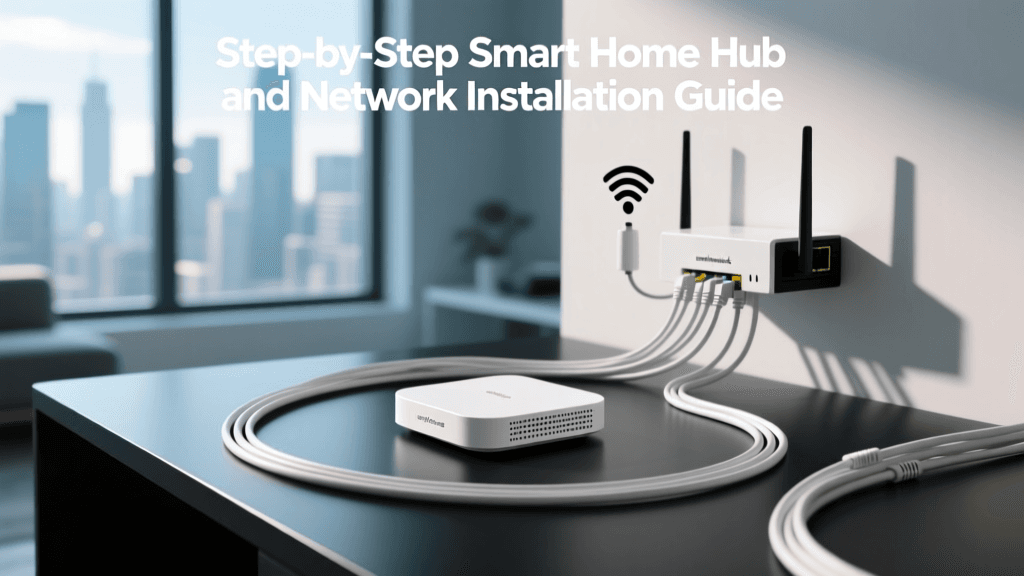
The physical placement of your hub dictates the reliability of your entire mesh network. Zigbee and Z-Wave rely on a mesh topology, where mains-powered devices act as 'routers' to extend the signal, while battery-powered devices act as 'end devices'.
- Centralize the Hub: Place the hub in the geographic center of your home. Avoid basements or far corners, as the initial signal broadcast needs to reach as many router devices as possible.
- Elevate and Expose: Keep the hub at least 3 feet off the ground. Do not enclose it in a metal media cabinet or AV rack, which acts as a Faraday cage and will decimate your 2.4GHz and sub-GHz signals.
- Use Ethernet Backhaul: Always connect your hub to your router via a Cat6 Ethernet cable. Relying on Wi-Fi for the hub's upstream connection introduces unnecessary latency and drops during router reboots.
- Avoid Interference Sources: Keep the hub at least 5 feet away from microwaves, baby monitors, and cordless phones, all of which operate in the crowded 2.4GHz spectrum.
Initial SmartThings App Configuration
Once the hub is powered on and connected to your network, download the SmartThings app (available on iOS and Android). Create your Samsung account and follow the onboarding prompts to add the hub to your 'Home'.
Structuring Your Home Layout
Before adding a single device, configure your home's logical structure. The app allows you to create Rooms and Zones.
- Navigate to the Menu tab and select Rooms.
- Create physical rooms (e.g., 'Living Room', 'Master Bedroom', 'Garage').
- Create Zones for broader automation grouping (e.g., 'Upstairs', 'Downstairs', 'Exterior'). Zones allow you to trigger routines across multiple rooms simultaneously without writing complex automation logic.
Integrating Matter and Thread Devices
Matter is the industry-wide standard designed to unify smart home devices across different ecosystems. According to the Connectivity Standards Alliance (CSA), Matter operates over Wi-Fi for high-bandwidth devices and Thread for low-power mesh devices, ensuring local control and cross-platform compatibility.
Commissioning a Matter Device
- Tap the '+' icon in the top right corner of the SmartThings app and select Add Device.
- Select Scan QR Code. Point your camera at the Matter QR code located on the device or its packaging.
- The app will detect the device's 11-digit setup code and initiate the commissioning process.
- If the device uses Thread (e.g., an Eve Energy smart plug or Nanoleaf bulbs), the SmartThings Hub or Station will act as a Thread Border Router, seamlessly bridging the Thread mesh network to your home's Wi-Fi.
Pro Tip: Ensure your smartphone is connected to the 2.4GHz band of your Wi-Fi network during the initial Matter commissioning process. Many Thread and Wi-Fi Matter devices cannot interpret 5GHz credentials during the initial handshake.
Migrating Legacy Zigbee and Z-Wave Devices
While Matter is the future, Zigbee and Z-Wave currently make up the vast majority of smart home sensors, locks, and switches.
Adding Zigbee Sensors
Zigbee operates on the 2.4GHz spectrum. When adding a Zigbee motion sensor (like the Aeotec Multipurpose Sensor or a Third Reality leak detector), place the sensor within 3 feet of the hub for the initial pairing process. Once paired, you can move it to its permanent location. If the device shows as 'Offline' after moving, you likely need to add a Zigbee router (such as a smart plug or hardwired light switch) between the hub and the sensor to extend the mesh.
Z-Wave Network Repair
Z-Wave operates on sub-GHz frequencies (908.42 MHz in the US), which provides superior wall penetration compared to Zigbee. If you migrate an existing Z-Wave network to a new Aeotec hub, or if you experience latency, you must perform a Z-Wave Network Repair.
- Open the SmartThings App and go to your Hub's settings.
- Select Z-Wave Utilities > Repair Z-Wave Network.
- This process forces every Z-Wave device to recalculate its optimal routing path back to the hub, eliminating 'dead routes' caused by moved furniture or newly installed appliances.
Optimizing Network Channels to Prevent Interference
One of the most common reasons for SmartThings app configuration failures and 'dropped' Zigbee devices is wireless interference from your home's Wi-Fi router. Both Zigbee and Wi-Fi operate in the 2.4GHz band, but they divide the spectrum into different channels.
According to the Zigbee2MQTT Network Guide, overlapping channels will cause severe packet loss, leading to delayed automations and unresponsive sensors.
The Golden Rule of Channel Mapping
- Wi-Fi Channels: Set your 2.4GHz Wi-Fi router to use only channels 1, 6, or 11. These are the only non-overlapping Wi-Fi channels.
- Zigbee Channels: Zigbee uses channels 11 through 26. To avoid Wi-Fi interference, configure your SmartThings hub (via the advanced IDE or hub settings, depending on firmware) to use Zigbee channels 15, 20, or 25.
By mapping Wi-Fi to channel 1 and Zigbee to channel 15, you create a physical buffer in the radio frequency spectrum, ensuring your smart home mesh remains pristine.
Advanced App Automation and Edge Drivers
The true power of the SmartThings app lies in its automation engine. Historically, SmartThings relied on cloud-based Groovy routines, which suffered from latency and internet outages. Today, the platform utilizes Edge Drivers.
As detailed in the Samsung SmartThings Developer Documentation, Edge Drivers are Lua-based scripts that run locally on the hub itself. This means your automations will execute in milliseconds, even if your home's internet connection goes down.
Creating a Local Automation Routine
- Tap the Routines tab at the bottom of the app and hit the '+' icon.
- If: Select a local Zigbee or Z-Wave trigger (e.g., 'Aeotec Motion Sensor detects motion').
- Then: Select a local action (e.g., 'Turn on Zigbee smart bulb').
- Save the routine. The app will display a small 'cloud-with-a-slash' icon or a 'local' badge next to the routine, indicating it is processing entirely on the hub via Edge Drivers.
Voice Assistant Integration and Geofencing
To complete your unified setup, you must link the SmartThings app to your preferred voice assistant and configure presence-based automations.
Linking Alexa and Google Home
Navigate to the Menu > Settings > Linked Services. Here, you can authenticate your Amazon Alexa or Google Home accounts. Once linked, the SmartThings app will push all compatible devices to your voice assistant. You can then group devices in the Alexa/Google apps for voice commands like, 'Hey Google, turn off the Downstairs Zone.'
Setting Up Geofencing
Geofencing allows your home to react to your physical location. In the SmartThings app, go to Menu > Settings > Location Settings > Geofencing. Enable location tracking for the smartphones of all household members. You can now create routines such as 'Goodbye' (triggered when the last person leaves the geofence radius) to automatically lock Z-Wave deadbolts, arm security sensors, and lower the smart thermostat.
Troubleshooting Common Hub Configuration Errors
Even with meticulous planning, DIY installers will encounter configuration hurdles. Here is how to resolve the most common SmartThings app errors:
- Device Shows 'Updating' Indefinitely: This usually occurs when a Matter or Zigbee device fails to download its Edge Driver from the cloud. Force-close the SmartThings app, reboot your home router, and unplug/replug the SmartThings hub to force a fresh handshake with the SmartThings cloud.
- Z-Wave Lock Jammed Error: Smart locks require high bandwidth to transmit their encryption keys. If your lock is paired but fails to lock/unlock via the app, it lacks a nearby Z-Wave router. Install a Z-Wave smart switch or repeater within 10 feet of the door to stabilize the mesh.
- Thread Devices Dropping Offline: Thread networks require multiple Border Routers to maintain redundancy. If you only have one SmartThings Station acting as a Border Router and it reboots, Thread devices may temporarily drop. Add a secondary Border Router (like an Apple TV 4K or Nest Hub Pro) to create a resilient Thread mesh.
Conclusion
Configuring a SmartThings hub for unified Matter, Zigbee, and Z-Wave control transforms a chaotic collection of smart gadgets into a cohesive, intelligent home. By prioritizing physical hub placement, meticulously managing 2.4GHz network channels, and leveraging local Edge Drivers, you eliminate app fatigue and cloud dependency. The result is a blazing-fast, highly reliable smart home ecosystem that responds instantly to your commands and automations, regardless of your internet connection status.