The Era of App Fatigue and the Controller Solution
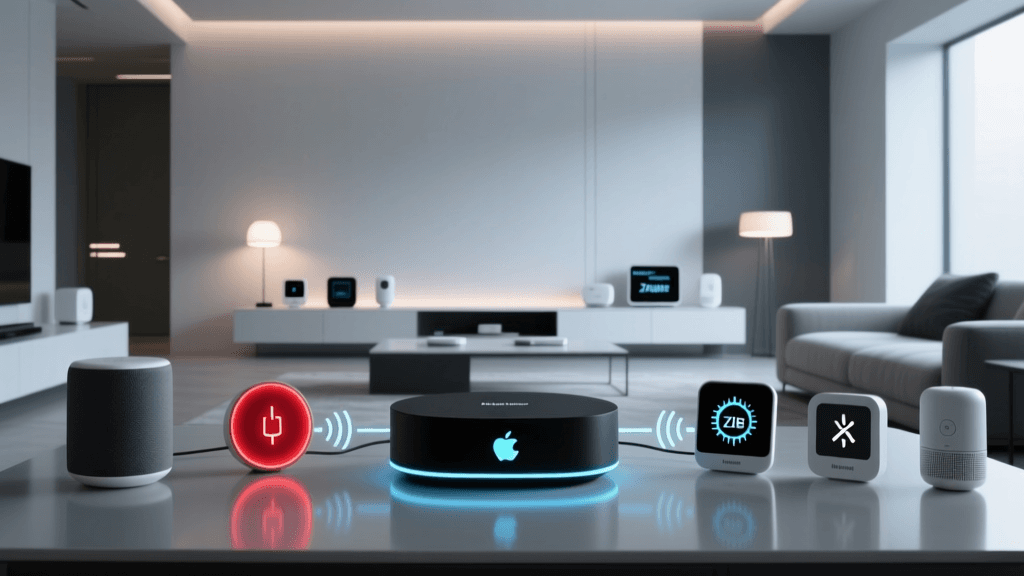
For DIY smart home installers and tech-savvy homeowners, the initial excitement of automating a living space often gives way to a frustrating reality: app fragmentation. Purchasing a Philips Hue lighting system, an Ecobee thermostat, and Aqara motion sensors typically results in a smartphone cluttered with proprietary applications. Each app demands its own account, cloud access, and background permissions, creating a disjointed user experience and a sluggish automation environment. The solution to this modern smart home dilemma is the implementation of a centralized smart home controller and a unified app configuration strategy.
Transitioning from a fragmented ecosystem to a unified controller setup requires careful planning regarding network architecture, protocol compatibility, and hub placement. By leveraging modern standards like Matter and Thread, alongside robust local controllers, you can achieve sub-second automation latencies, enhanced privacy, and a single pane of glass for managing your entire property. This comprehensive guide will walk you through selecting the right controller, preparing your IoT network, and configuring your unified app for maximum reliability.
Evaluating Top Smart Home Controllers for App Unification
The market offers several powerful hubs designed to aggregate disparate devices into a single application. Choosing the right controller depends heavily on your technical expertise, desired level of local processing, and existing ecosystem investments. Below is a detailed comparison of the top controllers available for DIY installation.
| Controller Model | Price Range | Local Processing | Protocol Support | Best Use Case |
|---|---|---|---|---|
| Home Assistant Green | $99 - $120 | 100% Local | Zigbee, Matter, Wi-Fi, Z-Wave (via USB) | Advanced DIYers wanting total local control |
| Samsung SmartThings Station | $90 - $110 | Hybrid (Cloud + Local) | Zigbee, Thread, Matter, Wi-Fi | Users deeply integrated into Samsung/Android |
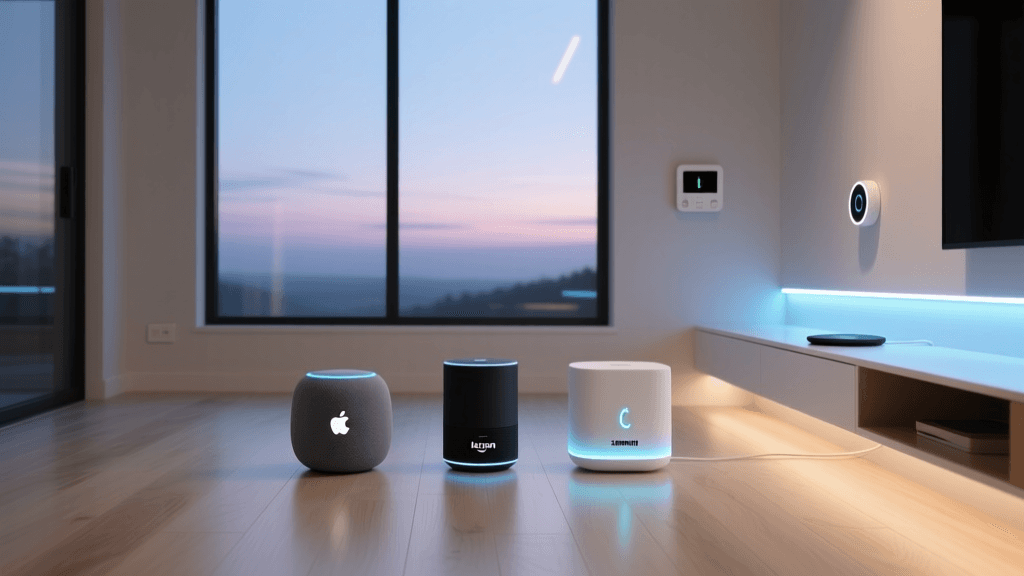
| Apple HomePod mini | $99 | Local (with Cloud fallback) | Thread, Matter, Wi-Fi, Bluetooth | iOS households prioritizing voice and simplicity |
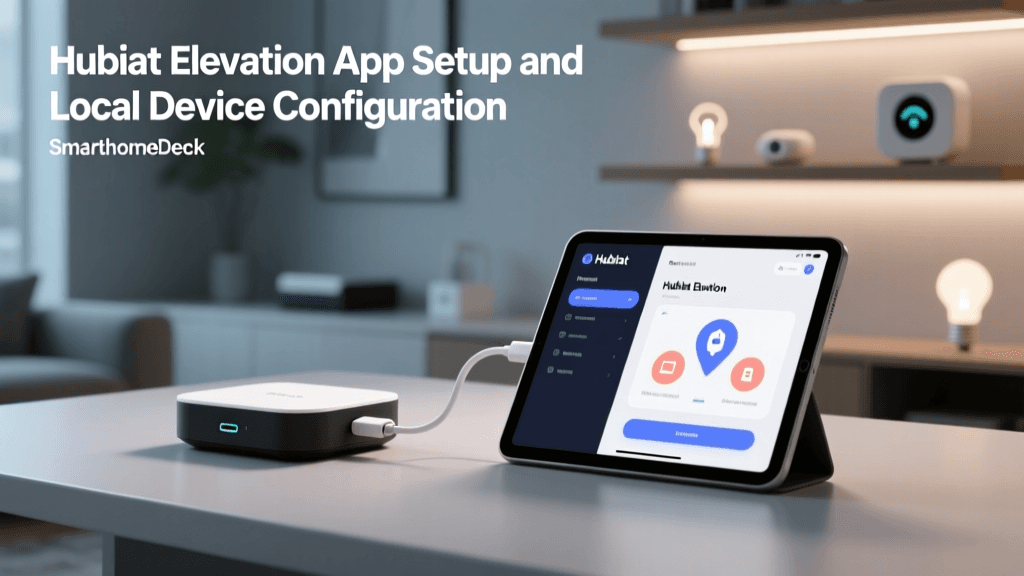
| Hubitat Elevation | $149 - $179 | 100% Local | Zigbee, Z-Wave, LAN, Cloud integrations | Legacy Z-Wave networks and complex local rules |
For those prioritizing privacy and lightning-fast local automations, the Home Assistant Green is the undisputed champion. It requires an Ethernet connection to your primary router and operates entirely on your local area network (LAN). Conversely, the Apple HomePod mini serves as an excellent Thread Border Router and Matter controller, seamlessly integrating into the Apple Home app, though it lacks native support for older Zigbee and Z-Wave devices without secondary bridges.
Pre-Configuration: Network Segmentation for IoT
Before unboxing your new controller, you must address the foundational layer of your smart home: the network. Connecting dozens of IoT devices to your primary 5GHz Wi-Fi network is a recipe for IP conflicts, bandwidth congestion, and severe security vulnerabilities. The Cybersecurity and Infrastructure Security Agency (CISA) strongly recommends isolating IoT devices from personal computing networks to prevent lateral movement in the event a smart bulb or plug is compromised.
Step 1: Create a Dedicated IoT VLAN or Guest Network
If you are using a prosumer router system like UniFi, TP-Link Omada, or Asus Merlin, create a dedicated VLAN (Virtual Local Area Network) specifically for your smart home controller and IoT devices. Assign this VLAN to a 2.4GHz SSID. Most budget-friendly smart plugs, sensors, and legacy hubs only support 2.4GHz Wi-Fi due to its superior wall penetration and lower power consumption.
Step 2: Enable mDNS and IGMP Snooping
Local controllers like Home Assistant and Apple Home rely heavily on multicast DNS (mDNS) and Bonjour to discover devices on the network. If you isolate your controller on a separate VLAN from your smartphone, discovery will fail unless you configure an mDNS reflector or repeater on your router. This allows discovery packets to bounce across VLAN boundaries securely, ensuring your unified app can find and configure the hub during the initial setup phase.
Step-by-Step Hub and App Configuration
With your network optimized, it is time to physically install the controller and begin the app configuration process. Proper placement is critical for wireless protocols.
Hub Placement and Ethernet Backhaul
Never place your central hub in a basement, a metal utility closet, or directly behind a large television. RF (Radio Frequency) interference will cripple Zigbee and Thread mesh networks. Position the controller centrally in the home, ideally elevated on a shelf. Always use a hardwired Ethernet backhaul to your network switch or router; relying on Wi-Fi for the controller itself introduces unnecessary latency and dropouts during heavy automation polling.
Onboarding Devices via Matter and Thread
The introduction of Matter has revolutionized app configuration by allowing a single QR code to pair a device across multiple ecosystems simultaneously. According to the Connectivity Standards Alliance (CSA), Matter ensures that a Thread-enabled smart plug can be commissioned to a Home Assistant dashboard and an Apple Home app at the same time, utilizing the Thread Border Router built into your HomePod mini or SmartThings Station.
- Scan the Matter QR Code: Open your unified app (e.g., Apple Home or Home Assistant Companion) and select 'Add Accessory'.
- Thread Network Credential Sharing: If your controller and smartphone support it, Thread credentials will automatically sync, placing the device on the low-latency Thread mesh rather than congesting your Wi-Fi.
- Assign Rooms and Zones: Immediately tag the device with its physical location and logical zone (e.g., 'Living Room' and 'Ground Floor Security') to simplify future automation workflows.
Visualizing Protocol Latency and Reliability
Understanding the underlying protocols is vital when configuring automations in your unified app. A motion sensor triggering a smart light must happen in milliseconds to feel natural. Below is a visualization of average local network latency across the primary smart home protocols when processed through a local controller.
While Wi-Fi offers the lowest raw latency, it consumes massive amounts of power and router resources. Thread and Zigbee provide the optimal balance of mesh reliability, low power consumption, and acceptable latency for sensor-to-light automations.
Advanced App Configuration and Automation Workflows
The true power of a unified app lies in its automation engine. When configuring workflows, always prioritize Local Execution over Cloud Execution. Cloud-based automations require the signal to travel from your sensor, to the manufacturer's server, back to your hub, and finally to the smart bulb. This can introduce delays of 500ms to over 2 seconds, and will fail entirely if your internet connection drops.
Structuring Reliable Automations
Whether you are using the Apple Home app, SmartThings, or Home Assistant, structure your automations using the Trigger-Condition-Action model:
- Trigger: What initiates the event? (e.g., Aqara P2 Motion Sensor detects movement).
- Condition: What parameters must be met? (e.g., Time is between Sunset and 11:00 PM, AND Living Room TV is off).
- Action: What should the controller execute? (e.g., Dim Hue lights to 40% brightness, warm white color temperature).
By grouping conditions logically within the app, you prevent 'ghost triggers' and ensure your smart home behaves predictably. As outlined in the Apple Home setup documentation, utilizing the 'Adaptive Lighting' feature within unified apps can automatically adjust color temperature based on local sunrise and sunset data without requiring complex manual scheduling.
Troubleshooting Controller Sync and Mesh Issues
Even the most meticulously configured smart home controller will occasionally encounter synchronization issues. Here is how to troubleshoot the most common installation hurdles.
Zigbee and Wi-Fi Channel Interference
The most frequent cause of 'ghosting' (devices dropping off the network) and delayed app responses is RF interference. Zigbee and 2.4GHz Wi-Fi share the same frequency spectrum. If your Wi-Fi router is set to Channel 1, it will directly overlap with Zigbee channels 11 through 14, causing severe packet loss.
The Fix: Access your router settings and lock your 2.4GHz network to Channel 1, 6, or 11. Then, access your controller's Zigbee radio settings and set it to Channel 15, 20, or 25. This creates a clear spectral gap between your high-bandwidth Wi-Fi and your low-bandwidth smart home mesh.
DHCP Lease Expirations and Static IPs
Smart home controllers and Wi-Fi-based IoT devices rely on IP addresses assigned by your router's DHCP server. If a device's IP address changes after a router reboot, the unified app may lose local communication with it, defaulting to slow cloud polling.
The Fix: Reserve static IP addresses (or DHCP reservations) for your central controller, secondary hubs, and critical Wi-Fi devices like smart thermostats and security cameras. This ensures the app's local API endpoints remain permanently valid.
Thread Mesh Healing
Thread networks are self-healing, but they require multiple Thread Border Routers (TBRs) to maintain optimal coverage. If you notice Thread devices in the far corners of your home taking too long to respond in the app, you likely have a weak mesh link. Adding a secondary Thread Border Router (such as an Apple TV 4K or a NanoLeaf Border Router) on the opposite side of the house will bridge the mesh and restore sub-30ms latency.
Finalizing Your Dashboard and Voice Integration
The final step in your installation is designing the user interface within your unified app. A poorly designed dashboard leads to user frustration and abandoned automations. Group your devices by physical room and functional purpose. Create 'Scenes' for one-tap actions (e.g., 'Movie Time' dims lights, lowers blinds, and arms the perimeter sensors). Finally, link your unified controller to your preferred voice assistant (Amazon Alexa, Google Assistant, or Apple Siri) via local skill integrations, ensuring that voice commands are processed as close to the edge as possible. By following these configuration principles, you transform a chaotic collection of gadgets into a cohesive, intelligent, and deeply reliable smart home ecosystem.