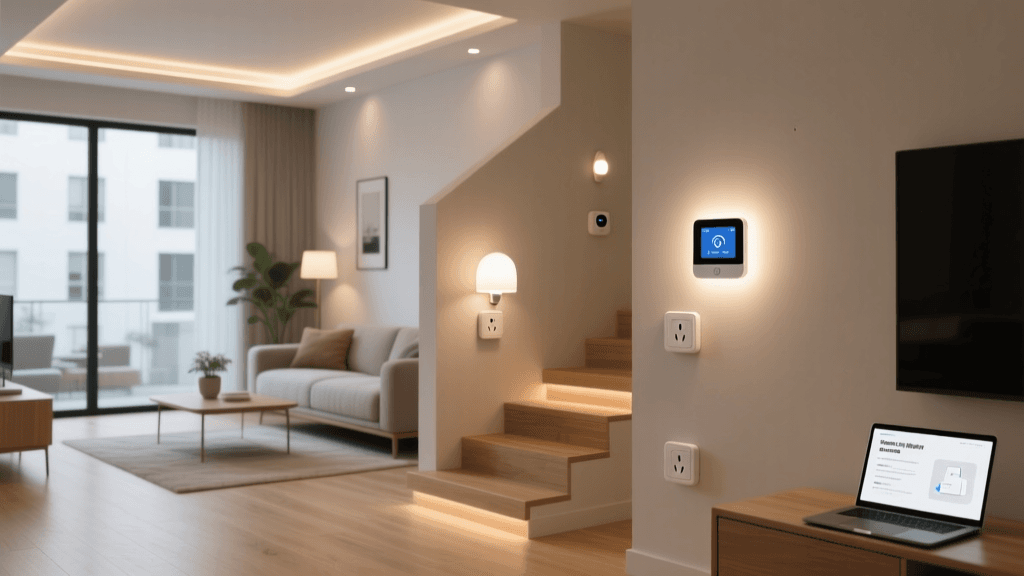
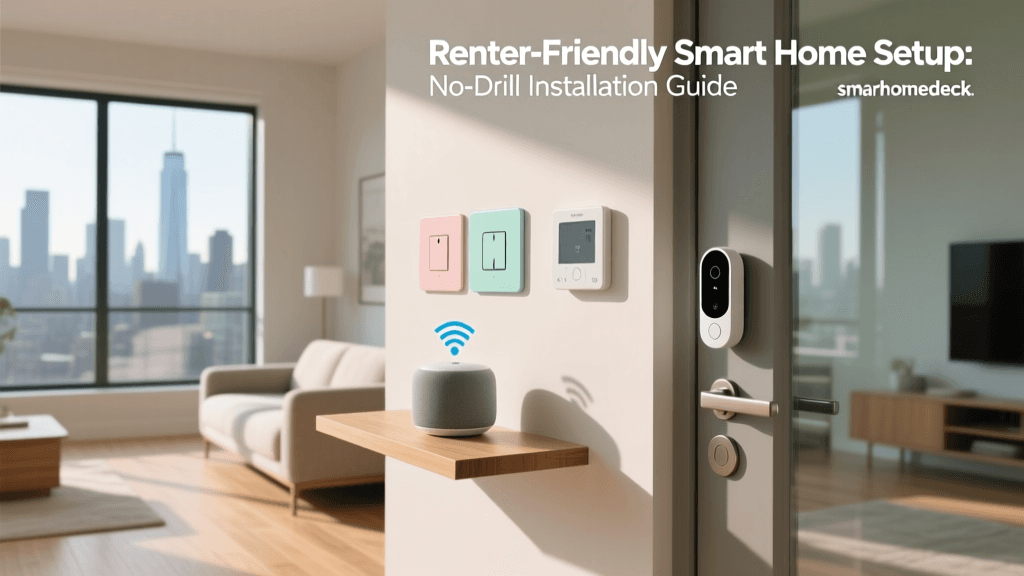
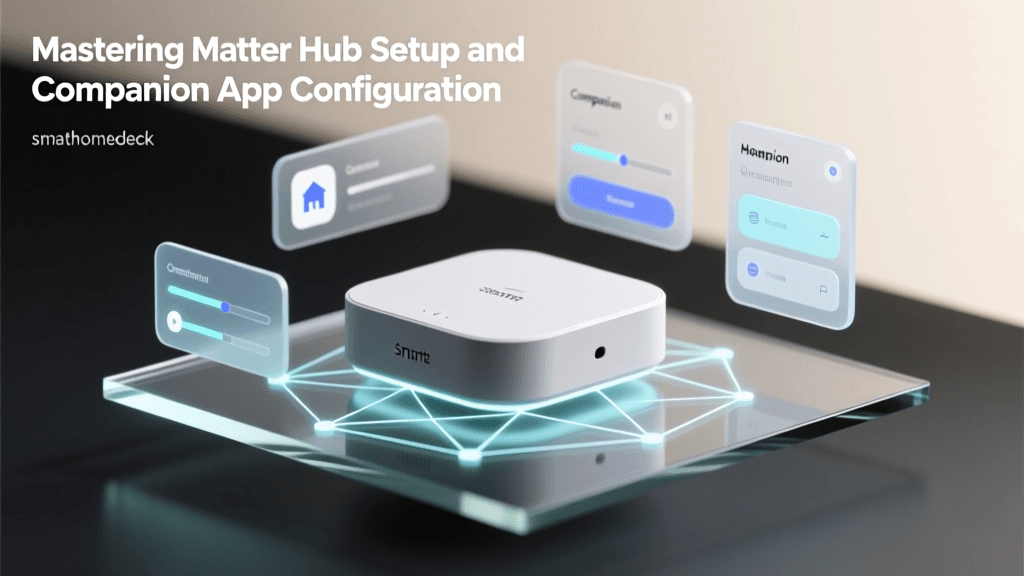
Transforming your living space into a connected, intelligent environment is one of the most rewarding home improvement projects you can undertake. A well-executed smart home installation not only boosts your property value but also dramatically improves your daily convenience, energy efficiency, and security. However, with countless devices, protocols, and ecosystems available, knowing where to start can feel overwhelming. Whether you are looking to automate a single room or wire an entire house, this comprehensive guide will walk you through the exact steps required to build a reliable, responsive, and future-proof smart home.
- Difficulty Level: Moderate (Requires basic DIY skills and network configuration)
- Estimated Time: 4 to 10 hours (Highly dependent on home size and device count)
- Core Skills Needed: Wi-Fi network management, basic electrical safety, app configuration
Tools & Products Needed for Smart Home Installation
Before you begin mounting devices and pairing sensors, gather the necessary tools and hardware. Having everything on hand will save you time and prevent frustration during the setup process.
- Smartphone or Tablet: Required for downloading companion apps and configuring devices.
- Smart Home Hub: A central bridge (like SmartThings, Home Assistant, or an ecosystem-specific hub) to connect non-Wi-Fi devices. Browse our recommendations for the best smart home hubs.
- Mesh Wi-Fi Router System: Essential for eliminating dead zones and handling high device bandwidth.
- Smart Devices: Bulbs, switches, plugs, cameras, thermostats, and sensors.
- Non-Contact Voltage Tester: Crucial for safety when installing hardwired smart switches or thermostats.
- Screwdriver Set: Phillips and flathead, preferably magnetic, for removing faceplates and mounting hardware.
- Wire Strippers & Electrical Tape: For hardwired installations requiring neutral or C-wire connections.
- Step Ladder: For mounting cameras, smoke detectors, and high-placed sensors.
- Label Maker or Masking Tape: To label circuit breaker switches and complex wiring setups.
Step 1: Plan Your Ecosystem & Network Infrastructure
The most common mistake beginners make during a smart home installation is buying devices impulsively without a unified plan. To avoid ending up with a fragmented house that requires five different apps to turn on the lights, you must first choose your core ecosystem and understand the underlying communication protocols.
Choose Your Primary Ecosystem
Your ecosystem acts as the central command center for your voice commands and automations. The big three are Amazon Alexa, Google Home, and Apple HomeKit. When selecting an ecosystem, consider the mobile devices you already own, your privacy preferences, and the specific brands of smart hardware you wish to use. Apple HomeKit offers stringent security and local processing but has a smaller hardware library. Amazon Alexa boasts the largest compatibility list, while Google Home excels in natural language processing and search integration.
Understand Smart Home Protocols
Not all devices communicate over Wi-Fi. In fact, relying entirely on Wi-Fi for dozens of smart devices will quickly congest your router. Familiarize yourself with these common protocols:
- Wi-Fi: Best for high-bandwidth devices like security cameras and smart displays. Requires a robust mesh Wi-Fi router network.
- Zigbee & Z-Wave: Low-power mesh networks that require a dedicated hub. They are incredibly reliable for smart lighting and sensors because they do not clog your Wi-Fi bandwidth.
- Thread & Matter: The newest industry standards designed to unify ecosystems. Matter allows devices to work seamlessly across Apple, Google, and Amazon platforms, while Thread provides a low-latency, self-healing mesh network.
Upgrade Your Network
A standard ISP-provided router will struggle to maintain stable connections with 30+ smart devices. Invest in a high-quality mesh Wi-Fi system. Many modern mesh systems allow you to create a dedicated "IoT Network" or "Guest Network" operating strictly on the 2.4GHz band. This isolates your smart home traffic from your personal computers and streaming devices, enhancing both security and performance.
Step 2: Set Up Your Smart Hub & Core Network
If your installation plan includes Zigbee, Z-Wave, or Thread devices, setting up your smart hub is the mandatory first physical step. The hub acts as the translator between your low-power mesh devices and your home router.
Optimal Hub Placement
Do not hide your smart hub inside a metal media cabinet or behind a television. Metal and thick concrete walls severely degrade the radio frequencies used by Zigbee and Z-Wave. Place your hub in a central, elevated location in your home, such as on a bookshelf in the main living area or a central hallway console table. This ensures the omnidirectional antenna can reach the farthest corners of your floor plan.
Network Configuration & Security
Connect your hub to your router via an Ethernet cable whenever possible. A hardwired connection prevents the hub from dropping offline during Wi-Fi interference spikes. Once powered on, download the manufacturer's app, create a secure account using a strong, unique password, and enable Two-Factor Authentication (2FA). Securing your hub is paramount, as it serves as the gateway to your home's physical security and automation systems.
Pairing Mains-Powered Devices First
When building out your Zigbee or Z-Wave mesh network, always pair mains-powered devices (like smart plugs and hardwired light switches) before battery-powered sensors. Mains-powered devices act as "signal repeaters," extending the mesh network's range and creating a stable backbone for your battery-operated door and window sensors to connect to.
Step 3: Install & Connect Smart Lighting & Plugs
Lighting is the most popular entry point for smart home automation. However, the installation method varies wildly depending on whether you are using smart bulbs, smart plugs, or hardwired smart switches.
Smart Bulbs vs. Smart Switches
Smart bulbs are perfect for lamps, color-changing accents, and fixtures where you want granular control over individual light temperatures. Simply screw them in, turn the physical wall switch to the "On" position, and pair them via your app. However, if someone flips the physical wall switch off, the smart bulb loses power and goes offline.
For overhead lighting, ceiling fans, and multi-bulb fixtures, hardwired smart switches are vastly superior. They replace your traditional wall switch, meaning the physical toggle always works, and the smart functionality remains intact. Explore our complete guide to smart lighting for brand comparisons.
Hardwired Switch Installation Safety
Warning: Always turn off the power at the circuit breaker before opening any electrical box. Use a non-contact voltage tester to confirm the wires are completely dead before touching them.
- Remove the old switch and take a photo of the existing wiring for reference.
- Identify the Line (power from the breaker), Load (power to the light), Ground, and Neutral wires.
- Crucial Note: Most smart switches require a Neutral wire to stay powered on when the light is off. If your home was built before the 1980s, you may not have neutral wires in your switch boxes. In this case, you must purchase specific "No-Neutral" smart switches or use smart bulbs instead.
- Connect the wires using wire nuts, wrap with electrical tape for security, and carefully push the wires back into the box.
- Mount the switch, attach the faceplate, restore power at the breaker, and pair the switch to your hub or Wi-Fi network.
Deploying Smart Plugs
For non-smart appliances like coffee makers, fans, or holiday lights, smart plugs are the ultimate plug-and-play solution. Simply insert the plug into the wall outlet, connect the appliance, and add the device to your app. Ensure you buy smart plugs rated for the correct amperage if you plan to control high-draw appliances like space heaters or window AC units.
Step 4: Mount & Configure Smart Security & Climate Devices
Security and climate control offer the highest return on investment regarding home protection and energy savings. These devices often require more precise placement and configuration.
Smart Thermostat Installation
Upgrading to a smart thermostat allows you to learn your schedule and adjust temperatures automatically, saving significant money on utility bills. Like smart switches, most advanced thermostats require a "C-Wire" (Common Wire) to provide continuous 24V power to the unit's Wi-Fi radio and display. If your HVAC system lacks a C-Wire, you will need to install the C-Wire adapter kit included with most premium thermostats at your furnace control board.
Strategic Camera & Sensor Placement
When installing smart security cameras, placement is everything. Mount outdoor cameras at least 8 to 10 feet high to prevent tampering, angling them slightly downward to capture faces rather than the tops of heads. Avoid pointing cameras directly at reflective surfaces or into the rising/setting sun, which will cause lens flare and ruin night vision capabilities.
For motion sensors, mount them in the corners of rooms at chest height (about 5 to 6 feet). Corner mounting provides the widest field of view and prevents the sensor from being triggered by pets moving across the floor if you enable "pet immunity" settings in the app.
Smart Locks & Doorbells
Smart locks require precise alignment between the deadbolt and the strike plate. If the door sticks or requires a hard push to close, the motorized deadbolt will jam and drain the batteries rapidly. Ensure your door swings freely before installation. Video doorbells should be mounted at roughly 48 inches from the ground to perfectly frame visitors from head to toe.
Step 5: Create Automations, Routines & Scenes
The hardware is only half the battle. The true magic of a smart home installation lies in the software—the automations that allow your home to react to your life without you needing to issue a single voice command.
Understanding Triggers, Conditions, and Actions
Every robust automation consists of three parts:
- Trigger: The event that starts the automation (e.g., "When the front door unlocks").
- Condition: The parameters that must be met for the action to occur (e.g., "Only between Sunset and Sunrise").
- Action: What the smart home actually does (e.g., "Turn on the hallway and kitchen lights to 50% brightness").
Essential Automations to Set Up First
- Geofencing (Arrival & Departure): Use your smartphone's location to turn off all lights, lock the doors, and arm the security system when the last person leaves the house. Conversely, have the porch light turn on and the thermostat adjust to a comfortable temperature when you pull into the driveway.
- Circadian Lighting: Configure your smart bulbs to mimic the sun. Set them to bright, cool white in the morning to promote focus, and gradually shift to warm, dim amber in the evening to encourage melatonin production and better sleep.
- Security Simulations: Create a "Vacation Mode" routine that randomly toggles various lights and a smart plug connected to a radio on and off throughout the evening to make the house look occupied while you are away.
- Leak & Smoke Alarms: If you install smart water leak sensors under your sinks or near your water heater, create an automation that sends a critical push notification to your phone and triggers a smart water shut-off valve if moisture is detected.
Troubleshooting Common Smart Home Installation Issues
Even the most meticulously planned smart home installation will encounter hiccups. Here is how to troubleshoot and resolve the most frequent roadblocks.
Device Refuses to Connect to Wi-Fi
The Problem: Most budget-friendly smart plugs, bulbs, and switches only operate on the 2.4GHz Wi-Fi band, but modern smartphones default to connecting to the faster 5GHz band. During setup, the app fails to find the device.
The Fix: Temporarily disable the 5GHz band on your router, or create a dedicated 2.4GHz IoT network. Walk to the far edge of your Wi-Fi range where the 5GHz signal naturally drops off, forcing your phone onto the 2.4GHz band, and run the pairing process again.
Zigbee or Z-Wave Devices Keep Dropping Offline
The Problem: Battery-powered sensors at the edge of your home report as "offline" or experience massive delays.
The Fix: Your mesh network lacks sufficient repeaters. Add a smart plug or a hardwired smart switch in a room located between the hub and the offline sensor. This will bridge the gap in the mesh network and stabilize the connection.
Voice Assistant Misinterprets Commands
The Problem: Asking Alexa to "turn on the living room" triggers the wrong devices or results in an error.
The Fix: Standardize your naming conventions. Avoid using numbers or special characters in device names. Group devices into "Rooms" within your ecosystem app. Instead of naming individual bulbs "Lamp 1" and "Lamp 2," assign them both to the "Living Room" group and simply say, "Turn on the Living Room."
Smart Switch Flickers or Buzzes
The Problem: A newly installed smart dimmer switch causes LED bulbs to flicker or emit a humming noise.
The Fix: You are likely using non-dimmable LED bulbs on a smart dimmer switch, or the dimmer lacks a proper ground connection. Ensure you are using bulbs explicitly labeled as "dimmable" and adjust the "minimum dimming threshold" in the switch's app settings to prevent the voltage from dropping too low for the bulb's driver.
Frequently Asked Questions
Do I absolutely need a smart home hub?
It depends on the devices you choose. If you exclusively buy Wi-Fi-enabled devices and rely on cloud-based ecosystems like Alexa or Google Home, you do not strictly need a dedicated hub. However, if you want to use low-power mesh protocols like Zigbee or Z-Wave, or if you want your automations to continue working when your internet connection goes down (local processing), a dedicated smart hub or a local server like Home Assistant is highly recommended.
Will installing dozens of smart devices slow down my home Wi-Fi?
Yes, if they are all connected directly to your main Wi-Fi router. Most standard routers can only handle 20 to 30 concurrent connections before experiencing packet loss and latency. To prevent this, utilize a mesh Wi-Fi system designed for high device density, create a separate 2.4GHz IoT network, and prioritize Zigbee, Z-Wave, or Thread devices, which bypass your Wi-Fi router entirely and communicate through their own dedicated hub.
How do I secure my smart home from hackers?
Security starts at the network level. Always change the default administrator password on your router. Enable WPA3 or WPA2 encryption on your Wi-Fi. For every smart device and companion app, use unique, complex passwords and enable Two-Factor Authentication (2FA). Furthermore, keep your device firmware and hub software updated automatically, as manufacturers frequently release patches for newly discovered vulnerabilities. Finally, disable remote access features on devices like IP cameras if you do not need to view them while away from home.
Can I mix and match different brands of smart devices?
Absolutely. In the past, mixing brands was difficult, but the introduction of the Matter standard has revolutionized compatibility. Devices bearing the Matter logo are guaranteed to work seamlessly across Apple HomeKit, Amazon Alexa, Google Home, and Samsung SmartThings. For older, non-Matter devices, cloud-to-cloud integrations (like linking your Philips Hue account to your Alexa app) or IFTTT (If This Then That) webhooks can bridge the gap between competing ecosystems.
What happens to my smart home if the internet goes out?
If your devices rely purely on cloud processing, you will lose remote access and voice control during an internet outage, though physical switches will still work. To build a resilient smart home, prioritize devices that support "local control." Hubs like Home Assistant, Hubitat, and newer versions of SmartThings process automations locally on the device itself. This means your motion-triggered lights and security alarms will continue to function perfectly even if your ISP experiences a total outage.