Why Your Smart Home Mesh Network Keeps Dropping
Upgrading to a mesh WiFi system like the Eero Pro 6E, Netgear Orbi, or TP-Link Deco is often the first step in building a robust smart home. Traditional single-point routers simply cannot handle the sheer volume of IoT (Internet of Things) devices—from smart bulbs and thermostats to security cameras and motorized blinds. However, many DIY installers and homeowners quickly discover that blanket coverage does not guarantee bulletproof connectivity. If your smart plugs are showing as 'offline' in your app, or your security cameras are failing to record motion events, you are likely experiencing mesh network dropouts.
Unlike laptops and smartphones, which have powerful internal antennas and can seamlessly roam between mesh nodes, most smart home devices use low-power, single-band 2.4GHz WiFi chips. These chips are highly susceptible to interference, signal degradation, and routing errors. In this comprehensive troubleshooting guide, we will break down the exact steps to diagnose and fix mesh WiFi dropouts, ensuring your whole-home automation runs flawlessly.
Step 1: Optimize Mesh Node Placement and Backhaul
The physical placement of your mesh nodes dictates the stability of your network's 'backhaul'—the invisible connection that passes data between the nodes and your main router. If the backhaul is weak, every smart device connected to that satellite node will experience latency and dropouts.
Overcoming Physical Barriers
Wireless signals degrade rapidly when passing through dense building materials. While a mesh node might show a 'green' or 'good' connection in its companion app, that metric often measures the connection to the primary router, not the localized 2.4GHz fronthaul signal your IoT devices rely on. Refer to the chart below to understand how different materials impact your signal strength.
Implementing a Wired or MoCA Backhaul
If your home features plaster walls, metal studs, or concrete, wireless backhaul will inevitably fail. The gold standard for mesh stability is a wired Ethernet backhaul. If running Cat6 Ethernet through your walls is not feasible, consider utilizing a MoCA (Multimedia over Coax Alliance) adapter kit. Devices like the Hitron MoCA 2.5 Network Adapter can convert your home's existing coaxial TV cables into a gigabit network bridge, providing a rock-solid wired connection to your satellite mesh nodes and eliminating wireless backhaul bottlenecks.
Step 2: Mitigate Wireless Interference and Channel Congestion
The 2.4GHz spectrum is notoriously crowded. It is shared by your smart home devices, Bluetooth accessories, baby monitors, microwave ovens, and even Zigbee/Thread networks. According to the Wi-Fi Alliance EasyMesh standards, modern mesh systems attempt to dynamically steer devices to the best bands, but low-cost IoT chips often resist this steering.
Managing Zigbee and WiFi Coexistence
If you are running a Philips Hue Bridge, SmartThings Station, or an Amazon Echo with a built-in Zigbee hub, be aware that Zigbee operates on the exact same 2.4GHz frequencies as WiFi channels 1 through 11. If your mesh router is set to automatically select WiFi channels, it might jump onto Channel 6 or 11, directly overlapping with your Zigbee network and causing both to drop packets.
- Actionable Fix: Log into your mesh router's advanced settings and manually lock your 2.4GHz band to Channel 1. Then, configure your Zigbee hub (if supported) to use Zigbee Channel 15 or 20, which operate outside the WiFi Channel 1 footprint.
- Separation Strategy: Some advanced mesh systems, like the Asus ZenWiFi Pro, allow you to create a dedicated IoT SSID (network name) that is restricted to the 2.4GHz band. This prevents your mesh system from attempting to 'steer' your smart bulbs to the 5GHz band, a common cause of connection failures.
Step 3: Manage Device Limits and DHCP Reservations
Consumer-grade mesh routers are often advertised as supporting 'up to 100 devices.' However, the practical limit for stable IoT connectivity is usually much lower, especially when factoring in the DHCP (Dynamic Host Configuration Protocol) overhead required to assign IP addresses.
The DHCP Lease Time Problem
Every time a smart device connects, the router assigns it an IP address for a specific 'lease time' (often 24 hours). In a smart home with 60+ WiFi devices, the router's DHCP table can become exhausted or corrupted, leading to devices failing to reconnect after a brief power flicker or sleep cycle.
Implementing Static IP Reservations
To stabilize your critical smart home infrastructure, you must assign DHCP Reservations (Static IPs) to your primary hubs and stationary devices. This ensures that your Ecobee thermostat, Lutron Caseta Smart Bridge, and Ring Alarm Base Station always receive the exact same IP address, bypassing the DHCP negotiation phase entirely.
- Open your mesh router's companion app or web interface.
- Navigate to 'Network Settings' or 'DHCP Server'.
- Locate the list of connected devices and identify your smart home hubs by their MAC addresses.
- Assign a static IP outside the dynamic pool (e.g., 192.168.1.150 for your Hue Bridge, 192.168.1.151 for SmartThings).
Step 4: Firmware, Reboots, and WPA3 Compatibility
Security protocols are a hidden culprit behind smart home dropouts. The newest WiFi security standard, WPA3, is heavily promoted in modern mesh systems. However, the vast majority of budget smart plugs, ESP8266-based LED strips, and older smart cameras lack the hardware capability to connect to a pure WPA3 network.
Configuring WPA2/WPA3 Transition Mode
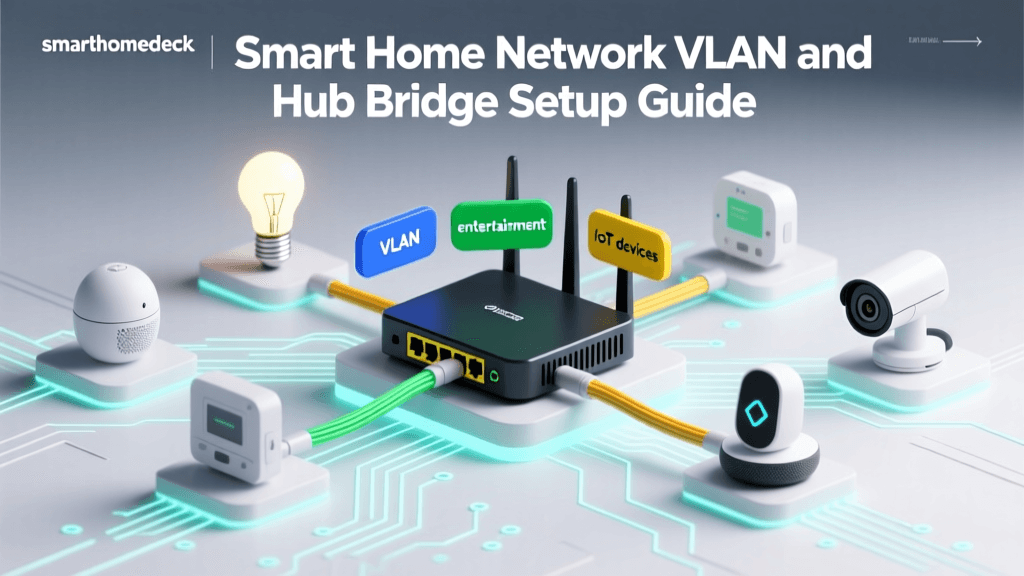
If you recently updated your mesh firmware and suddenly half your devices went offline, WPA3 is likely the issue. You need to enable 'WPA2/WPA3 Transition Mode' in your router settings. Better yet, as recommended by the Federal Trade Commission's guidelines on home network security, segmenting your network is the safest approach. Create a 'Guest' or 'IoT' network configured strictly to WPA2-AES. Connect all your smart home devices to this isolated network. This not only solves the WPA3 handshake failures but also protects your personal computers and phones from potential vulnerabilities in unpatched IoT firmware.
Mesh System Comparison for High-Density Smart Homes
Not all mesh systems handle high-density IoT environments equally. When troubleshooting persistent dropouts, it is crucial to know if your hardware is simply outmatched by your device count. Below is a comparison of top-tier mesh systems specifically evaluated for smart home performance.
| Mesh System | Max Practical IoT Devices | Backhaul Type | IoT Network Features | Estimated Cost (2-Pack) |
|---|---|---|---|---|
| Eero Pro 6E | 75 - 90 | Tri-Band Wireless / Ethernet | Thread Border Router built-in | $400 - $450 |
| Netgear Orbi RBKE963 | 100 - 120 | Quad-Band Dedicated Wireless | Advanced VLAN & IoT SSID | $1,400 - $1,500 |
| TP-Link Deco XE75 | 80 - 100 | Tri-Band Wireless / Ethernet | IoT Network Isolation | $350 - $400 |
| Asus ZenWiFi Pro ET12 | 90 - 110 | Tri-Band Wireless / Ethernet | Customizable 2.4GHz SSID | $500 - $550 |
Advanced Troubleshooting: Thread and Matter Networks
As the smart home industry transitions toward the Matter standard and Wi-Fi 6E/Thread protocols, the way devices interact with your mesh network is changing. Thread is a low-power, mesh-networking protocol that operates on the 2.4GHz spectrum but does not connect directly to your WiFi router. Instead, Thread devices (like Nanoleaf bulbs or Eve sensors) connect to 'Thread Border Routers' such as the Apple TV 4K, HomePod Mini, or Nest Hub.
If your Thread devices are dropping offline, the issue is rarely your primary WiFi mesh. Instead, troubleshoot the placement of your Thread Border Routers. Ensure you have at least two Border Routers placed in different areas of the home to create a redundant Thread mesh overlay. This offloads traffic from your WiFi mesh, significantly reducing 2.4GHz congestion and improving overall network stability.
Conclusion: A Methodical Approach to Stability
Troubleshooting mesh WiFi dropouts in a smart home requires moving beyond simple 'reboot the router' advice. By optimizing your node placement, utilizing MoCA adapters for wired backhaul, manually separating 2.4GHz channels from Zigbee networks, and implementing DHCP reservations for your core hubs, you can eliminate 95% of connectivity issues. Remember that a smart home is only as reliable as the network that supports it. Invest the time to properly configure your mesh system's advanced settings, segment your IoT devices, and embrace wired backhaul wherever possible. Your smart home will transition from a frustrating science experiment into a seamless, automated sanctuary.