The Hidden Culprit Behind Smart Home Device Dropouts
There are few things more frustrating in a modern, automated home than a smart light that refuses to turn on or a security camera that drops offline just as you need it most. When building a robust smart home ecosystem, the physical installation of devices is often the easiest part. The true challenge lies in network configuration and troubleshooting the invisible wireless signals that connect your home. According to industry data, over 60% of smart home support tickets are related to network connectivity, device dropouts, and wireless interference rather than hardware failure.
Whether you are running a Wi-Fi-heavy setup with TP-Link Kasa and LIFX bulbs, or a dedicated Zigbee mesh using a Philips Hue Bridge and Sonoff sensors, understanding the physics of wireless interference is critical. This comprehensive troubleshooting guide will walk you through diagnosing network congestion, resolving channel overlap, and optimizing your mesh topology for a rock-solid smart home.
Diagnosing Wi-Fi, Zigbee, and Thread Interference
Most smart home devices operate on the 2.4GHz radio frequency band. This includes Wi-Fi, Zigbee, Thread, and Bluetooth. Because this spectrum is heavily congested, devices often talk over one another, leading to packet loss and latency spikes. Before replacing hardware or resetting your entire hub, you must identify the source of the interference.
The USB 3.0 Interference Phenomenon
One of the most common, yet least understood, causes of Zigbee and Thread dropouts is USB 3.0 interference. Unshielded USB 3.0 cables and ports emit broad-spectrum radio frequency noise that directly overlaps with the 2.4GHz band. If your Zigbee coordinator (such as the Sonoff Zigbee 3.0 USB Dongle Plus or the Home Assistant SkyConnect) is plugged directly into a Raspberry Pi, Intel NUC, or the back of a Wi-Fi router, the noise floor will drown out sensor signals.
The Fix: Always use a shielded USB 2.0 extension cable (at least 3 to 6 feet long) to move your Zigbee/Thread coordinator away from USB 3.0 ports, external SSDs, and the router's motherboard. This single hardware adjustment resolves dropout issues for roughly 30% of DIY smart home hubs.
Appliance and Bluetooth Congestion
Microwaves, cordless phones, and baby monitors are notorious 2.4GHz band hogs. Furthermore, if you have dozens of Bluetooth devices constantly scanning for connections near your smart hub, the frequency hopping can cause Zigbee acknowledgments to time out. Use a spectrum analyzer app like Ubiquiti's WiFiman (available on iOS and Android) to map your local Wi-Fi noise floor. If you see massive spikes on channels 1, 6, or 11 during specific times of the day, you have found your environmental interference.
Channel Mapping: Resolving Wi-Fi and Zigbee Overlap
Wi-Fi and Zigbee both use the 2.4GHz spectrum, but they slice it up differently. Wi-Fi uses wide 20MHz or 40MHz channels, while Zigbee uses narrow 5MHz channels. If your Wi-Fi router is broadcasting on a channel that overlaps with your Zigbee network, your smart plugs and sensors will experience massive latency.
As outlined by the Wi-Fi Alliance EasyMesh standards, optimizing channel selection is vital for multi-node networks. For smart homes, you must lock your 2.4GHz Wi-Fi to channels 1, 6, or 11, and then manually set your Zigbee coordinator to a non-overlapping channel.
| 2.4GHz Wi-Fi Channel | Safe Zigbee Channels | Avoid These Zigbee Channels |
|---|---|---|
| Channel 1 | 15, 20, 25 | 11, 12, 13, 14 |
| Channel 6 | 11, 25 | 15, 16, 17, 18, 19, 20 |
| Channel 11 | 11, 15 | 20, 21, 22, 23, 24, 25, 26 |
Pro Tip: If your Wi-Fi is on Channel 1, set your Philips Hue Bridge or Home Assistant ZHA integration to Zigbee Channel 15 or 20 to completely eliminate co-channel interference.
Step-by-Step Fixes for Common Network Issues
1. Separating 2.4GHz and 5GHz SSIDs
Modern mesh routers like the Eero Pro 6E or TP-Link Deco XE75 use a single SSID for both 2.4GHz and 5GHz bands, relying on band steering to sort devices. Unfortunately, many budget IoT devices (like older Wyze Cams or generic Tuya smart plugs) lack the sophistication to handle band steering and will fail to connect or randomly drop off.
The Fix: Log into your router's admin panel and enable the 'IoT Network' or 'Guest Network' feature. Create a dedicated 2.4GHz-only SSID specifically for your smart home devices. Connect all your hubs, plugs, and switches to this isolated network. This not only solves connection dropouts but also improves security by segmenting IoT traffic from your personal computers and phones.
2. Strategic Mesh Node and Hub Placement
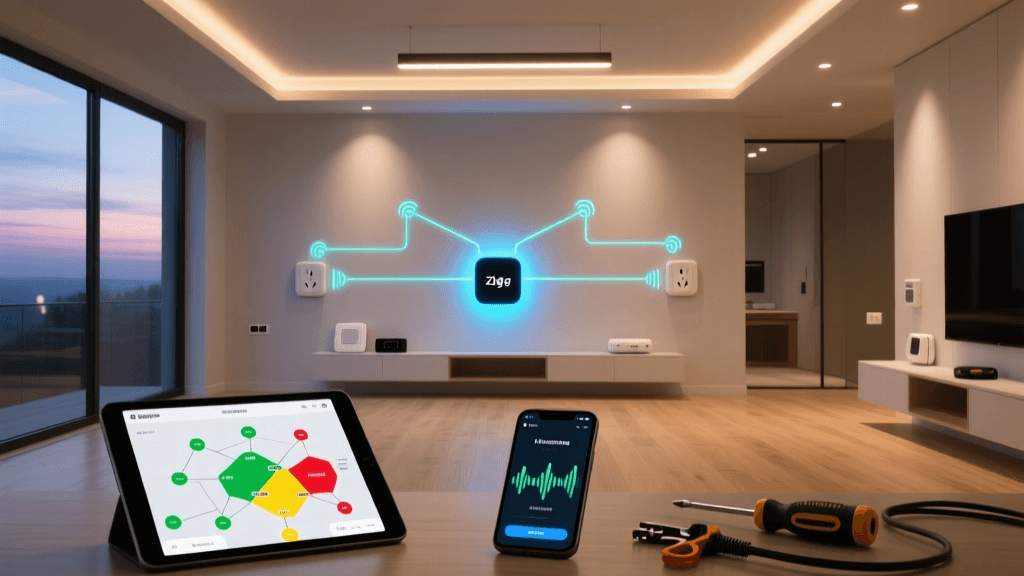
Zigbee and Thread rely on a mesh topology, where mains-powered devices (like smart plugs and wall switches) act as repeaters for battery-powered sensors. If your hub is tucked inside a metal AV rack or placed in the basement, the signal will struggle to reach the second floor.
- Centralize the Hub: Place your primary coordinator (e.g., Aeotec Smart Home Hub or Apple HomePod) in the physical center of your home, elevated at least 4 feet off the ground.
- Build a Backbone: Install a few Zigbee smart plugs in hallways and central rooms to create a strong 'backbone' for mesh routing before placing battery-powered door/window sensors at the far edges of your property.
- Avoid Metal and Water: Keep hubs away from refrigerators, fish tanks, and HVAC ducts, as water and metal absorb 2.4GHz signals rapidly.
Hardware Upgrades: When to Replace Your Router
If you have optimized your channels, separated your SSIDs, and used extension cables, but your devices are still dropping offline, your router's CPU or RAM may be overwhelmed. Most ISP-provided routers crash when handling more than 30-40 simultaneous IoT connections. Upgrading to a high-capacity mesh system designed for IoT density is often the only permanent fix.
| Router Model | Wi-Fi Standard | Max IoT Device Support | Estimated Cost (2-Pack) |
|---|---|---|---|
| TP-Link Deco XE75 | Wi-Fi 6E | Up to 200 devices | $250 - $280 |
| Eero Pro 6E | Wi-Fi 6E | Up to 100+ devices | $350 - $400 |
| Asus ZenWiFi XT9 | Wi-Fi 6 | Up to 90 devices | $300 - $350 |
| Ubiquiti UniFi Dream Router | Wi-Fi 6 | Unlimited (Enterprise) | $199 (Standalone) |
Visualizing Network Congestion and Device Load
Understanding how different device categories impact your network latency can help you prioritize troubleshooting. Cameras and smart displays consume massive bandwidth, while sensors and locks require minimal bandwidth but demand ultra-low latency to function reliably.
As the chart illustrates, Wi-Fi cameras introduce the highest latency spikes due to continuous video uplink, which can starve low-power Zigbee sensors of airtime if not properly managed via Quality of Service (QoS) router settings. By placing cameras on a dedicated 5GHz SSID, you free up the 2.4GHz spectrum for critical infrastructure like smart locks and motion sensors.
Advanced Troubleshooting for Matter and Thread Borders
The introduction of the Matter standard by the Connectivity Standards Alliance has brought Thread networking into the mainstream. Thread uses the same 2.4GHz spectrum as Zigbee but relies on IPv6 and 'Border Routers' to bridge the mesh to your Wi-Fi network. Devices like the Apple TV 4K (Wi-Fi + Ethernet model), Nest Hub Max, and Amazon Echo (4th Gen) act as Thread Border Routers.
Fixing Thread Partitioning
A common issue in mixed-ecosystem homes is 'Thread Partitioning.' This happens when an Apple HomePod and a Google Nest Hub both try to act as the primary Thread Border Router, creating two separate, incompatible Thread meshes. Devices on one mesh cannot communicate with the other, leading to delayed automations and offline sensors.
The Fix: Ensure that all your Border Routers are connected to the exact same Wi-Fi SSID and subnet. If you use an Apple TV as your primary Thread router, connect it via Ethernet rather than Wi-Fi to provide a stable, hardwired bridge to your network. Furthermore, ensure that 'Thread Border Router' settings are enabled in the respective Home, Google Home, or Alexa apps.
Preventative Maintenance for a Stable Smart Home
Troubleshooting shouldn't only happen when things break. Implementing a preventative maintenance schedule will keep your smart home running smoothly for years.
- Automated Reboots: Set your router and primary smart hubs to automatically reboot once a week at 3:00 AM. This clears RAM leaks and forces devices to reconnect to the strongest mesh node.
- Firmware Audits: While automatic updates are convenient, they can sometimes introduce bugs. Dedicate one Sunday a month to review firmware release notes for your hubs and manually push updates to critical devices like smart locks and garage door controllers.
- Battery Voltage Monitoring: Many Zigbee sensors report 'low battery' only after they start dropping packets. Use your hub's dashboard to monitor battery voltage trends and replace CR2032 or CR123A batteries proactively before they cause mesh routing gaps.
Conclusion
Troubleshooting smart home network dropouts requires a methodical approach. By understanding the physics of 2.4GHz interference, mapping your Wi-Fi and Zigbee channels correctly, and investing in high-capacity mesh hardware, you can transform a glitchy, unreliable setup into a seamless, automated sanctuary. Remember that a smart home is only as strong as its network foundation—take the time to optimize your invisible wiring, and your devices will reward you with flawless performance.