Introduction to the Fibaro Wall Plug Z-Wave
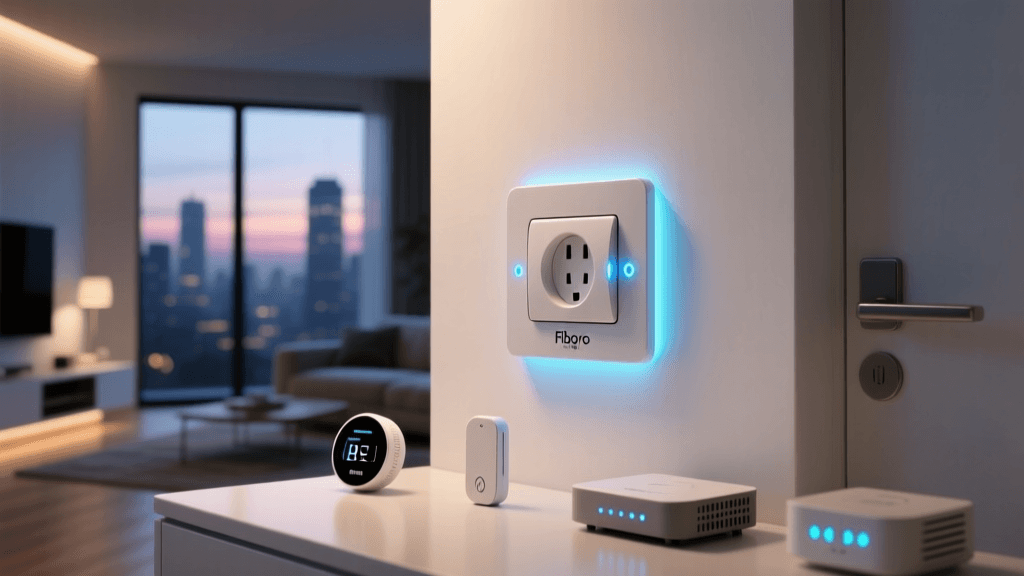
When building a robust, local-first smart home, Z-Wave remains one of the most reliable wireless protocols available. Among the most iconic devices in the Z-Wave ecosystem is the Fibaro Wall Plug. Known for its distinctive, customizable LED ring and comprehensive energy monitoring capabilities, this smart plug has been a staple for home automation enthusiasts for years. In this comprehensive installation and setup review, we are putting the Fibaro Wall Plug Z-Wave Plus (US Edition, Model FGWOF-120) through its paces. We will cover everything from physical clearance challenges and Z-Wave network inclusion to advanced parameter configuration for energy tracking and mesh network routing.
Retailing typically between $50 and $60, the Fibaro Wall Plug sits at a premium price point compared to basic Wi-Fi or Zigbee smart plugs. However, its ability to act as a Z-Wave mesh repeater, combined with granular energy reporting and local execution, justifies the investment for serious smart home deployments. Whether you are using SmartThings, Hubitat, Home Assistant, or Homey, understanding the nuances of installing and configuring this device is critical to unlocking its full potential.
Physical Installation & The Clearance Dilemma
The most immediate challenge you will face during the physical installation of the Fibaro Wall Plug is its form factor. Unlike the ultra-slim profiles of some modern Zigbee plugs, the US version of the Fibaro Wall Plug is undeniably bulky. Measuring approximately 2.8 x 2.8 x 1.8 inches (71 x 71 x 45 mm), it houses a heavy-duty relay, a Z-Wave Plus 500-series radio, and an energy monitoring IC.
Outlet Blocking and Workarounds
Because of its circular, protruding design, the Fibaro Wall Plug will almost certainly block the second socket on a standard US duplex receptacle. If you are installing it in a tight space behind a sofa or a heavy piece of furniture, the 1.8-inch depth may also prevent the furniture from sitting flush against the wall.
- Workaround 1: Use a short, heavy-duty 1-foot extension cord to move the plug away from the wall and free up the adjacent outlet.
- Workaround 2: Install a rotating outlet extender or a recessed wall box if you are doing new construction or major renovations.
- Workaround 3: Reserve the top outlet for the Fibaro plug and use the bottom outlet for standard, non-smart devices, as the plug's internal pass-through is non-existent (it is a single-socket device).
Despite the bulk, the build quality is exceptional. The plug features a satisfying, audible mechanical relay click when toggled, providing physical confirmation of state changes even if your hub is offline. The relay is rated for 15 Amps (up to 1800W at 120V), making it suitable for heavy loads like space heaters, window AC units, and large dehumidifiers, provided you configure the overload protection parameters correctly.
Z-Wave Network Inclusion & Pairing Process
Pairing a Z-Wave device is fundamentally different from pairing Wi-Fi or Bluetooth devices. The Fibaro Wall Plug utilizes Z-Wave Plus technology, which supports Network Wide Inclusion (NWI). This means you do not necessarily need to be standing right next to your hub to pair it, as long as it is within range of another powered Z-Wave routing node.
Step-by-Step Inclusion Guide
- Prepare the Hub: Put your Z-Wave controller (SmartThings, Hubitat, or Z-Wave JS UI) into inclusion/pairing mode.
- Power the Device: Plug the Fibaro Wall Plug into an outlet. The LED ring will illuminate, typically pulsing in a cyan or white color, indicating it is searching for a network.
- Trigger Inclusion: Press and hold the button on the side of the plug for about 3 seconds until the LED ring begins to flash rapidly. The hub should detect the device within 10 to 15 seconds.
- Interview Process: Once detected, the hub will begin the 'interview' process, querying the device for its command classes, endpoints, and supported parameters. Do not unplug the device during this phase.
Security Protocols: S0 vs S2
Because this specific model is built on the 500-series Z-Wave Plus chip, it natively supports S0 Legacy Security. While modern 700 and 800-series hubs prefer S2 Security, most hubs will gracefully fall back to S0 or even unsecured inclusion for 500-series devices. For a smart plug, S0 security is generally sufficient and prevents rogue devices from hijacking your plug's relay, though it does add slight latency to Z-Wave mesh routing. If your hub supports SmartStart, note that older 500-series Fibaro plugs do not support S2 SmartStart QR code scanning; manual inclusion via the physical button is required.
Hub Ecosystem Compatibility
The true test of any Z-Wave device is how well it integrates with popular smart home hubs. We tested the Fibaro Wall Plug across three major local-processing ecosystems to evaluate driver support, energy monitoring visibility, and parameter control.
| Smart Home Hub | Driver Type | Energy Monitoring | Parameter Control | Setup Complexity |
|---|---|---|---|---|
| Home Assistant (Z-Wave JS) | Native / Built-in | Excellent (Real-time & kWh) | Full UI Access | Low |
| Hubitat Elevation | Native / Built-in | Excellent (Dashboard ready) | Full Preference UI | Low |
| Samsung SmartThings | Edge Driver (Z-Wave) | Good (Requires custom routines) | Limited / Requires CLI | Medium |
| Homey Pro | Native App | Excellent (Insights App) | Full App UI | Low |
For users leveraging Home Assistant Z-Wave JS, the Fibaro Wall Plug is a dream device. The integration automatically exposes not only the switch entity but also discrete sensors for current (Amps), voltage (Volts), instantaneous power (Watts), and accumulated energy (kWh). Hubitat users will find the built-in 'Fibaro Wall Plug' driver equally robust, with native preference toggles for the LED ring behavior and overload protection.
Energy Monitoring Calibration & Parameter Configuration
Out of the box, the Fibaro Wall Plug may report energy data too frequently, which can flood your Z-Wave network and degrade mesh performance. To optimize both your network health and your energy dashboards, you must configure specific Z-Wave parameters. According to Z-Wave Alliance certification standards, properly configuring reporting thresholds is essential for network longevity.
Critical Parameters to Configure
- Parameter 50 (Active Power Threshold): This defines the minimum power change (in Watts) required to trigger a report to the hub. Default is often 50 (meaning a 5W change). For high-draw appliances like a space heater, set this to 100 or 150 to reduce network chatter.
- Parameter 52 (Periodic Active Power Reporting): This sets a time interval (in seconds) for forced power reporting, regardless of load changes. Set this to 300 (5 minutes) or 600 (10 minutes) for a balance between dashboard accuracy and network health.
- Parameter 53 (Energy Threshold): Defines the change in accumulated energy (kWh) before a report is sent. A value of 10 (0.1 kWh) is ideal for tracking daily appliance costs without spamming the hub.
By tuning these parameters via your hub's Z-Wave device management page, you transform the Fibaro Wall Plug from a simple on/off switch into a highly accurate, low-latency energy sub-meter.
The LED Ring: Aesthetic Meets Functional
The defining feature of the Fibaro Wall Plug is its frosted LED ring. While it serves as a status indicator during pairing (flashing colors) and network errors (red pulses), its real magic lies in load-based customization. By default, the ring changes color based on the current power draw of the connected appliance.
- Green: Low power consumption (e.g., a phone charger or LED lamp).
- Blue/Cyan: Medium power consumption.
- Violet/Red: High power consumption (e.g., a hair dryer or microwave).
- Flashing Red: Overload detected or device disconnected from the Z-Wave network.
Through Parameters 61 and 62, you can disable the ring entirely, force it to a single static color (useful for nightlights or finding the plug in a dark home theater room), or tie it to specific alarm classes from your hub, such as flashing blue if a Z-Wave water leak sensor detects moisture in the basement.
Mesh Network Routing & Repeater Functionality
Because the Fibaro Wall Plug is mains-powered, it automatically acts as a Z-Wave routing node (repeater). This is a crucial aspect of the installation process that many beginners overlook. When you plug this device into a wall, you are actively extending the range and reliability of your entire Z-Wave mesh network. If you have battery-powered Z-Wave door sensors or window contacts that are struggling to reach the hub, strategically placing a Fibaro Wall Plug in a midway room can bridge the gap, ensuring 100% reliability for your security devices.
Pro-Tip for Network Healing: After installing multiple Fibaro Wall Plugs throughout your home, always initiate a 'Z-Wave Network Heal' or 'Repair Z-Wave Network' from your hub's dashboard. This forces the controller to recalculate the optimal routing paths, utilizing the new Fibaro plugs as high-speed relay bridges.
Pros and Cons
Pros
- Exceptional build quality with a heavy-duty 15A relay.
- Highly granular energy monitoring with customizable reporting thresholds.
- Functions as a Z-Wave mesh repeater, improving overall network health.
- Iconic, customizable LED ring provides instant visual load feedback.
- Broad compatibility with all major Z-Wave hubs (Home Assistant, Hubitat, SmartThings).
Cons
- Bulky US form factor blocks adjacent outlets and protrudes from the wall.
- Premium price point compared to basic Wi-Fi or Zigbee alternatives.
- 500-series Z-Wave chip lacks modern S2 Security and SmartStart features.
- Requires parameter tuning to prevent Z-Wave network flooding.
Final Verdict & Buying Advice
The Fibaro Wall Plug Z-Wave is not designed for the casual user who simply wants to turn a living room lamp on and off via voice commands. For basic lighting control, cheaper Zigbee or Matter-over-Thread plugs are more than sufficient and offer slimmer profiles. However, for the smart home enthusiast who demands local control, precise energy telemetry, and mesh network fortification, the Fibaro Wall Plug remains an elite tier device.
If you are building a Home Assistant or Hubitat dashboard and want to track the exact kWh consumption of your dehumidifier, space heater, or grow tent equipment, the investment is entirely justified. Just be prepared to manage the physical clearance issues with a short extension cord if necessary, and take the time to properly configure the Z-Wave reporting parameters to keep your mesh network running smoothly. When installed and tuned correctly, the Fibaro Wall Plug is a powerhouse of data and reliability that will serve your smart home ecosystem flawlessly for years to come.