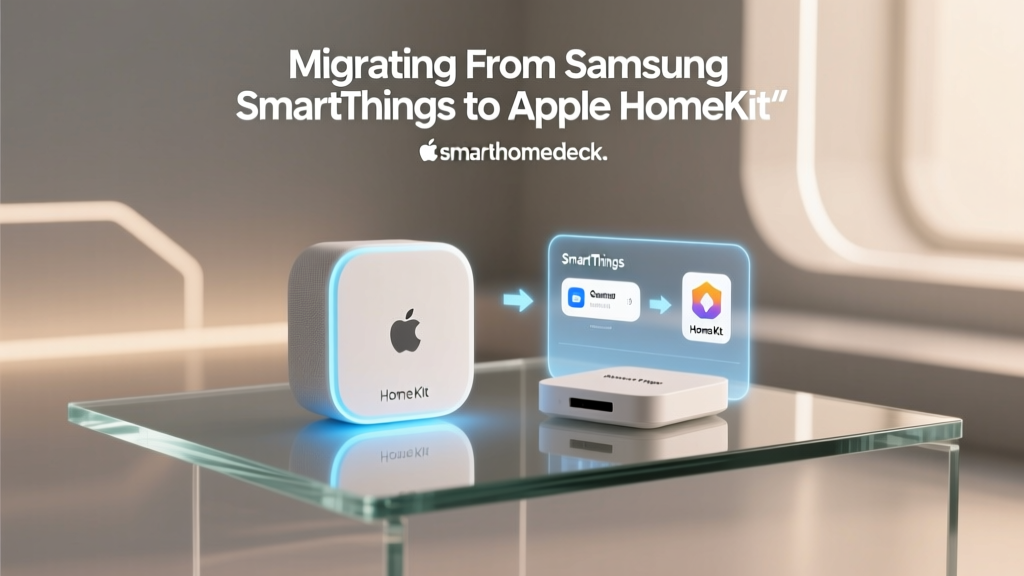
The Great Smart Home Migration: Leaving Google Home for Apple HomeKit
For years, Google Home has been the default entry point for millions of smart home enthusiasts. With its low-cost smart speakers, broad device compatibility, and powerful Google Assistant, it offered an unmatched ecosystem for beginners. However, as smart home setups mature, many users find themselves frustrated by cloud-dependent latency, privacy concerns, and a lack of deep local automation. This leads to a growing trend: migrating from Google Home to Apple HomeKit.
Switching ecosystems is not a simple flip of a switch. It requires a strategic audit of your existing hardware, an understanding of Apple's strict security protocols, and a willingness to invest in local hub infrastructure. In this comprehensive guide, we will break down exactly how to migrate your smart home from Google to Apple, what devices you can keep, the hidden costs involved, and how the new Matter standard is changing the migration landscape.
Why Migrate to Apple HomeKit?
The decision to leave Google's ecosystem usually stems from three core pillars: privacy, reliability, and ecosystem integration.
1. Uncompromising Privacy and Local Processing
Unlike Google, which relies heavily on cloud servers to process voice commands and automation logic, Apple HomeKit prioritizes local network processing. When you ask Siri to turn off the lights, the command is processed locally by your HomeKit hub whenever possible. Furthermore, Apple mandates strict end-to-end encryption for all HomeKit data. According to Apple's official privacy documentation, your home data is encrypted in transit and at rest, meaning not even Apple can view your camera feeds or unlock your doors.
2. HomeKit Secure Video (HKSV)
For security camera enthusiasts, HKSV is a game-changer. Instead of paying monthly subscription fees to Google Nest Aware or Ring, HomeKit Secure Video uses your iCloud storage plan to securely record, analyze, and store footage. The AI analysis (recognizing people, animals, and packages) happens locally on your Apple TV or HomePod, ensuring your video data never hits an external server for processing.
3. The Apple Ecosystem Synergy
If you already use an iPhone, iPad, and Apple Watch, HomeKit offers unparalleled integration. You can control your thermostat from your Apple Watch, view your front door camera on your Mac's Picture-in-Picture mode, and use the Apple TV remote to manage scenes. The Apple Home app provides a unified, beautifully designed dashboard that many users find superior to the often cluttered Google Home interface.
Google Home vs. Apple HomeKit: Feature Comparison
Before tearing down your existing setup, it is crucial to understand the architectural differences between the two platforms.
| Feature | Google Home | Apple HomeKit |
|---|---|---|
| Hub Requirement | Optional (Cloud-based automations) | Mandatory (Apple TV 4K or HomePod) |
| Processing | Mostly Cloud-dependent | Local-first, Cloud-assisted |
| Privacy Model | Data used for ecosystem improvement | End-to-End Encrypted, Local processing |
| Camera Subscriptions | Nest Aware (Monthly Fee) | HomeKit Secure Video (iCloud Plan) |
| Voice Assistant | Google Assistant (Highly conversational) | Siri (Improving, strict privacy) |
| Device Availability | Massive, open ecosystem | Curated, requires MFi/Matter certification |
The Hardware Audit: What Can You Keep?
The most painful part of any ecosystem migration is hardware incompatibility. Here is how your existing Google Home devices will fare in Apple HomeKit.
The "Nest Trap"
If you have heavily invested in Google Nest products—such as the Nest Learning Thermostat, Nest Cam, or Nest Doorbell—you are facing a hard reset. Google intentionally locks Nest hardware into the Google Home ecosystem. There is no native HomeKit support, and while third-party bridges like the Starling Home Hub exist for thermostats, they are expensive, unofficial workarounds. For a pure HomeKit experience, Nest devices must be sold or repurposed.
Zigbee and Proprietary Hubs (Philips Hue, Lutron)
Good news: If you use bridge-based systems like Philips Hue (Zigbee) or Lutron Caseta (Clear Connect), your migration is seamless. Because these systems rely on their own proprietary hubs that connect to your router, you simply need to open the Apple Home app, scan the HomeKit setup code on the bridge, and your entire network of bulbs and switches will instantly appear in Apple Home.
Thread-Based Devices (Eve, Nanoleaf)
Thread-based devices from brands like Eve and Nanoleaf represent the future of HomeKit. Because Thread creates a self-healing mesh network, these devices connect directly to your Apple hubs without needing a secondary bridge. If you have been forward-thinking and purchased Thread-enabled sensors and plugs, they will pair with Apple HomeKit almost instantly.
Wi-Fi Devices (TP-Link, Wyze, Meross)
Wi-Fi smart plugs and bulbs are a mixed bag. Brands like Meross and TP-Link (Kasa/Tapo) often support both Google and HomeKit natively. You will need to factory reset these devices and re-pair them using the Apple Home app. However, budget brands like Wyze or Ring do not support HomeKit natively and will need to be replaced with alternatives like Eve Energy or Aqara.
Essential Hardware: Setting Up Your HomeKit Hubs
Unlike Google Home, where automations can run via the cloud through a simple Nest Mini, Apple HomeKit requires a dedicated local home hub for remote access, automations, and Thread border routing.
- Apple TV 4K (Ethernet Model): Priced around $149, this is the ultimate HomeKit hub. The Ethernet model includes a built-in Thread border router, which is essential for modern, low-latency smart home devices. It also supports multiple simultaneous HomeKit Secure Video streams.
- HomePod mini: At $99, the HomePod mini is a great secondary hub and Thread border router. It provides excellent room-filling audio and acts as a local Siri endpoint, but it lacks the processing power of the Apple TV 4K for heavy camera recording loads.
- Legacy Hubs: Older devices like the original HomePod or iPad can act as hubs, but they do not support Thread and are being phased out of Apple's latest automation architecture.
Step-by-Step Migration Strategy
Follow this systematic approach to ensure a smooth transition without leaving orphaned devices on your network.
Step 1: Map and Document
Before resetting anything, take screenshots of your Google Home routines and device names. Apple Home uses "Scenes" and "Automations," which require manual rebuilding. Documenting your triggers (e.g., "When I leave home") and actions (e.g., "Turn off all lights, set Ecobee to Away") will save hours of guesswork.
Step 2: Deploy the Apple Hubs
Set up your Apple TV 4K or HomePod mini first. Ensure they are signed into your primary iCloud account, enable "Home Hub" in the settings, and verify that your network allows local communication (disable AP isolation on your router).
Step 3: The Factory Reset Ritual
Devices cannot be paired to HomeKit if they are actively claimed by a Google account. You must factory reset every Wi-Fi and Bluetooth device. For smart plugs, this usually means holding the physical button for 10 seconds until the LED flashes rapidly. For bridges like Hue, use a paperclip to press the reset button on the underside of the hub.
Step 4: Rebuild Automations and NFC Tags
Apple's automation engine is highly granular. You can set automations based on time, location, sensor triggers, and even NFC tags. Apple HomeKit supports NFC tag triggers natively. You can place an NFC sticker on your nightstand and tap your iPhone to trigger a "Goodnight" scene that locks the doors, dims the Hue lights, and sets the Ecobee thermostat to sleep mode. While Google Assistant is better at natural language processing, Siri's integration with iOS Shortcuts allows for incredibly complex, multi-step macros that Google Home cannot match.
Migration Cost Breakdown
Migrating ecosystems is an investment. Below is a visualization of the estimated costs to migrate a standard 3-bedroom home from a Google Nest ecosystem to an Apple HomeKit ecosystem, factoring in the need to replace incompatible devices and purchase local hubs.
Estimated Migration Costs from Google to HomeKit
As the chart illustrates, the largest cost discrepancies lie in Security and Hubs. Replacing a $199 Nest Doorbell with a HomeKit-compatible Logitech Circle View Doorbell ($229) or Aqara G4 ($199) adds up, especially when you factor in the need for an Apple TV 4K to process the HomeKit Secure Video streams. Climate control also sees a bump, as users often migrate from the Nest Thermostat to the Ecobee SmartThermostat Premium ($299), which offers native HomeKit support and built-in Alexa/Siri integration.
Privacy, Data Handling, and the Matter Standard
The most significant advantage of completing this migration is the reclamation of your data privacy. Google's business model is inherently tied to data aggregation. While they state that smart home data is not used for ad targeting, the sheer volume of telemetry data collected by Google devices is a concern for privacy advocates.
Apple, conversely, treats HomeKit as a hardware-enabling service rather than a data-harvesting tool. All HomeKit configurations are synced via iCloud using end-to-end encryption. If you lose your iPhone and need to restore your HomeKit setup, the decryption key is tied to your iCloud Keychain, ensuring that your home's layout and access codes remain entirely private.
How Matter Changes Future Migrations
If you are hesitant to completely abandon your Google hardware, the rollout of the Matter protocol offers a lifeline. According to the Connectivity Standards Alliance (CSA), Matter allows smart home devices to communicate locally across different ecosystems simultaneously. This means a Matter-certified smart plug or light bulb can be controlled by Google Home and Apple HomeKit at the exact same time, eliminating the need for ecosystem lock-in. While cameras and complex appliances are still largely proprietary, Matter is rapidly unifying the lighting, plug, and sensor categories.
Final Verdict: Is the Switch Worth It?
Migrating from Google Home to Apple HomeKit is not for the faint of heart, nor is it the cheapest path. It requires a financial investment in local hubs and a willingness to abandon popular hardware like Nest thermostats and cameras. However, for users who prioritize blazing-fast local automations, ironclad privacy, and seamless integration with their Apple Watch and iPhone, the grass is undeniably greener on the HomeKit side.
By taking a methodical approach—auditing your devices, investing in an Apple TV 4K, and leveraging Matter-compatible replacements—you can build a smart home that is not only more secure but significantly more reliable than the cloud-dependent alternative.