The Foundation: Why You Need a Dedicated Smart Hub
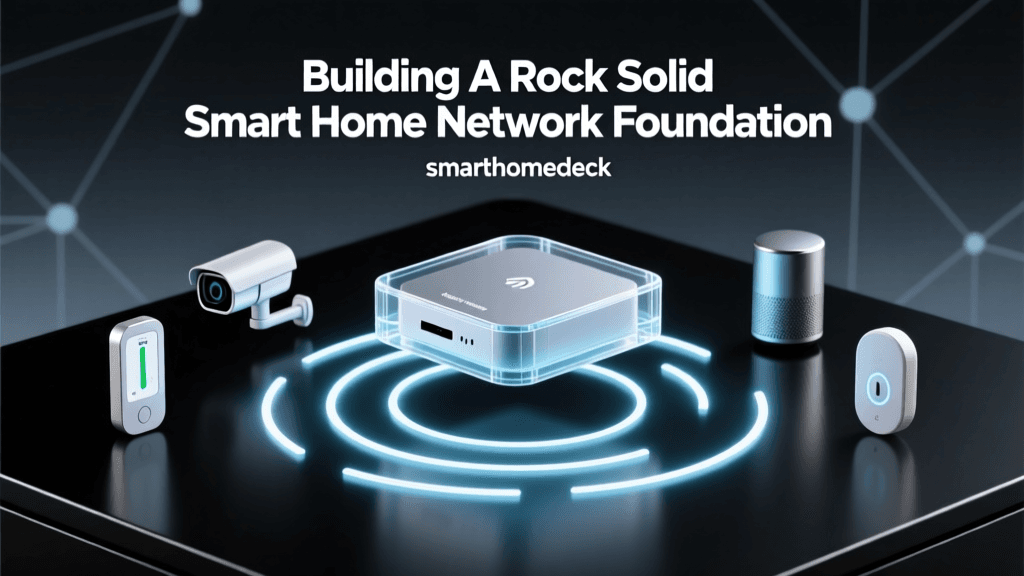
When setting up your first smart home, the instinct is to immediately purchase smart bulbs, plugs, and cameras. However, the most critical component of a reliable smart home is not an endpoint device; it is the central hub and the underlying network architecture. Relying solely on your standard Wi-Fi router to connect dozens of smart devices is a common beginner mistake that leads to network congestion, dropped connections, and frustrating latency.
Most consumer-grade Wi-Fi routers begin to struggle when the number of connected IoT (Internet of Things) devices exceeds 30 to 40. Smart homes, however, frequently utilize 50 to over 100 individual sensors, switches, and bulbs. To solve this, dedicated smart home hubs utilize alternative low-power mesh networking protocols like Zigbee, Z-Wave, and the newer Matter/Thread standards. According to the Connectivity Standards Alliance, these mesh protocols offload traffic from your primary Wi-Fi network, creating a dedicated, robust highway for your smart home commands while reserving your Wi-Fi bandwidth for high-data tasks like streaming and video calls.
Choosing the Right Hub for Your Ecosystem
Before you begin the physical installation, you must select a hub that aligns with your preferred ecosystem, budget, and desired level of local vs. cloud processing. Below is a comparison of the most popular entry-level and enthusiast hubs on the market.
| Hub Model | Supported Protocols | Average Cost | Best For |
|---|---|---|---|
| Samsung SmartThings Station | Wi-Fi, Zigbee, Matter, Thread | $70 - $90 | Beginners wanting broad compatibility and easy app integration. |
| Hubitat Elevation | Zigbee, Z-Wave, LAN | $130 - $150 | Enthusiasts prioritizing local processing, speed, and privacy. |
| Apple HomePod Mini | Wi-Fi, Bluetooth, Thread | $99 | Apple users deeply integrated into the HomeKit ecosystem. |
| Amazon Echo Show 8 (3rd Gen) | Wi-Fi, Bluetooth, Zigbee, Matter | $130 - $150 | Alexa users who want a built-in display and smart home hub combo. |
Pre-Installation: Preparing Your Home Network
A smart hub is only as reliable as the network it connects to. Before unboxing your new hub, take 15 minutes to optimize your home router settings.
1. Separate Your 2.4GHz and 5GHz Bands
The vast majority of Wi-Fi-based IoT devices (like budget smart plugs and cameras) only operate on the 2.4GHz Wi-Fi band due to its superior wall-penetration capabilities. Many modern mesh routers combine 2.4GHz and 5GHz into a single SSID (network name). While convenient for phones, this often causes IoT setup failures. Log into your router admin panel and temporarily separate the bands (e.g., 'HomeNetwork_2G' and 'HomeNetwork_5G') to ensure your devices connect to the correct frequency during pairing.
2. Create an IoT Guest Network or VLAN
Security is paramount when bringing internet-connected devices into your home. The Wi-Fi Alliance recommends utilizing network segmentation to protect your primary devices. By creating a dedicated 'Guest Network' or a VLAN (Virtual Local Area Network) specifically for your IoT hub and smart devices, you isolate them from your personal computers, NAS drives, and smartphones. If a cheap smart plug is ever compromised, the attacker cannot laterally move to your primary devices.
Physical Installation and Optimal Hub Placement
Where you place your smart home hub dictates the reliability of your entire mesh network. Zigbee and Z-Wave signals operate on low-power radio frequencies that are highly susceptible to physical and electromagnetic interference.
- Avoid the Basement and TV Stands: Do not hide your hub inside a closed wooden TV console, behind a wall-mounted television, or in a basement rack. Metal framing, concrete, and large mirrors act as Faraday cages, blocking RF signals.
- Centralize and Elevate: Place the hub in the geographic center of your home, ideally on a high shelf or mounted near the ceiling on the main living floor. This provides the clearest line-of-sight to the rest of your devices.
- Mind the Interference Zones: Keep the hub at least 10 feet away from microwave ovens, cordless landline phones, and baby monitors, which can cause severe signal degradation on the 2.4GHz spectrum.
- Use Ethernet When Possible: If your hub supports it (like the Hubitat Elevation or SmartThings Hub v3), connect it directly to your router via an Ethernet cable. This frees up Wi-Fi bandwidth and guarantees uninterrupted communication with the cloud and your local network.
Step-by-Step Hub Configuration
Once physically installed, follow these steps to initialize the hub:
- Power and Connect: Plug the hub into a reliable power outlet (avoid switched outlets that might be turned off by accident) and connect the Ethernet cable if applicable.
- Download the App and Create an Account: Use your smartphone to download the manufacturer's app. Create a strong, unique password and enable Two-Factor Authentication (2FA) immediately.
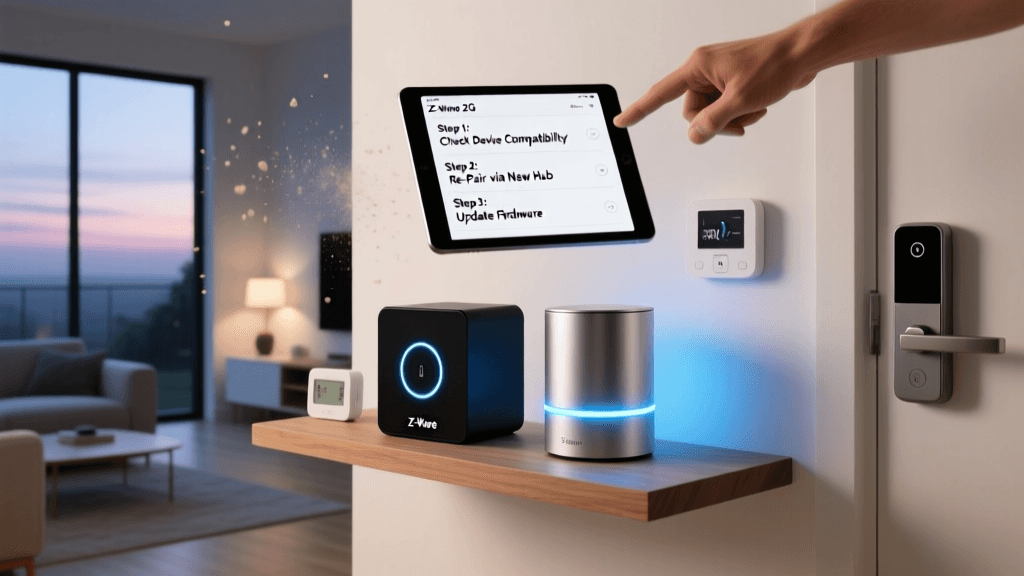
- Apply Firmware Updates: Before pairing a single device, check the hub's settings for firmware updates. Out-of-the-box firmware is often months old and may lack critical security patches or support for the latest Matter standards.
- Enable Matter and Thread: If your hub supports the new Matter standard, ensure the Thread Border Router functionality is enabled in the settings menu to future-proof your installation.
Understanding Protocol Capacity and Mesh Networking
When building your network, it is vital to understand the capacity and topology of the protocols you are using. Unlike Wi-Fi, which relies on a star topology (every device talks directly to the router), Zigbee and Z-Wave use a mesh topology. Mains-powered devices (like smart plugs and hardwired light switches) act as 'routers' or 'repeaters,' passing signals from distant battery-powered sensors back to the hub.
As visualized above, while Wi-Fi is limited in the number of concurrent low-power IoT connections it can handle efficiently, mesh protocols like Zigbee can theoretically support tens of thousands of nodes, making them the undisputed kings of whole-home sensor networks.
Pairing Your First Devices: The Correct Order of Operations
A frequent cause of 'unreachable device' errors in new smart homes is pairing devices in the wrong order. Because mesh networks rely on mains-powered devices to repeat signals, you must build the network skeleton before adding the leaves.
Step 1: Pair Mains-Powered Devices First
Install and pair all hardwired smart switches, smart thermostats, and plug-in smart plugs. Place these devices strategically around the home to create a strong mesh backbone. For example, if your hub is in the living room and you have a motion sensor in the far bedroom, place a Zigbee smart plug in a hallway outlet halfway between the two to bridge the gap.
Step 2: Pair Battery-Powered Sensors
Once the mesh backbone is established, pair your battery-operated door/window sensors, leak detectors, and wireless buttons. These devices will automatically latch onto the nearest mains-powered repeater, ensuring strong signal strength and maximizing battery life, as the sensor won't have to expend extra energy 'shouting' to reach the distant hub.
Building Your First Automation Workflows
With your hub and foundational devices installed, you can move from remote control to true home automation. Automations consist of three parts: Triggers (what starts the action), Conditions (rules that must be met), and Actions (what the devices do).
Example 1: The Sunset Ambient Routine
- Trigger: Local sunset time (calculated via hub's GPS/internet connection).
- Condition: Home occupancy is set to 'Home'.
- Action: Dim living room smart bulbs to 40% warm white (2700K), turn on the entryway smart plug (lamp), and lower the smart thermostat to 68°F.
Example 2: The Morning Motion Trigger
- Trigger: Hallway motion sensor detects movement.
- Condition: Time is between 5:00 AM and 8:00 AM.
- Action: Turn on bathroom and kitchen under-cabinet lighting to 20% brightness to avoid blinding early-morning eyes.
Troubleshooting Common First-Time Setup Issues
Even with meticulous planning, you may encounter hiccups. Here is how to troubleshoot the most common first-week issues:
Zigbee and Wi-Fi Channel Interference
Zigbee and Wi-Fi both operate in the crowded 2.4GHz spectrum. If your Wi-Fi router is set to channel 6, it can completely drown out a Zigbee network operating on overlapping channels. To fix this, log into your hub's advanced settings and manually set your Zigbee channel to Channel 11, 15, 20, or 25. Then, ensure your Wi-Fi router is set to channel 1 or 6. This creates a clean separation of frequencies, eliminating signal collisions. The CSA Zigbee documentation highly recommends this manual separation in dense urban environments.
Mesh Network Healing
If you move a smart plug to a different room, or if a power outage causes a hardwired switch to reboot, a battery-powered sensor might temporarily lose connection because its usual 'path' to the hub is gone. Do not immediately delete and re-pair the device. Mesh networks possess a self-healing property. Leave the system alone for 12 to 24 hours; the orphaned sensor will eventually ping its neighbors, discover a new routing path through the mesh, and reconnect on its own.
Device Pairing Failures
If a device refuses to enter pairing mode, perform a hard factory reset rather than just toggling the power. For most smart bulbs, this involves turning the power on and off 5 times in rapid succession until the bulb flashes. For smart plugs, hold the physical button on the device for 10-15 seconds. Always ensure your smartphone is within 3 feet of the device and the hub during the initial handshake process.
Conclusion
Setting up your first smart home hub is an investment in the long-term reliability and scalability of your home automation. By taking the time to prepare your network, strategically placing your hub, and building your mesh network in the correct order, you bypass the frustrations that cause many beginners to abandon smart home tech. With a solid foundation in place, you are now ready to expand your ecosystem with advanced sensors, smart locks, and whole-home audio, confident that your underlying infrastructure can handle the load.