Why Your Smart Home Needs a Dedicated Network Strategy
Setting up your first smart home is an exciting journey into convenience, automation, and energy efficiency. However, many DIY installers and homeowners make a critical mistake right out of the gate: they buy dozens of smart bulbs, plugs, and cameras without first evaluating their underlying network infrastructure. A smart home is only as reliable as the network it operates on. If your foundation is weak, your automated routines will fail, your security cameras will drop offline, and your voice assistants will struggle to process commands.
According to the Wi-Fi Alliance, the modern connected home is rapidly expanding in device density, making robust network protocols like Wi-Fi 6 essential for managing high-capacity environments. Standard Internet Service Provider (ISP) routers are typically designed to handle 15 to 20 Wi-Fi-enabled devices, such as smartphones, laptops, and smart TVs. A basic three-bedroom smart home, however, can easily feature 40 to 60 IoT (Internet of Things) endpoints. When you overwhelm a standard router with this volume of low-bandwidth, high-connection-count devices, you will experience severe latency, dropped connections, and DHCP pool exhaustion.
The ISP Router Problem: DHCP Limits and 2.4GHz Congestion
Most default ISP routers suffer from two major limitations when confronted with a smart home setup. The first is the DHCP (Dynamic Host Configuration Protocol) pool limit. Many consumer-grade routers cap their local IP address assignments at 32 or 64 devices. Once you plug in your smart plugs, switches, and hubs, you may find that new devices simply refuse to connect because the router has run out of IP addresses to assign.
The second issue is 2.4GHz band congestion. The vast majority of entry-level smart home devices operate exclusively on the 2.4GHz Wi-Fi spectrum because it offers better wall penetration and range than the 5GHz band. However, 2.4GHz is incredibly crowded. It shares airspace with microwaves, baby monitors, Bluetooth devices, and your neighbors' Wi-Fi networks. When 30 smart bulbs attempt to maintain a persistent connection to a single 2.4GHz radio on a cheap ISP router, the router's CPU bottlenecks, leading to 'device offline' errors in your smart home app.
Choosing the Right Mesh Wi-Fi System
To build a rock-solid foundation, you must upgrade to a Mesh Wi-Fi system designed for high IoT density. Mesh networks use multiple nodes placed throughout your home to create a single, seamless network. For a smart home, look for systems that support Wi-Fi 6 (802.11ax) or Wi-Fi 6E, which utilize OFDMA (Orthogonal Frequency-Division Multiple Access) to handle multiple low-bandwidth IoT devices simultaneously without latency.
Top Mesh Recommendations for Smart Homes
- TP-Link Deco XE75 (Wi-Fi 6E): Priced around $350 for a 2-pack, this system offers a dedicated 6GHz backhaul, leaving the 2.4GHz and 5GHz bands entirely free for your IoT devices and personal electronics.
- Eero Pro 6E: Costing approximately $400 for a 2-pack, Eero systems are renowned for their software stability and excellent integration with smart home platforms like Amazon Alexa and Apple HomeKit.
- Asus ZenWiFi XT9: At around $450, this system provides advanced web-interface controls, allowing power users to set up dedicated IoT VLANs (Virtual Local Area Networks) for enhanced security.
Pro-Tip: If your home is pre-wired with Cat5e or Cat6 Ethernet, use an Ethernet backhaul. By connecting your mesh nodes via physical cables, you free up 100% of the wireless spectrum for your devices, drastically reducing latency and improving the range of your smart home peripherals.
Understanding Smart Home Protocols: Wi-Fi, Zigbee, Z-Wave, and Thread
Before purchasing devices, you must understand that not all smart devices use Wi-Fi. In fact, for sensors, switches, and bulbs, Wi-Fi is often the worst choice due to its high power consumption and network congestion. Here is a breakdown of the primary smart home protocols you will encounter during your installation:
| Protocol | Frequency | Range (Indoors) | Hub Required? | Best Use Case |
|---|---|---|---|---|
| Wi-Fi | 2.4 / 5 / 6 GHz | 100 - 150 ft | No | High-bandwidth devices (Security cameras, smart displays) |
| Zigbee | 2.4 GHz | 60 - 300 ft (Mesh) | Yes | Smart bulbs, motion sensors, low-power switches |
| Z-Wave | 908.42 MHz (US) | 100 - 300 ft (Mesh) | Yes | Smart locks, garage doors (avoids Wi-Fi interference) |
| Thread | 2.4 GHz | 100+ ft (Mesh) | Border Router | Matter-compatible devices, ultra-low power sensors |
For your first smart home, a hybrid approach is best. Use Wi-Fi for your cameras and smart speakers. Use a dedicated hub, like the Philips Hue Bridge ($50) or Samsung SmartThings Station ($90), to manage Zigbee and Z-Wave devices. This offloads dozens of devices from your Wi-Fi router, keeping your network fast and responsive.
Visualizing the IoT Network Load
Many beginners wonder if upgrading their router is truly necessary. The chart below illustrates how a standard ISP router's CPU handles the persistent 'keep-alive' signals from IoT devices compared to a modern Wi-Fi 6 Mesh system. As device count scales past 50, legacy routers hit maximum capacity, resulting in dropped connections.
Network Segmentation and Security
Security is a paramount concern when bringing dozens of internet-connected devices into your home. IoT devices are notorious for having weak security firmware, making them prime targets for botnets. The Electronic Frontier Foundation (EFF) strongly recommends isolating IoT devices from your primary network where your personal computers and smartphones store sensitive data.
To achieve this, utilize your router's Guest Network feature or, if supported, create a dedicated IoT VLAN. Configure this network with the following rules:
- SSID Name: Create a specific name like 'Home-IoT-2G'.
- Band Steering: Disable band steering and force this network to be 2.4GHz only. This eliminates the number one cause of smart plug pairing failures.
- Client Isolation: Enable 'AP Isolation' or 'Guest Isolation' so IoT devices cannot communicate with each other or access your main network's NAS drives and PCs.
- Internet Access: Allow internet access only if the device requires cloud connectivity (e.g., cloud-based cameras). For local-only hubs, block WAN access entirely.
Hub Placement and Wiring Basics
Where you place your smart home hubs dictates the reliability of your entire mesh network. A common mistake is hiding the Philips Hue Bridge or SmartThings Hub inside a metal media cabinet, behind a television, or near a microwave. Metal and water (like fish tanks) are the natural enemies of radio frequencies.
Optimal Placement Rules
- Centralize the Hub: Place your Zigbee or Z-Wave hub in the geographical center of your home, ideally elevated on a shelf or mounted high on a wall.
- Avoid Interference: Keep hubs at least 10 feet away from Wi-Fi routers, microwaves, and cordless phones to prevent signal degradation.
- Build a Zigbee Mesh: Zigbee and Z-Wave create their own mesh networks. Every mains-powered device (like a smart plug or hardwired light switch) acts as a repeater. Place a few smart plugs ($15-$30 each) in hallways and central rooms to bounce the signal around corners and extend the range to battery-powered outdoor sensors.
Troubleshooting Common First-Time Setup Hiccups
Even with a perfect network, first-time installers frequently encounter pairing issues. Here is how to solve the most common roadblocks:
The 'Band Steering' Pairing Failure
Modern routers combine 2.4GHz and 5GHz networks under a single SSID (network name). When you use your smartphone to set up a 2.4GHz-only smart plug, the plug attempts to read your phone's Wi-Fi credentials. If your phone is connected to the 5GHz band, it passes 5GHz credentials to the plug, which cannot process them, resulting in a 'Connection Failed' error.
The Fix: Log into your router settings and temporarily disable the 5GHz band, or create a dedicated 2.4GHz-only SSID specifically for onboarding new IoT devices. Once the device is paired, it will remember the network.
IP Address Conflicts and Static IPs
If your smart home hub frequently drops offline and requires a reboot, it may be suffering from an IP address conflict. When a router reboots, it may assign your hub's IP address to a newly connected smartphone.
The Fix: Access your router's DHCP settings and assign a Static IP (DHCP Reservation) to all critical smart home hubs, bridges, and local servers. This ensures they receive the exact same IP address every time they connect, maintaining seamless communication with your automation workflows.
Preparing for Matter and Thread
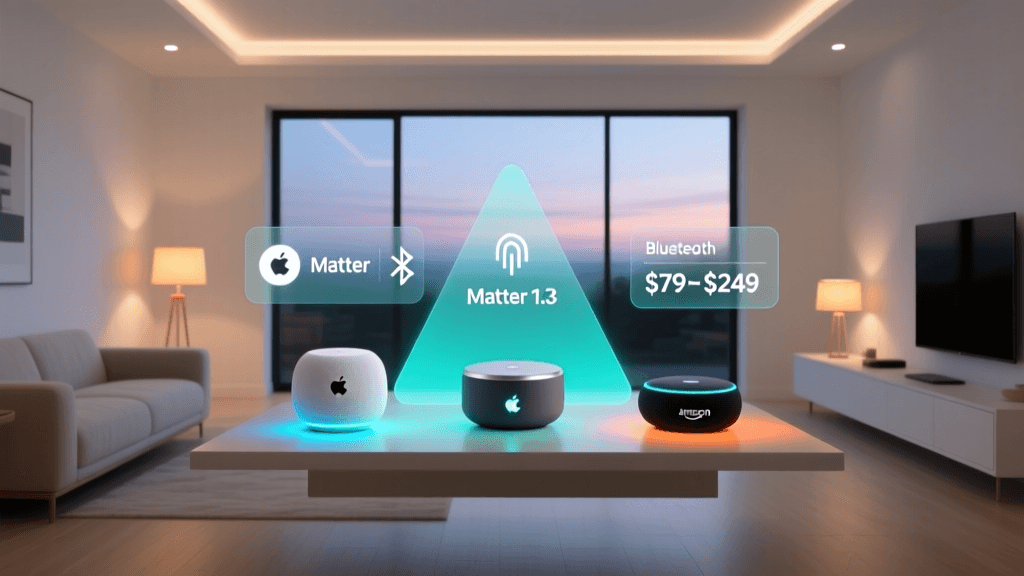
As you plan your long-term installation, you must account for Matter, the new universal smart home standard. According to the Connectivity Standards Alliance (CSA), Matter ensures devices from different brands work together seamlessly, often utilizing the Thread networking protocol. Thread operates on the 2.4GHz spectrum but creates a self-healing, low-latency mesh network that does not congest your Wi-Fi.
To prepare for Thread, you do not necessarily need a new router. You simply need a Thread Border Router. Devices like the Apple TV 4K (Wi-Fi + Ethernet model), Nest Hub Max, and Amazon Echo (4th Gen) contain built-in Thread radios. By placing one of these devices in your home, you automatically establish a Thread border network, ready to support the next generation of ultra-fast, local-control smart home sensors and locks.
Final Pre-Purchase Checklist
Before you add your first smart device to your cart, ensure you have checked off these foundational steps:
- [ ] Upgraded to a Wi-Fi 6 Mesh system capable of handling 100+ devices.
- [ ] Created a dedicated 2.4GHz IoT network or VLAN for device onboarding.
- [ ] Assigned Static IPs to your primary smart home hubs.
- [ ] Identified central, elevated locations for Zigbee/Z-Wave hubs away from metal interference.
- [ ] Purchased a few smart plugs to act as signal repeaters for hard-to-reach rooms.
By investing a weekend into building a rock-solid network foundation, you will save yourself hundreds of hours of troubleshooting down the line. Your smart home will respond instantly, your automations will fire reliably, and your network will remain secure and fast for all your personal devices.