The Smart Home Dilemma: Where Should You Actually Begin?
Stepping into the world of home automation can feel like walking into a labyrinth without a map. With thousands of products on the market—ranging from intelligent door locks to AI-powered refrigerators—newcomers often suffer from analysis paralysis. The most common mistake DIY installers and homeowners make is starting too big. Buying a complex, hardwired smart thermostat or a biometric smart lock as your very first device is a recipe for frustration, compatibility headaches, and abandoned projects.
The golden rule of smart home adoption is to solve a problem you already have, rather than creating a new one with technology. For your first foray into the ecosystem, you need a device that offers a high reward-to-effort ratio. It should be inexpensive, require zero electrical wiring, and provide an immediate "aha!" moment that proves the value of automation. In this comprehensive guide, we will evaluate the top contenders for your first smart home purchase, break down the underlying network protocols, and provide a meticulous, step-by-step installation guide to ensure your maiden voyage into home automation is a resounding success.
The Top Contenders for Your First Smart Device
When deciding which device to bring home first, the market generally funnels beginners into three primary categories: smart plugs, smart bulbs, and smart thermostats. Each serves a distinct purpose and carries a different installation footprint.
Smart Plugs: The Easiest Entry Point
Smart plugs are small adapters that bridge the gap between your wall outlet and your appliance. They are the undisputed champions of simplicity. By plugging a "dumb" device—like a coffee maker, a desk lamp, or a box fan—into a smart plug, you instantly grant it remote control and scheduling capabilities. According to CNET's expert reviews on smart plugs, modern iterations are incredibly compact, meaning they won't block adjacent outlets, and they often include built-in energy monitoring features to track power consumption.
Smart Bulbs: The Ambiance Builders
Smart bulbs, such as the Philips Hue or Wyze Bulb, replace your standard light bulbs and offer dimming, color-changing, and scheduling features. While they offer fantastic aesthetic benefits, they come with a hidden caveat: the physical light switch. If someone flips the wall switch off, the smart bulb loses power and goes offline, breaking your automation routines. This requires a behavioral shift in your household, which can be a hurdle for beginners.
Smart Thermostats: The Energy Savers
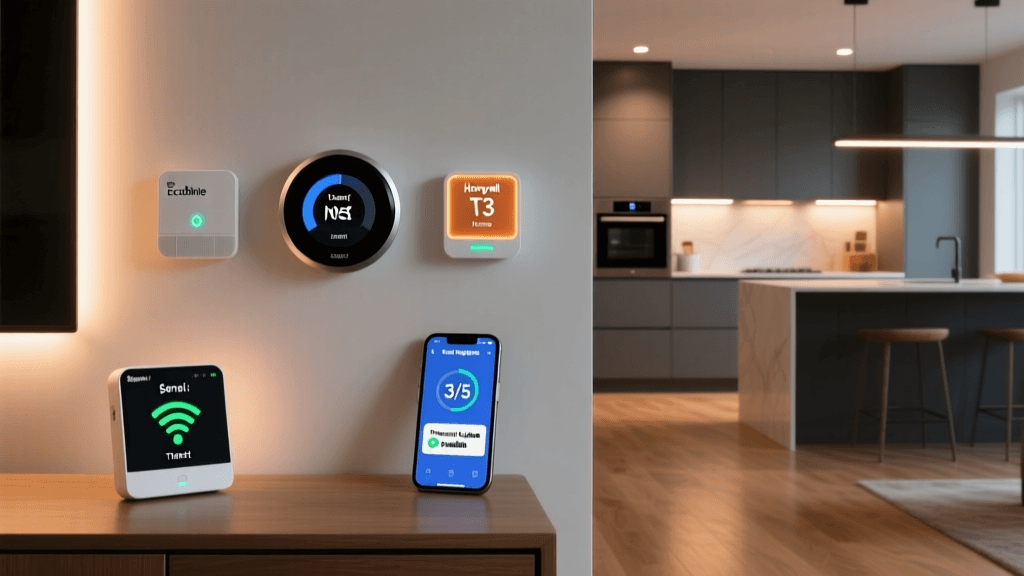
Devices like the Nest Learning Thermostat or Ecobee SmartThermostat offer the most significant financial return on investment. The U.S. Department of Energy notes that smart thermostats can significantly reduce heating and cooling costs by learning your schedule and adjusting temperatures automatically. However, installing a smart thermostat requires dealing with your HVAC system's low-voltage wiring, verifying the presence of a C-wire (common wire), and navigating breaker panels. This makes it a poor choice for an absolute beginner's very first install.
Head-to-Head Comparison: Cost, Effort, and Impact
To help you visualize the differences, we have compiled a comparison matrix of these three entry-level categories. This table highlights why one specific device type consistently wins the "first purchase" award.
| Device Type | Average Cost | Install Time | Hub Required? | Wiring Needed? | Best For |
|---|---|---|---|---|---|
| Smart Plug | $10 - $20 | 2 - 5 Minutes | No (Wi-Fi) | No | Beginners, Lamps, Fans, Coffee Makers |
| Smart Bulb | $15 - $50 | 5 Minutes | Sometimes (Zigbee) | No | Accent Lighting, Mood Control |
| Smart Thermostat | $130 - $250 | 30 - 60 Minutes | No (Wi-Fi) | Yes (Low Voltage) | Homeowners, Energy Savers, HVAC Control |
Visualizing the Entry Point: Installation Time vs. Cost
The chart below illustrates the average upfront financial barrier to entry for the three most common first smart devices. As you can see, smart plugs offer the lowest financial risk, allowing you to test the waters of home automation without a massive capital commitment.
Average Upfront Cost of First Smart Devices
Understanding Smart Home Protocols: Wi-Fi, Zigbee, and Matter
Before you unbox your first device, it is crucial to understand how these gadgets communicate. The protocol your first device uses will dictate your network setup and future expansion plans.
- Wi-Fi: Most entry-level smart plugs and bulbs use your home's existing Wi-Fi network. They are easy to set up but can congest your router if you eventually add 30+ devices.
- Zigbee / Z-Wave: These are low-power mesh networks that require a dedicated hub (like an Amazon Echo Show or Samsung SmartThings hub). They keep traffic off your Wi-Fi but add upfront cost and complexity.
- Matter: The newest industry standard, backed by the Connectivity Standards Alliance (CSA), aims to unify ecosystems. If you are buying a device today, looking for the "Matter" logo ensures it will work seamlessly with Apple, Google, Amazon, and Samsung platforms simultaneously.
Our Verdict: The Ultimate First Smart Device
For 90% of beginners, the Wi-Fi Smart Plug is the undisputed best first smart device. It requires no wiring, costs less than a takeout dinner, and provides immediate, tangible results. By automating a floor lamp or a window fan, you learn the fundamentals of app pairing, network configuration, and routine building without the anxiety of making a costly mistake or dealing with electrical hazards. Once you have mastered the smart plug, the confidence you gain will naturally lead you to tackle more advanced installations like smart switches and thermostats.
Step-by-Step Installation Guide: Setting Up Your First Smart Plug
Let us walk through the physical and digital installation of a standard Wi-Fi smart plug (such as a TP-Link Kasa or Wyze Plug). While brands vary slightly, the fundamental architecture of the setup remains identical across the industry.
Step 1: Physical Placement and Safety Checks
Before plugging anything in, check the wattage rating on the smart plug and the appliance you intend to control. Most standard smart plugs are rated for 15 Amps (roughly 1800 Watts). Never plug a high-draw appliance like a space heater or an air conditioner into a standard smart plug unless it is specifically rated for heavy-duty appliance use. Furthermore, avoid "daisy-chaining" power strips into smart plugs, as this creates a fire hazard and violates electrical safety codes.
Step 2: Network Preparation (The 2.4GHz Rule)
This is where most DIYers hit a wall. Almost all entry-level smart home devices operate exclusively on the 2.4GHz Wi-Fi band. This frequency is used because it offers superior range and wall penetration compared to the faster 5GHz band. However, modern mesh routers often use "band steering," combining 2.4GHz and 5GHz under a single network name (SSID). If your router does this, the smart plug may fail to pair because it gets confused by the 5GHz signal. Pro Tip: If your plug fails to connect, temporarily pause the 5GHz band in your router's admin settings, or walk to the far edge of your yard where the 5GHz signal drops off, forcing your phone onto the 2.4GHz band for the initial handshake.
Step 3: App Configuration and Pairing
- Download the manufacturer's app and create an account.
- Plug the smart device into the wall. It will enter "Pairing Mode," usually indicated by a rapidly blinking amber or blue LED light.
- Open the app, tap the "+" icon, and select your device model.
- Enter your 2.4GHz Wi-Fi password when prompted.
- The app will transmit the network credentials to the plug via Bluetooth or a temporary Wi-Fi direct connection. Once the LED turns solid, the device is online.
Step 4: Creating Your First Automation Workflow
A smart device is only as good as its automation. Do not just use the app as a remote control; use it to build workflows. Navigate to the "Routines" or "Automations" tab in your app. Create a simple "Sunset Routine": IF time is 30 minutes past local sunset, THEN turn on the living room floor lamp (Smart Plug). This simple workflow introduces you to the logic gates that power entire smart homes.
Crucial Network Setup Tips for Beginners
As you transition from your first device to your tenth, your network infrastructure will become the backbone of your smart home. Here are essential networking tips to prevent your devices from randomly dropping offline.
"A smart home is only as reliable as the network it lives on. Investing in a robust router is just as important as the smart devices themselves."
- DHCP Reservations: Log into your router and assign a static IP address (DHCP reservation) to your smart plugs and hubs. This prevents the router from assigning their IP addresses to other devices, which can break local network automations.
- IoT Guest Networks: For enhanced security, create a separate 2.4GHz "Guest" or "IoT" network on your router specifically for your smart home devices. This isolates them from your personal computers and phones, preventing potential vulnerabilities in cheap IoT firmware from exposing your private data.
- Mesh Systems: If you live in a home larger than 2,000 square feet, a single router will not provide adequate 2.4GHz coverage for devices located in the garage or backyard. Investing in a Wi-Fi 6 Mesh system will ensure rock-solid connectivity across your entire property.
Troubleshooting Common First-Time Setup Issues
Even with meticulous preparation, you may encounter hiccups. Here is how to resolve the most common first-time setup errors:
- Device Stuck in Pairing Mode: If the light blinks endlessly and the app times out, you are likely on a 5GHz network. Forget the network on your phone, reconnect strictly to the 2.4GHz band, and try again.
- App Cannot Find Device: Ensure your phone's Bluetooth is turned on. Many modern smart plugs use Bluetooth Low Energy (BLE) to locate the device and pass the Wi-Fi credentials before switching to Wi-Fi mode.
- Delayed Response Times: If you tap "On" in the app and the plug takes 5 seconds to respond, your router's DNS settings might be causing latency with the manufacturer's cloud servers. Try changing your router's DNS to Google DNS (8.8.8.8) or Cloudflare (1.1.1.1).
- Firmware Update Failures: Always perform a firmware update immediately after pairing. Do this while standing next to the router to ensure a stable connection, as a dropped connection during a firmware flash can "brick" the device.
Conclusion: Building Your Ecosystem One Device at a Time
The journey to a fully automated home is a marathon, not a sprint. By choosing a smart plug as your first smart device, you are laying a low-stress, high-reward foundation. You will learn the nuances of your home's Wi-Fi topology, master the logic of automation apps, and experience the daily convenience of a home that reacts to your schedule. Once you have conquered the smart plug, the leap to smart lighting, automated window treatments, and intelligent climate control will feel entirely natural. Start small, prioritize network stability, and enjoy the process of bringing your home to life.