Introduction to Smart Home Hubs
Welcome to the exciting world of home automation. When setting up your first smart home, the sheer volume of devices, protocols, and ecosystems can feel overwhelming. You might start with a simple Wi-Fi smart plug or a Bluetooth-enabled smart bulb, but as your collection grows, managing dozens of individual apps and dealing with network congestion quickly becomes frustrating. This is where a dedicated smart home hub becomes the essential brain of your connected home.
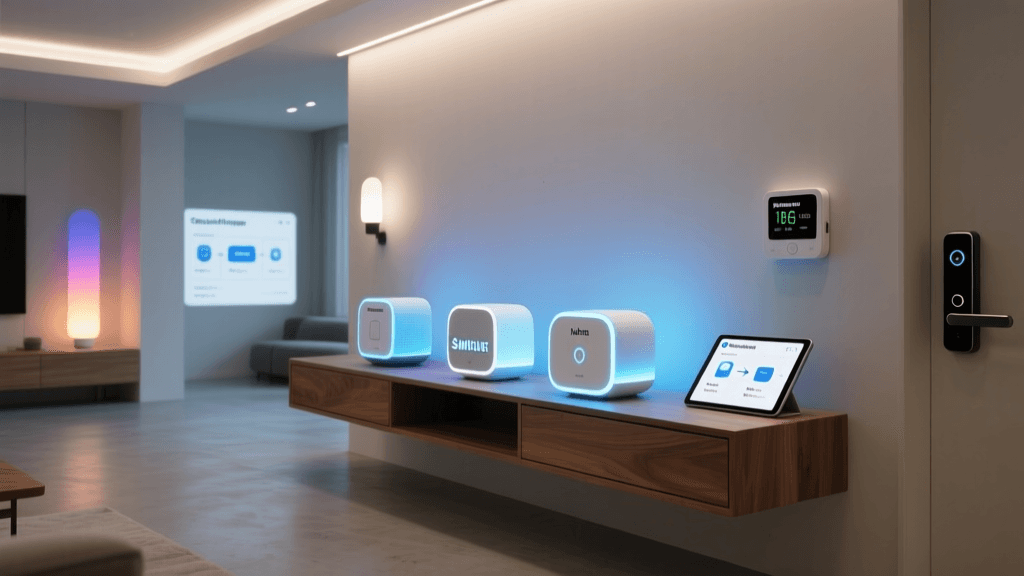
A smart home hub acts as a central translator and command center. It bridges the gap between your smartphone, your voice assistants, and the various wireless protocols used by smart devices. In this comprehensive guide, we will walk you through everything you need to know to choose, install, and configure your first smart home hub, ensuring a rock-solid foundation for your automation journey.
Why Your First Smart Home Needs a Dedicated Hub
Many beginners ask if they can simply connect all their devices directly to their Wi-Fi router. While Wi-Fi is excellent for high-bandwidth devices like security cameras and smart displays, it is not ideal for low-power sensors, switches, and bulbs. Connecting fifty Wi-Fi devices to a standard consumer router will often lead to network congestion, dropped connections, and increased latency.
Dedicated smart home hubs utilize specialized, low-power mesh networking protocols like Zigbee, Z-Wave, and Thread. These protocols are designed specifically for IoT (Internet of Things) devices. They consume significantly less power, allowing battery-operated sensors to last for years rather than weeks. Furthermore, they create a mesh network where every mains-powered device acts as a repeater, extending the range and reliability of your smart home signals far beyond what a single Wi-Fi router can achieve.
Understanding the Big Four Protocols
Before purchasing a hub, it is crucial to understand the wireless languages your devices will speak. The modern smart home relies on four primary protocols:
- Zigbee: A widely adopted, low-power mesh protocol. It is highly reliable but requires a hub with a Zigbee radio.
- Z-Wave: Operating on a lower frequency (usually 908.42 MHz in the US), Z-Wave offers superior wall penetration and less interference from Wi-Fi, though devices are sometimes slightly more expensive.
- Thread: A newer, IP-based mesh networking protocol that is incredibly fast and reliable. It forms the underlying transport layer for many modern devices.
- Matter: Not a wireless protocol itself, but an application layer that runs over Thread and Wi-Fi. Matter ensures that devices work seamlessly across different ecosystems (Apple, Google, Amazon). The Connectivity Standards Alliance (CSA) developed Matter to eliminate the fragmentation that historically plagued the smart home industry.
When choosing your first hub, prioritize models that support multiple protocols, particularly Zigbee and Thread, to ensure maximum compatibility with both legacy and next-generation devices.
Pre-Installation: Preparing Your Home Network
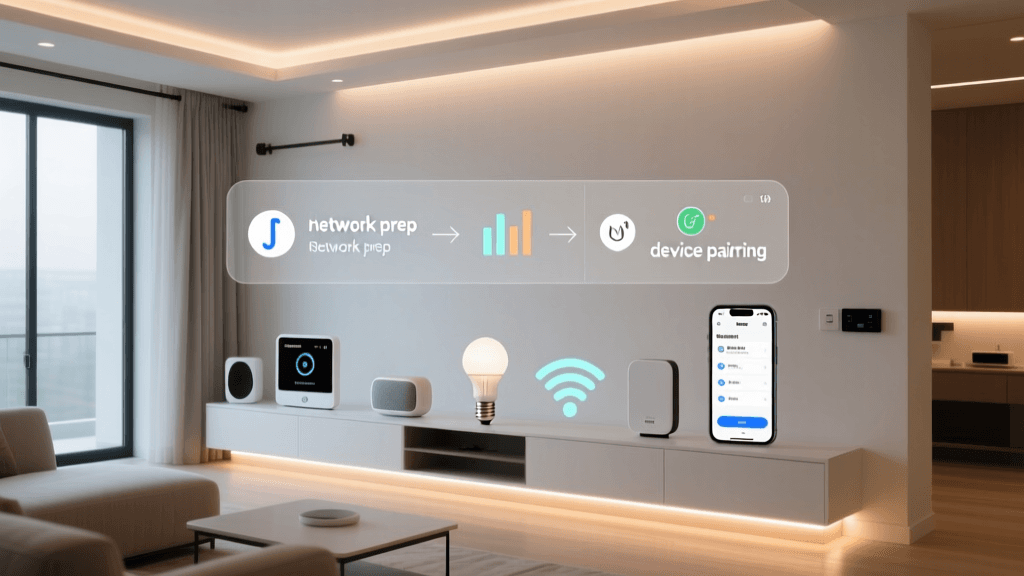
Your smart home hub will act as the gateway between your local device mesh and your broader home network. Before unboxing your new hub, you must ensure your home network is prepared to handle IoT traffic securely and efficiently.
Optimizing the 2.4GHz Band
Most smart home hubs and Wi-Fi-enabled IoT devices rely on the 2.4GHz Wi-Fi band because of its superior range and wall-penetration capabilities compared to the 5GHz band. Log into your router's admin panel and ensure that your 2.4GHz and 5GHz bands are separated into distinct SSIDs (network names). Many modern routers use a single "Smart Connect" SSID that automatically steers devices, but this frequently causes pairing failures for smart home devices. Create a dedicated 2.4GHz network specifically for your smart home setup.
Implementing Basic IoT Security
IoT devices are notoriously vulnerable to cyber threats. The Federal Communications Commission (FCC) strongly recommends securing your home network by changing default router passwords, enabling WPA2 or WPA3 encryption, and keeping router firmware updated. For advanced users, setting up a dedicated Guest Network or a VLAN (Virtual Local Network) specifically for IoT devices is highly recommended. This isolates your smart bulbs and plugs from your personal computers and smartphones, preventing a compromised smart device from accessing your sensitive personal data.
Comparing the Best Beginner Smart Home Hubs
Selecting the right hardware is the most critical decision you will make. Below is a comparison of the top smart home hubs currently on the market, tailored for those setting up their first system.
| Hub Model | Supported Protocols | Primary Ecosystem | Price Range | Best For |
|---|---|---|---|---|
| Samsung SmartThings Station | Zigbee, Thread, Matter, Wi-Fi | SmartThings | $60 - $80 | Beginners wanting broad compatibility |
| Apple HomePod mini | Thread, Wi-Fi, Bluetooth | Apple HomeKit | $99 | iPhone users and privacy advocates |
| Amazon Echo (4th Gen) | Zigbee, Thread, Wi-Fi, Bluetooth | Amazon Alexa | $70 - $99 | Voice control enthusiasts |
| Hubitat Elevation | Zigbee, Z-Wave, Wi-Fi | Hubitat (Local) | $120 - $150 | Advanced users wanting local processing |
Smart Home Hub Protocol Support Comparison
Step-by-Step Hub Installation and Configuration
Once you have selected your hub and prepped your network, it is time for the physical installation and software configuration. Follow these steps to ensure a smooth setup process.
Step 1: Optimal Physical Placement
The physical location of your hub dictates the performance of your entire mesh network. Do not hide your hub inside a metal media cabinet, behind a television, or in a basement corner. Radio frequency (RF) signals are easily degraded by metal, concrete, and large bodies of water (like aquariums). Place your hub in a central, elevated location in your home, such as on a bookshelf in the living room or a central hallway console. Keep it at least three feet away from microwaves, baby monitors, and cordless phones, which can cause severe 2.4GHz interference.
Step 2: Power and Network Connection
Whenever possible, use a wired Ethernet connection to link your hub to your primary router or mesh node. While some hubs rely on Wi-Fi for their backhaul connection to the internet, a hardwired Ethernet connection eliminates wireless interference, reduces latency, and ensures that your local automations continue to run even if your Wi-Fi network experiences a temporary dropout.
Step 3: App Configuration and Firmware Updates
Download the manufacturer's official app (e.g., SmartThings, Apple Home, or Alexa) and create your account. The app will automatically detect the hub on your local network. Before attempting to pair any devices, navigate to the hub's settings menu and force a firmware update. Manufacturers frequently release day-one patches to improve protocol stability and patch security vulnerabilities. Allow the hub to reboot completely after the update.
Building the Mesh: Pairing Your First Devices
With the hub online and updated, you are ready to add devices. The order in which you pair your devices is critical to building a robust mesh network. According to the Thread Group and Zigbee Alliance guidelines, mesh networks rely on "router" nodes to pass messages back to the central coordinator (your hub).
The Golden Rule of Pairing Order
- Start with Mains-Powered Devices: Begin by pairing smart plugs, in-wall switches, and hardwired light bulbs. These devices have constant power and act as signal repeaters, extending the mesh network's reach throughout your home.
- Pair Room by Room: Move outward from the hub's physical location. Pair all devices in the same room as the hub, then move to adjacent rooms, ensuring each new device is within range of a previously paired mains-powered device.
- Add Battery-Powered Devices Last: Once the mesh backbone is established by the plugs and switches, pair your battery-operated door/window sensors, motion detectors, and leak sensors. These "sleepy end devices" do not repeat signals; they only transmit. By pairing them last, you ensure they have a strong, nearby router node to connect to, saving battery life and preventing pairing timeouts.
Executing the Pairing Process
To pair a device, open your hub's app and select "Add Device." Put your smart device into pairing mode—this usually involves holding down a physical button on the device for 5 to 10 seconds until an LED flashes rapidly. Keep the device within five feet of the hub during this initial handshake to ensure a secure cryptographic key exchange. Once paired, you can move the device to its permanent installation location.
Advanced Troubleshooting Common Setup Hurdles
Even with careful planning, you may encounter issues during your first smart home setup. Here is how to troubleshoot the most common problems.
Device Fails to Pair or Keeps Dropping
If a device refuses to pair, the most common culprit is RF interference or a weak mesh signal. Try moving the device closer to the hub or a known Zigbee/Z-Wave repeater. If it pairs successfully but drops when moved to its final location, you need to add another mains-powered repeater in between the hub and the device. Additionally, ensure you are not trying to pair a Z-Wave device to a Zigbee-only hub, as the radios are fundamentally incompatible.
Hub Shows as "Offline" in the App
If your hub appears offline despite being plugged in, check your router's DHCP lease table to ensure the hub has been assigned a valid IP address. For advanced users, assigning a static IP address or a DHCP reservation to your hub in your router settings will prevent connectivity issues caused by IP conflicts or router reboots. Furthermore, ensure that your router's firewall is not blocking the specific outbound ports required by the hub manufacturer's cloud servers.
Automations are Running Slowly
Latency in automations (e.g., a motion sensor turning on a light with a two-second delay) is often caused by cloud processing. If your hub relies on the cloud for automation logic, any internet latency will affect your home. Whenever possible, utilize local automation engines. Hubs like Hubitat Elevation process logic locally, resulting in sub-millisecond execution times, whereas cloud-dependent hubs may experience delays during peak internet traffic hours.
Conclusion
Setting up your first smart home hub is the foundational step in creating a seamless, automated living space. By understanding the underlying protocols, optimizing your home network for IoT traffic, strategically placing your hardware, and carefully building your device mesh, you will avoid the pitfalls that frustrate many beginners. Take your time during the installation phase, prioritize network security, and enjoy the unparalleled convenience of a truly connected home.