Welcome to the Smart Home Installation Complete Guide
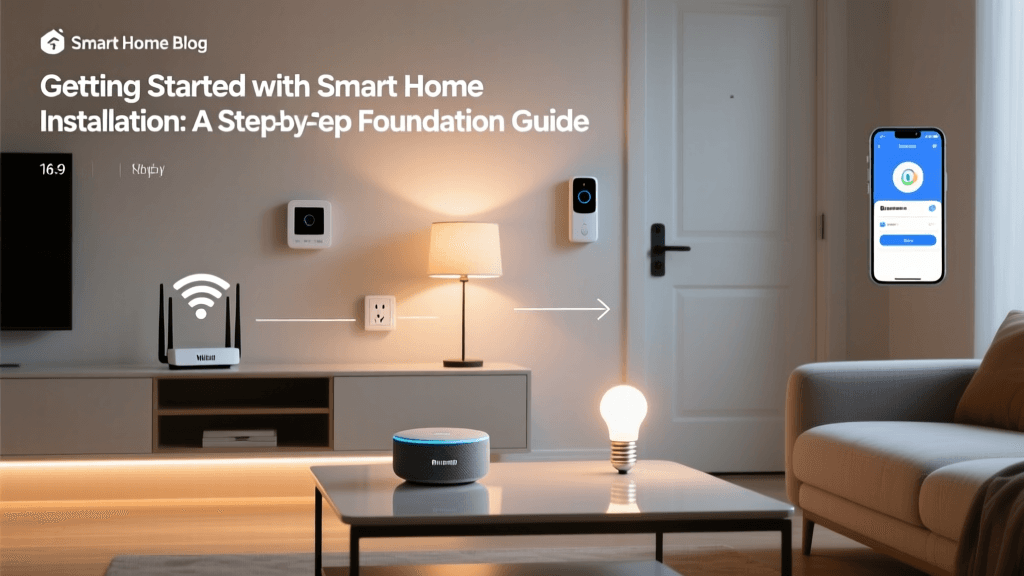
The foundation of any reliable smart home isn't the flashy gadgets, the color-changing bulbs, or the motorized blinds. The true backbone of a responsive, automated home is the underlying network and hub infrastructure. Welcome to the Smart Home Installation Complete Guide, where we focus on the critical first steps of any DIY smart home project: selecting, placing, and configuring your smart home hub and network equipment. Without a robust network and a properly configured hub, even the most expensive smart devices will suffer from latency, dropped connections, and frustrating pairing failures.
In this comprehensive guide, we will walk you through the technical nuances of building a smart home network from the ground up. We will cover mesh Wi-Fi selection, the strategic placement of hubs to maximize wireless protocol coverage, the intricacies of Zigbee and Z-Wave channel mapping to avoid interference, and essential security practices like VLAN segmentation. Whether you are wiring a new build or retrofitting an existing home, these foundational steps will ensure your automation workflows execute flawlessly every single time.
Choosing the Right Smart Home Hub
The smart home hub acts as the central translator and brain of your ecosystem. It bridges the gap between your home network (Wi-Fi/Ethernet) and the low-power mesh protocols used by sensors and switches (Zigbee, Z-Wave, Thread, and Bluetooth). When selecting a hub, you must consider local processing capabilities, protocol support, and ecosystem compatibility.
For DIY enthusiasts who prioritize local control and privacy, the Home Assistant Green is currently the gold standard. It offers an incredibly low barrier to entry for local automation while supporting thousands of integrations. For users deeply embedded in the Samsung or Matter ecosystems, the Aeotec Smart Home Hub (which runs SmartThings firmware) provides excellent Zigbee and Z-Wave range. Apple users will find the Apple TV 4K (Ethernet model) serves as a powerful Thread border router and HomeKit hub, while Amazon's Echo 4th Gen includes a built-in Zigbee radio and Matter controller for budget-friendly Alexa setups.
Smart Home Hub Comparison
| Hub Model | Supported Protocols | Local Processing | Estimated Cost | Best For |
|---|---|---|---|---|
| Home Assistant Green | Zigbee, Z-Wave (via USB), Thread, Matter, Wi-Fi | Yes (100% Local) | $99 - $129 | Advanced DIYers & Privacy Advocates |
| Aeotec Smart Home Hub | Zigbee, Z-Wave, Wi-Fi, LAN | Partial (Cloud-dependent for some features) | $140 - $160 | Samsung SmartThings Users |
| Apple TV 4K (Ethernet) | Thread, Matter, Wi-Fi, LAN | Yes (HomeKit Local) | $149 | Apple HomeKit & Thread Ecosystems |
| Amazon Echo (4th Gen) | Zigbee, Matter, Wi-Fi, LAN | Partial (Alexa Cloud) | $79 - $99 | Budget Alexa Setups |
Building a Robust Smart Home Network
The most common point of failure in a smart home installation is the router. Standard ISP-provided gateway routers are typically designed to handle 15 to 30 high-bandwidth devices like laptops and streaming TVs. A modern smart home, however, can easily feature 50 to 150 low-bandwidth IoT devices. When you connect a smart bulb, a leak sensor, a smart plug, and a camera, you are consuming IP addresses and router memory. Once the router's NAT table is exhausted, devices will randomly drop offline.
To solve this, you must upgrade to a high-capacity Mesh Wi-Fi system or a Prosumer Access Point (AP) network. Systems like the Eero Pro 6E or TP-Link Deco XE75 are excellent for DIYers because they handle high device counts gracefully and offer simple app-based network management. For advanced users willing to run Ethernet cables through their walls, a wired setup using Ubiquiti UniFi or TP-Link Omada access points connected to a PoE (Power over Ethernet) switch is the ultimate solution. Wired backhaul ensures that your Wi-Fi nodes communicate with each other at gigabit speeds without losing wireless bandwidth to signal repeating.
Optimal Hub and Router Placement
Where you place your hub and router is just as important as the hardware you buy. Low-power protocols like Zigbee and Z-Wave operate on the 2.4 GHz and 908 MHz spectrums, respectively. While Z-Wave can penetrate walls relatively well, Zigbee and Thread are highly susceptible to signal attenuation from dense building materials. Your hub should be placed in a central, elevated location—ideally on a shelf or mounted high on a wall in the center of your home.
Never place your smart home hub inside a metal media enclosure, behind a television, or near a microwave oven, as these will create a Faraday cage effect or introduce massive electromagnetic interference (EMI). Below is a visualization of how different building materials impact wireless signal strength.
Signal attenuation by building material
As the chart illustrates, while drywall and wood cause minimal signal degradation, brick, concrete, and metal can effectively block Zigbee and Thread signals entirely. If your home features masonry walls or metal studs, you will need to rely heavily on mains-powered smart plugs or smart switches to act as signal repeaters, routing the mesh network around the physical obstacles.
Mastering Wireless Protocols: Avoiding Interference
One of the most critical, yet frequently overlooked, aspects of smart home setup is managing wireless channel interference. Zigbee and Wi-Fi both operate in the crowded 2.4 GHz band. If your Wi-Fi router and your Zigbee hub are broadcasting on overlapping channels, your smart home will experience severe latency, and battery-powered sensors will drain rapidly as they repeatedly attempt to send data through the interference.
To achieve a harmonious network, you must manually separate your channels:
- Wi-Fi 2.4 GHz Channels: Stick to channels 1, 6, and 11. These are the only non-overlapping channels in the 2.4 GHz spectrum.
- Zigbee Channels: Zigbee utilizes channels 11 through 26. The most commonly recommended Zigbee channels to avoid Wi-Fi interference are 11, 15, 20, and 25.
Pro Setup Tip: If your primary Wi-Fi network is set to 2.4 GHz Channel 1, you should configure your Zigbee hub to use Channel 15 or 20. If your Wi-Fi is on Channel 6, set Zigbee to Channel 11. Always verify your router's control panel to ensure the 2.4 GHz band isn't set to "Auto," which could cause it to jump channels and suddenly overlap with your Zigbee mesh.
Securing Your Network with VLANs and IoT Isolation
Smart home devices are notoriously insecure. Many budget smart plugs and cameras lack robust encryption, do not receive regular firmware updates, and communicate with poorly secured cloud servers. If a malicious actor compromises a cheap smart bulb, they could potentially pivot to your main network and access your personal computers or network-attached storage (NAS).
To mitigate this risk, the Federal Trade Commission (FTC) strongly recommends segmenting your network. If your router supports it, create a dedicated "IoT SSID" or configure a Virtual Local Area Network (VLAN) specifically for your smart home devices. By enabling "Client Isolation" and blocking the IoT VLAN from accessing your primary LAN VLAN, you ensure that your smart devices can reach the internet to function, but cannot communicate with your personal devices. Prosumer systems like the Ubiquiti Dream Router or Firewalla make setting up these VLAN rules relatively straightforward for advanced DIYers.
The Matter Protocol and Thread Border Routers
The smart home industry is currently undergoing a massive shift with the introduction of the Matter protocol, managed by the Connectivity Standards Alliance (CSA). Matter aims to unify the fragmented smart home market, allowing devices to communicate seamlessly across Apple, Google, Amazon, and Samsung ecosystems. A core component of Matter's wireless strategy is Thread, a low-power, mesh-networking protocol designed specifically for IoT.
Unlike Zigbee, which requires a dedicated hub, Thread relies on Thread Border Routers. Devices like the Apple TV 4K, Apple HomePod Mini, Nest Hub (2nd Gen), and Eero 6 routers have Thread radios built directly into them. When setting up a modern smart home, strategically placing these border routers throughout your home creates a self-healing Thread mesh network. This means that a smart door sensor in the garage can communicate with the network by hopping through a smart plug in the kitchen, eliminating the need for a single, centralized hub bottleneck.
Step-by-Step Installation Workflow
To ensure a smooth setup process, follow this sequential workflow when deploying your smart home infrastructure:
- Deploy the Network Foundation: Install your mesh Wi-Fi nodes or wired access points. Configure your primary SSID and your isolated IoT SSID/VLAN. Ensure the 2.4 GHz band is locked to a specific channel (e.g., Channel 1).
- Initialize the Hub: Connect your primary smart home hub (e.g., Home Assistant or SmartThings) via Ethernet to your main router. Update the firmware immediately. Configure the hub's Zigbee radio to a non-overlapping channel (e.g., Channel 15).
- Pair Mains-Powered Devices First: Begin by adding hardwired devices like smart switches, in-wall relays, and smart plugs. These devices act as routers/repeaters for your Zigbee or Z-Wave mesh, building out the "highways" of your network.
- Pair Thread Devices: Add your Matter-over-Thread devices, ensuring they connect to your nearest Thread Border Router.
- Pair Battery-Powered Sensors: Finally, add your battery-operated door/window sensors, motion detectors, and leak sensors. Because the mains-powered mesh is already established, these low-power endpoints will easily find a nearby routing node to connect to, ensuring maximum battery life.
Wiring Basics for Smart Home Renovations
If you are in the process of renovating or building a new home, running low-voltage wiring is the single best investment you can make for your smart home. While wireless protocols are excellent, a wired backbone is unbeatable for reliability. When running Cat6 Ethernet cables for Wi-Fi access points, PoE security cameras, and centralized hubs, always adhere to basic wiring rules.
Never run low-voltage data cables parallel to high-voltage AC electrical lines. Doing so induces electromagnetic interference (EMI), which can cause packet loss and network instability. If you must cross an electrical line, do so at a 90-degree angle. Additionally, always leave a service loop of extra cable at both the patch panel and the wall termination point to allow for future re-terminations or repairs. Using a dedicated PoE switch in your media rack to power your access points and hubs not only reduces cable clutter but also allows you to connect the entire switch to a single Uninterruptible Power Supply (UPS), keeping your smart home network alive during power outages.
Troubleshooting Common Setup Issues
Even with meticulous planning, you may encounter setup hurdles. Here is how to troubleshoot the most common issues:
- Device Pairing Timeouts: If a Zigbee device refuses to pair, it is often due to distance from a router node. Bring the device within three feet of the hub for the initial pairing process, then move it to its final location. The mesh network will automatically "heal" and find a new route within 24 hours.
- Sluggish Automation Responses: If lights lag when triggered by a motion sensor, check your hub's processing load. If you are using a cloud-dependent hub, internet latency may be the culprit. Migrating critical automations to a local hub like Home Assistant eliminates cloud latency entirely.
- Camera Offline Errors: Security cameras consume massive amounts of continuous bandwidth. If they frequently drop offline, your IoT network may be congested. Move cameras to a dedicated 5 GHz SSID, reserving the 2.4 GHz IoT network strictly for low-bandwidth sensors and switches.
Conclusion
Building a smart home is a marathon, not a sprint. By investing time in selecting the right hub, designing a high-capacity mesh network, carefully managing wireless channels, and prioritizing network security, you create an invisible, robust foundation. This infrastructure will support your home's automation needs for years to come, allowing you to add new devices, experiment with complex workflows, and embrace emerging standards like Matter without ever worrying about the network collapsing under the weight of your growing ecosystem. Welcome to the future of home automation—built on a foundation that actually works.