The Foundation of a Reliable Smart Home
When embarking on a whole-home automation journey, the excitement of unboxing new smart locks, thermostats, and lighting often overshadows the most critical step: building a robust network and hub foundation. Many DIY installers make the mistake of plugging a new smart hub directly into their primary router and immediately pairing dozens of devices. Within weeks, they experience dropped connections, delayed automations, and network congestion. A smart home is only as reliable as the infrastructure supporting it.
To achieve a seamless, lag-free environment capable of supporting over a hundred connected devices, you must approach your installation methodically. This comprehensive, step-by-step guide will walk you through upgrading your network, selecting and placing your central hub, configuring secure IoT VLANs, and properly pairing your first wave of devices using modern protocols like Matter and Thread.
Step 1: Upgrading Your Network for Smart Devices
Before you even touch your smart hub, you must ensure your wireless network can handle the unique traffic patterns of IoT (Internet of Things) devices. Unlike a laptop streaming a 4K movie, smart home devices send tiny packets of data at highly frequent intervals. Older Wi-Fi 5 (802.11ac) routers often choke when managing 50+ simultaneous low-bandwidth connections.
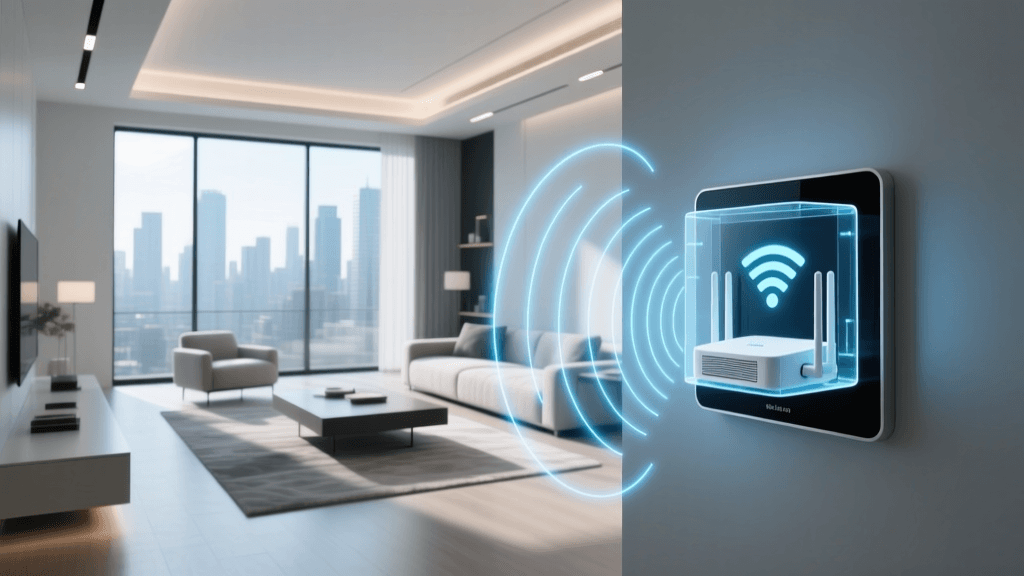
Upgrading to a Wi-Fi 6 (802.11ax) mesh system is the single best investment you can make for your smart home. Wi-Fi 6 introduces OFDMA (Orthogonal Frequency-Division Multiple Access), which allows the router to communicate with multiple low-bandwidth IoT devices simultaneously within a single transmission window. According to the Wi-Fi Alliance, this dramatically reduces latency and power consumption for connected devices.
For a standard 2,000-square-foot home, a 2-pack or 3-pack mesh system like the Eero Pro 6E or TP-Link Deco XE75 (costing between $250 and $500) provides excellent coverage. When installing the mesh nodes, place the primary router near your modem, and position satellite nodes in open, elevated spaces—never hidden inside metal media cabinets or behind thick masonry walls.
Network Capacity by Router Generation
| Router Type | Max Recommended IoT Devices | Protocol Support | Avg. Cost Range |
|---|---|---|---|
| Legacy Wi-Fi 5 (Single Router) | 15 - 25 | 2.4GHz / 5GHz | $50 - $120 |
| Wi-Fi 6 Mesh (2-3 Nodes) | 75 - 120 | 2.4GHz / 5GHz / IoT VLAN | $200 - $450 |
| Wi-Fi 6E/7 Prosumer (UniFi/Omada) | 200+ | Multi-VLAN / 6GHz / Thread | $600 - $1,500+ |
Step 2: Choosing and Placing Your Smart Hub
Your smart hub acts as the brain of your automation, translating commands from your phone or voice assistant into the specific radio frequencies (Zigbee, Z-Wave, Thread) your devices understand. While cloud-dependent hubs are easy to set up, local-processing hubs offer superior speed and reliability, ensuring your lights still turn on even if your internet connection drops.
When selecting a hub, consider the protocols you plan to use. The Homey Pro is a powerhouse supporting Zigbee, Z-Wave, Matter, and Thread, but carries a premium price tag (around $399). The Hubitat Elevation (approx. $150) is a favorite among advanced DIYers for its local processing and deep rule-engine capabilities. If you are heavily invested in the Apple ecosystem, an Apple TV 4K (with Ethernet) serves as an excellent Thread Border Router and HomeKit hub.
Optimal Hub Placement Strategies
Placement is just as critical as the hardware itself. Radio frequencies like Zigbee and Z-Wave operate on the 2.4GHz spectrum and are highly susceptible to interference. Follow these physical installation rules:
- Elevate the Hub: Place the hub at least 4 to 5 feet off the ground. Kitchen countertops or high bookshelves are ideal. Avoid placing it on the floor or in a basement media rack.
- Centralize the Position: The hub should be in the geographic center of your home to minimize the distance to edge-case devices like garage door controllers or outdoor smart plugs.
- Avoid Interference Sources: Keep the hub at least 3 feet away from microwaves, baby monitors, cordless phones, and large metal appliances like refrigerators, which can reflect and absorb RF signals.
Step 3: Network Configuration and Security Isolation
Once your hardware is physically installed, the next step is logical configuration. Smart home devices are notoriously vulnerable to cyber threats due to weak default passwords and infrequent firmware updates. The National Institute of Standards and Technology (NIST) strongly recommends network isolation for IoT devices to prevent a compromised smart bulb from becoming a gateway to your personal computers and smartphones.
To achieve this, you should set up a dedicated IoT Guest Network or an IoT VLAN (Virtual Local Area Network) on your router. This creates a separate wireless SSID specifically for your smart home devices. Configure this network with the following parameters:
- Disable Band Steering: Most smart plugs, switches, and bulbs only support 2.4GHz Wi-Fi. Router 'band steering' (combining 2.4GHz and 5GHz into one SSID) frequently causes pairing failures. Create a dedicated 'SmartHome_2.4G' SSID that forces devices onto the 2.4GHz band.
- Disable WPA3 Transition Mode: While WPA3 is more secure, many older IoT chips lack the processing power to handle it, leading to connection drops. Stick to WPA2-AES for the IoT network until your devices are fully Matter-compliant.
- Enable AP Isolation: If your router supports it, turn on Client Isolation. This prevents IoT devices from talking to each other directly, forcing all communication through your secure hub.
Finally, assign DHCP Reservations to your smart hub and any Wi-Fi-based smart displays. This ensures that even if your router reboots, your hub will always receive the exact same local IP address, preventing your automations from breaking due to IP changes.
Step 4: Hub Pairing and Thread Mesh Setup
With the network secured and the hub powered on, it is time to begin pairing devices. The modern smart home is rapidly shifting toward Matter over Thread. Thread is a low-power, mesh-networking protocol that does not rely on a single central hub; instead, every plugged-in Thread device acts as a router, extending the network's range and reliability.
According to the Connectivity Standards Alliance (CSA), Matter ensures that devices from different manufacturers can communicate locally without relying on third-party cloud servers. To take advantage of this, ensure your hub or router acts as a Thread Border Router. Devices like the Eero 6+, HomePod Mini, and newer Samsung SmartThings Stations have Thread Border Routers built directly into them.
Protocol Latency Comparison
The Correct Pairing Sequence
Do not pair all your devices at once. Follow this sequence to build a stable mesh network:
- Pair Mains-Powered Devices First: Smart plugs, hardwired light switches, and smart outlets act as signal repeaters for Zigbee and Thread networks. Install and pair these throughout the house first to build a strong 'backbone' mesh.
- Pair Battery-Powered Devices Second: Once the mesh backbone is established, pair your battery-operated motion sensors, door/window sensors, and smart locks. They will automatically route their signals through the nearest mains-powered repeater, preserving battery life.
- Name and Assign Rooms Immediately: As each device pairs, give it a clear, standardized name (e.g., 'Kitchen_Main_Light') and assign it to a room in your app. Doing this later for 80+ devices is a logistical nightmare.
Step 5: Testing and Troubleshooting Common Hiccups
Even with meticulous planning, you will likely encounter a few installation hiccups. Understanding how to troubleshoot RF interference and mesh routing is a core skill for any DIY smart home installer.
Zigbee and Wi-Fi Channel Overlap
One of the most common causes of 'laggy' smart lights is channel overlap between your Wi-Fi and Zigbee networks. Both operate in the 2.4GHz spectrum. If your Wi-Fi router is broadcasting on Channel 1 or 6, and your Zigbee hub is defaulting to Channel 11 or 15, they will interfere with one another.
The Fix: Log into your Wi-Fi router and manually set the 2.4GHz channel to 1, 6, or 11. Then, log into your smart hub's advanced settings and manually set the Zigbee channel to 15, 20, or 25. These specific Zigbee channels fall perfectly in the gaps between Wi-Fi channels, eliminating interference and drastically improving response times.
Z-Wave Network Healing
If you are using Z-Wave devices (common in smart locks and garage door tilt sensors), you may notice that a device at the edge of your property fails to respond. Z-Wave networks require manual 'healing' after the initial installation. Once all your Z-Wave devices are physically installed and powered on, access your hub's Z-Wave settings and initiate a Network Heal. This process forces the hub to recalculate the most efficient routing paths between all nodes, ensuring your smart lock has a reliable path back to the hub.
Conclusion: Building for the Future
Setting up a smart home hub and network foundation is not a 'set it and forget it' task; it is an ongoing process of optimization. By investing in a Wi-Fi 6 mesh system, isolating your IoT traffic on a dedicated VLAN, strategically placing your hub, and prioritizing Matter over Thread devices, you are future-proofing your home. Take the time to execute these steps methodically, and you will be rewarded with a blazing-fast, highly secure, and deeply integrated smart home that responds instantly to your every command.