The Foundation of a Smart Home: Network and Hub Installation
Building a reliable smart home is not just about buying the latest gadgets; it is about constructing a robust digital foundation. Without a strong network and a centralized command hub, your smart devices will suffer from latency, disconnections, and fragmented automations. As the industry shifts toward the unified Matter protocol, establishing a proper installation baseline is more critical than ever. Matter promises interoperability, but it relies heavily on a stable IP network and Thread border routers to function correctly.
This comprehensive, step-by-step guide will walk you through the physical installation and configuration of a Wi-Fi 6 mesh network alongside a Matter-compatible smart home hub. Whether you are outfitting a 1,500-square-foot apartment or a 4,000-square-foot multi-story home, these principles will ensure your automation workflows remain responsive and resilient.
Phase 1: Pre-Installation Planning and Mapping
Before unboxing any hardware, you must map out your home's physical layout and identify potential signal obstacles. Smart home hubs and mesh nodes rely on radio frequencies (RF) that are easily disrupted by modern building materials.
Identifying Signal Interference Zones
- Concrete and Brick: These materials severely attenuate 5GHz Wi-Fi and Thread/Zigbee signals. Avoid placing nodes or hubs in basements or against exterior masonry walls.
- Large Appliances: Microwaves, refrigerators, and HVAC units generate electromagnetic interference. Keep your hub at least 10 feet away from the kitchen's primary appliance cluster.
- Media Cabinets: While hiding a hub in a wooden or metal media console looks tidy, metal-backed TVs and enclosed cabinets act as Faraday cages, crippling RF performance.
Gathering Your Installation Materials
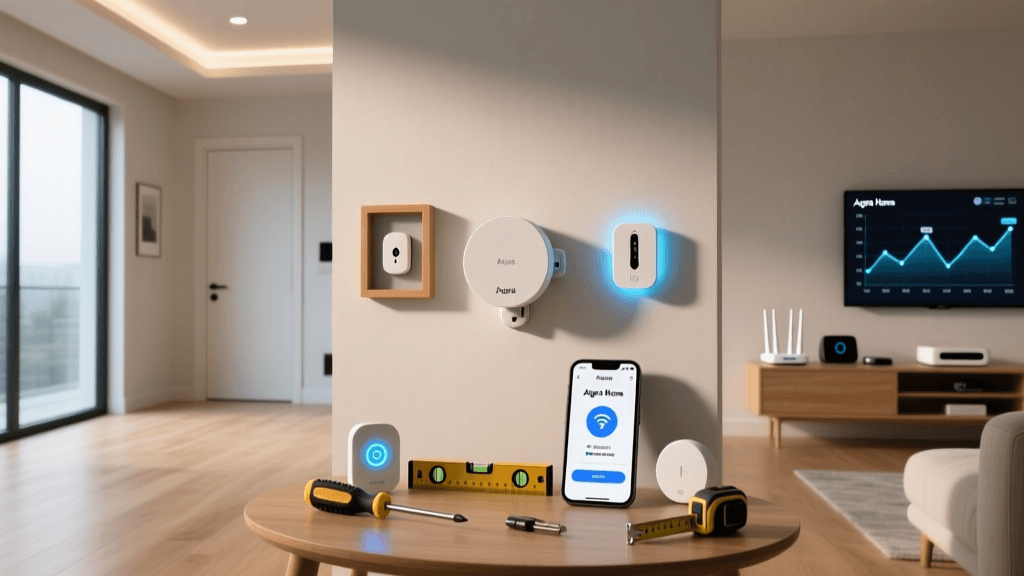
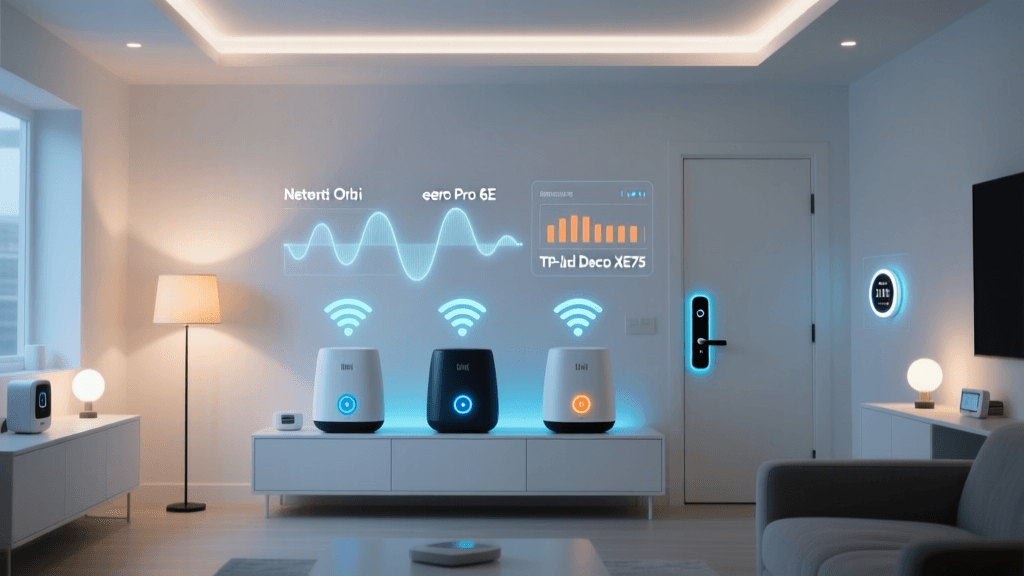
To complete this installation, you will need a Wi-Fi 6 mesh system (such as the Eero 6 Plus or TP-Link Deco X60), a dedicated smart hub (like the Home Assistant Green or Apple TV 4K), and at least two Cat6 Ethernet cables. Cat6 cables are essential for establishing a wired backhaul for your primary mesh node and your smart hub, ensuring that your wireless bands are reserved exclusively for end devices.
Phase 2: Installing the Wi-Fi 6 Mesh Network
A traditional single-point router cannot handle the concurrent connections of a modern smart home, which often exceeds 50 to 100 individual IP addresses. A mesh network distributes this load across multiple nodes.
Step 1: Modem Configuration and Bridge Mode
Log into your Internet Service Provider's (ISP) modem/router combo and enable 'Bridge Mode.' This disables the ISP's routing functions and passes the public IP address directly to your new mesh system, preventing Double NAT issues that frequently break smart home port forwarding and local device discovery.
Step 2: Primary Node Placement and Wiring
Place your primary mesh node in a central, elevated location—never on the floor. Connect the primary node to your modem using a Cat6 Ethernet cable. Power it on and use the manufacturer's mobile app to configure your network name (SSID) and WPA3 password. Pro Tip: Create a dedicated IoT VLAN or guest network specifically for your smart home devices to isolate them from your personal computers and phones, enhancing security and reducing broadcast traffic on your main network.
Step 3: Satellite Node Positioning
The golden rule of mesh placement is the '30-to-45-foot rule.' Satellite nodes should be placed roughly halfway between the primary node and the dead zone you are trying to cover. If you place a satellite node in a dead zone, it will only repeat an already degraded signal. Always verify the signal strength via the mesh app before permanently mounting or placing the node.
As illustrated in the chart above, a Wi-Fi 6 mesh system maintains high throughput across vast distances, whereas a traditional single router experiences a severe drop-off past the 50-foot mark, especially through interior walls.
Phase 3: Smart Home Hub Installation and Wiring
With the network foundation laid, it is time to install the brain of your smart home. The hub translates commands between your IP network and low-power protocols like Thread, Zigbee, and Bluetooth.
Choosing the Right Hub for Your Ecosystem
| Hub Model | Price Range | Protocols Supported | Best For |
|---|---|---|---|
| Home Assistant Green | $99 - $129 | Matter, Thread, Ethernet | Local control, advanced DIY |
| Apple TV 4K (3rd Gen) | $129 - $149 | Matter, Thread, Wi-Fi | Apple ecosystem, HomeKit |
| Amazon Echo (4th Gen) | $70 - $99 | Matter, Zigbee, Wi-Fi | Alexa users, budget setups |
Step 1: Physical Placement and Ethernet Connection
For hubs that double as Thread Border Routers (like the Apple TV 4K or Home Assistant Green with a Thread dongle), placement is critical. Thread creates its own low-power mesh network. Place the hub in the geographical center of your home, elevated at least 4 feet off the ground. Always use a hardwired Ethernet connection for your hub. Relying on Wi-Fi for the hub itself introduces unnecessary latency and potential points of failure during network reboots.
Step 2: Power and Thermal Management
Smart hubs process automation logic 24/7. Ensure the hub has adequate ventilation. If you are using a Home Assistant Green, keep it out of direct sunlight and away from the top of heat-generating AV receivers. Connect the power adapter directly to a wall outlet or an Uninterruptible Power Supply (UPS) to prevent database corruption from sudden power loss.
Phase 4: Configuring Thread and Matter Devices
The introduction of Thread networking has revolutionized smart home reliability. Unlike Wi-Fi, which can bog down when dozens of devices connect to a single access point, Thread is a low-power, self-healing mesh protocol designed specifically for IoT.
Step 1: Enabling the Thread Border Router
Once your hub is connected to the network, navigate to its settings menu to enable Thread Border Router functionality. This allows the hub to bridge Thread devices (like smart locks and motion sensors) to your main IP network. If you have multiple Thread-enabled hubs (e.g., an Apple TV and a HomePod Mini), they will automatically form a single, unified Thread mesh network, vastly expanding your coverage area.
Step 2: Commissioning Matter Devices
Pairing a Matter device is remarkably straightforward compared to legacy Zigbee or Z-Wave setups. Open your hub's companion app, select 'Add Device,' and scan the Matter QR code located on the physical product or its packaging. The hub will securely exchange encryption keys via Bluetooth Low Energy (BLE) and then provision the device onto your Thread or Wi-Fi network. This entire process typically takes less than 60 seconds.
"Matter's true power lies in its multi-admin feature. A single Matter device can be controlled simultaneously by an Apple HomePod, a Home Assistant server, and a Google Nest Hub without requiring complex cloud integrations or third-party workarounds."
Phase 5: Network Optimization and IP Reservation
A common mistake DIY installers make is leaving IP address assignment entirely to the router's default DHCP settings. Smart home devices that lose power or reboot may be assigned a new IP address, breaking local integrations and causing offline errors in your dashboard.
Setting Up DHCP Reservations
Log into your mesh network's admin panel and locate the DHCP reservation (or static IP) settings. Assign permanent IP addresses to your smart hub, smart displays, and any Wi-Fi-based smart plugs or switches. Use a structured IP schema to keep your network organized:
- Hubs and Controllers: 192.168.1.10 to 192.168.1.19
- Network Infrastructure (Mesh Nodes, APs): 192.168.1.20 to 192.168.1.29
- Smart Displays and Cameras: 192.168.1.50 to 192.168.1.79
- Smart Plugs, Switches, and Sensors: 192.168.1.100 to 192.168.1.200
This structured approach makes troubleshooting significantly easier when you need to ping a specific device or set up firewall rules to block IoT devices from accessing the wider internet.
Phase 6: Building Your First Automation Workflow
With the hardware installed and the network optimized, you can begin creating automations. The golden rule of smart home automation is to prioritize local execution over cloud-based triggers. By using your newly installed local hub, a motion sensor triggering a smart light will execute in milliseconds, even if your home's internet connection goes down.
Example: The 'Arriving Home' Workflow
- Trigger: Geofencing detects your smartphone crossing the virtual perimeter of your property.
- Condition: System checks if the time is after sunset and the home alarm is armed.
- Action 1: Disarm the security panel via local IP command.
- Action 2: Turn on the entryway Thread-enabled smart bulbs to 80% brightness.
- Action 3: Adjust the smart thermostat to your preferred 'Home' temperature setpoint.
Troubleshooting Common Installation Issues
Even with meticulous planning, you may encounter hurdles during the setup process. Here are solutions to the most frequent installation issues:
Device Pairing Failures
If a Matter device refuses to pair, ensure your smartphone's Bluetooth is active and that you are within 10 feet of the device. If the device was previously owned or returned, it may require a hardware factory reset (usually achieved by holding the physical button for 10-15 seconds) to clear old network credentials.
Thread Network Fragmentation
If your Thread devices are sluggish, you may have multiple, competing Thread networks rather than one unified mesh. Ensure all your Thread Border Routers are on the exact same Wi-Fi network and subnet. Thread networks will not merge if their underlying IP infrastructure is segmented across different VLANs without proper Multicast DNS (mDNS) forwarding.
Mesh Node Backhaul Bottlenecks
If devices connected to a specific mesh node are experiencing high latency, the wireless backhaul may be congested. If your home is pre-wired with Ethernet, connect the satellite mesh nodes via hardwire to create an Ethernet backhaul. This frees up the 5GHz wireless bands entirely for your devices, drastically improving overall network throughput and reducing smart home latency.
Conclusion
Installing a smart home hub and mesh network is an investment in your home's digital infrastructure. By prioritizing hardwired connections, strategically placing your Thread border routers, and adopting the Matter protocol, you future-proof your home against the rapid evolution of IoT technology. Take the time to map your network, reserve your IP addresses, and embrace local control. The result is a seamless, lightning-fast smart home that operates exactly as it should: invisibly and reliably.