Introduction to Smart Hub Bridges and Network Topology
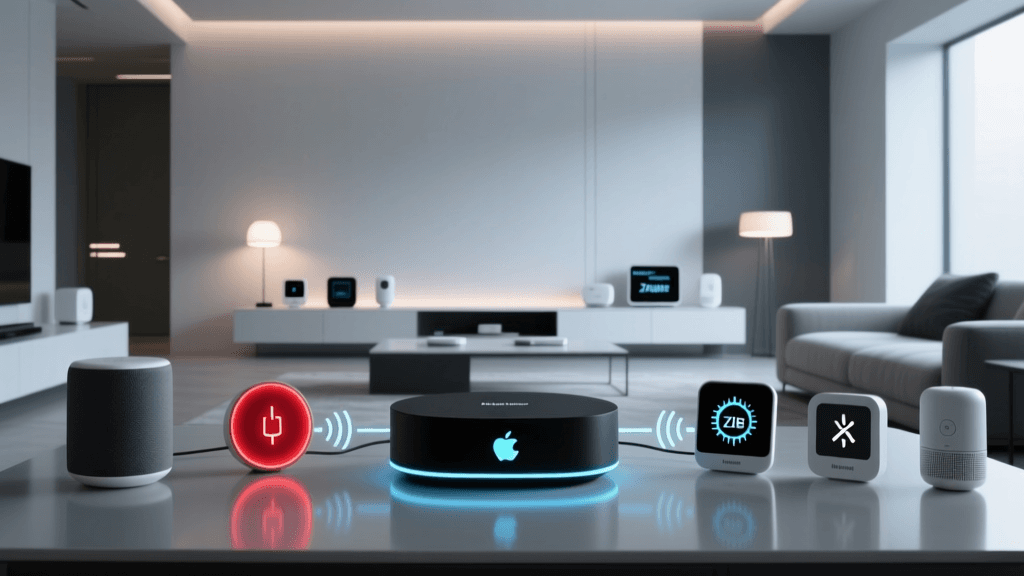
Building a reliable smart home requires more than just plugging in devices and connecting them to your primary Wi-Fi network. As your ecosystem grows, you will inevitably encounter network congestion, security vulnerabilities, and protocol incompatibilities. This is where a dedicated smart hub bridge and a properly isolated network topology become essential. A hub bridge acts as the central translator and traffic controller for your smart home, converting local mesh protocols like Zigbee, Z-Wave, and Thread into IP-based data that your router and cloud services can understand.
In this comprehensive guide, we will walk you through the exact steps to configure a smart hub bridge, isolate your Internet of Things (IoT) devices on a Virtual Local Area Network (VLAN), and optimize your mesh networks to eliminate interference. Whether you are deploying a Home Assistant Yellow, a Hubitat Elevation, or a universal Matter bridge, these best practices will ensure your automation workflows remain local, fast, and secure.
The Critical Need for IoT Network Isolation
One of the most common mistakes DIY installers make is placing smart bulbs, plugs, and cameras on the same network subnet as their personal computers, smartphones, and network-attached storage (NAS) drives. IoT devices are notoriously insecure; many lack regular firmware updates, utilize weak default passwords, and communicate with poorly secured cloud servers. According to the Cybersecurity and Infrastructure Security Agency (CISA), compromised IoT devices are frequently used as entry points for lateral movement within a home network, potentially exposing sensitive personal data.
By implementing network isolation, you create a digital quarantine zone for your smart devices. A VLAN allows your smart hub bridge to communicate with your IoT devices while strictly preventing those devices from initiating connections to your primary trusted devices. This zero-trust approach ensures that even if a cheap smart plug is compromised, the attacker cannot access your home office PC or security camera NVR.
Step-by-Step VLAN Setup for Smart Home Hubs
To properly isolate your hub bridge and connected devices, you will need a router or firewall that supports VLANs and multiple SSIDs, such as a UniFi Dream Machine, pfSense box, or TP-Link Omada router.
1. Create the IoT VLAN
Log into your network controller and create a new VLAN. Assign it a specific ID (e.g., VLAN 20) and a distinct subnet (e.g., 192.168.20.x). Name this network 'IoT-Devices'. Ensure that 'IGMP Snooping' and 'Multicast Enhancement' are enabled, as these are critical for local discovery protocols.
2. Configure Firewall Rules
Set up the following firewall rules to enforce isolation:
- Allow IoT to WAN: Permit the IoT VLAN to access the internet so cloud-dependent devices can function.
- Block IoT to LAN: Drop all traffic originating from the IoT VLAN destined for your primary trusted LAN (e.g., 192.168.1.x).
- Allow LAN to IoT: Permit your primary LAN to initiate connections to the IoT VLAN so you can manage device web interfaces and cast media.
3. Deploy a Dedicated IoT SSID
Create a new Wi-Fi SSID (e.g., 'SmartHome-IoT') and bind it exclusively to your new IoT VLAN. Use WPA2-AES security. Connect your Wi-Fi-based smart plugs, switches, and the Wi-Fi radio of your smart hub bridge to this network.
4. Set Up an mDNS Reflector
Because VLANs block broadcast traffic, protocols like Apple AirPlay, Google Cast, and local Matter discovery will fail across subnets. Install an mDNS reflector (such as Avahi or the built-in UniFi mDNS Repeater) to bridge discovery packets between your primary LAN and your IoT VLAN without compromising the firewall rules.
Choosing the Right Hub Bridge Hardware
The market offers several powerful hub bridges capable of managing local automations and translating protocols. Selecting the right hardware depends on your technical expertise and ecosystem preferences.
| Hub Bridge Model | Supported Protocols | Local Processing | Best For | Estimated Cost |
|---|---|---|---|---|
| Home Assistant Yellow | Zigbee, Thread, Matter, Wi-Fi | Yes (Full) | Advanced DIYers, Tinkerers | $199 - $249 |
| Hubitat Elevation | Zigbee 3.0, Z-Wave Plus | Yes (Full) | Reliability-focused Automators | $149 |
| Samsung SmartThings Station | Thread, Matter, Zigbee | Partial (Cloud-dependent) | Beginners, Samsung Users | $79 |
| Aeotec Smart Home Hub | Z-Wave Plus V2, Zigbee | Yes (Edge Drivers) | Z-Wave Heavy Networks | $129 |
For users seeking total local control and the ability to bridge disparate ecosystems via software add-ons like Zigbee2MQTT or Z-Wave JS UI, the Home Assistant Yellow or a custom Intel NUC build remains the gold standard. For those who prefer a plug-and-play appliance with robust local execution but a simpler interface, Hubitat Elevation is highly recommended.
Protocol Deep Dive: Zigbee, Z-Wave, Thread, and Matter
A smart hub bridge is only as good as the protocols it supports. Understanding the underlying mesh technologies is crucial for optimal device placement and network health.
Zigbee 3.0 operates on the crowded 2.4 GHz band. It is excellent for low-power sensors and switches but requires careful channel planning to avoid Wi-Fi interference. Zigbee networks rely on mains-powered devices to act as routers, extending the mesh.
Z-Wave Plus V2 operates on sub-GHz frequencies (908.42 MHz in the US). Because it avoids the 2.4 GHz spectrum entirely, it is highly immune to Wi-Fi interference and offers better wall penetration, making it ideal for smart locks and garage door controllers.
Thread is an IPv6-based mesh networking protocol that also uses 2.4 GHz. Unlike Zigbee, Thread has no central hub bottleneck; border routers pass data directly to your IP network. Thread is the foundational networking layer for many new Matter-certified devices, as defined by the Connectivity Standards Alliance (CSA).
Managing RF Interference: Wi-Fi and Zigbee Channel Mapping
The most frequent cause of smart hub bridge dropouts and delayed automation is Radio Frequency (RF) interference. Both Wi-Fi and Zigbee operate in the 2.4 GHz spectrum, and their channels overlap heavily. If your Wi-Fi router and your Zigbee hub are broadcasting on overlapping channels, your mesh network will experience massive packet loss.
To solve this, you must manually lock your 2.4 GHz Wi-Fi and your Zigbee hub to non-overlapping channels.
- Wi-Fi Channel 1: Occupies 2401 - 2423 MHz. Safe Zigbee Channels: 15, 20, 25.
- Wi-Fi Channel 6: Occupies 2426 - 2448 MHz. Safe Zigbee Channels: 11, 25.
- Wi-Fi Channel 11: Occupies 2451 - 2473 MHz. Safe Zigbee Channels: 11, 15.
Best Practice Configuration: Set your primary 2.4 GHz Wi-Fi network to Channel 1, and configure your Zigbee hub bridge to Channel 15 or 20. Avoid using Wi-Fi channels outside of 1, 6, and 11, as they will cause co-channel interference with other neighboring networks. Furthermore, keep your hub bridge physically separated from your Wi-Fi router by at least 3 to 5 feet to prevent receiver desensitization.
Bridging Ecosystems: Unifying Your Stack
Modern smart homes often feature a mix of Apple HomeKit, Google Home, and Amazon Alexa. A robust hub bridge setup allows you to maintain a single source of truth while exposing devices to your preferred voice assistants.
Using a platform like Home Assistant or Hubitat, you can integrate local Zigbee and Z-Wave devices and then bridge them to Apple HomeKit via the native HomeKit Bridge integration or to Google Home via the Google Assistant SDK. With the advent of Matter, you can now configure your hub to act as a Matter Bridge. This allows legacy Zigbee and Z-Wave devices connected to your hub to be exposed natively to any Matter-compatible controller (like an Apple TV 4K or Nest Hub) over your IP network, completely bypassing the need for cloud-based skill linking.
'Matter is not a replacement for Zigbee or Thread; it is an application layer that sits on top of them. Your hub bridge is the vital translator that brings legacy mesh devices into the modern Matter IP ecosystem.' - National Institute of Standards and Technology (NIST) IoT Guidelines.
Advanced Troubleshooting for Bridge Dropouts
Even with perfect VLAN isolation and channel mapping, you may occasionally encounter bridge dropouts or unresponsive devices. Follow this checklist to diagnose the issue:
- Check the LQI (Link Quality Indicator): In your hub's Zigbee or Z-Wave map, look at the LQI values. A healthy mesh should show LQI values above 100 between routers. If a device has an LQI below 50, it needs a nearby mains-powered repeater.
- Verify USB Extension Cables: If you are using a USB Zigbee coordinator (like the Sonoff Zigbee 3.0 USB Dongle Plus) plugged directly into a Raspberry Pi or NUC, the USB 3.0 ports generate massive 2.4 GHz noise. You must use a shielded USB 2.0 extension cable to move the dongle away from the compute board.
- Inspect mDNS Timeouts: If devices show as 'Unavailable' in Apple Home or Google Home but work in your primary hub, your mDNS reflector may be failing. Restart the mDNS service on your router and ensure multicast traffic is not being blocked by your VLAN firewall rules.
- Review Hub RAM and CPU: Bridge software like Zigbee2MQTT can be memory-intensive. If your hub is running on a device with less than 4GB of RAM, memory leaks can cause the bridge service to crash silently. Set up automated service restarts via cron or systemd watchdogs.
Conclusion
Setting up a dedicated smart hub bridge and isolating your IoT network is a foundational step for any serious smart home installer. By segmenting your traffic via VLANs, selecting the appropriate hub hardware, and carefully managing RF interference, you create an automation environment that is both highly responsive and deeply secure. As the Matter standard continues to mature, your locally bridged mesh networks will remain the reliable backbone of your home, ensuring your devices respond instantly, regardless of internet connectivity or cloud server status.