Introduction to Smart Home Automation Logic
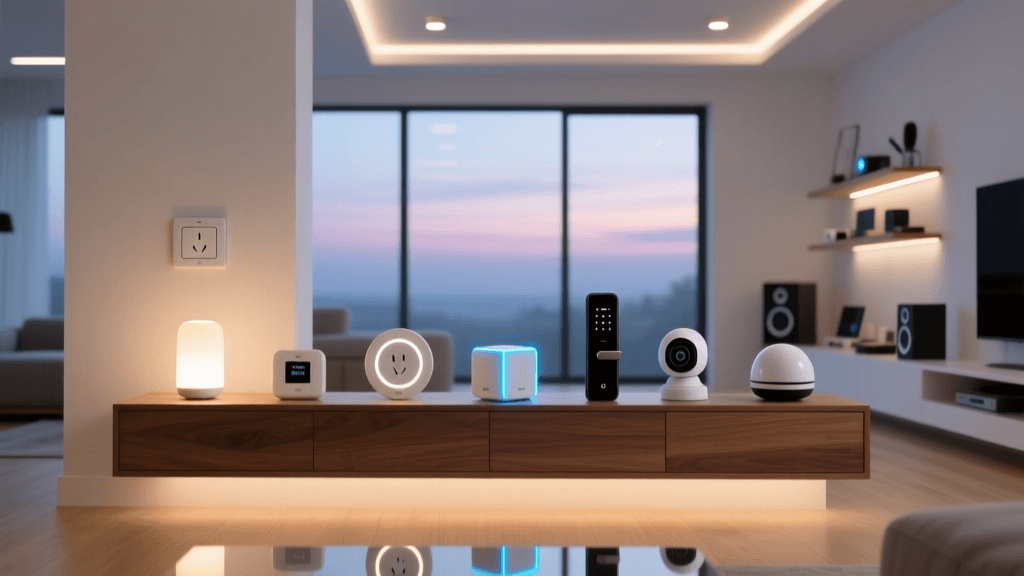
When transitioning from manual device control to a fully automated smart home, understanding the distinction between scenes, routines, and schedules is critical for a seamless user experience. While these terms are often used interchangeably by consumers, they represent distinct logical building blocks in smart home configuration. A scene is a static snapshot of device states. For example, a 'Movie Night' scene might instruct your Philips Hue lights to dim to 20%, close your Lutron Caseta smart blinds, and power on your AV receiver. A routine is the automation logic or 'trigger' that executes a scene or a series of actions based on specific conditions, such as motion detection or geofencing. Finally, a schedule is a strictly time-based trigger that executes actions at predetermined intervals or times of day.
Properly configuring these three elements not only enhances convenience but also drastically improves home security and energy efficiency. According to the Department of Energy, properly scheduling smart thermostats to adjust temperatures when you are asleep or away can save homeowners up to 10% a year on heating and cooling costs. In this comprehensive guide, we will explore how to design, configure, and troubleshoot advanced routines and schedules using industry-leading hubs like Samsung SmartThings, Apple HomeKit, and Home Assistant.
Core Components: Hubs, Protocols, and Compatibility
Before creating complex automation workflows, you must ensure your underlying hardware and network protocols can support reliable execution. Cloud-dependent routines often suffer from latency or fail entirely during internet outages. Therefore, prioritizing hubs that support local processing and robust mesh networks (like Zigbee, Z-Wave, or Thread) is essential for mission-critical automations like security lighting and smart locks.
The recent rollout of the Matter standard by the Connectivity Standards Alliance has begun to unify device communication, allowing routines to trigger across different ecosystems. However, legacy devices still rely on proprietary hubs or specific radio frequencies. Below is a comparison of the top hubs for routine configuration:
| Hub / Controller | Supported Protocols | Local Processing | Estimated Cost |
|---|---|---|---|
| Samsung SmartThings Station | Zigbee, Z-Wave, Matter, Wi-Fi | Partial (Cloud fallback required for some) | $70 - $100 |
| Apple HomePod Mini | Thread, Matter, Wi-Fi, Bluetooth | Yes (via Thread Border Router) | $99 |
| Home Assistant Green | Zigbee, Matter, Thread, Local LAN | Yes (100% Local) | $99 - $150 |
| Hubitat Elevation | Zigbee, Z-Wave, LAN | Yes (100% Local) | $150 - $180 |
For DIY installers who want granular control over IF/THEN logic without relying on cloud servers, Home Assistant and Hubitat are the gold standards. For users deeply embedded in the Apple ecosystem, the HomePod Mini serves as an excellent Thread border router, enabling ultra-low-latency routines for Matter-compatible devices.
Step-by-Step Guide to Creating Time-Based Schedules
Time-based schedules are the backbone of passive smart home automation. They require no user intervention and operate predictably. The most impactful time-based schedule you can configure is Circadian Lighting. Human biology relies on color temperature shifts to regulate melatonin production. By scheduling your smart bulbs to mimic the sun, you can improve sleep quality and daily focus.
Configuring Circadian Lighting Schedules
Using a Philips Hue Bridge ($60) and Hue White and Color Ambiance bulbs ($50 each), you can configure a dynamic schedule within the Hue app or via Home Assistant's 'Circadian Lighting' integration. Instead of a simple on/off schedule, configure a gradient transition:
- 6:00 AM (Wake Up): Lights turn on at 10% brightness, 2000K (warm amber). Over 30 minutes, brightness ramps to 80% and color temperature shifts to 4500K (cool white) to simulate sunrise.
- 9:00 AM to 5:00 PM (Work Hours): Lights maintain 100% brightness at 5000K-6500K (daylight) to promote alertness.
- 7:00 PM (Wind Down): Brightness drops to 60%, color temperature shifts to 2700K (warm white).
- 10:30 PM (Sleep Prep): Lights dim to 10% at 1800K (candlelight), turning off completely at 11:00 PM.
HVAC Scheduling and Setbacks
Smart thermostats like the Ecobee SmartThermostat ($250) or Google Nest Learning Thermostat ($230) excel at time-based schedules. The EPA's ENERGY STAR program notes that smart thermostats can save an average of 8% on heating and cooling bills. Configure your schedule to initiate a 'setback' (adjusting the temperature by 7 to 10 degrees Fahrenheit) 30 minutes before you typically leave for work, and schedule the 'recovery' phase to begin 45 minutes before your expected return. This ensures the home is comfortable upon arrival without wasting energy while the house is empty.
Designing Trigger-Based Routines (Geofencing and Sensors)
While schedules rely on the clock, trigger-based routines rely on environmental or spatial data. The two most common triggers are geofencing (location-based) and physical sensors (motion, contact, or presence).
Mastering Geofencing Routines
Geofencing uses your smartphone's GPS to create a virtual perimeter around your home. When your device crosses this boundary, it triggers an 'Arrival' or 'Departure' routine. A common pitfall with geofencing is setting the radius too small (e.g., 50 meters), which can cause 'ghost' triggers if GPS drift occurs while you are sitting in your backyard. For reliable execution, set your geofence radius to 150-200 meters. Furthermore, always add a condition to your departure routine: 'Execute Departure Scene ONLY IF no other household members' phones are currently within the geofence.' This prevents the HVAC from shutting off and the security system from arming if you leave but your partner stays home.
Leveraging mmWave Presence Sensors
Traditional PIR (Passive Infrared) motion sensors, like the Ring Indoor Cam or basic Zigbee motion pucks, only detect movement. If you sit perfectly still on the couch reading, the lights will eventually turn off. To solve this, upgrade your trigger devices to mmWave (millimeter-wave) presence sensors, such as the Aqara FP2 ($70). The FP2 detects micro-movements like breathing and heartbeats, allowing you to create a 'Static Presence' routine that keeps your environment configured as long as you are in the room, regardless of physical movement.
Advanced Workflows: Combining Scenes and Conditions
True smart home mastery involves layering conditions onto your triggers to prevent false positives and create context-aware environments. This is where IF/THEN/ELSE logic becomes vital.
Example: The Context-Aware 'Goodnight' Routine
Imagine you want to trigger your 'Goodnight' scene (locking doors, arming cameras, turning off lights) when you press a bedside button. However, what if your garage door is still open? A basic routine would simply lock the house and leave the garage vulnerable. An advanced workflow in SmartThings or Home Assistant looks like this:
IF Bedside Button is Pressed
AND Time is between 9:00 PM and 4:00 AM
THEN Check Garage Door Sensor
IF Garage Door is Closed:
-> Execute 'Goodnight' Scene
-> Announce via Smart Speaker: 'Goodnight, house is secured.'
ELSE IF Garage Door is Open:
-> Flash Bedroom Lights Red (3 times)
-> Announce via Smart Speaker: 'Warning: Garage door is open.'
-> Abort 'Goodnight' Scene.
By utilizing conditional logic, you transform a simple command into an intelligent security checkpoint. Home Assistant users can build this visually using the Automations GUI or write it in YAML for even deeper variable manipulation, such as checking local weather APIs to ensure smart sprinklers are disabled if rain is forecasted for the next morning.
Visualizing Energy Savings Through Automation
One of the most compelling reasons to invest time in configuring routines is the measurable impact on utility bills. Manual control inevitably leads to forgotten lights, phantom loads from idle electronics, and inefficient HVAC usage. By implementing automated schedules and trigger-based shutdown routines, homes can significantly reduce their baseline energy consumption.
The chart below illustrates the relative energy consumption of various home systems when controlled manually versus when managed by optimized smart home routines (using manual control as the 100% baseline).
As visualized, lighting and phantom loads (devices left on standby) see the most dramatic reductions. A simple 'Master Off' routine triggered by your departure geofence can cut phantom loads by up to 70% by cutting power to smart plugs connected to entertainment centers and home office setups.
Network Configuration for Reliable Routine Execution
A routine is only as reliable as the network it travels on. If your smart home hub cannot communicate with your devices due to network congestion, your automations will fail. To ensure 99.9% uptime for your routines, follow these network configuration best practices:
- Implement a Dedicated IoT VLAN: Wi-Fi congestion on your primary 2.4GHz band can cause packet loss, leading to delayed routine execution. Create a separate Virtual Local Area Network (VLAN) specifically for IoT devices. This isolates smart home traffic from high-bandwidth activities like 4K streaming or gaming.
- Assign Static IPs to Hubs and Bridges: Your SmartThings hub, Philips Hue bridge, and Lutron Caseta Pro hub must have static IP addresses assigned via your router's DHCP reservations. If a router reboots and assigns a new IP to your Hue bridge, your local Home Assistant routines will fail to find the bridge until the integration is reloaded.
- Optimize Zigbee and Z-Wave Mesh Networks: Unlike Wi-Fi, Zigbee and Z-Wave rely on a mesh network where mains-powered devices (like smart plugs and in-wall switches) act as repeaters. Ensure you have a repeater device placed roughly every 30 feet to maintain a strong signal path back to the hub. Battery-powered sensors do not repeat signals; they only transmit.
Troubleshooting Common Routine Failures
Even perfectly coded routines can fail due to hardware or environmental variables. Here is how to troubleshoot the most common setup and configuration issues:
1. The 'Sunset' Lighting Delay
Issue: Your exterior lights are scheduled to turn on at sunset, but they trigger 15 minutes late or at the wrong time entirely.
Solution: Hubs calculate sunset based on the GPS coordinates entered during initial setup. If you moved, or if the hub's internal clock has drifted, the schedule will be inaccurate. Verify your location settings in the hub app. For Home Assistant users, ensure the 'Sun' integration is active and consider adding a 'Time Offset' (e.g., Sunset minus 15 minutes) to ensure lights are on before it gets completely dark.
2. Geofencing False Triggers
Issue: The 'Arrival' routine triggers while you are still a mile away, or fails to trigger when you pull into the driveway.
Solution: Smartphone operating systems (iOS and Android) aggressively throttle background GPS polling to save battery. To fix this, ensure your smart home app (SmartThings, HomeKit, etc.) has 'Always Allow' location permissions enabled, and disable 'Precise Location' toggles if they cause battery drain, relying instead on cell-tower triangulation for the outer geofence boundary. Additionally, integrating a secondary trigger, like your car connecting to the home Wi-Fi upon approach, can serve as a reliable backup condition.
3. Hub Overload and Latency
Issue: Routines that used to execute instantly now take 3 to 5 seconds to trigger.
Solution: Your hub's processor may be overwhelmed by too many local polling requests or excessive device state changes. Schedule a weekly automatic reboot for your hub (e.g., every Tuesday at 4:00 AM) to clear the RAM and re-establish mesh network routing tables. If using Home Assistant, check the 'Integrations' page for devices that are flooding the logbook with state updates, and disable polling for unnecessary entities.
Conclusion
Mastering scene routines and schedule creation is the defining factor between a home that simply has 'smart devices' and a truly intelligent, automated living space. By understanding the differences between static scenes, conditional routines, and time-based schedules, you can build a resilient ecosystem that anticipates your needs. Whether you are leveraging the user-friendly interfaces of Apple HomeKit and Samsung SmartThings, or diving deep into the local processing power of Home Assistant, the key to success lies in robust network configuration, strategic sensor placement, and logical, condition-based workflows. Start with simple schedules, layer in geofencing, and gradually introduce complex IF/THEN conditions to unlock the full potential of your smart home investment.