Why Your Network is the Backbone of Smart Home Installation
Before you mount a single smart switch or pair a voice assistant, you must address the invisible foundation of your smart home: the network. A fragmented or overloaded Wi-Fi network is the leading cause of smart home latency, dropped connections, and unresponsive automations. According to the Wi-Fi Alliance Home Design guidelines, modern smart homes require robust mesh topologies to handle the density of Internet of Things (IoT) devices, which can easily exceed 40 to 50 connected endpoints in a standard three-bedroom house.
Unlike streaming a 4K movie, which requires high bandwidth but only one connection, smart home devices require low latency and high network capacity. A smart bulb may only consume 20MB of data per month, but a network of 30 bulbs sending keep-alive packets every few seconds can overwhelm a legacy router's DHCP table and MU-MIMO capabilities. This step-by-step guide will walk you through physically installing your network infrastructure, mounting your central smart home hub, securing your IoT VLANs, and wiring your first core devices.
Step 1: Upgrading and Placing Your Mesh Router
The first physical step in any smart home installation is deploying a Wi-Fi 6 or Wi-Fi 6E mesh system. Wi-Fi 6 (802.11ax) introduces OFDMA (Orthogonal Frequency-Division Multiple Access), which allows a router to communicate with multiple low-bandwidth IoT devices simultaneously in a single transmission window.
Hardware Selection and Cost
- Entry-Level (Up to 2,000 sq ft): TP-Link Deco X55 (Wi-Fi 6) - Approx. $200 for a 3-pack.
- Mid-Range (Up to 4,500 sq ft): Eero Pro 6E (Wi-Fi 6E) - Approx. $400 for a 3-pack.
- Prosumer (Wired Backhaul): Ubiquiti UniFi Dream Router with ceiling-mounted U6 Lite access points - Approx. $600+.
Physical Placement Rules
Do not hide your primary router node in a basement media cabinet or behind a television. Metal enclosures, mirrors, and HVAC ducts act as Faraday cages, severely degrading the 2.4GHz and 5GHz signals required by most smart plugs and switches. Mount the primary node centrally, elevated at least four feet off the ground. If your home has Cat5e or Cat6 Ethernet wiring in the walls, use a wired Ethernet backhaul between mesh nodes to dedicate 100% of your wireless spectrum to your smart devices and personal electronics.
Step 2: Installing the Smart Home Hub
While many devices now connect directly to Wi-Fi, a dedicated smart home hub is essential for running local automations, supporting low-power mesh protocols like Zigbee and Thread, and ensuring your home functions if the internet goes down. With the rollout of the Matter standard, hubs like the Samsung SmartThings Station, Apple TV 4K, and HomePod mini now act as universal border routers.
Physical Installation and Power
When installing a hub like the SmartThings V4 or an Aeotec Smart Home Hub, placement is critical for RF (Radio Frequency) propagation. Zigbee and Z-Wave signals operate on the 2.4GHz and 908MHz spectrums, respectively. While 908MHz penetrates walls better, 2.4GHz is highly susceptible to interference from microwave ovens and Bluetooth devices.
- Centralize the Hub: Place the hub in the geometric center of your home. Avoid placing it near your primary Wi-Fi router if possible, as the 2.4GHz Wi-Fi channels can cause co-channel interference with Zigbee. Keep them at least 6 feet apart.
- Use Wired Power, Not USB: Always use the manufacturer-provided AC adapter. Plugging a hub into a TV's USB port often results in insufficient amperage, leading to random hub reboots and dropped Zigbee meshes.
- Antenna Orientation: If your hub features external antennas (like the HomeSeer SmartStarter Pro), orient them perpendicular to each other (one vertical, one horizontal) to match the varying antenna polarizations of your smart sensors and locks.
Step 3: Configuring VLANs and Guest Networks for IoT Security
Security is a mandatory step in smart home setup. IoT devices are notorious for lacking robust onboard security and receiving infrequent firmware updates. The NIST IoT guidelines strongly recommend network segmentation to prevent a compromised smart bulb from becoming a bridgehead for attackers to access your personal computers and NAS drives.
How to Segment Your Network
If your mesh system supports VLANs (Virtual Local Area Networks) or dedicated IoT networks (a feature standard on Eero Secure and TP-Link HomeShield), create a separate SSID specifically for your smart home devices.
- SSID Name: SmartHome_IoT_2G
- Band: Force 2.4GHz only (most smart plugs and switches do not support 5GHz and will fail to pair if the router attempts band steering).
- Client Isolation: Enable 'AP Isolation' or 'Client Isolation' so IoT devices can talk to the internet and your hub, but cannot communicate laterally with each other or your main network.
Step 4: Wiring and Pairing Core Devices
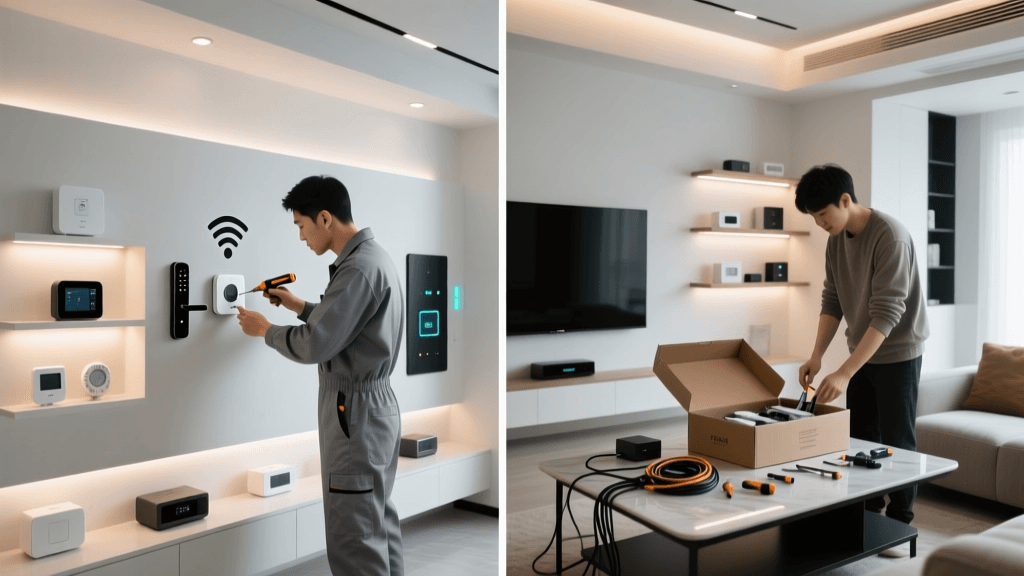
With the network and hub online, it is time to install your first hardwired devices. We will cover the two most impactful installations: the smart thermostat and the smart lighting switch.
Installing a Smart Thermostat (e.g., Ecobee SmartThermostat Premium)
According to the EPA, Energy Star certified smart thermostats can save homeowners an average of 8% on heating and cooling bills, but they require a reliable power source. The most common installation hurdle is the C-Wire (Common Wire), which provides continuous 24V AC power to the thermostat's Wi-Fi radio and display.
- Safety First: Turn off the breaker to your HVAC system at the main electrical panel. Verify power is off using a non-contact voltage tester.
- Label and Document: Take a photo of your existing thermostat wiring. Label each wire with the included stickers (R, W, Y, G, C).
- The C-Wire Solution: If you do not have a C-Wire connected at the wall plate, check the HVAC control board in the attic or basement. Often, an unused blue wire is tucked behind the wall. If no spare wire exists, install the included Power Extender Kit (PEK) at the HVAC control board, which multiplexes the power over existing wires.
- Mount and Pair: Attach the new backplate, plug in the wires until they click, and mount the display. Follow the on-screen prompts to connect to your 2.4GHz IoT network and pair with your hub via Matter or native integration.
Installing a Smart Light Switch (e.g., Lutron Caseta Diva)
Smart switches are superior to smart bulbs for whole-home lighting because they maintain physical control and don't require the fixture to be constantly powered.
- Identify Your Wires: In a standard single-pole switch box, you will find a Line (hot, usually black), a Load (going to the light, usually black or red), a Ground (bare copper or green), and ideally a Neutral (white). Note: Lutron Caseta Clear Connect switches do not require a neutral wire, making them ideal for older homes.
- Connect the Pigtails: Use wire nuts to connect the switch's Line wire to the wall's Line, and the Load to the Load. Connect the green ground wire to the bare copper ground.
- Test and Snap: Turn the breaker back on to test the physical switch. Once confirmed, turn the breaker off again, tuck the wires neatly into the box using a folding tool, screw in the switch, and snap on the wall plate.
Visualizing Protocol Range and Power Consumption
When planning where to place your hub and repeaters, it is vital to understand the physical limitations of the wireless protocols your devices use. The chart below illustrates the maximum theoretical indoor range of common smart home protocols, which dictates how many range extenders or mesh repeaters you will need to install.
Smart Home Protocol Range Comparison
As visualized, Z-Wave and Zigbee offer superior range and mesh-repeating capabilities compared to Bluetooth LE. When installing motion sensors or door contacts in a detached garage or basement, always opt for Z-Wave or Zigbee devices, as they will route their signal through neighboring smart plugs and switches back to your central hub.
Step 5: Testing Signal Strength and Troubleshooting
Do not rely on the 'bars' shown on a smartphone app to judge smart home signal strength. Instead, use a Wi-Fi analyzer app on your phone to measure the RSSI (Received Signal Strength Indicator) in dBm (decibel-milliwatts) at the exact location where your smart devices will be installed.
- -30 to -50 dBm: Excellent. Ideal for high-bandwidth devices like video doorbells and smart displays.
- -51 to -65 dBm: Good. Perfect for smart switches, thermostats, and hubs.
- -66 to -80 dBm: Fair to Poor. Battery-powered sensors may experience severe latency or fail to report open/close states reliably. You must install a smart plug or repeater halfway between the hub and the sensor to bridge the mesh.
- -81 dBm or lower: Unusable. The device will constantly drop off the network, draining its battery as it repeatedly attempts to reconnect.
If you experience Zigbee interference (e.g., lights turning on randomly or delayed responses), log into your router and manually set your 2.4GHz Wi-Fi channel to 1, 6, or 11. Then, access your hub's Zigbee settings and change the Zigbee channel to 15, 20, or 25. This physically separates the Wi-Fi frequencies from the Zigbee frequencies, eliminating co-channel noise.
Cost Breakdown and ROI for a Foundation Setup
Building a robust smart home foundation requires an upfront investment, but it prevents the costly mistake of buying incompatible devices later. Below is an estimated cost breakdown for a foundational setup in a standard 2,000-square-foot home.
| Component | Recommended Product | Estimated Cost | Installation Difficulty |
|---|---|---|---|
| Mesh Router System | Eero 6+ (3-Pack) | $299 | Low (Plug & Play) |
| Central Smart Hub | Samsung SmartThings Station | $79 | Low (Plug & App Setup) |
| Smart Thermostat | Ecobee3 Lite | $149 | Medium (HVAC Wiring) |
| Smart Switches (5-Pack) | Lutron Caseta Diva Kit | $250 | Medium (Electrical Wiring) |
| Smart Plugs / Repeaters | GE Cync Indoor Plugs (4-Pack) | $35 | Low (Plug & Pair) |
| Total Estimated Cost | $812 |
Final Thoughts on Installation Best Practices
A successful smart home installation is 20% hardware and 80% network architecture. By prioritizing a dedicated IoT network, strategically placing your hub away from RF interference, and understanding the physical wiring requirements of your core devices, you create a resilient ecosystem. Always document your network topology, label your breaker panels, and keep a spreadsheet of your device MAC addresses and assigned IP leases. This meticulous approach to the installation phase guarantees that your smart home will operate seamlessly, securely, and responsively for years to come.