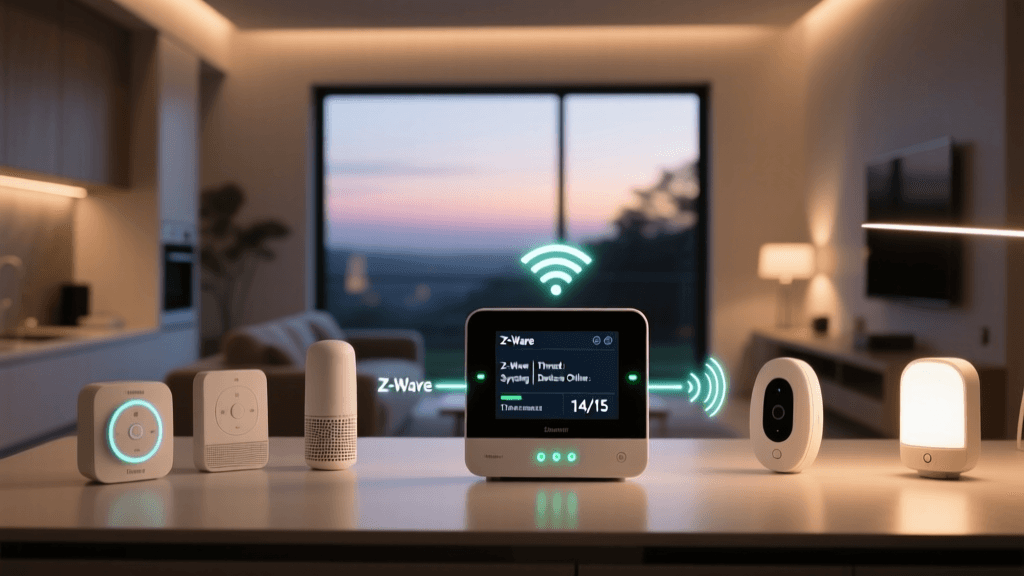
The Challenge of Multi-Ecosystem Smart Homes
Building a smart home rarely happens all at once, and it almost never happens within a single brand ecosystem. Over time, households accumulate a diverse mix of devices: an Apple TV for the living room, Amazon Echo Dots for the kitchen, Google Nest thermostats for climate control, and a mishmash of Zigbee and Wi-Fi sensors. While each of these platforms—Apple HomeKit, Google Home, and Amazon Alexa—offers robust standalone experiences, they are fundamentally designed as walled gardens. Attempting to make an Alexa-exclusive smart plug respond to an Apple HomeKit motion sensor natively is impossible without a bridge.
For DIY installers and smart home enthusiasts, this fragmentation leads to app fatigue, delayed automations, and unreliable voice control. The ultimate solution to this problem is deploying a local, agnostic hub that acts as the central brain of your home, translating protocols and exposing unified entities back to your preferred voice assistants and dashboards. In this comprehensive guide, we will walk through the exact hardware, network configurations, and software integrations required to bridge Apple, Google, and Amazon ecosystems using Home Assistant and the emerging Matter standard.
Hardware Prerequisites for a Unified Hub
Before diving into software configuration, you need a reliable foundation. Relying on a cloud-dependent hub introduces latency and points of failure. A local-first approach ensures your automations run even if your internet connection drops. Below is the recommended hardware stack for a robust multi-ecosystem setup.
| Component | Recommended Model | Estimated Cost | Purpose |
|---|---|---|---|
| Central Hub | Home Assistant Green | $99 | Local processing, automation engine, and integration host. |
| RF Dongle | Home Assistant Connect ZBT-1 | $29 | Provides local Zigbee and Matter-over-Thread radio capabilities. |
| Thread Border Router | Apple TV 4K (3rd Gen) or Nest Hub Max | $129+ | Routes Matter-over-Thread traffic to your local IP network. |
| Network Switch | TP-Link 8-Port Gigabit Unmanaged | $20 | Hardwiring hubs and access points to reduce Wi-Fi congestion. |
Investing in the Home Assistant Green provides a plug-and-play experience that avoids the SD card corruption issues historically associated with Raspberry Pi deployments. Pairing it with a dedicated Zigbee/Thread dongle ensures that your mesh network is handled independently of your primary Wi-Fi router, drastically reducing interference and latency.
Step 1: Installing and Configuring Home Assistant
The first step in your multi-ecosystem integration is setting up Home Assistant OS (HAOS). If you are using the Home Assistant Green, simply connect it to your router via Ethernet, plug in the power supply, and navigate to homeassistant.local:8123 on a device connected to the same network. The onboarding wizard will guide you through creating an administrator account, setting your home location, and defining your primary time zone.
Once the base system is running, network configuration is paramount. For a multi-ecosystem home, your hub must be able to discover devices via mDNS (Multicast DNS) and SSDP (Simple Service Discovery Protocol). If you are running a complex network with multiple VLANs (Virtual Local Area Networks), you must configure an mDNS repeater or ensure that your smart home IoT devices reside on the same flat Layer 2 network as your hub and mobile devices. Failure to do so will result in Apple HomeKit and Google Home failing to discover your local bridge.
Next, install the Matter Server add-on from the Home Assistant Add-on Store. This is a critical piece of infrastructure that allows your hub to act as a Matter Controller, enabling you to commission modern devices directly via Thread or Wi-Fi, completely bypassing manufacturer cloud requirements.
Step 2: Integrating Amazon Alexa and Google Home
To expose your unified local devices back to Amazon Alexa and Google Home, you have two primary paths: the managed cloud route or the manual reverse-proxy route.
The Managed Route: Nabu Casa
Nabu Casa is the official cloud service for Home Assistant, developed by the founders of the project. For a subscription fee (currently $7.99/month), it provides a secure, encrypted tunnel from your local hub to the cloud servers of Amazon and Google. To set this up, navigate to Settings > Home Assistant Cloud, log in, and toggle on the integrations for Google Assistant and Alexa. You will then link your Nabu Casa account via the Alexa Skills & Games portal and the Google Home app. This method supports secure local execution where possible and handles all SSL certificate management automatically.
The Manual Route: DuckDNS and Let's Encrypt
For advanced users who prefer not to pay a subscription, you can expose your hub manually. This requires setting up a dynamic DNS service like DuckDNS, generating a valid SSL certificate via Let's Encrypt, and configuring port forwarding on your router (forwarding external port 443 to internal port 8123). You will also need to manually edit your configuration.yaml file to define the Google Assistant and Alexa integrations, explicitly listing which entity domains (lights, switches, climate) you wish to expose to prevent cluttering your voice assistant apps with internal sensors.
For detailed configuration parameters, refer to the official Home Assistant Google Assistant Integration documentation, which outlines the exact YAML syntax required for manual exposure and entity aliasing.
Step 3: Bridging Apple HomeKit Natively and via Matter
Apple's ecosystem is notoriously strict, but it offers some of the best local execution speeds and privacy guarantees in the industry. To bridge your unified smart home into Apple HomeKit, you will use the HomeKit Bridge integration. This integration turns your Home Assistant instance into a virtual HomeKit accessory, broadcasting itself over your local network.
To configure this, navigate to Settings > Devices & Services > Add Integration > HomeKit Bridge. You will be prompted to select the domain types you want to expose (e.g., Lights, Locks, Thermostats). Once configured, Home Assistant will generate a QR code in the notifications panel. Open the Apple Home app on your iOS device, select 'Add Accessory', and scan the code. Your Home Assistant entities will instantly populate in Apple Home, complete with local Siri voice control.
Furthermore, the advent of the Matter protocol has revolutionized multi-ecosystem compatibility. According to the Connectivity Standards Alliance (CSA) Matter Overview, Matter is designed to be an application layer that unifies device communication regardless of the underlying transport protocol. By utilizing the Matter Server add-on in Home Assistant, you can commission a Matter-compatible device (like an Eve Energy smart plug or an Aqara U100 lock) directly into your local hub. Because Matter supports 'Multi-Admin' functionality, you can simultaneously share that exact same device to Apple HomeKit and Google Home without relying on cloud bridging, ensuring native, low-latency control across all platforms.
Ecosystem Compatibility and Latency Comparison
When designing automations, latency is a critical factor. Cloud-dependent routines often suffer from delays ranging from half a second to several seconds, which is unacceptable for motion-triggered lighting or security alerts. By centralizing control locally via Home Assistant and exposing it via native bridges, you drastically reduce execution time.
As illustrated in the data above, local execution via Home Assistant and Apple HomeKit vastly outperforms cloud-routed commands to Amazon and Google. This is why power users configure their critical automations (like security alarms and motion lighting) to execute locally on the Home Assistant hub, while reserving Alexa and Google Home primarily for voice command inputs and secondary status queries.
Designing Cross-Ecosystem Automation Workflows
The true power of a multi-ecosystem bridge is the ability to create complex automations that ignore brand boundaries. Consider a 'Goodnight' routine that secures the home and powers down devices across three different platforms. Below is an example of how this workflow is structured in Home Assistant's YAML automation engine:
alias: 'Unified Goodnight Routine'
trigger:
  - platform: state
    entity_id: input_boolean.goodnight_mode
    to: 'on'
action:
  # Apple Ecosystem: Lock the Yale Assure via HomeKit Bridge
  - service: lock.lock
    target:
      entity_id: lock.front_door_yale
  # Google Ecosystem: Turn off LIFX Wi-Fi Bulbs
  - service: light.turn_off
    target:
      entity_id: light.living_room_lifx
    data:
      transition: 5
  # Amazon Ecosystem: Trigger Alexa Routine for Sleep Sounds
  - service: media_player.play_media
    target:
      entity_id: media_player.bedroom_echo_dot
    data:
      media_content_type: routine
      media_content_id: 'Play Sleep Sounds'
  # Local Zigbee: Arm the Security System
  - service: alarm_control_panel.alarm_arm_away
    target:
      entity_id: alarm_control_panel.home_security
In this single automation, a local Zigbee keypad or a virtual dashboard button triggers a sequence that commands a Z-Wave lock, Wi-Fi lighting, and a cloud-based voice assistant simultaneously. Because the logic resides on your local hub, the execution is immediate and does not require the three respective manufacturer apps to communicate with one another.
Troubleshooting Common Multi-Hub Issues
While a unified setup is powerful, it introduces specific networking and protocol challenges that DIY installers must be prepared to troubleshoot.
mDNS and Network Discovery Failures
If your Apple Home app cannot find the HomeKit Bridge, or if Google Home fails to discover local devices, the culprit is almost always mDNS (Multicast DNS). mDNS relies on broadcast packets that do not cross VLAN boundaries. If your Home Assistant hub is on an 'IoT VLAN' and your iPhone is on a 'Trusted VLAN', the discovery packets will be dropped by the router. To fix this, either move the devices to the same subnet or configure an mDNS reflector (such as the Avahi daemon) on your router or firewall (like pfSense or OPNsense) to bounce the discovery packets across subnets.
Thread Network Partitioning
When utilizing Matter-over-Thread, you may encounter 'Thread partitioning.' This occurs when multiple Thread Border Routers (e.g., an Apple TV and a Google Nest Hub) are active on the network but fail to merge their mesh credentials, resulting in two isolated Thread networks. Devices on one network cannot communicate with devices on the other. To resolve this, ensure all your Thread Border Routers are updated to the latest firmware, and utilize the Home Assistant Thread configuration panel to manually prefer a single, stable Border Router (like the Home Assistant Connect ZBT-1 or your primary Apple TV) to act as the leader of the mesh.
Entity State Desynchronization
Sometimes, a device controlled physically (like a smart switch toggled by hand) may not update its state in Alexa or Google Home immediately. This is usually due to aggressive polling intervals or cloud API rate limits. To mitigate this, ensure that your devices support local push updates (via Zigbee, Z-Wave, or local MQTT) rather than relying on cloud polling. Home Assistant will instantly register the local state change and push the updated status to the cloud bridges via WebSocket connections, keeping your voice assistants perfectly in sync.
Conclusion
Bridging Apple HomeKit, Google Home, and Amazon Alexa is no longer a theoretical concept reserved for software engineers; it is a practical, achievable reality for dedicated DIY homeowners. By deploying a local hub like Home Assistant, leveraging the unifying power of the Matter protocol, and carefully managing your network topology, you can erase the boundaries between walled gardens. The result is a resilient, lightning-fast smart home that responds to your commands exactly how you want, regardless of which device or voice assistant you choose to use on any given day.