Smart Switch vs. Smart Bulb: Making the Right Choice
When embarking on a whole-home smart lighting project, homeowners are immediately faced with a critical decision: should you install smart bulbs or smart switches? While smart bulbs like the Philips Hue A19 offer millions of colors and easy plug-and-play setup, they fall short in practical, whole-home applications. If someone manually flips the physical wall switch, a smart bulb loses power and goes offline, rendering your app and voice controls useless.
Smart switches, on the other hand, replace the physical wall switch, ensuring that the smart circuit is always powered and controllable, regardless of whether you use the app, voice commands, or the physical paddle. According to the U.S. Department of Energy, upgrading to advanced lighting controls and LED-compatible smart switches can significantly optimize home energy usage by ensuring lights are never left on accidentally. This step-by-step guide will walk you through the professional-grade installation of a smart hub and smart switches, focusing on safety, network topology, and physical wiring.
Phase 1: Pre-Installation Planning and Safety
Before purchasing any hardware, you must audit your existing electrical boxes. The most common hurdle for DIY smart switch installation is the absence of a neutral wire. Smart switches require a constant trickle of power to keep their internal Wi-Fi, Zigbee, or Z-Wave radios connected to your network, even when the light is turned off. This requires a neutral wire to complete the circuit.
Checking for Neutral Wires
In most homes built after the 1980s, neutral wires (typically white) are bundled together in the back of the switch box. However, older homes may only have a line (hot), load, and ground wire. If you lack a neutral wire, you must either hire an electrician to pull new wiring or opt for specialized no-neutral switches like the Lutron Caseta series, which utilize proprietary Clear Connect technology and a bypass resistor.
Electrical Safety First
Working with mains voltage is inherently dangerous. The U.S. Consumer Product Safety Commission (CPSC) strongly advises turning off the power at the main circuit breaker before opening any electrical junction box. Never rely solely on the wall switch being in the 'off' position. Always use a non-contact voltage tester to verify that the wires are completely dead before touching them. For comprehensive safety protocols, refer to the Electrical Safety Foundation International (ESFI) guidelines on home electrical maintenance.
Phase 2: Hub Placement and Mesh Network Topology
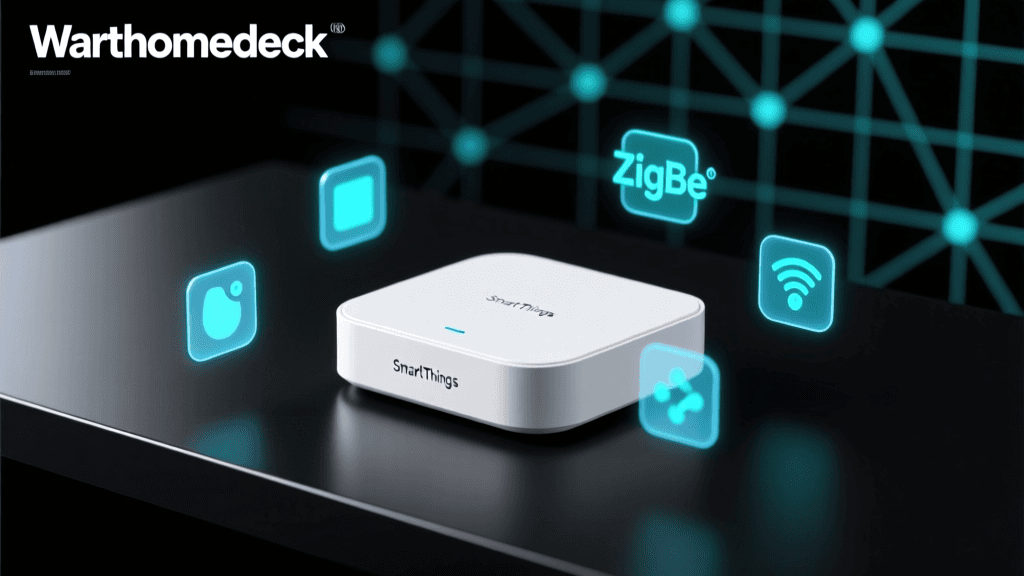
If your chosen smart switch ecosystem requires a dedicated hub (such as Lutron Caseta, Philips Hue, or Aeotec Z-Wave), proper placement is crucial for network reliability. Unlike Wi-Fi, which relies on a single powerful router, smart hubs often utilize mesh networking protocols like Zigbee or Z-Wave. In a mesh network, every hardwired smart switch acts as a repeater, extending the signal range to battery-powered sensors and remotes.
Optimal Hub Placement Rules
- Central Location: Place the hub in the geographic center of your home to ensure equal signal distribution.
- Elevation: Keep the hub elevated on a shelf or mounted high on a wall. Radio frequencies travel downward and outward more effectively when unobstructed by furniture.
- Interference Avoidance: Keep the hub at least three feet away from your primary Wi-Fi router, microwaves, and cordless phones. Zigbee operates on the 2.4 GHz band, which heavily overlaps with standard Wi-Fi channels, leading to packet loss if placed too close.
- Ethernet Connection: Whenever possible, hardwire the hub to your router via an Ethernet cable to reduce local network congestion and ensure instant command execution.
Phase 3: Wiring the Smart Switch (Step-by-Step)
For this guide, we will outline the installation of a standard single-pole smart switch with a neutral wire requirement, such as the TP-Link Kasa KS200M or Leviton Decora DW15S.
Step 1: Remove the Old Switch
Unscrew the wall plate and remove the mounting screws holding the old toggle or rocker switch. Gently pull the switch out of the gang box. Take a photo of the existing wiring before disconnecting anything; this serves as a fallback reference.
Step 2: Identify the Wires
You will typically encounter four types of wires in a standard single-pole setup. Use the table below to identify them.
| Wire Type | Common Color | Function | Connection Point on Smart Switch |
|---|---|---|---|
| Line (Hot) | Black (or Red) | Brings 120V power from the breaker panel. | LINE terminal |
| Load | Black (or Red) | Carries power from the switch to the light fixture. | LOAD terminal |
| Neutral | White | Completes the circuit; provides return path to panel. | NEUTRAL terminal |
| Ground | Bare Copper or Green | Safety path for fault currents. | GROUND terminal (Green screw) |
Pro-Tip: Distinguishing between Line and Load can be tricky if both are black. If you are unsure, you can temporarily restore power and use a voltage tester to see which wire is hot (Line). Turn the power back off immediately after testing.
Step 3: Make the Connections
Strip about 1/2 inch of insulation from the ends of the wires if they are frayed. Connect the ground wire to the green grounding screw on the smart switch. Next, use wire nuts or Wago lever connectors to attach the switch's neutral wire to the bundle of white neutral wires in the back of the box. Connect the Line and Load wires to their respective terminals on the smart switch. Wrap the exposed terminal screws with electrical tape to prevent accidental short circuits against the metal gang box.
Step 4: Mount and Restore Power
Carefully fold the wires back into the box, ensuring the neutral bundle sits at the very back. Screw the smart switch into the gang box and attach the faceplate. Restore power at the circuit breaker. The LED indicator on the smart switch should illuminate, indicating it is ready for pairing.
Phase 4: Network Configuration and Device Pairing
With the physical installation complete, the next step is integrating the switch into your smart home hub. Download the manufacturer's proprietary app (e.g., Lutron App, Kasa App, or Hubitat interface) and create an account.
Putting the Switch in Pairing Mode
Most smart switches enter pairing mode when you press and hold the physical paddle or a dedicated programming button for 5 to 10 seconds. The LED indicator will typically flash rapidly (often amber or blue) to indicate it is broadcasting its pairing signal. In the app, select 'Add Device' and follow the on-screen prompts. If you are using a hub-based system, the hub will scan the mesh network, locate the switch's MAC address, and securely handshake the device into your local network.
Phase 5: Automation and Voice Assistant Integration
The true value of a smart switch is realized through automation. Once paired, navigate to the 'Integrations' or 'Works With' section of your smart switch app to link it with Amazon Alexa, Google Home, or Apple HomeKit.
Creating a 'Goodnight' Routine
Instead of controlling lights individually, group your newly installed smart switches into 'Rooms' within your voice assistant app. Create a routine triggered by the voice command 'Goodnight' that executes the following actions simultaneously:
- Turn off all main floor and exterior smart switches.
- Dim the hallway smart switch to 15% brightness.
- Lock all smart deadbolts.
- Adjust the smart thermostat to your preferred sleeping temperature.
Understanding Installation Time and Complexity
When planning a whole-home rollout, it is essential to budget your time accurately. While smart plugs and bulbs are nearly instantaneous, hardwired switches require electrical work, and multi-way switches demand complex traveler wire configurations.
Troubleshooting Common Installation Issues
Even with meticulous planning, DIY installers frequently encounter a few common issues after restoring power.
LED Flickering or Ghosting
If your LED bulbs flicker when turned off, or emit a faint glow (ghosting), it is because the smart switch is leaking a tiny amount of current through the circuit to power its internal radio. LEDs require very little power to illuminate, making them susceptible to this leakage. Solution: Install a bypass resistor (such as the Lutron LUT-MLC) across the load and neutral wires at the light fixture itself. This provides a path for the leakage current, bypassing the LED bulb.
3-Way Switch Configurations
A 3-way switch setup (where two switches control one light, like at the top and bottom of a staircase) uses 'traveler' wires instead of standard line/load configurations. Standard single-pole smart switches will not work here. You must purchase a dedicated 3-way smart switch kit. Some brands, like Leviton, require you to replace both switches with smart units, while others, like GE Enbrighten, use a 'Master/Add-on' configuration where only one switch is smart and the second switch is a specialized digital add-on that communicates via the traveler wires.
Switch Frequently Drops Offline
If a switch constantly loses connection to the hub, the issue is almost always related to mesh network signal degradation. Thick masonry walls, metal HVAC ducts, and large appliances can block Zigbee or Z-Wave signals. Solution: Add a hardwired smart switch or a dedicated smart plug repeater halfway between the hub and the dropping switch to bridge the mesh network gap.
Final Thoughts on Smart Home Wiring
Upgrading to a smart switch and hub ecosystem is one of the most impactful DIY home improvement projects you can undertake. It increases property value, enhances daily convenience, and improves energy efficiency. By prioritizing electrical safety, understanding your home's wiring topology, and strategically placing your network hub, you can build a robust, responsive smart lighting system that will serve your home reliably for years to come.