The Foundation of a Reliable Smart Home: Network First
When homeowners decide to upgrade their living spaces with smart technology, the excitement often leads them straight to buying smart bulbs, thermostats, and motorized shades. However, professional integrators know a fundamental truth: a smart home is only as reliable as the network it operates on. If you are embarking on a comprehensive smart home system installation, your very first step must be establishing a robust, scalable, and secure network foundation. Without dedicated bandwidth, proper device isolation, and strategic hub placement, your automated routines will suffer from latency, dropouts, and frustrating offline errors.
The modern smart home ecosystem is rapidly evolving. With the rollout of the Matter standard, championed by the Connectivity Standards Alliance, devices are now designed to communicate seamlessly across different brands using your home's IP network and Thread mesh protocols. This means your router, switches, and access points are no longer just for streaming video; they are the central nervous system of your home's automation. In this step-by-step guide, we will walk you through the physical installation, network topology planning, and hub configuration required to build a professional-grade smart home foundation.
Tools and Materials Required
Before you begin pulling cables and configuring routers, gather the necessary tools for a professional installation. Skipping the right tools can lead to signal degradation and intermittent connectivity issues.
- Cat6 or Cat6a Ethernet Cable: Solid copper, unshielded twisted pair (U/UTP) for in-wall runs.
- RJ45 Keystone Jacks and Patch Panel: For terminating in-wall cables cleanly.
- Punch-Down Tool and Wire Strippers: For securing wires to the keystone terminals.
- Cable Tester: To verify continuity and correct pinout before mounting access points.
- PoE (Power over Ethernet) Switch: 802.3at (PoE+) standard to power Wi-Fi access points and security cameras without needing local power outlets.
- USB 2.0 Extension Cables (6-foot): Crucial for isolating Zigbee and Thread dongles from USB 3.0 interference.
Step 1: Planning Your Network Topology
The most common mistake DIY installers make is relying on a single, powerful router placed in a corner of the house to cover the entire property. For a smart home with dozens or hundreds of IoT devices, this approach guarantees dead zones and network congestion. Instead, you must plan a Star Topology utilizing an Ethernet backhaul.
Centralizing Your Wiring
Identify a central, climate-controlled location for your network rack or wiring enclosure. This is typically a basement, utility closet, or garage. All Ethernet cables will originate from this central patch panel and radiate outward to various rooms and ceiling locations. This centralized approach ensures that cable runs remain under the 100-meter (328-foot) maximum limit for Gigabit Ethernet, preserving signal integrity.
Strategic Access Point Placement
Map out your floor plan and identify where Wi-Fi Access Points (APs) will be mounted. For single-story homes, ceiling-mounted APs in central hallways provide the best omnidirectional coverage. For multi-story homes, stagger the APs on each floor to create a 3D mesh of coverage. Remember that smart devices like plugs and switches are often located near the floor or behind furniture, so your 2.4GHz signal must be strong enough to penetrate drywall and subflooring.
Step 2: Installing Ethernet Backhaul and Wi-Fi Access Points
Wireless mesh networks that rely on wireless backhaul (APs talking to each other over the air) consume significant airtime, effectively halving your bandwidth with every hop. According to the Wi-Fi Alliance, utilizing Wi-Fi 6 technology with a hardwired Ethernet backhaul is the gold standard for high-density IoT environments.
Running the Cables
When running Cat6 cable through your walls and attic spaces, you must adhere to basic electrical safety and interference avoidance. Never run Ethernet cables parallel to high-voltage electrical wiring. Maintain a minimum separation of 12 inches from AC power lines to prevent electromagnetic interference (EMI), which can cause packet loss and latency spikes in your smart home commands. If you must cross an electrical wire, do so at a 90-degree angle.
Terminating and Testing
Terminate the in-wall cables using Cat6 keystone jacks. Follow the T568B wiring standard, which is the most common configuration for residential networking. Once terminated, use your cable tester to verify that all eight pins are making solid contact. A single misaligned wire will drop your connection from Gigabit speeds down to 100Mbps or cause the PoE switch to fail to deliver power to your ceiling-mounted APs.
Mounting the Access Points
Secure the AP mounting brackets to the ceiling joists or drywall using appropriate anchors. Connect the patched cables to your PoE switch in the central rack. The switch will automatically negotiate the power requirements and boot up the APs, ready for configuration.
Step 3: Configuring VLANs for IoT Device Isolation
Security is a paramount concern in smart home installations. Many budget-friendly IoT devices lack robust security features and firmware updates, making them vulnerable entry points for malicious actors. To protect your personal computers, phones, and NAS drives, you must isolate your smart devices using Virtual Local Area Networks (VLANs).
Creating the VLANs
Access your router or firewall management interface (such as pfSense, UniFi, or Omada) and create the following VLANs:
- VLAN 10 (Trusted/Main): For your smartphones, laptops, and smart TVs.
- VLAN 20 (IoT/Smart Home): For smart bulbs, switches, thermostats, and voice assistants.
- VLAN 30 (Security Cameras): For IP cameras and NVRs, strictly blocked from accessing the internet to prevent external snooping.
Setting Firewall Rules
Configure your firewall to allow VLAN 10 to initiate connections to VLAN 20 (so your phone can control the smart lights), but block VLAN 20 from initiating connections to VLAN 10. This ensures that if a smart plug is compromised, the attacker cannot pivot to your personal laptop. Additionally, set up an mDNS (Multicast DNS) reflector on your router. This is a critical step, as protocols like Apple AirPlay, Google Cast, and local smart home discovery rely on mDNS to find devices across different VLAN subnets.
Step 4: Installing the Central Smart Hub and Border Routers
While Wi-Fi handles high-bandwidth devices, low-power sensors, locks, and switches rely on mesh protocols like Zigbee and Thread. Thread, in particular, is an IP-based, self-healing mesh network that forms the backbone of the new Matter standard. The Thread Group outlines how Thread devices require 'Border Routers' to bridge the low-power mesh network to your home's main Wi-Fi and Ethernet network.
Hub Placement and Setup
Your central smart hub (such as a Home Assistant Green, Hubitat Elevation, or a dedicated Raspberry Pi) should be placed in a central, open location, ideally near the ceiling or on top of a bookshelf. Do not hide the hub inside a metal network rack or behind a television, as this will severely degrade the radio frequency (RF) range.
Managing USB 3.0 Interference
If your hub utilizes a USB dongle for Zigbee or Thread (like the Sonoff Zigbee 3.0 USB Dongle Plus or the Home Assistant SkyConnect), you must be aware of a well-documented hardware flaw: USB 3.0 ports and cables generate massive amounts of 2.4GHz RF noise. This noise can effectively jam Zigbee and Thread signals, reducing your range to just a few feet. The solution is mandatory: Always connect your smart home radio dongles using a 6-foot USB 2.0 extension cable to physically distance the antenna from the hub's motherboard and any USB 3.0 peripherals.
Deploying Thread Border Routers
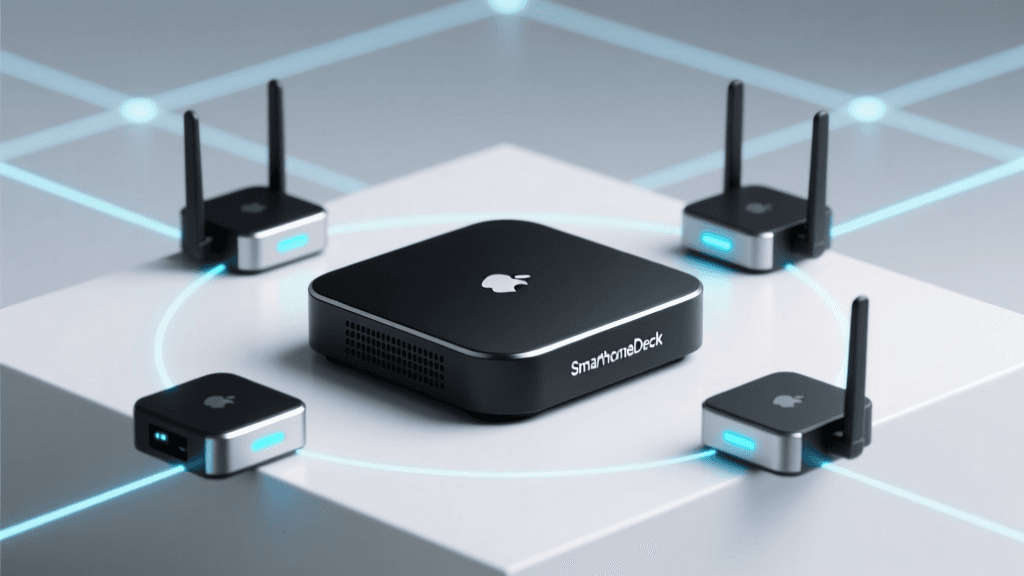
Unlike Zigbee, which relies heavily on the central hub's radio, Thread mesh networks are powered by Border Routers scattered throughout the home. Devices like the Apple TV 4K (Wi-Fi + Ethernet model), Nest Hub Max, and certain Wi-Fi access points act as Thread Border Routers. Ensure you have at least two Border Routers on opposite sides of your home to provide redundancy. Thread uses a distributed leader election algorithm, so if one Border Router goes offline, another seamlessly takes over without dropping your smart home automations.
Equipment Comparison: Smart Home Hubs
Choosing the right brain for your smart home system dictates your installation workflow, local processing capabilities, and protocol support. Below is a comparison of popular hubs for advanced installations.
| Hub Model | Protocols Supported | Local Processing | Best For | Approx. Cost |
|---|---|---|---|---|
| Home Assistant Green | Ethernet, USB (Zigbee/Thread via dongle) | 100% Local | Advanced DIYers, complex automations | $99 - $120 |
| Hubitat Elevation | Zigbee 3.0, Z-Wave 800, LAN | 100% Local | Reliability focus, Z-Wave heavy homes | $150 - $180 |
| Apple TV 4K (Ethernet) | Wi-Fi, Thread, HomeKit, Matter | Local (HomeKit) | Apple ecosystem users, Thread mesh | $149 |
| Samsung Station | Wi-Fi, Thread, Matter, Zigbee (via SmartThings) | Hybrid | Samsung users, Matter over Thread | $99 |
Visualizing Network Performance: Mesh vs. Traditional Router
Understanding why a hardwired mesh network is superior to a traditional standalone router is crucial when justifying the time and cost of running Ethernet backhaul. The chart below illustrates the dramatic drop-off in network throughput as you move further from a traditional router, compared to the consistent speeds provided by a professionally installed mesh system with PoE backhaul.
As the data demonstrates, rooms separated by multiple walls or located on different floors (like the Garage and Patio) suffer catastrophic bandwidth loss on a traditional router setup. For smart home devices that rely on consistent, low-latency connections to report sensor data and execute automations, the Ethernet backhaul mesh ensures that a smart lock in the garage or a security camera on the patio has the exact same network stability as a smart TV in the living room.
Troubleshooting Common Installation Hurdles
Even with meticulous planning, smart home network installations can encounter hurdles. Here is how to troubleshoot the most common issues:
DHCP Exhaustion
A fully loaded smart home can easily exceed 100 connected devices. Many consumer routers default to a small DHCP pool (e.g., 50 IP addresses). If your devices are failing to connect or dropping offline randomly, log into your router and expand the DHCP subnet mask or increase the pool size to support up to 254 devices (using a /24 subnet mask like 255.255.255.0).
2.4GHz Network Steering Issues
Most IoT devices strictly require a 2.4GHz Wi-Fi connection. Modern mesh systems often use a single SSID that combines 2.4GHz and 5GHz bands, using 'band steering' to push devices to the faster 5GHz band. Unfortunately, cheap IoT Wi-Fi chips often fail to understand band steering and will reject the connection. To fix this, create a dedicated 'IoT-2.4G' SSID that broadcasts only on the 2.4GHz spectrum, and connect all your smart plugs and switches to this specific network.
Zigbee and Wi-Fi Channel Overlap
Zigbee operates on the 2.4GHz spectrum, directly overlapping with Wi-Fi. If your Zigbee mesh is sluggish or devices are failing to pair, you likely have channel interference. Set your 2.4GHz Wi-Fi to use channels 1, 6, or 11. Then, configure your Zigbee hub to use Channel 15, 20, or 25. This specific separation ensures that the Wi-Fi traffic and Zigbee mesh traffic are operating in completely different frequency lanes, eliminating cross-talk and dropped packets.
Conclusion
Installing a whole-home smart network foundation is a significant undertaking that requires careful planning, physical labor, and technical configuration. However, by prioritizing an Ethernet backhaul, implementing strict VLAN security, and strategically placing your Thread Border Routers and smart hubs, you are building a resilient infrastructure. This foundation will not only support your current array of smart devices but will seamlessly scale to accommodate the next generation of Matter-compatible technology, ensuring your home remains intelligent, responsive, and secure for years to come.