The Hidden Bottleneck in Your Smart Home
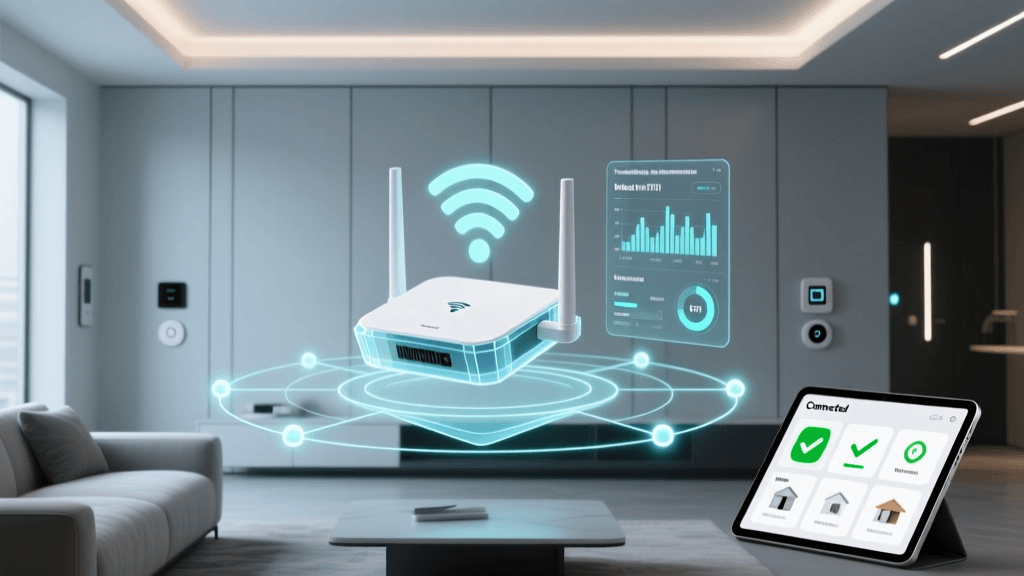
As smart home ecosystems expand from a handful of smart speakers to dozens of sensors, bulbs, and appliances, the underlying network infrastructure often becomes the primary point of failure. Most homeowners rely on the stock router provided by their Internet Service Provider (ISP) or a standard consumer mesh Wi-Fi system. While these routers are perfectly capable of streaming 4K video to a television or handling video calls on a laptop, they are notoriously ill-equipped to manage the unique demands of a dense Internet of Things (IoT) environment.
The core issue lies in device capacity and spectrum saturation. A standard consumer router typically begins to struggle with DHCP lease management and state-tracking once it exceeds 30 to 50 connected devices. In a modern smart home, it is incredibly common to surpass 100 individual endpoints. Furthermore, the vast majority of legacy smart home devices operate exclusively on the 2.4GHz Wi-Fi band. This frequency is already crowded by microwaves, Bluetooth devices, and neighboring networks, leading to severe packet loss, delayed automation triggers, and devices randomly dropping offline.
To achieve true reliability, DIY installers and advanced homeowners must decouple their smart home traffic from their primary personal network. This involves setting up a dedicated IoT network architecture and centralizing device communication through a robust, multi-protocol hub. This guide will walk you through the exact hardware, network configurations, and mesh optimization techniques required to build an enterprise-grade smart home network.
Choosing the Right Multi-Protocol Hub
A multi-protocol hub acts as the brain of your smart home, translating signals between different wireless standards (Zigbee, Z-Wave, Thread, and Wi-Fi) and your home network. Moving away from cloud-dependent hubs to local-first processing ensures that your automations continue to run even if your internet connection drops, while also drastically reducing latency.
When selecting a hub, you must consider protocol support, local processing capabilities, and community integration. Below is a comparison of the top multi-protocol hubs currently favored by advanced DIY installers:
| Hub Model | Supported Protocols | Local Processing | Average Cost |
|---|---|---|---|
| Hubitat Elevation | Zigbee 3.0, Z-Wave Plus, LAN | 100% Local | $150 - $200 |
| Home Assistant Yellow | Zigbee, Thread, Matter, LAN | 100% Local | $199 - $250 |
| Samsung SmartThings Station | Zigbee, Thread, Matter, Wi-Fi | Cloud/Hybrid | $99 - $129 |
For users prioritizing absolute privacy and local execution, the Home Assistant Yellow (or a custom Intel NUC build running Home Assistant OS) paired with a Sonoff Zigbee 3.0 USB Dongle Plus is the gold standard. For those who want a plug-and-play local hub with an incredibly powerful rule-engine for complex automations, the Hubitat Elevation remains a top-tier choice. Both setups require a solid underlying network to communicate effectively with IP-based devices like smart TVs, thermostats, and Wi-Fi cameras.
Architecting a Dedicated IoT Network
Segregating your IoT devices from your personal devices (laptops, phones, NAS drives) is a critical step for both network performance and cybersecurity. By creating a dedicated Virtual Local Area Network (VLAN) for your smart home, you prevent broadcast storms from smart devices from slowing down your primary network, and you restrict potentially vulnerable IoT firmware from accessing your sensitive personal data.
Step 1: Hardware Selection
To implement VLANs and advanced firewall rules, you will need prosumer or enterprise-grade networking gear. The Ubiquiti UniFi Dream Router (UDR) or a combination of a TP-Link Omada ER605 Router with an EAP610 Access Point are highly recommended. These systems allow you to create distinct network profiles and manage them via a centralized dashboard.
Step 2: VLAN and Subnet Configuration
Create a new network profile named "IoT-VLAN". Assign it to a separate subnet, such as 192.168.20.x, while keeping your main devices on 192.168.1.x. Configure the DHCP server for the IoT VLAN to hand out static IP reservations for critical infrastructure like your multi-protocol hub, smart thermostats, and network-attached smart blinds. This prevents IP conflicts that can cause devices to become unresponsive.
Step 3: SSID Isolation and Band Steering
Create a dedicated Wi-Fi SSID (e.g., "SmartHome-IoT") and broadcast it only on the 2.4GHz band. Disable band steering for this SSID. Many budget smart plugs and bulbs lack the sophisticated networking chips required to handle 5GHz networks or combined SSIDs, leading to endless setup failures. By forcing a 2.4GHz-only SSID, you guarantee compatibility and streamline the onboarding process for new devices.
Step 4: Firewall Rules and mDNS Reflection
By default, VLANs cannot communicate with one another. You must create firewall rules that allow your primary LAN to initiate connections to the IoT VLAN (so you can control devices from your phone), but block the IoT VLAN from initiating connections to your primary LAN. However, this isolation breaks local casting protocols like Chromecast, AirPlay, and Spotify Connect, which rely on multicast DNS (mDNS). To fix this, enable an mDNS Reflector or IGMP Snooping in your router's settings, which safely bridges the discovery broadcasts between your main network and your IoT VLAN without compromising security. For more on managing network discovery across subnets, refer to the Home Assistant Network Documentation.
Visualizing Network Performance
Migrating from a congested, shared ISP router to a segmented network with dedicated mesh protocols yields dramatic improvements in latency and reliability. The chart below illustrates the performance differences across various network setups when polling 50+ smart home endpoints simultaneously.
Network Latency and Reliability by Setup Type
As the data demonstrates, offloading sensor and switch traffic to dedicated Zigbee or Thread mesh networks virtually eliminates packet loss and drops latency to near-instantaneous levels. This is why a multi-protocol hub is essential; it keeps Wi-Fi airtime free for high-bandwidth devices like security cameras and smart displays.
Optimizing Zigbee and Z-Wave Mesh Networks
Zigbee and Z-Wave do not rely on your Wi-Fi router; they create their own independent mesh networks. However, they are highly susceptible to physical interference and poor hub placement. The radio inside your multi-protocol hub must be positioned strategically to ensure a robust mesh.
The USB 3.0 Interference Problem
If you are using a USB-based Zigbee or Z-Wave coordinator (like the popular Sonoff or Aeotec sticks) plugged directly into a Raspberry Pi, Home Assistant Yellow, or a PC, you will likely experience severe range issues. The Wi-Fi Alliance and various RF engineers have documented that unshielded USB 3.0 ports and cables generate broadband noise that directly overlaps the 2.4GHz spectrum, effectively deafening Zigbee coordinators. Solution: Always use a 6-to-10-foot active USB 2.0 extension cable to move the coordinator away from the host device's motherboard and power supply.
Building a Strong Mesh Backbone
Battery-powered sensors (door contacts, motion detectors) do not route signals; they only transmit. To build a strong mesh, you must strategically place mains-powered devices (smart plugs, hardwired light switches, and smart bulbs) throughout your home to act as repeaters. For Z-Wave, ensure you are using Z-Wave Plus V2 (800-series) devices for their vastly superior range and penetration through walls. For Zigbee, aim for a minimum of 5-6 mains-powered routers evenly distributed across your floor plan to ensure every battery-powered sensor has at least two distinct paths back to the hub.
Integrating Matter and Thread Border Routers
The smart home industry is rapidly shifting toward Matter and Thread, unified standards designed to eliminate protocol fragmentation. Thread is a low-power, IP-addressable mesh networking protocol that operates on the same 2.4GHz spectrum as Zigbee but offers superior self-healing capabilities and direct IP routing.
Unlike Zigbee, Thread devices require a Thread Border Router to bridge the 802.15.4 mesh network to your home's Wi-Fi/Ethernet LAN. Fortunately, you likely already own one. Devices such as the Apple TV 4K (Wi-Fi + Ethernet model), Google Nest Hub (2nd Gen), and Amazon Echo (4th Gen) all contain Thread radios and act as Border Routers. When setting up Thread devices via your multi-protocol hub or native ecosystem apps, ensure your Border Routers are updated to the latest firmware and distributed across different rooms to provide overlapping Thread mesh coverage.
Troubleshooting Common Hub and Network Issues
Even with a meticulously planned setup, DIY installers will inevitably encounter edge cases. Here is how to troubleshoot the most common hub and network configuration issues:
- Device Discovery Fails Across VLANs: If your phone is on the main 5GHz network and your smart speaker is on the 2.4GHz IoT VLAN, local control apps may fail to find the device. Verify that your router's mDNS reflector is active, and ensure that "AP Isolation" (or Client Isolation) is disabled on your IoT SSID, allowing devices on the same VLAN to talk to each other.
- Zigbee Devices Dropping Offline: Check the LQI (Link Quality Indicator) and RSSI (Received Signal Strength Indicator) values in your hub's Zigbee map. An LQI below 50 indicates a weak or noisy connection. Add a smart plug halfway between the dropping sensor and the nearest router to bridge the gap.
- Hub IP Address Changes: If your hub relies on a dynamic IP and your router reboots, the hub may receive a new IP address, breaking local API integrations. Always assign a Static IP or a DHCP Reservation tied to the hub's MAC address in your router's settings.
- Matter Pairing Timeouts: Matter relies heavily on IPv6 and Thread. If pairing fails, ensure your primary router and IoT VLAN are configured to pass IPv6 traffic. Many legacy router configurations drop IPv6 multicast packets, which are essential for Matter's initial device commissioning process.
By investing the time to properly segment your network, isolate your 2.4GHz spectrum, and strategically deploy multi-protocol hubs and mesh repeaters, you transform a fragile collection of smart gadgets into a resilient, enterprise-grade automation system that responds instantly and reliably, day after day.