The Hidden Bottleneck: Wi-Fi Congestion and IoT Traffic
As the modern smart home evolves from a handful of novelty gadgets into a comprehensive, whole-home automation ecosystem, the underlying network infrastructure is often pushed to its breaking point. Many DIY installers and homeowners make the critical mistake of connecting every smart bulb, plug, and sensor directly to their primary Wi-Fi router. While this works for a dozen devices, crossing the threshold of 30 or 40 Wi-Fi-dependent IoT devices inevitably leads to severe network congestion, dropped connections, and sluggish automation routines.
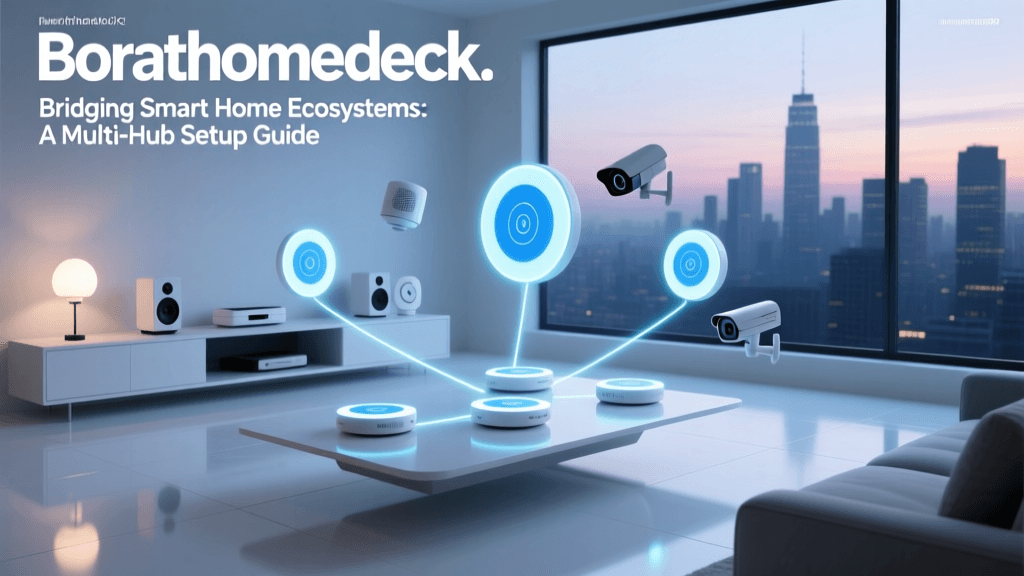
The solution lies in offloading low-bandwidth, high-latency devices from your main Wi-Fi network and utilizing dedicated smart home hubs and network bridges. By segmenting your network traffic and leveraging specialized mesh protocols like Zigbee, Z-Wave, and Thread, you can create a resilient, locally-processed automation environment that operates independently of your internet connection's bandwidth constraints.
Understanding Hubs, Bridges, and Border Routers
Before diving into configuration, it is essential to distinguish between the three primary types of hardware used to manage non-Wi-Fi smart home devices:
- Smart Home Hubs: A central coordinator that manages a specific mesh network (like Zigbee or Z-Wave) and translates those signals into IP packets for your local network. Examples include the Hubitat Elevation and the Samsung SmartThings Station. Hubs often feature local processing engines, meaning your automations run even if your internet goes down.
- Network Bridges: A bridge typically connects a proprietary or closed-ecosystem protocol to your broader network or cloud service. For instance, a Philips Hue Bridge translates Zigbee Light Link (ZLL) commands into IP traffic that can be read by your router and third-party software like Home Assistant.
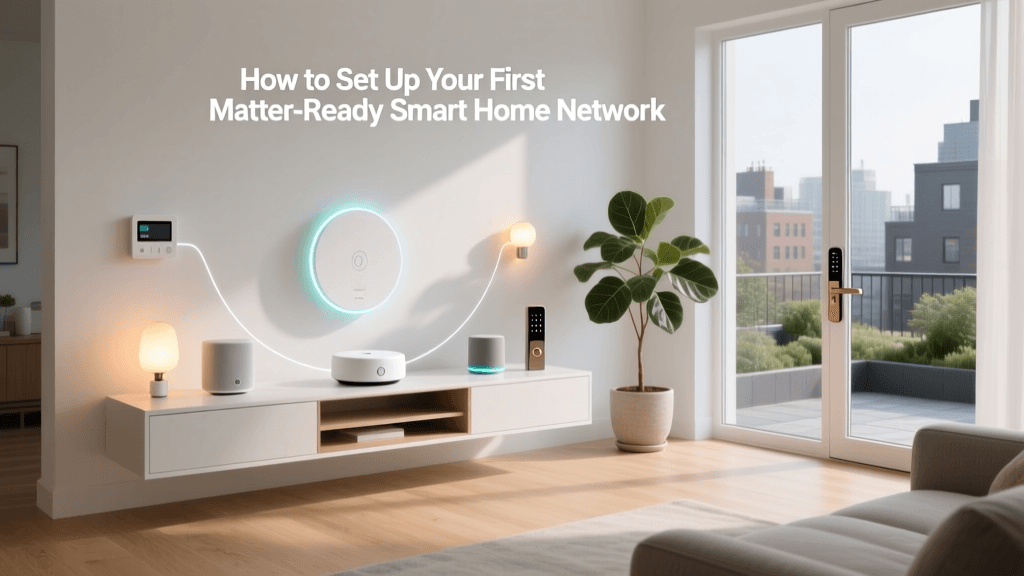
- Thread Border Routers: With the advent of the Matter standard, Thread Border Routers have become crucial. Devices like the Apple HomePod Mini or Amazon Echo (4th Gen) act as border routers, bridging the low-power Thread mesh network to your Wi-Fi or Ethernet network, enabling seamless IP-based communication across different brands.
Protocol Comparison: Choosing the Right Mesh
Selecting the right protocol for your devices dictates the type of hub or bridge you will need to install. Below is a comprehensive comparison of the dominant smart home protocols.
| Protocol | Frequency | Topology | Max Speed | Range (Indoor) | Best Use Case |
|---|---|---|---|---|---|
| Zigbee 3.0 | 2.4 GHz | Mesh | 250 kbps | 10-20m | Sensors, bulbs, switches |
| Z-Wave Plus | 908.42 MHz (US) | Mesh | 100 kbps | 15-30m | Locks, relays, security |
| Thread (Matter) | 2.4 GHz | Mesh (IP-based) | 250 kbps | 10-20m | New Matter devices, fast pairing |
| Bluetooth LE | 2.4 GHz | Star/Mesh | 2 Mbps | 5-15m | Proximity sensors, locks |
| Wi-Fi (IoT) | 2.4 / 5 GHz | Star | Up to 1 Gbps | 20-40m | Cameras, high-bandwidth hubs |
Step-by-Step Hub and Bridge Configuration
To achieve a rock-solid smart home setup, follow this systematic approach to network segmentation and hub deployment.
Step 1: Isolate IoT Traffic via VLANs or Guest Networks
Security and bandwidth management are paramount. According to the Cybersecurity and Infrastructure Security Agency (CISA), isolating IoT devices from your primary computing network is a fundamental security practice. If you have a prosumer router (like UniFi, pfSense, or Asus Merlin), create a dedicated VLAN specifically for IoT traffic. Block this VLAN from accessing your main LAN where your PCs and NAS drives reside, but allow it to route to the internet for firmware updates. If you are using a consumer mesh system like Eero or TP-Link Deco, enable the "Guest Network" feature and assign all Wi-Fi-based smart plugs and cameras to this isolated SSID.
Step 2: Optimize the 2.4GHz Spectrum
Both your Wi-Fi network and Zigbee/Thread hubs operate in the crowded 2.4GHz spectrum. Interference is the number one cause of dropped smart home signals. You must manually set your Wi-Fi router's 2.4GHz channel to either 1, 6, or 11. Once your Wi-Fi channel is locked, configure your Zigbee hub to use a channel that does not overlap. For example, if your Wi-Fi is on Channel 1, set your Zigbee hub to Channel 15 or 20. Never leave your router on "Auto" channel selection, as the router will blindly jump to channels that overlap with your Zigbee mesh, causing temporary automation blackouts.
Step 3: Strategic Hub Placement and Wiring
The physical location of your hub or bridge dictates the health of your mesh network. Avoid placing hubs in basement server racks, inside metal media enclosures, or near large bodies of water (like aquariums), which absorb 2.4GHz signals. Mount your primary Zigbee or Z-Wave hub in a central, elevated location on the main floor of your home. For optimal performance, connect your primary hub directly to your router or core switch via an Ethernet cable. This frees up wireless bandwidth and ensures the fastest possible local processing times for your automation workflows.
Step 4: IP Reservation and Local API Integration
Every hub and bridge on your network must have a static IP address or a DHCP reservation. Access your router's DHCP settings and bind the MAC address of your SmartThings Hub, Hue Bridge, or Home Assistant server to a specific IP address (e.g., 192.168.1.50). This ensures that when you configure local API integrations in platforms like Home Assistant or Node-RED, the connection will not break when the router reboots and assigns new IP addresses.
Visualizing IoT Bandwidth Consumption
Understanding why we offload devices to hubs becomes clear when we visualize the bandwidth requirements of different smart home categories. While a smart bulb requires virtually no continuous bandwidth, IP cameras can cripple a standard router's 2.4GHz radio.
Bar chart showing average bandwidth consumption in kbps across common smart home device types
As illustrated above, moving low-bandwidth devices (bulbs, plugs, locks) to a dedicated Zigbee or Z-Wave hub frees up your Wi-Fi router to handle the heavy lifting required by security cameras, smart displays, and mobile devices.
Advanced Mesh Troubleshooting
Even with perfect configuration, mesh networks can experience routing issues. Here is how to troubleshoot common hub and bridge problems:
- The "Dark Node" Problem: If a Zigbee sensor at the edge of your property keeps dropping offline, do not simply boost the hub's power. Instead, install a mains-powered Zigbee smart plug halfway between the hub and the sensor. Mains-powered devices act as mesh repeaters, extending the network organically without adding noise to the environment.
- Z-Wave Routing Loops: Z-Wave networks can sometimes develop "ghost nodes" or routing loops if devices are moved or deleted improperly. Use your hub's Z-Wave utility menu to run a "Network Heal" or "Repair Mesh" function. This forces the hub to recalculate the most efficient routing paths to every node. Perform this maintenance task late at night, as it can temporarily flood the mesh with traffic.
- Thread Network Partitions: If you have multiple Thread Border Routers (e.g., an Apple TV and a Nest Hub), ensure they are on the exact same Wi-Fi network and VLAN. If they are segmented, they may form partitioned Thread networks, causing Matter devices to respond sluggishly or fail to sync state across platforms.
Security and the Matter Standard
As you bridge various protocols together, security must remain a top priority. The introduction of the Matter protocol, governed by the Connectivity Standards Alliance (CSA), aims to unify device communication over IP. However, bridging Matter over Thread requires robust network security practices. Ensure that your hub's firmware is set to auto-update, and disable any remote-access cloud features on your hub if you do not explicitly need them. Local control is not only faster but inherently more secure, as it removes external cloud servers from your automation chain.
Furthermore, the National Institute of Standards and Technology (NIST) recommends maintaining an active inventory of all IoT devices and their network capabilities. By utilizing a hub-based architecture, you centralize this inventory, making it significantly easier to monitor device health, push security updates, and revoke access if a device is compromised or decommissioned.
Cost Breakdown and ROI
Investing in a dedicated hub and network bridge setup requires upfront capital, but the return on investment in reliability and reduced hardware costs is substantial.
- Entry-Level Bridge Setup ($50 - $100): A standard Philips Hue Bridge or Aqara M2 Hub. Ideal for single-room or small apartment setups focusing on lighting and basic sensors.
- Mid-Range Multi-Protocol Hub ($100 - $180): Samsung SmartThings Station or Home Assistant Connect ZBT-1. Supports Zigbee, Thread, and Matter, offering local processing and broad compatibility.
- Enthusiast Local Processing ($180 - $300+): Hubitat Elevation or Home Assistant Yellow with dedicated Z-Wave and Zigbee radios. Designed for whole-home automation, complex logic rules, and 100% local execution without cloud reliance.
By shifting away from expensive Wi-Fi-based smart devices and adopting cheaper Zigbee or Z-Wave sensors managed by a central hub, most homeowners recoup the cost of the hub within the first 15 to 20 devices purchased. More importantly, the elimination of Wi-Fi congestion provides a seamless, instantaneous smart home experience that cloud-dependent setups simply cannot match.
Conclusion
Setting up a dedicated smart home hub and network bridge is the defining line between a frustrating, laggy collection of gadgets and a truly intelligent, responsive home. By isolating your IoT traffic, carefully managing the 2.4GHz spectrum, and leveraging the strengths of mesh protocols like Zigbee, Z-Wave, and Thread, you build a foundation that scales effortlessly. Take the time to plan your hub placement, secure your network with VLANs, and embrace local processing. Your smart home will not only become vastly more reliable but also inherently more secure and future-proof.