Why Your Smart Home Needs Network Segmentation
As the modern smart home evolves, the number of connected devices in a typical household has skyrocketed. From smart bulbs and thermostats to Wi-Fi-enabled refrigerators and security cameras, it is not uncommon for a single residence to host over fifty individual IoT endpoints. While these devices offer unprecedented convenience, they also introduce significant cybersecurity vulnerabilities. Most budget-friendly IoT devices lack robust, long-term security update cycles, making them prime targets for botnets and lateral network attacks.
According to the NIST IR 8259 guidelines on IoT cybersecurity, foundational security activities must include network segmentation to limit the blast radius of a compromised device. By placing your smart home gadgets on a dedicated Virtual Local Area Network (VLAN), you isolate them from your primary devices—such as your laptops, smartphones, and NAS drives—where sensitive personal and financial data reside. Furthermore, integrating a centralized Matter hub bridge allows you to consolidate local Zigbee and Thread protocols into your IP network securely, reducing Wi-Fi congestion and eliminating reliance on vulnerable cloud bridges.
Choosing the Right Router and Hub Bridge Hardware
Before configuring VLANs and Matter bridges, you must ensure your networking hardware supports 802.1Q VLAN tagging and that your hub supports multi-protocol bridging. Consumer mesh systems often lack advanced VLAN capabilities, pushing DIY installers toward prosumer or small-business networking gear.
Recommended Prosumer Routers for IoT VLANs
- Ubiquiti UniFi Dream Router (UDR): Excellent UI, built-in controller, supports multiple SSIDs mapped to distinct VLANs. (Approx. $199)
- TP-Link Omada ER605 + EAP610: A highly cost-effective router and access point combo that fully supports VLAN tagging and firewall rules. (Approx. $110 total)
- ASUS RT-AX86U (with Merlin Firmware): A consumer router that, when flashed with custom Merlin firmware, unlocks robust VLAN and guest network isolation features. (Approx. $250)
Recommended Matter and Thread Hub Bridges
- Home Assistant Green + SkyConnect: The ultimate local hub. The SkyConnect dongle acts as a multi-protocol bridge for Zigbee and Thread/Matter. (Approx. $130 total)
- Hubitat Elevation Hub: A powerhouse for local automation with built-in Zigbee and Z-Wave radios, and emerging Matter support via OTA updates. (Approx. $150)
- Apple TV 4K (3rd Gen): Acts as an exceptional Thread Border Router and Matter controller, bridging Thread devices to your IP network seamlessly. (Approx. $129)
| Hardware Type | Model | VLAN Support | Protocol Bridging | Est. Cost |
|---|---|---|---|---|
| Router | UniFi Dream Router | Advanced (802.1Q) | N/A | $199 |
| Hub | Home Assistant + SkyConnect | IP-based | Zigbee, Thread, Matter | $130 |
| Hub | Apple TV 4K (Wi-Fi + Ethernet) | IP-based | Thread, Matter, HomeKit | $149 |
| Router | TP-Link Omada ER605 | Advanced (802.1Q) | N/A | $60 |
Step-by-Step: Creating Your Dedicated IoT VLAN
Setting up a VLAN ensures that your smart plugs, cameras, and appliances can access the internet for firmware updates and cloud integrations, but cannot initiate connections to your main home network. Here is a generalized workflow applicable to most prosumer routers like Ubiquiti or TP-Link Omada.
1. Create the VLAN and Subnet
Navigate to your router's network settings and create a new VLAN. Assign it a recognizable ID, such as VLAN 20. Configure the subnet to something distinct from your main network. If your main LAN is 192.168.1.x, set your IoT VLAN to 192.168.20.x with a subnet mask of 255.255.255.0. Enable the DHCP server for this new subnet so IoT devices automatically receive IP addresses.
2. Map an SSID to the VLAN
Create a new Wi-Fi network (SSID) named something like SmartHome-IoT. In the wireless settings, bind this SSID exclusively to VLAN 20. Ensure you use WPA2-AES or WPA3 security. Many older, budget smart bulbs and plugs only support 2.4GHz WPA2, so you may need to disable WPA3 or create a separate 2.4GHz-only IoT SSID to ensure compatibility.
3. Configure Firewall Isolation Rules
This is the most critical step for security. You must create firewall rules on your router to block inter-VLAN traffic while allowing internet access.
- Rule 1 (Block Local Access): Drop all traffic originating from
192.168.20.0/24destined for192.168.0.0/16(or your specific main LAN subnet). Place this rule above your allow rules. - Rule 2 (Allow DNS & NTP): Allow UDP port 53 (DNS) and UDP port 123 (NTP) from the IoT VLAN to your router's gateway IP so devices can resolve domains and sync time.
- Rule 3 (Allow WAN): Allow all traffic from the IoT VLAN to the WAN (Internet) interface so devices can reach their respective cloud servers.
Pro Tip: Never place smart speakers (like Sonos or Apple HomePods) or casting devices (Chromecast) on a strictly isolated IoT VLAN unless you configure an mDNS reflector. These devices require local network discovery to function with your phone.
Configuring the Matter and Thread Hub Bridge
While Wi-Fi is ubiquitous, it is power-hungry and congests your router's 2.4GHz band. This is where low-power mesh protocols like Zigbee and Thread come in. However, these protocols cannot communicate directly with your IP network. They require a Hub Bridge or Border Router.
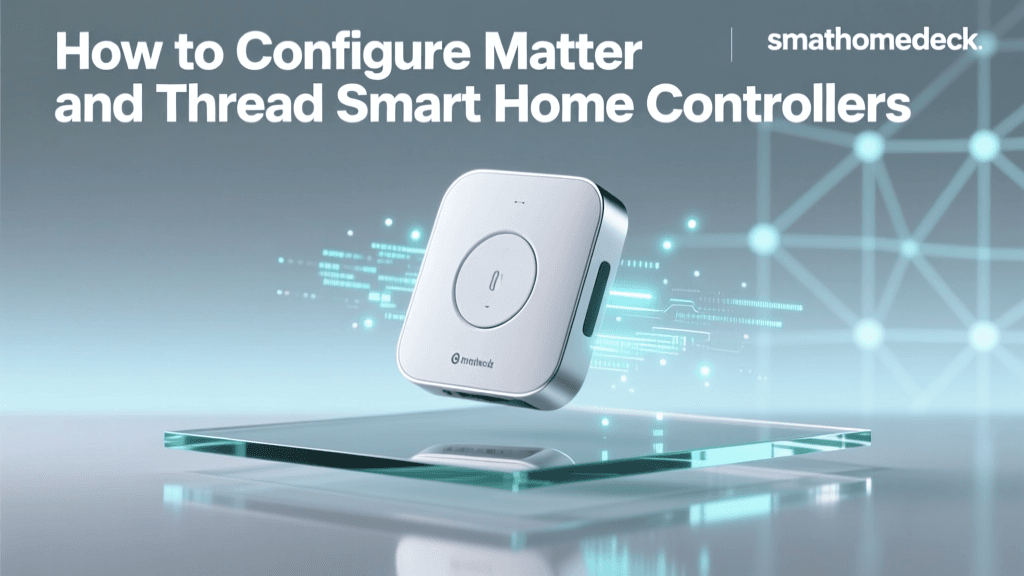
The Connectivity Standards Alliance (CSA) developed the Matter standard to unify these ecosystems. A Matter bridge translates local Zigbee or Thread commands into IP-based Matter messages, allowing your smartphone or voice assistant to control them over the network.
Understanding Thread Border Routers
Thread uses the same 802.15.4 radio frequency as Zigbee but is natively IP-addressable. A Thread Border Router (like an Apple TV 4K, Nest Hub, or Home Assistant SkyConnect) bridges the Thread mesh network to your Wi-Fi/Ethernet LAN. When you place your hub on the IoT VLAN, the Thread devices effectively become part of that VLAN's subnet, keeping them isolated from your personal computers.
Bridging Zigbee to Matter via Home Assistant
If you are using Home Assistant Green with a SkyConnect dongle, the setup process is streamlined:
- Plug the SkyConnect dongle into the Home Assistant hub.
- Navigate to Settings > Devices & Services > Add Integration.
- Select Silicon Labs Multiprotocol. This enables the dongle to run both Zigbee and Thread simultaneously.
- Install the Matter Server add-on from the Home Assistant add-on store. This acts as your IP bridge, exposing your local Zigbee sensors to your Apple HomeKit, Google Home, or Alexa ecosystems via the Matter protocol over your IoT VLAN.
Advanced Routing: Solving the mDNS Discovery Problem
The most common hurdle DIY installers face when setting up an IoT VLAN is device discovery. Protocols like Apple AirPlay, Google Cast, and Spotify Connect rely on Multicast DNS (mDNS) to find devices on the local network. Because multicast traffic does not cross router boundaries by default, your phone on the Main VLAN will not see the smart TV or speaker on the IoT VLAN.
To solve this, you must enable an mDNS Reflector or Repeater. In the Ubiquiti UniFi ecosystem, this is as simple as navigating to Settings > Networks > Global SettingsMulticast DNS service. This service listens for mDNS broadcasts on the IoT VLAN and securely mirrors them to the Main VLAN, allowing your phone to cast media or discover hubs without compromising the strict firewall rules blocking direct IP routing.
Troubleshooting Common Hub and Network Issues
Even with meticulous planning, bridging protocols and segmenting networks can lead to edge-case failures. Here is how to diagnose the most frequent issues encountered during setup.
1. Thread Mesh Partitioning
Symptom: Thread devices show as 'Offline' in your hub, despite being physically close to other Thread nodes.
Solution: Thread networks can occasionally form 'partitions' where multiple devices attempt to claim the 'Leader' role due to signal interference. Ensure your Thread Border Router is centrally located and elevated. If using Home Assistant, check the OpenThread add-on logs and issue a 'Reset Network' command to force a new Leader election.
2. Zigbee Interference with Wi-Fi
Symptom: Zigbee sensors drop offline intermittently, especially when streaming video or downloading large files.
Solution: Zigbee and Wi-Fi both operate on the 2.4GHz spectrum. If your IoT Wi-Fi SSID is set to Channel 6 or 11, it will overlap with default Zigbee channels. Set your 2.4GHz Wi-Fi to Channel 1, and configure your Zigbee hub (via ZHA or Zigbee2MQTT) to use Channel 15, 20, or 25 to eliminate co-channel interference.
3. Matter Commissioning Timeouts
Symptom: Scanning a Matter QR code fails or times out during the final 'Adding to Network' phase.
Solution: Matter relies heavily on IPv6 and mDNS. If your router's firewall is blocking IPv6 ULA (Unique Local Addresses) or ICMPv6 packets between VLANs, the commissioning handshake will fail. Ensure your firewall allows ICMPv6 traffic, which is vital for IPv6 Neighbor Discovery.
4. Hub IP Address Changes
Symptom: Automations fail, and voice assistants lose connection to the smart home hub after a router reboot.
Solution: Always assign a Static IP address (or a DHCP Reservation) to your Hubitat, Home Assistant, or Apple TV Border Router within the IoT VLAN's DHCP settings. If the hub's IP changes, the mDNS cache on your voice assistants will point to a dead endpoint.
Conclusion
Transitioning from a flat, congested home network to a segmented, multi-protocol architecture is one of the most impactful upgrades a smart home enthusiast can make. By leveraging a dedicated IoT VLAN, you adhere to the NIST Cybersecurity for IoT best practices, protecting your personal data from vulnerable endpoints. Simultaneously, deploying a Matter hub bridge with Thread and Zigbee support frees up your Wi-Fi bandwidth, ensures local automation reliability, and future-proofs your home for the next generation of interoperable smart devices. Take the time to map out your subnets, configure your firewall rules meticulously, and enjoy a faster, safer, and more responsive smart home ecosystem.