The Shift to Unified Smart Home Controllers
For years, smart home enthusiasts and DIY installers have suffered from severe 'app fatigue.' Managing a fragmented ecosystem meant juggling half a dozen different applications just to control your lights, locks, thermostats, and sensors. You might use Apple Home for your lighting, a proprietary Tuya-based app for your smart plugs, and a separate hub app for your security sensors. This fragmented approach not only cluttered your smartphone but also severely limited cross-device automation capabilities. The introduction of the Matter standard has fundamentally shifted this paradigm, promising a unified, interoperable smart home experience.
Matter operates on an IP-based framework that allows devices to communicate locally, reducing cloud dependency and slashing latency to under 50 milliseconds in most optimized setups. However, the magic of Matter relies entirely on proper controller configuration and app integration. A Matter-compatible device is only as smart as the hub orchestrating it and the app interface you use to command it. According to the Connectivity Standards Alliance (CSA), Matter is designed to be ecosystem-agnostic, meaning a single smart lock can be securely controlled by both an iOS user via Apple Home and an Android user via Google Home simultaneously. Achieving this seamless harmony requires a meticulous approach to hub selection, network preparation, and multi-admin app configuration.
Selecting the Ideal Matter Hub for Your Network
The first step in any smart home installation is choosing the right controller. In the Matter ecosystem, the 'controller' acts as the brain, managing device states, executing local automations, and serving as a Thread Border Router. When selecting a hub, you must consider your primary smartphone ecosystem, your network topology, and the specific wireless protocols the hub supports. While all Matter controllers support Wi-Fi and Thread, legacy protocol support (like Zigbee or Z-Wave) varies wildly.
For users deeply embedded in the Apple ecosystem, the Apple TV 4K (Ethernet model) is widely considered the gold standard. Priced around $149, it offers robust Thread border routing, local processing, and seamless integration with HomeKit Secure Video. However, it lacks native Zigbee support, meaning older non-Matter sensors will require a separate bridge. On the other hand, the Samsung SmartThings Station Pro ($129) is a powerhouse for hybrid homes. It supports Matter over Thread, Wi-Fi, and includes a built-in Zigbee radio, making it the ultimate consolidation hub for users migrating legacy devices into a modern Matter setup.
Below is a detailed comparison of the top Matter-compatible hubs currently dominating the market:
| Controller Model | Primary Ecosystem | Thread Support | Zigbee Support | Local Processing | Approx. Cost |
|---|---|---|---|---|---|
| Apple TV 4K (Ethernet) | Apple Home | Yes | No | Excellent | $149 |
| SmartThings Station Pro | SmartThings | Yes | Yes | Very Good | $129 |
| Amazon Echo (4th Gen) | Alexa | Yes | Yes | Good | $99 |
| Google Nest Hub Max | Google Home | Yes | No | Very Good | $229 |
Network Prerequisites for Flawless Configuration
Before unboxing your new Matter hub, you must ensure your home network is configured to support local IP-based device discovery. Matter relies heavily on mDNS (multicast DNS) and IPv6 to allow your smartphone and your controller to 'find' new devices on the network. If you are using an enterprise-grade setup like Ubiquiti UniFi, or a mesh system with strict IoT isolation, you will likely encounter pairing failures.
First, address your Wi-Fi band steering. While Matter over Wi-Fi supports both 2.4GHz and 5GHz, the vast majority of smart home peripherals (like smart plugs and bulbs) only possess 2.4GHz radios. If your router uses a single SSID with aggressive band steering, the hub may attempt to provision the device on the 5GHz band, resulting in a timeout. Create a dedicated 2.4GHz IoT SSID or ensure your mesh system allows seamless band fallback during the commissioning phase.
Second, review your IGMP snooping and multicast settings. Matter devices broadcast their availability using multicast packets. If your router's firewall blocks inbound multicast traffic, or if IGMP snooping is misconfigured on your managed switches, your smartphone app will be unable to discover the device, even if it is sitting inches away. For users with VLANs, you must configure an mDNS reflector (like Avahi or your router's native repeater) to bridge the discovery packets from your IoT VLAN to your primary trusted VLAN where your smartphone resides.
Step-by-Step App Configuration and Multi-Admin Setup
The most powerful feature outlined in the official Matter specification is 'Multi-Admin.' This cryptographic feature allows a single physical device to be securely paired to multiple distinct smart home fabrics (ecosystems) simultaneously without requiring a factory reset. This means a household with mixed iOS and Android users can both have native, local control over the same smart lock or lighting circuit.
To configure a unified app environment using Multi-Admin, follow this workflow:
- Step 1: Primary Commissioning. Open your primary ecosystem app (e.g., Apple Home). Scan the Matter QR code on the device. The app will generate a unique operational certificate and securely pair the device to your primary controller (e.g., Apple TV 4K).
- Step 2: Enable Multi-Admin Sharing. Within the primary app, navigate to the device settings, select 'Accessories' or 'Device Controls,' and choose 'Turn On Pairing Mode' or 'Share Access.' This generates a secondary, time-limited setup code (usually an 8-digit PIN or a secondary QR code).
- Step 3: Secondary Fabric Pairing. Open the secondary ecosystem app (e.g., Google Home). Select 'Add Device,' choose 'Matter-compatible,' and input the secondary setup code. The device will now securely join the Google fabric while maintaining its Apple fabric connection.
- Step 4: App Dashboard Unification. In both apps, assign the device to the exact same 'Room' name (e.g., 'Living Room'). This ensures that voice assistant queries via Siri or Google Assistant do not conflict due to mismatched room topologies.
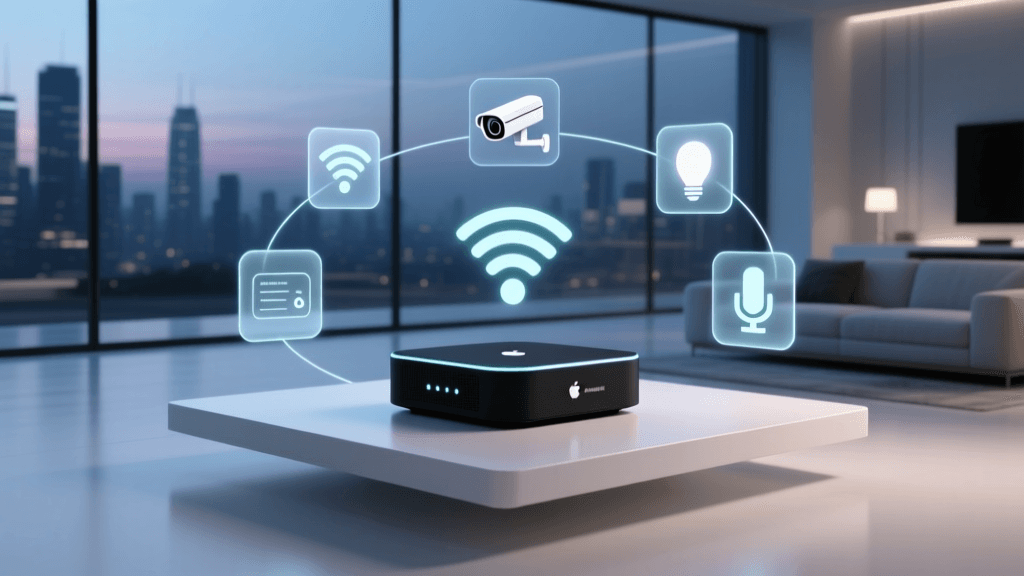
As visualized in the chart above, hubs like the Apple TV 4K and SmartThings Station offer broader protocol support (including Thread, Wi-Fi, Bluetooth LE for provisioning, and Ethernet backhaul), which directly correlates to fewer configuration bottlenecks during the initial app setup phase.
Troubleshooting Common Controller Configuration Errors
Even with meticulous network prep, DIY installers frequently encounter specific errors during the controller and app configuration phase. Understanding the root cause of these errors is critical for maintaining a stable smart home.
1. 'Accessory Not Found' During App Discovery
This is almost always a network isolation issue. If your smartphone is connected to a 5GHz guest network and the Matter device is on a 2.4GHz IoT VLAN, mDNS packets will be dropped. The Fix: Temporarily connect your smartphone to the exact same 2.4GHz SSID that the smart device will use. Complete the pairing, and then move your phone back to your primary high-speed network. The hub will take over local routing thereafter.
2. Thread Network Partitioning
Thread networks are self-healing, but if you have multiple Thread Border Routers (e.g., an Apple TV and a Nest Hub) operating on different Thread network keys, the mesh will partition. Devices on one side of the house may report as 'Unreachable' in the app because they are isolated from the primary controller. The Fix: Ensure all your border routers are updated to the latest firmware. In the Apple Home app, check 'Network Settings' to ensure 'Thread Network' shows as 'Unified.' If not, power cycle the secondary border routers one by one to force them to sync credentials with the primary leader.
3. Cloud Latency and State Desync
If your app shows a light as 'Off' but it is physically 'On,' your controller may be falling back to cloud polling instead of local LAN execution. The Fix: Verify that your controller and the Wi-Fi-based Matter device are on the same subnet. If you are using a cloud-heavy hub, consider adding a local-first hub like a Home Assistant Yellow or SmartThings Station to handle local state polling via the Matter LAN protocol.
Building Cross-Ecosystem Automations via Unified Apps
Once your devices are successfully commissioned and unified under a primary controller app, the true power of Matter reveals itself in automation workflows. Because the Matter hub handles local execution, you can now build complex routines that span devices from historically incompatible brands.
For example, imagine you have a Philips Hue motion sensor (running via the Hue Bridge over Matter) and a third-party Matter-compatible smart lock. Using the SmartThings app as your unified controller, you can create an automation where the Hue sensor detects motion in the hallway after 11:00 PM, triggering the smart lock to engage the deadbolt and dim the hallway lights to 10%. Because both devices are communicating locally via the SmartThings hub, this automation executes instantly, even if your home's internet connection drops entirely.
To optimize these workflows, always group devices by 'Room' and 'Type' within your controller app. Utilize the app's 'Scenes' or 'Routines' feature to bundle multiple Matter commands into a single multicast request. This reduces network chatter and prevents the 'popcorn effect,' where individual lights turn on sequentially rather than simultaneously.
Pro Installer Tip: When configuring Matter devices that rely on battery power (like contact sensors or leak detectors), always use the manufacturer's native app for the initial firmware update before bridging them into your unified Matter controller app. Matter's low-power sleep states can sometimes interrupt large OTA (Over-The-Air) firmware downloads, leading to bricked sensors or failed pairings.
Conclusion
Configuring a unified smart home controller setup using Matter requires a departure from the plug-and-play mentality of early cloud-based smart devices. It demands a solid understanding of local networking, careful hub selection, and strategic use of Multi-Admin app features. By investing the time to properly configure your network for mDNS, selecting a hub that bridges your legacy and modern devices, and leveraging local automation workflows, you can build a resilient, lightning-fast smart home ecosystem that operates entirely on your terms, free from app fatigue and cloud latency.