The Multi-Ecosystem Dilemma
Building a modern smart home often results in a fragmented landscape of walled gardens. You might have an iPhone and prefer Apple HomeKit for its strict security and local processing, while your partner uses Android and relies on Google Home. Meanwhile, the best smart lock on the market might only natively support Amazon Alexa. This multi-ecosystem dilemma forces homeowners to juggle multiple apps, deal with delayed cloud-based automations, and suffer from a lack of unified control. Historically, bridging these ecosystems required complex, third-party cloud bridges like IFTTT or Homebridge, which often broke when APIs changed. Today, the landscape has fundamentally shifted. By leveraging the Connectivity Standards Alliance (CSA-IoT) Matter protocol alongside a local powerhouse like Home Assistant, DIY installers can create a seamless, unified smart home that respects no single brand's boundaries.
Why Matter and Home Assistant Are the Ultimate Bridge
Matter is an open-source, royalty-free connectivity standard designed specifically to solve the multi-ecosystem problem. Its most powerful feature for advanced setups is 'Multi-Admin.' This cryptographic capability allows a single smart device to be securely paired to multiple ecosystems simultaneously. For example, a Matter-over-Thread smart plug can be controlled natively by Apple HomeKit, Google Home, and Amazon Alexa at the exact same time, without relying on cloud-to-cloud syncing.
However, Matter alone is just a communication protocol. To truly orchestrate a multi-ecosystem home, you need a central brain that is agnostic to brand politics. Home Assistant fills this role perfectly. By running Home Assistant as your primary automation hub, you can ingest devices from Zigbee, Z-Wave, Wi-Fi, and Matter, and then expose unified, complex automations back to your preferred voice assistants. According to the official Home Assistant Matter integration documentation, running a local Matter controller allows for instantaneous, local execution of automations, completely bypassing the latency of cloud servers.
Hardware Requirements for a Unified Setup
To build a robust multi-ecosystem bridge, you need specific hardware that supports local processing, Thread border routing, and Matter commissioning. Here is the recommended hardware stack and estimated cost range for a comprehensive setup:
- Home Assistant Green ($99): The official, pre-configured smart home hub. Unlike Raspberry Pi setups that suffer from SD card corruption, the HA Green uses reliable eMMC storage and features a Gigabit Ethernet port for stable network communication.
- Apple HomePod Mini ($99) or Apple TV 4K ($129): Required if you want native Apple HomeKit support and a highly stable Thread Border Router.
- Amazon Echo Dot 5th Gen ($49): Serves as your Alexa voice interface and secondary Zigbee/Matter hub.
- Google Nest Hub 2nd Gen ($99): Provides Google Home integration, Thread border routing, and a visual dashboard for shared spaces.
Total Estimated Cost: $346 to $475. This investment creates a localized, enterprise-grade smart home backbone that eliminates monthly subscription fees and cloud dependencies.
Step-by-Step Home Assistant Installation
Before you can bridge ecosystems, you must establish your central command. Follow the Home Assistant Installation Guide for your specific hardware. If using the recommended Home Assistant Green, the process is remarkably straightforward:
- Physical Connection: Plug the Home Assistant Green into your primary router via an Ethernet cable and connect the power supply. Avoid using Wi-Fi for your primary hub to ensure mDNS and local discovery protocols remain stable.
- Network Discovery: Wait approximately 5 minutes for the device to boot and download the latest Home Assistant OS (HAOS). On a device connected to the same local network, open a web browser and navigate to
http://homeassistant.local:8123. - Initial Configuration: Create your primary administrator account, set your exact home location (crucial for sun-based automations and presence detection), and select your preferred unit system.
- Install the Matter Server Add-on: Navigate to Settings > Add-ons > Add-on Store. Search for 'Matter Server' and install it. This add-on runs the Python-based Matter controller that allows Home Assistant to commission and manage Matter devices locally.
Configuring Multi-Admin Fabrics
Once your Matter Server is running, you can begin bridging devices. Let us use a Nanoleaf Essentials Matter-over-Thread smart bulb as an example.
Step 1: Commission to Home Assistant
In Home Assistant, go to Settings > Devices & Services > Add Integration > Matter. Scan the QR code on the Nanoleaf bulb using the Home Assistant Companion App on your smartphone. Home Assistant will now securely add the device to its own cryptographic 'fabric.' The bulb is now controllable via Home Assistant dashboards and local automations.
Step 2: Share to Apple HomeKit
Because Matter supports Multi-Admin, the device is not locked to Home Assistant. Open the Apple Home app on your iPhone, tap the '+' icon, and select 'Add Accessory.' Scan the exact same QR code. Your HomePod Mini will act as a Thread Border Router, securely joining the bulb to the Apple Home fabric. You now have local, simultaneous control from both Home Assistant and Apple HomeKit.
Step 3: Share to Amazon Alexa and Google Home
Repeat the process in the Alexa app (via the 'Add Device' > 'Matter' flow) and the Google Home app. Each ecosystem creates its own secure fabric on the device's internal chip. The bulb now responds to Siri, Alexa, and Google Assistant concurrently, while Home Assistant monitors its energy state and exact brightness levels for advanced logic.
Advanced Multi-Ecosystem Automations
The true power of this setup emerges when you combine devices from different ecosystems into single, cohesive automations managed by Home Assistant. Consider the following unified security workflow:
Trigger: An Aqara Door Sensor (Zigbee, connected via Home Assistant) detects the front door opening after 11:00 PM.
Action 1: Home Assistant commands the Nanoleaf Essentials Bulbs (Matter over Thread, shared with Apple Home) to flash red.
Action 2: Home Assistant sends a local API command to an Amazon Echo Show (Alexa) to announce, 'Front door security breach detected.'
Action 3: Home Assistant triggers a HomeKit Secure Video camera to begin recording locally.
This workflow seamlessly blends Zigbee, Matter, and proprietary protocols across Apple, Amazon, and local ecosystems, executing in milliseconds without a single byte of data leaving your local network.
Network Configuration for Thread and mDNS
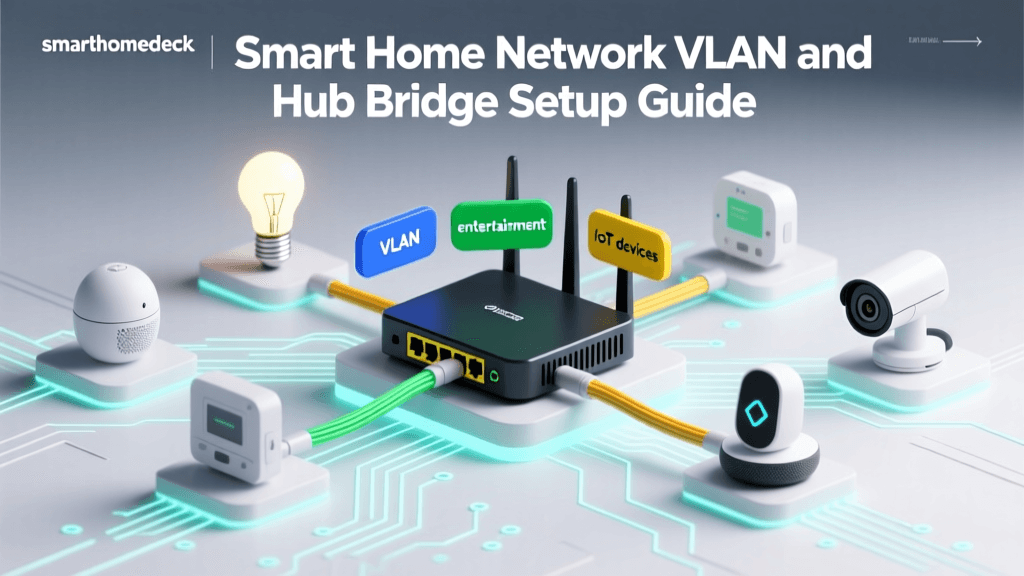
Multi-ecosystem setups are highly dependent on a properly configured local network. Matter and Apple HomeKit rely heavily on mDNS (multicast DNS) for device discovery. If you isolate your IoT devices on a separate VLAN (Virtual Local Network) for security, mDNS broadcasts will not cross the VLAN boundary by default, causing ecosystems to 'lose' devices.
Crucial Network Settings:
- mDNS Repeater: If using a UniFi Dream Machine or pfSense router, you must enable an mDNS repeater or Avahi daemon to bridge UDP port 5353 traffic between your IoT VLAN and your primary user VLAN.
- IPv6 SLAAC: Thread networks operate exclusively on IPv6. Ensure your router is configured to distribute IPv6 addresses via SLAAC (Stateless Address Autoconfiguration). Without IPv6, Matter-over-Thread commissioning will fail.
- IGMP Snooping: Enable IGMP Snooping on your network switches to prevent multicast traffic from flooding your entire network, which can cause smart home latency.
- Firewall Rules: Ensure UDP port 5540 (Matter communication) and UDP port 5353 (mDNS) are allowed between your controller devices (Home Assistant, HomePod, Echo) and your IoT VLAN.
Ecosystem Compatibility Comparison
Understanding the strengths and limitations of each platform is vital when designing your multi-admin architecture. Below is a comparison of how each ecosystem handles local execution and Matter integration.
| Feature | Apple HomeKit | Google Home | Amazon Alexa | Home Assistant |
|---|---|---|---|---|
| Matter Controller | Yes (Native) | Yes (Native) | Yes (Native) | Yes (Add-on) |
| Thread Border Router | HomePod / Apple TV | Nest Hubs / Wifi | Echo 4th Gen+ | Requires Dongle |
| Local Execution | Strict / Highly Reliable | Moderate (Cloud fallback) | Low (Heavy cloud reliance) | 100% Local |
| Advanced Automations | Limited (Needs 3rd party) | Moderate (Scripting) | Moderate (Routines) | Unlimited (YAML/Visual) |
| Privacy Focus | High | Low | Low | Absolute (Open Source) |
Matter Device Support by Ecosystem
While Matter is a unified standard, ecosystem controllers adopt device categories at different speeds. Home Assistant, being open-source and community-driven, typically supports the widest array of Matter device types, including experimental categories like robot vacuums and solar inverters, long before commercial ecosystems adopt them.
Matter Device Support by Ecosystem
Troubleshooting Common Integration Errors
When bridging multiple ecosystems, you are bound to encounter network and commissioning hurdles. Here are the most common issues and their solutions:
1. Commissioning Fails at 99%
This almost always indicates an IPv6 routing issue. Matter requires the controller (e.g., Home Assistant) and the device to communicate via IPv6 during the initial handshake. If your router blocks IPv6 traffic between VLANs, or if SLAAC is disabled, the commissioning window will time out. Fix: Ensure your firewall allows outbound and inbound IPv6 traffic on the IoT VLAN, and verify that your Thread Border Router is successfully broadcasting the Thread network credentials.
2. Thread Network Partitioning
If you have multiple Thread Border Routers (e.g., a HomePod Mini, an Apple TV, and a Nest Hub), they may accidentally create separate, fragmented Thread networks instead of merging into one mesh. This causes devices to drop offline when moved across the house. Fix: Designate one primary ecosystem as your main Thread network provider. If Apple's Thread network is your primary, go into the Google Home and Alexa settings and disable their Thread Border Router capabilities to force all Thread devices to route through the HomePod Mini.
3. Device Shows as 'No Response' in Secondary Ecosystems
If a device works perfectly in Home Assistant but shows as 'No Response' in Apple HomeKit, the issue is usually mDNS. The Apple TV or HomePod has lost the local broadcast of the device's IP address. Fix: Restart your mDNS repeater service on your router. Alternatively, assign a static IP address to the smart device via your router's DHCP reservation table, ensuring the DNS record remains permanently mapped.
By meticulously configuring your network, leveraging Home Assistant as your central logic engine, and utilizing Matter's Multi-Admin fabrics, you can completely dismantle the walled gardens of the smart home industry. The result is a resilient, lightning-fast, and truly unified home automation environment that serves every member of your household, regardless of the smartphone in their pocket.