Introduction to Smart Home Hubs and Network Bridges
As the modern smart home evolves, the number of connected devices in a typical household has skyrocketed. From smart bulbs and motorized blinds to leak sensors and smart locks, it is not uncommon for a DIY enthusiast to manage over 50 to 100 individual IoT endpoints. Relying solely on your primary Wi-Fi router to handle this traffic is a recipe for network congestion, dropped connections, and frustrating automation delays. This is where dedicated smart home hubs and network bridges become essential.
A smart home hub acts as the central brain of your automation ecosystem, translating commands between your local network and various wireless protocols like Zigbee, Z-Wave, and Thread. A network bridge, on the other hand, connects disparate ecosystems—such as linking a proprietary Philips Hue Bridge to an open-source platform like Home Assistant. Properly configuring these devices and isolating them on your network is the cornerstone of a robust, professional-grade smart home installation.
Understanding Smart Home Protocols: Zigbee, Z-Wave, Thread, and Matter
Before physically mounting your hubs and bridges, it is critical to understand the wireless protocols they utilize. Unlike Wi-Fi, which is designed for high-bandwidth data transfer, smart home protocols prioritize low power consumption and mesh networking capabilities.
According to the Connectivity Standards Alliance, Zigbee 3.0 operates on the crowded 2.4GHz spectrum but utilizes mesh networking to extend range and reliability. Z-Wave operates on sub-GHz frequencies (908.42MHz in the US), allowing it to penetrate walls more effectively without competing with Wi-Fi. Thread, an IP-based mesh protocol, forms the backbone of the new Matter standard, which the Wi-Fi Alliance champions as the ultimate unifier for cross-brand compatibility.
| Protocol | Frequency Band | Max Indoor Range | Data Rate | Power Consumption |
|---|---|---|---|---|
| Zigbee 3.0 | 2.4 GHz | 30-60 ft (node to node) | 250 kbps | Very Low |
| Z-Wave Plus V2 | 908.42 MHz (US) | 100+ ft (node to node) | 100 kbps | Ultra Low |
| Thread / Matter | 2.4 GHz | 30-60 ft (node to node) | 250 kbps | Very Low |
| Wi-Fi (IoT) | 2.4 / 5 GHz | 100-150 ft (to router) | Up to 1+ Gbps | High |
Step-by-Step Network Isolation and VLAN Setup
One of the most crucial steps in hub and bridge configuration is network isolation. IoT devices are notorious for poor security implementations and constant background chatter (telemetry data). If a smart plug is compromised, or if 40 Zigbee-to-Wi-Fi bridges flood your main network with broadcast packets, your streaming devices and work laptops will suffer.
Creating a Dedicated IoT VLAN
For advanced setups using prosumer networking gear like Ubiquiti UniFi, TP-Link Omada, or ASUS Merlin routers, creating a Virtual Local Area Network (VLAN) specifically for IoT is highly recommended.
- Step 1: Create a new VLAN (e.g., VLAN 20) and assign it to a dedicated 2.4GHz SSID named 'SmartHome_IoT'.
- Step 2: Enable 'Multicast Enhancement' (IGMP Snooping) on the SSID. This converts broadcast/multicast traffic into unicast, preventing smart home chatter from bogging down the airwaves.
- Step 3: Set up firewall rules to block the IoT VLAN from accessing your primary LAN (where your PCs and NAS live), while allowing established/related return traffic.
- Step 4: Allow access only to specific ports required by your hubs (e.g., port 8123 for Home Assistant, port 443 for cloud hubs).
The mDNS Dilemma and Reflectors
When you isolate your smart hubs on a different VLAN, you will immediately notice that voice assistants and casting protocols stop working. This is because protocols like Chromecast, AirPlay, and local voice control rely on mDNS (Multicast DNS) broadcasts, which do not cross VLAN boundaries by default. To fix this, you must configure an mDNS Reflector (or Repeater) on your router. In UniFi, this is found under Settings > Networks > [Your Network] > Multicast DNS. This allows discovery packets to bounce between your primary LAN and your IoT VLAN seamlessly.
Configuring Your Hub Bridge for Maximum Range and Minimal Interference
Physical placement of your hub or bridge dictates the performance of your entire mesh network. A Philips Hue Bridge V2, a Samsung SmartThings Station, or a Home Assistant SkyConnect dongle should never be hidden inside a media cabinet or placed next to a Wi-Fi router.
Pro Tip: Never place your primary Zigbee or Thread hub inside a metal electrical panel or near large appliances like microwaves and refrigerators. Metal acts as a Faraday cage, instantly killing RF signals.
Managing 2.4GHz Channel Overlap
Because Zigbee, Thread, and Wi-Fi all share the 2.4GHz spectrum, channel overlap is the number one cause of dropped smart home devices. Wi-Fi channels are 20MHz wide, while Zigbee channels are only 5MHz wide. To prevent your Wi-Fi from drowning out your smart home mesh, you must manually set your Wi-Fi router to use only channels 1, 6, or 11, and then configure your Zigbee hub to use a non-overlapping channel.
- Wi-Fi Channel 1: Use Zigbee Channel 15, 20, or 25
- Wi-Fi Channel 6: Use Zigbee Channel 11 or 25
- Wi-Fi Channel 11: Use Zigbee Channel 11, 15, or 20
By mapping your channels correctly, you create dedicated 'lanes' on the wireless highway, drastically reducing latency for automation workflows.
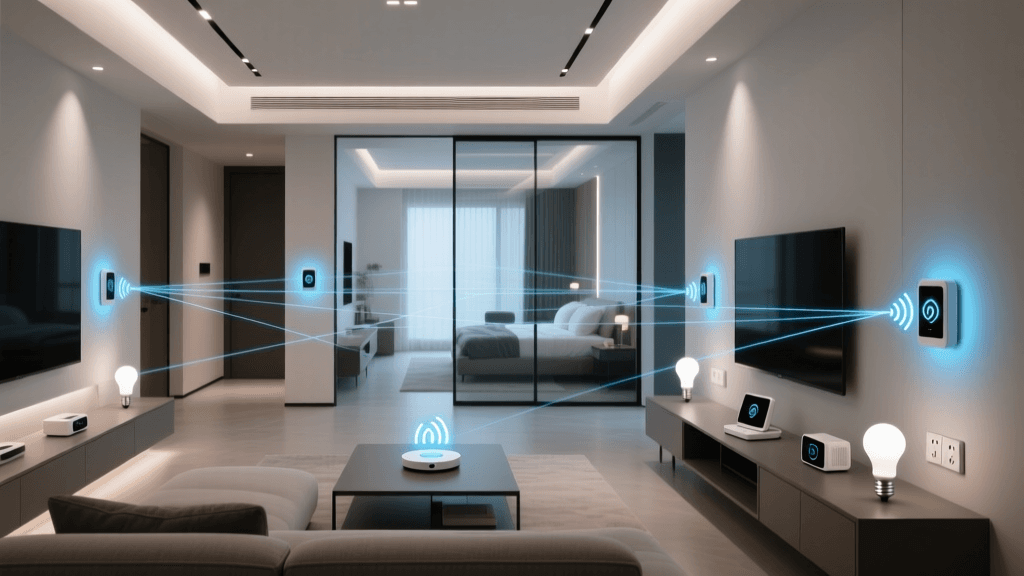
As visualized above, building materials severely impact 2.4GHz signals. If your hub is located on the first floor and you have concrete flooring, you will need to install mains-powered Zigbee/Thread repeaters (like smart plugs or wired switches) on the second floor to bridge the mesh network vertically.
Bridging Multiple Hubs via Matter and Home Assistant
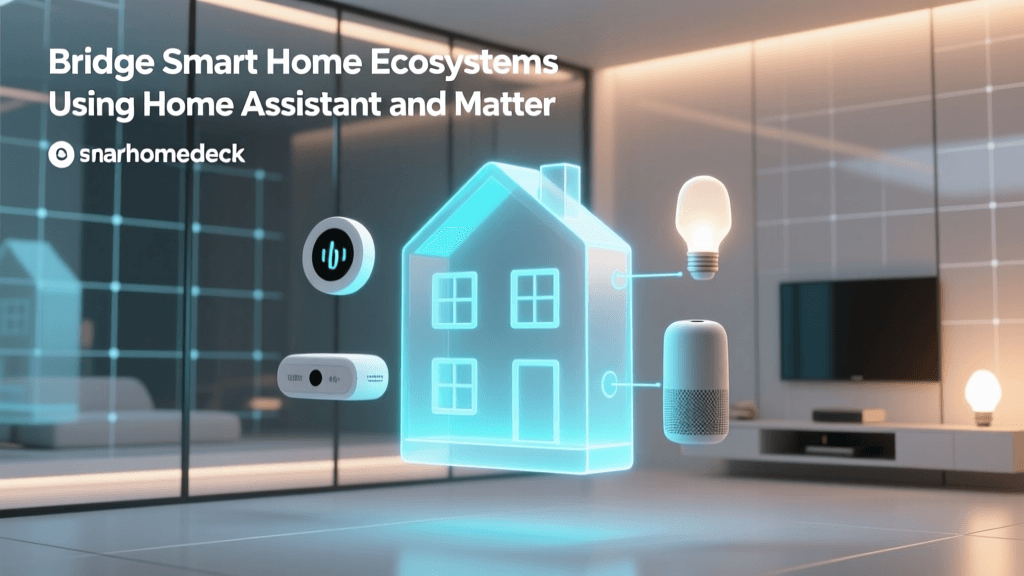
Modern smart homes rarely rely on a single ecosystem. You might have Philips Hue for lighting, Ecobee for climate, and Aqara for sensors. Bridging these proprietary hubs into a central controller like Home Assistant or Apple HomeKit unlocks the true potential of local automation.
Integrating Proprietary Bridges
To bridge a Philips Hue system to Home Assistant, you no longer need to rely on cloud polling. Using the local Hue API, Home Assistant communicates directly with the Hue Bridge over your LAN. Ensure both the Home Assistant server and the Hue Bridge are on the same VLAN, or ensure your firewall allows local API traffic (Port 443/80) between the subnets.
The Role of Matter over Thread
Matter is changing how we bridge devices. With a Thread Border Router (such as an Apple TV 4K, Amazon Echo Show, or a dedicated Home Assistant Thread dongle), Thread devices create their own IP-based mesh. You can bridge Matter devices directly into Home Assistant using the Matter Server add-on. This eliminates the need for proprietary cloud bridges entirely, allowing an Eve Energy plug or a Nanoleaf bulb to report state changes locally in milliseconds.
Troubleshooting Common Hub and Bridge Issues
Even with perfect placement and network isolation, mesh networks can occasionally misbehave. Here is how to troubleshoot the most common hub and bridge issues:
1. Devices Constantly Dropping Offline
If battery-powered sensors frequently show as 'unavailable' in your hub interface, the issue is usually a weak mesh route. Check the LQI (Link Quality Indicator) or RSSI (Received Signal Strength Indicator) values in your hub's diagnostic tools (like ZHA or Zigbee2MQTT). An LQI below 50 or an RSSI worse than -85dBm indicates a poor connection. Solution: Add a mains-powered smart plug halfway between the hub and the dropping sensor to act as a mesh router.
2. The 'Router Loop' or 'Dark Node' Problem
Sometimes, a smart device will route its signal through another battery-powered device instead of a mains-powered router. Since battery devices cannot route traffic for others (they are 'End Devices' or 'Sleeping Nodes'), the signal drops into a black hole. Solution: Power cycle the affected end device, and temporarily turn off the battery-powered device it is falsely trying to route through, forcing the network to recalculate the path to a valid mains-powered router.
3. Bridge API Timeouts
If your central automation server (like Home Assistant or Hubitat) frequently logs 'API Timeout' errors when talking to a proprietary bridge (like Lutron Caseta or Hue), the bridge's internal processor may be overwhelmed by too many rapid-fire commands. Solution: Implement 'Transition' delays or group your automations. Instead of sending 10 individual 'turn on' commands to 10 smart bulbs via the bridge, create a 'Light Group' inside the hub's native app and send a single command to the group.
Conclusion
Setting up a smart home hub and network bridge is about much more than just plugging in a device and downloading an app. By understanding the underlying RF protocols, isolating your IoT traffic via VLANs, managing 2.4GHz channel overlap, and strategically placing your bridges, you transform a fragile collection of gadgets into a resilient, enterprise-grade automation system. Whether you are bridging Matter devices or managing a massive Zigbee mesh, a solid network foundation ensures your smart home works flawlessly, locally, and securely for years to come.