The Fragmentation Problem in Modern Smart Homes
Building a smart home often leads to a frustrating reality: the "walled garden" problem. You might have an iPhone and prefer Apple HomeKit, but your partner uses Android and relies on Google Home, while your voice control setup is heavily invested in Amazon Alexa. Historically, bridging these ecosystems required complex workarounds, cloud-based middlemen like IFTTT, or purchasing duplicate devices for each platform. Today, thanks to local integration hubs and the Matter standard developed by the Connectivity Standards Alliance (CSA), unifying your smart home into a single, cohesive multi-ecosystem setup is not only possible but highly reliable.
In this comprehensive setup guide, we will walk through the exact hardware, network configurations, and software steps required to bridge Apple, Google, and Amazon ecosystems using a central local hub. Whether you are retrofitting an existing setup or starting from scratch, this guide provides the actionable blueprint for DIY installers and advanced homeowners.
Choosing Your Central Integration Hub
To unify multiple ecosystems, you need a "brain" that operates independently of the cloud and can translate protocols like Zigbee, Z-Wave, Wi-Fi, and Thread into a universal language. The two premier choices for local multi-ecosystem bridging are Home Assistant and Hubitat.
| Hub Model | Avg. Cost | Local Processing | Matter Support | Best For |
|---|---|---|---|---|
| Home Assistant Green | $99 | Yes (100%) | Native (via Matter Server) | Advanced users, complex automations, visual dashboards |
| Hubitat Elevation C-8 | $149 | Yes (100%) | Beta/Limited | Rule machine enthusiasts, Z-Wave heavy setups |
| Samsung SmartThings Station Pro | $129 | Hybrid | Native | Samsung users, basic Matter bridging |
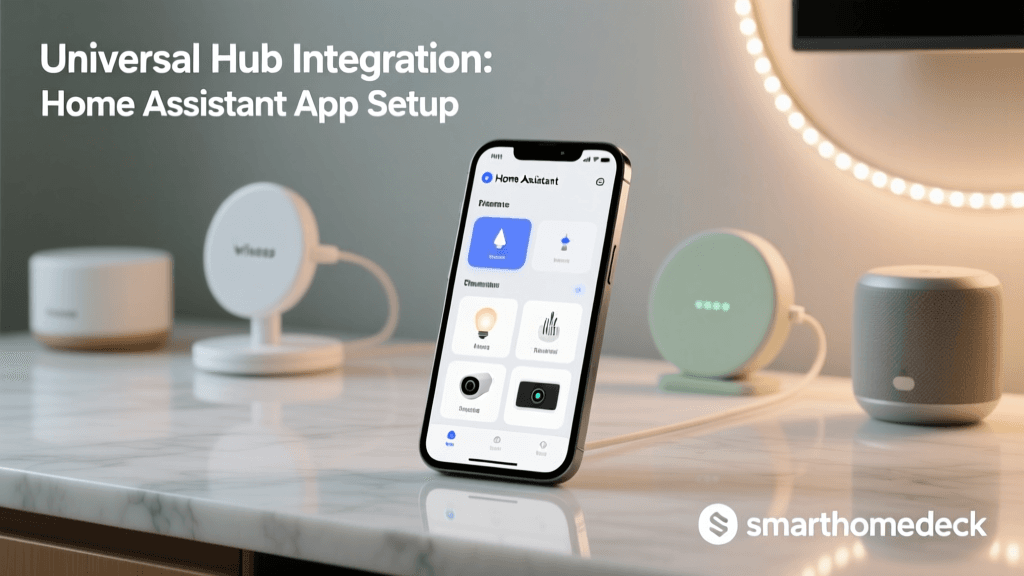
For the purpose of this multi-ecosystem bridge setup, we will focus on the Home Assistant Green. It offers the most robust implementation of the Home Assistant Matter Integration, allowing you to expose your locally managed Zigbee and Z-Wave devices directly to Apple HomeKit, Google Home, and Amazon Alexa simultaneously via the Matter protocol.
Network Prerequisites: The Hidden Hurdle
Before plugging in your hub, you must address the network layer. Multi-ecosystem discovery relies heavily on multicast DNS (mDNS) and local broadcasting. If your smart home devices are on an isolated IoT VLAN (Virtual Local Area Network) and your personal phones are on your main LAN, ecosystem apps (like Apple Home or Google Home) will not be able to "see" the Matter bridge.
Critical Network Configurations
- mDNS Reflector / Repeater: You must enable an mDNS reflector on your router (e.g., UniFi mDNS Repeater, Avahi on pfSense/OPNsense) to allow discovery packets to cross from the IoT VLAN to your main LAN.
- IGMP Snooping: Ensure IGMP Snooping is enabled on your managed switches to prevent multicast traffic from flooding your network, which can cause Thread and Zigbee dropouts.
- Firewall Rules: Allow UDP port 5540 (Matter commissioning and communication) from your main LAN to the IoT VLAN. Block IoT devices from initiating connections to the internet, but allow established/related return traffic.
- Thread Border Routers: You need at least one Thread Border Router on your network. The Apple TV 4K (3rd Gen, Wi-Fi + Ethernet) or the Nest Hub (2nd Gen) are excellent choices, typically costing between $99 and $129.
Smart Home Protocol Latency Comparison
Step-by-Step Multi-Ecosystem Bridge Setup
With your network prepared, it is time to configure the central hub and expose your devices to the major ecosystems.
Phase 1: Initializing the Central Hub
- Connect the Home Assistant Green to your network via Ethernet and power it on.
- Navigate to http://homeassistant.local:8123 on a device connected to your main LAN.
- Complete the onboarding wizard, creating your admin account and setting your home location.
- Connect your Zigbee/Z-Wave USB dongles (e.g., Sonoff Zigbee 3.0 USB Dongle Plus or Zooz 800 Z-Wave stick) to the hub and install the respective integrations (ZHA or Zigbee2MQTT, and Z-Wave JS).
Phase 2: Installing the Matter Server
To act as a bridge, Home Assistant needs to run a Matter Controller and expose itself as a Matter Device.
- Go to Settings > Add-ons > Add-on Store.
- Search for and install the Matter Server add-on. Start it and enable "Start on boot".
- Navigate to Settings > Devices & Services > Add Integration and select Matter.
- This connects the Home Assistant core to the local Matter Server container, enabling the bridging capabilities.
Phase 3: Commissioning to Apple Home, Google Home, and Alexa
Now, you will expose your locally managed devices to the walled gardens.
- In Home Assistant, go to Settings > Devices & Services > Matter.
- Click Configure and select Share devices with Matter.
- Home Assistant will generate a Matter QR code and a numeric setup code.
- For Apple HomeKit: Open the Apple Home app, tap the "+" icon, select "Add Accessory", and scan the QR code. Your Zigbee and Z-Wave devices will populate in Apple Home as Thread/Wi-Fi accessories.
- For Google Home: Open the Google Home app, tap "+", select "Set up device", and choose "Works with Matter". Scan the same QR code (or generate a new one if the previous session expired).
- For Amazon Alexa: Open the Alexa app, go to Devices > Add Device, and select the Matter option to commission the bridge.
Pro-Tip: When bridging dozens of devices, Apple Home and Google Home may take up to 5 minutes to sync the accessory list. Do not restart the hub during this commissioning window, or you may corrupt the Matter fabric credentials.
Managing Voice Assistants Across Ecosystems
One of the most common issues in multi-ecosystem setups is "command collision." If you have an Apple HomePod and an Amazon Echo in the same room, and both ecosystems are controlling the same Home Assistant bridge, voice commands can conflict or trigger twice.
The Solution: Use Home Assistant's native voice assistant (Assist) or designate specific hardware for specific ecosystems. For example, use Siri exclusively for iOS CarPlay and Apple Watch automations, while reserving Amazon Alexa for in-home voice routines. By keeping the control logic inside Home Assistant and only using Apple/Google/Alexa as interfaces, you maintain a single source of truth for your automations.
Troubleshooting Multi-Hub Sync Issues
Even with perfect configuration, RF (Radio Frequency) interference and Thread network partitioning can disrupt your multi-ecosystem bridge.
1. Thread Network Partitioning
If you use both an Apple TV 4K and a Nest Hub as Thread Border Routers, they may create two separate Thread networks instead of merging into one. This happens if they do not share the same Thread Active Dataset (network credentials). According to the CSA Thread Protocol specifications, border routers should theoretically merge, but in practice, cross-brand Thread merging is still maturing. Fix: Designate one primary border router (e.g., the Apple TV) and disable Thread routing on secondary hubs via their respective apps to force all Thread devices onto a single, stable mesh.
2. Wi-Fi and Zigbee/Thread Channel Overlap
Both Wi-Fi (2.4GHz) and Zigbee/Thread operate in the same frequency band. If your Wi-Fi router is using channel 6, it will completely drown out Zigbee channels 15 through 20, causing your Matter bridge to report devices as "offline" to Apple and Google.
- Wi-Fi Setup: Lock your 2.4GHz Wi-Fi to Channel 1, 6, or 11.
- Zigbee Setup: Set your Zigbee dongle to Channel 15, 20, or 25.
- Thread Setup: Thread typically defaults to Channel 15 or 25. Ensure it does not overlap with your primary Wi-Fi channels.
3. mDNS Timeouts
If devices disappear from Apple Home or Google Home but remain functional in Home Assistant, your router's mDNS reflector is likely failing. Reboot your network controller (e.g., UniFi Dream Machine) and ensure that "Multicast Enhancement" (or IGMP Snooping) is enabled, but "Block LAN to WLAN Multicast" is disabled for the IoT VLAN.
Cost Breakdown and Final Thoughts
Building a robust, multi-ecosystem smart home bridge requires a modest upfront investment, but it eliminates the need to buy duplicate hardware for different platforms.
- Home Assistant Green: $99
- Sonoff Zigbee 3.0 Dongle Plus: $35
- Apple TV 4K (Thread Border Router): $129
- Managed Switch (for VLANs/mDNS): $60 - $150
- Total Estimated Cost: $323 - $413
By centralizing your device logic and utilizing Matter as the universal translator, you future-proof your home. You are no longer locked into a single ecosystem; you can switch from an iPhone to an Android, or from Alexa to Siri, without ever having to re-wire your home or replace your smart switches. The initial setup requires patience and a solid grasp of networking fundamentals, but the reward is a truly unified, lightning-fast, and resilient smart home.