The Multi-Ecosystem Smart Home Dilemma
Building a smart home in today's market often means navigating a minefield of walled gardens. You might prefer Apple HomeKit for its privacy and Siri integration, but your favorite smart thermostat only works natively with Amazon Alexa. Meanwhile, your partner might rely on Google Home for its superior voice recognition and Nest ecosystem. Historically, bridging these disparate platforms required a messy web of third-party cloud services, IFTTT applets, and unreliable API polling. The result was a fragile smart home setup prone to cloud outages and frustrating latency.
For DIY installers and advanced homeowners, the goal is a unified, local, and lightning-fast smart home that respects the preferences of every household member. This requires moving away from relying on individual manufacturer hubs and instead deploying a universal hub architecture. By centralizing control, you can expose your entire device roster to Apple, Google, and Amazon simultaneously, ensuring that whether someone asks Siri to turn off the lights or tells Alexa to lock the door, the command executes instantly on the local network.
Understanding Matter and Thread in Modern Setups
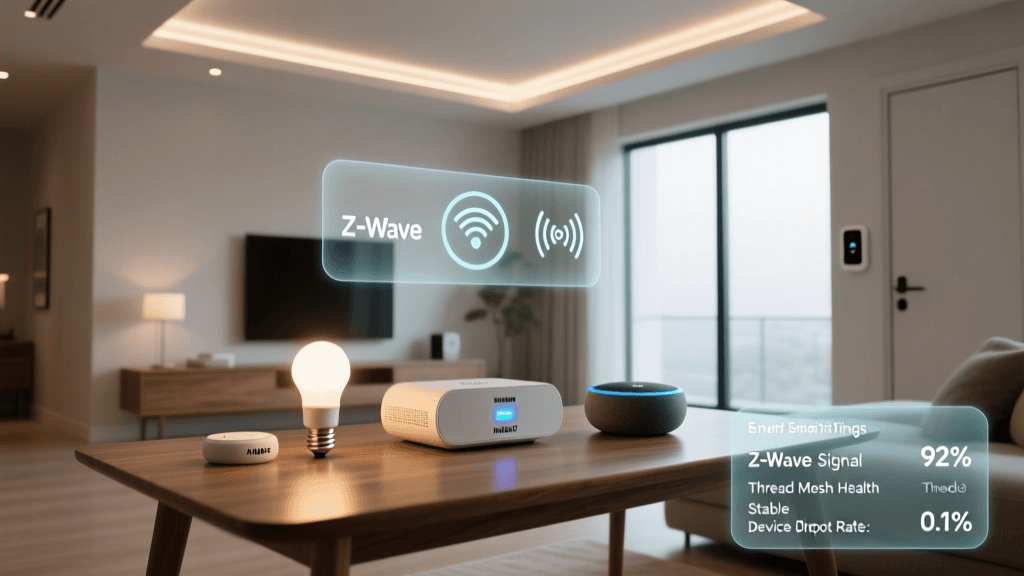
Before diving into universal hub configuration, it is essential to understand the role of Matter and Thread. Developed by the Connectivity Standards Alliance, Matter is an application-layer protocol designed to allow smart home devices to communicate across different ecosystems without relying on the cloud. Thread, on the other hand, is the low-power, mesh-networking protocol that often transports Matter commands.
In a multi-ecosystem setup, Matter acts as a universal translator. When you pair a Matter-compatible smart plug to your universal hub, that hub can then share the device's 'fabric' with Apple HomeKit, Google Home, and Amazon Alexa simultaneously. However, Matter is still in its maturation phase. While it is excellent for simple devices like switches, plugs, and sensors, complex devices like cameras, robotic vacuums, and advanced thermostats often still rely on proprietary cloud APIs or local LAN protocols. Therefore, a robust multi-ecosystem setup must support both Matter/Thread and legacy local integrations.
Choosing the Right Universal Hub
To bridge ecosystems effectively, you need a central brain capable of local processing. Cloud-dependent hubs introduce latency and fail when your internet connection drops. Below is a comparison of the top universal hubs used by DIY installers for multi-ecosystem integration.
| Hub Platform | Local Processing | Ecosystem Exposure | Price Range | Setup Difficulty |
|---|---|---|---|---|
| Home Assistant (Green) | Yes (100%) | Native HomeKit, Google, Alexa | $99 - $130 | Moderate |
| Hubitat Elevation | Yes (100%) | Native Alexa, Google (No HomeKit) | $150 - $200 | Easy/Moderate |
| Samsung SmartThings | Partial (Cloud fallback) | Native Alexa, Google (No HomeKit) | $80 - $100 | Easy |
| Apple TV 4K (HomeHub) | Yes (HomeKit only) | HomeKit Only (Requires bridges) | $129 - $149 | Easy |
For the ultimate multi-ecosystem integration, Home Assistant is the undisputed champion. It supports over 2,500 integrations, processes everything locally, and can simultaneously expose its device list to Apple HomeKit, Google Home, and Amazon Alexa. The Home Assistant installation process has been vastly simplified with the introduction of the Home Assistant Green, a plug-and-play dedicated hub that requires no Linux command-line knowledge to get started.
Step-by-Step: Configuring Home Assistant for Multi-Ecosystem Control
Setting up Home Assistant as your central bridge requires careful planning to ensure all voice assistants can 'see' the devices you want them to control.
1. Hardware and Network Preparation
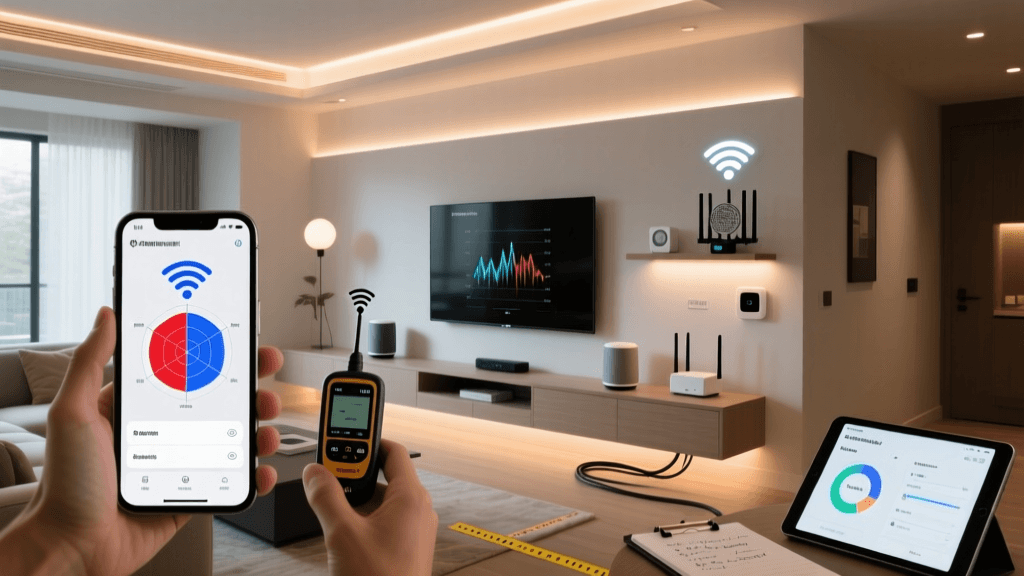
Start by connecting your Home Assistant Green or Intel NUC directly to your primary router via Ethernet. Wireless connections for the central hub are highly discouraged due to the constant stream of mDNS (multicast DNS) broadcast traffic required for Apple HomeKit discovery. Ensure your router has IGMP Snooping enabled to prevent multicast flooding, which can crash Wi-Fi networks when dozens of smart devices are broadcasting their statuses.
2. Adding Zigbee and Thread Radios
To connect local sensors and switches without relying on Wi-Fi, plug in a Home Assistant Connect SkyConnect dongle. This USB stick can run multiprotocol firmware, allowing it to act as both a Zigbee coordinator and a Thread Border Router simultaneously. When configuring your Zigbee network, always select a channel that does not overlap with your Wi-Fi. If your 2.4GHz Wi-Fi is on channels 1, 6, and 11, set your Zigbee network to channel 15, 20, or 25 to prevent signal interference and dropped device connections.
3. Exposing Entities to Voice Assistants
Not every entity in your hub needs to be exposed to your voice assistants. In Home Assistant, you can create specific 'labels' or 'areas' to filter what gets sent to Apple, Google, and Amazon. For example, you may want Siri to control the living room lights, but keep the garage door lock hidden from Google Home for security reasons.
Network Architecture for Seamless Integration
The most common point of failure in multi-ecosystem setups is the local network configuration. Apple HomeKit, in particular, is notoriously strict about network topology. According to the Home Assistant HomeKit integration documentation, Apple devices rely heavily on Bonjour (mDNS) to discover smart home bridges.
VLANs and mDNS Reflectors
If you segment your network using VLANs (Virtual Local Area Networks) to isolate IoT devices from your personal computers and phones, you will immediately break HomeKit and Chromecast discovery. Devices on the IoT VLAN cannot broadcast their mDNS packets to the main VLAN where your iPhone or Google Nest Hub resides.
To solve this, you must configure an mDNS reflector on your router or firewall. If you use a UniFi Dream Machine or pfSense router, enabling the 'mDNS Repeater' or 'Avahi' service will intercept discovery broadcasts on the IoT VLAN and mirror them to your main VLAN. This allows your iPhone to 'see' the Home Assistant HomeKit bridge even though they are on different subnets.
Pro Tip: Never place your smart home hub on a guest network. Guest networks typically enforce client isolation, which completely blocks the local LAN API calls required for Google Home and Amazon Alexa to communicate with your universal hub.
Integrating Voice Assistants Across Platforms
Once your network is optimized, you must establish the bridges to the respective voice assistant clouds.
Apple HomeKit Integration
HomeKit operates entirely on the local network. In your universal hub, you will generate a QR code or an 8-digit setup code. Open the Apple Home app on your iPhone, select 'Add Accessory', and scan the code. Your hub will act as a bridge, passing all selected local entities to Apple. Because this is local, Siri commands execute in milliseconds, even if your internet is down.
Amazon Alexa and Google Home Integration
Unlike Apple, Amazon and Google traditionally rely on cloud polling to sync device states. To bridge your universal hub to Alexa or Google Home, you have two options:
- Cloud Subscription (Recommended): Services like Nabu Casa for Home Assistant provide a secure, encrypted cloud tunnel. This allows Alexa and Google to poll your hub's state without requiring you to open ports on your router or configure complex DDNS and port forwarding rules.
- Local LAN API (Advanced): For Google Home, you can use the 'Local Home SDK' or specific local integrations (like emulated Hue bridges) to trick Google Nest Hubs into polling your universal hub over the local network, bypassing the cloud entirely.
Troubleshooting Common Multi-Ecosystem Errors
Even with a perfect setup, multi-ecosystem homes can experience synchronization issues. Here is how to troubleshoot the most common errors encountered by DIY installers.
1. The 'Split-Brain' Device State
Sometimes, a light will show as 'ON' in the Apple Home app but 'OFF' in the Amazon Alexa app. This occurs when a device is connected to the manufacturer's cloud and polled by multiple assistants at different intervals. To fix this, ensure the device is integrated into your universal hub via a local protocol (like Zigbee, Z-Wave, or LAN API) rather than a cloud-to-cloud integration. The universal hub should be the single source of truth, pushing state updates to Apple, Google, and Amazon simultaneously via webhooks.
2. HomeKit 'No Response' Errors
If your HomeKit accessories frequently display 'No Response', the issue is almost always related to Wi-Fi multicast flooding or a sleeping Thread router. Ensure that your Wi-Fi access points have 'Multicast Enhancement' or 'IGMP Snooping' enabled. Additionally, if you are using Thread devices, ensure you have at least two Thread Border Routers (like the SkyConnect and an Apple TV 4K) to provide redundant mesh routing paths.
3. Voice Command Latency
If Alexa or Google takes 3 to 5 seconds to turn on a local smart plug, the command is likely routing to the manufacturer's external cloud server, bouncing back to your router, and then to the plug. By migrating the device to a local Zigbee or Matter connection managed by your universal hub, and using a local LAN API bridge for the voice assistant, you can reduce this latency to under 200 milliseconds.
Conclusion
Bridging Apple HomeKit, Google Home, and Amazon Alexa is no longer a compromise; it is a highly achievable reality for modern smart homes. By deploying a universal, locally-processing hub like Home Assistant, optimizing your network's mDNS and VLAN configurations, and leveraging the emerging Matter standard, you can create a resilient smart home environment. This setup ensures that every member of the household can use their preferred voice assistant or smartphone app, while the underlying automation workflows remain fast, private, and entirely under your control.