The Hidden Complexities of Smart Home Hub Upgrades
Upgrading a smart home from legacy ecosystems to modern, unified platforms is one of the most rewarding projects a DIY installer can undertake. Whether you are migrating away from the discontinued Wink hub, moving from an aging SmartThings v2, or transitioning to a robust Home Assistant setup with Matter and Thread support, the promise of faster automations and local control is enticing. However, the path is rarely seamless. Hub migration is notorious for causing network drops, orphaned devices, and collapsed mesh topologies. When you remove the primary coordinator from a mature smart home network, the resulting chaos can take weeks to untangle if not approached methodically.
This comprehensive troubleshooting guide explores the technical root causes of migration failures across Zigbee, Z-Wave, and Wi-Fi protocols. We will cover actionable steps to rebuild mesh networks, resolve security inclusion errors, and optimize your new border routers for a stable, whole-home automation experience.
Why Legacy Mesh Networks Collapse During Migration
To troubleshoot migration drops, you must first understand how mesh networks operate. Protocols like Zigbee and Z-Wave rely on a mesh topology where mains-powered devices (like smart plugs and light switches) act as repeaters, passing signals from battery-powered end devices back to the central hub. When you unplug your legacy hub to migrate to a new one, the network does not simply reset; it panics.
Devices hold onto 'ghost routes'—cached pathways to the old coordinator. When the new hub is introduced, even on the same channel, end devices may stubbornly attempt to communicate through repeaters that are still searching for the old hub. This results in massive latency, dropped commands, and devices showing as 'unavailable' in your new dashboard. According to guidelines published by the National Institute of Standards and Technology (NIST), maintaining network integrity during hardware transitions requires deliberate resetting of routing tables to prevent unauthorized or orphaned node communications.
The Touchlink and Factory Reset Imperative
The most common mistake DIYers make during a hub swap is attempting to pair devices that have not been fully factory reset. A Zigbee bulb that was previously paired to a Philips Hue Bridge v2 will not reliably join a new ConBee II or Sonoff Zigbee 3.0 USB Dongle Plus until its local memory is wiped. For most Zigbee bulbs, this requires the '5x on/off' toggle method, but for hardwired switches, it often involves holding a physical reset button for 10 to 15 seconds until the LED blinks in a specific pattern.
Troubleshooting Zigbee Mesh Rebuilds and Ghost Routes
If you have migrated to a new Zigbee coordinator and devices are dropping off the network within hours of pairing, you are likely experiencing channel interference or a weak mesh backbone. The 2.4GHz spectrum is incredibly crowded. As noted by the Federal Communications Commission (FCC), overlapping signals from neighboring Wi-Fi networks, Bluetooth devices, and even microwave ovens can severely degrade low-power IoT protocols.
Optimizing Zigbee and Wi-Fi Channel Overlap
Zigbee operates on channels 11 through 26, while Wi-Fi operates on channels 1 through 11. To minimize interference, you must align your channels so they do not overlap. If your 2.4GHz Wi-Fi router is set to Channel 1 (which occupies frequencies 2401-2423 MHz), your Zigbee network should be set to Channel 15, 20, or 25. If your new Home Assistant ZHA (Zigbee Home Automation) integration defaulted to Channel 11, it is likely clashing directly with Wi-Fi Channel 1, causing the migration drops you are experiencing.
- Channel 15: Best if Wi-Fi is on Channel 1.
- Channel 20: Best if Wi-Fi is on Channel 6.
- Channel 25: Best if Wi-Fi is on Channel 11 (Note: Channel 25 overlaps slightly with Wi-Fi 11's upper edge, but is generally safe in low-density areas).
Troubleshooting Step: Use a tool like WiFiman or a Zigbee sniffer to map your local 2.4GHz noise floor. If you must change your Zigbee channel after migration, be aware that most Zigbee devices will not automatically follow the coordinator to a new channel. You will likely need to re-pair the devices, making it crucial to get the channel right before beginning the migration process.
Overcoming Z-Wave S2 Security Inclusion Barriers
Migrating Z-Wave devices presents a different set of hurdles, primarily due to the Z-Wave Plus v2 and S2 Security frameworks. Unlike older S0 security or non-secure inclusions, S2 security requires a physical handshake to prevent spoofing and ensure Z-Wave Alliance security standards are met. You cannot simply 'push' a Z-Wave device from an old hub to a new one over the air.
When migrating an Aeotec Z-Stick 7 or a Zooz ZST10 to a new platform, you must physically exclude the device from the old hub and include it to the new one. If a device was paired securely to your old hub and you no longer have access to that hub, the device is effectively bricked until you perform a physical factory reset. For most Z-Wave sensors, this involves pressing the tamper switch or inclusion button rapidly 5 to 10 times while the device is powered. If your new hub fails to include a Z-Wave device during migration, verify that you are within 3 feet of the hub during the S2 handshake, as the initial secure key exchange requires a strong signal before the device is routed through the mesh.
The Insteon Orphan Problem and PLM Migration
The abrupt shutdown of Insteon's cloud servers in 2022 left thousands of smart homes in a state of disarray. Because Insteon relies on a dual-mesh network (Powerline and RF), migrating these devices to Home Assistant requires a Powerline Modem (PLM) or an Insteon Hub configured for local API access. Troubleshooting Insteon migration drops usually involves 'cross-linking' issues. When moving from the Insteon app to Home Assistant, you must manually rebuild the modem's link database. If a light switch fails to respond to an automation, use the 'Scan Device' feature in your local integration to force the PLM to re-read the device's internal link table, repairing any corrupted powerline routing data.
Thread Border Router Partitioning in Matter Upgrades
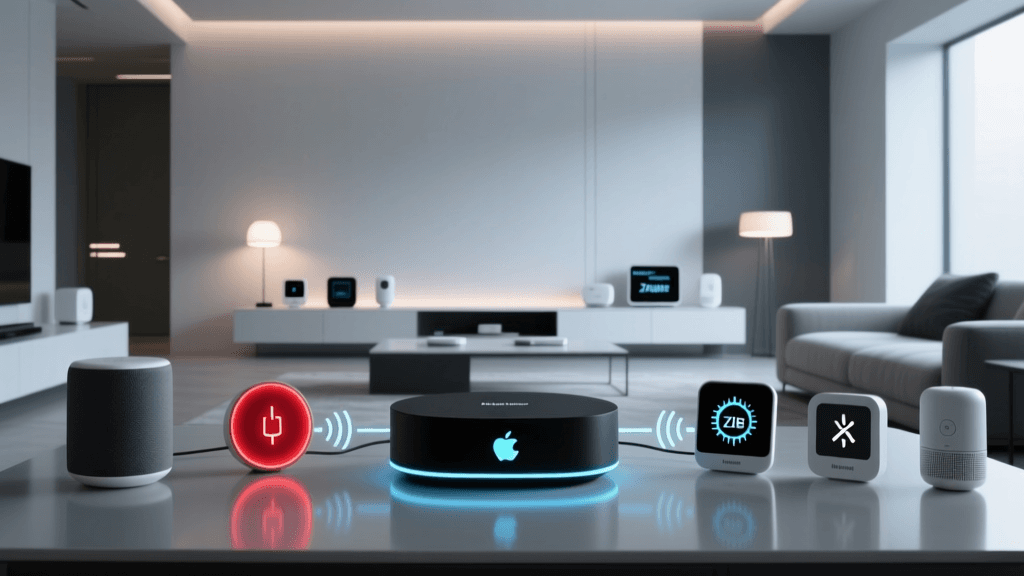
As the industry shifts toward Matter, many installers are deploying Thread Border Routers (such as the Apple TV 4K, HomePod Mini, or Amazon Echo 4th Gen). Thread is a self-healing mesh network, but it is highly susceptible to 'partitioning' during migration. Partitioning occurs when two Border Routers on the same network lose communication with each other and form two separate, competing Thread networks with the same PAN ID but different router IDs.
Symptoms of Partitioning: Matter devices respond intermittently. A smart plug in the living room works via the Apple TV, but a sensor in the bedroom only responds when you are physically near the Echo.
Troubleshooting Steps:
- Ensure all Border Routers are on the exact same 2.4GHz Wi-Fi network and VLAN. Thread relies on the Wi-Fi infrastructure to bridge the mesh to your IP network.
- Power cycle all Border Routers simultaneously to force a leader election. Thread uses a deterministic algorithm to elect a single 'Leader' router; simultaneous reboots help clear stale leader caches.
- Check your router's IPv6 settings. Thread is natively IPv6. If your primary router has IPv6 disabled or is blocking multicast DNS (mDNS) traffic across VLANs, the Border Routers cannot negotiate the mesh topology.
Protocol Migration Comparison Matrix
Understanding the inherent traits of each protocol will help you allocate time and resources effectively during your upgrade. The table below outlines the migration characteristics of the most common smart home protocols.
| Protocol | Reset Method | Migration Difficulty | Mesh Rebuild Time |
|---|---|---|---|
| Zigbee 3.0 | Physical toggle / Button hold | Moderate | 12-24 Hours |
| Z-Wave Plus v2 | Physical button sequence | High (S2 Security) | Instant (Source Routing) |
| Wi-Fi (IoT) | App-based / Button hold | Low | N/A (Star Topology) |
| Thread (Matter) | QR Code / App Commissioning | Low | 15-30 Minutes |
Step-by-Step Migration Workflow for DIY Installers
To avoid the catastrophic network drops that plague rushed upgrades, follow this structured migration path. The Connectivity Standards Alliance (CSA) emphasizes standardized commissioning, but the physical layer still requires meticulous planning.
Phase 1: The Pre-Migration Audit
Before touching your legacy hub, export your device list and map your mesh topology. Note which devices are mains-powered repeaters and which are battery-powered end nodes. Take screenshots of your current Zigbee or Z-Wave mesh maps in your legacy app. This map will be your blueprint for verifying the new network's health.
Phase 2: Isolate and Freeze
Disable all cloud-based automations and voice assistant routines. During the migration, a rogue automation attempting to poll a missing device can flood your new hub's event bus, causing CPU spikes and integration crashes in platforms like Home Assistant or Hubitat.
Phase 3: The Coordinator Swap and Channel Alignment
Power down the legacy hub. Insert your new coordinator (e.g., Home Assistant Green with a SkyConnect or Sonoff Dongle). Immediately configure the radio channel to match your optimized 2.4GHz avoidance strategy before pairing a single device.
Phase 4: Batch Pairing and Mesh Backbone Construction
Do not pair battery-powered sensors first. Begin by migrating your hardwired Zigbee smart plugs, light switches, and relays. These form the backbone of your new mesh. Once the backbone is established and has had 2 hours to form neighbor tables, begin migrating the battery-powered motion and door sensors. This ensures the end nodes have a strong, immediate path to the coordinator upon waking.
Phase 5: Healing and Verification
For Z-Wave networks, run a 'Heal Network' command from your new hub after all devices are included. This forces the controller to recalculate the optimal source-routed pathways. For Zigbee, simply allow the network to run undisturbed for 24 hours; Zigbee routers will automatically update their routing tables over time. Use the ZHA or Z-Wave JS UI visualization tools to compare your new mesh map against the pre-migration audit screenshots.
Expert Tips for a Seamless Upgrade
Patience is the most critical tool in a smart home migration. Rushing the inclusion process or ignoring channel interference will result in a fragile network that fails precisely when you need it most. Build the backbone first, secure the spectrum, and let the mesh heal itself.
Finally, consider the physical placement of your new hub. Legacy hubs were often hidden in media cabinets or basements. Modern coordinators, especially those utilizing USB extension cables, should be placed centrally in the home, elevated at least 3 feet off the ground, and kept away from USB 3.0 hard drives, which are known to emit severe 2.4GHz noise that can cripple Zigbee and Thread radios. By respecting the physical layer and methodically troubleshooting protocol-specific quirks, your smart home upgrade will result in a resilient, future-proof automation ecosystem.