The Promise and Reality of Matter Migration
The smart home industry has undergone a seismic shift with the introduction of the Matter protocol. Promising a unified, interoperable ecosystem free from the walled gardens of the past, Matter has fundamentally changed how DIY installers and homeowners approach whole-home automation. However, the transition from legacy proprietary silos to a unified Matter fabric is rarely seamless. Upgrading your primary hubs, migrating legacy Zigbee and Z-Wave devices via bridges, and integrating Thread border routers often result in complex network conflicts, pairing failures, and latency issues.
According to the Connectivity Standards Alliance (CSA), Matter is designed to run over IP-based networks, specifically Wi-Fi and Thread. While this ensures high-bandwidth communication and robust mesh networking, it also introduces a new layer of networking complexity. When you upgrade your smart home hub—whether moving from an older Apple TV to a newer HomePod, or transitioning from a Samsung SmartThings Hub v3 to a SmartThings Station—you are not just updating hardware; you are fundamentally altering the routing, commissioning, and security fabrics of your local network. This comprehensive guide will walk you through the most common migration path failures, Thread network partitioning issues, and advanced troubleshooting workflows to ensure your smart home upgrade is a success.
Understanding the Matter and Thread Architecture
Before diving into troubleshooting, it is critical to understand the underlying architecture that governs Matter migrations. Matter is an application layer protocol that relies on IPv6 for device communication. Unlike legacy Zigbee networks that operated on their own isolated 2.4GHz mesh frequencies managed by a single coordinator, Matter over Thread utilizes a decentralized mesh network where multiple devices can act as routers, and specific mains-powered devices act as Thread Border Routers.
A Thread Border Router bridges the 802.15.4 Thread mesh network to your home's Wi-Fi/Ethernet network. When you upgrade your hub, you are often inadvertently adding or replacing a Border Router. Common Thread Border Routers include the Apple HomePod (2nd Gen), Apple TV 4K (3rd Gen), Amazon Echo (4th Gen), and Google Nest Hub (2nd Gen). If your migration path involves adding new Border Routers while leaving legacy ones active, you risk creating network partitions, device routing loops, and severe latency spikes during device commissioning.
Common Hub Upgrade Failures and Solutions
When migrating from a legacy hub ecosystem to a Matter-compatible controller, the most frequent point of failure occurs during the 'commissioning' phase—the process where a device is securely added to the Matter fabric. Below is a breakdown of common hub upgrade scenarios and their specific troubleshooting steps.
| Hub / Controller | Primary Protocol Support | Thread Border Router Status | Common Migration Failure | Troubleshooting Step |
|---|---|---|---|---|
| Apple TV 4K (3rd Gen) | Matter over Wi-Fi / Thread | Active (OpenThread) | Accessory shows 'No Response' post-iOS update | Reboot router to clear stale mDNS caches; ensure IPv6 is enabled. |
| SmartThings Station | Matter / Zigbee | Active (via Hub software) | Legacy Zigbee devices fail to expose via Matter bridge | Update Station firmware; re-authenticate SmartThings cloud link. |
| Amazon Echo Show 8 (3rd Gen) | Matter over Wi-Fi / Thread | Active | QR Code scanning fails during Alexa app setup | Use the manual 11-digit numeric setup code found on the device label. |
| Google Nest Hub (2nd Gen) | Matter over Wi-Fi / Thread | Active | Thread devices drop offline intermittently | Disable 'Thread Network Credentials' sharing in Google Home settings and re-pair. |
Thread Network Partitioning: The Silent Migration Killer
One of the most insidious issues encountered during a smart home upgrade is Thread network partitioning. This occurs when two or more Thread Border Routers in the same physical location form separate, isolated Thread meshes instead of merging into a single unified network. Because Matter devices rely on IPv6 addresses routed through these Border Routers, a partitioned network means your smart switches and sensors cannot communicate with your primary controller, even if they are physically inches apart.
Partitioning usually happens when a homeowner upgrades their primary hub (e.g., replacing an older HomePod Mini with a new HomePod) but fails to factory reset the old hub before unplugging it, or when third-party Border Routers (like Nanoleaf Shapes or Aqara M2 hubs) broadcast conflicting Thread network credentials.
How to Diagnose and Fix Thread Partitioning
- Use the Apple Home App (iOS 16.5+): Navigate to Home Settings > Hubs & Bridges. If you see multiple Thread networks listed instead of a single unified network, your mesh is partitioned.
- Isolate the Rogue Router: Unplug all non-essential Thread Border Routers (smart plugs, light panels, third-party hubs). Leave only your primary controller (e.g., Apple TV 4K) connected.
- Reset the Mesh: Power cycle your primary Wi-Fi router and the remaining Border Router. This forces the Thread network to rebuild its routing tables and elect a single leader.
- Reintroduce Devices: Plug your secondary Border Routers back in one by one, waiting 5 minutes between each to allow the Thread Group mesh protocol to negotiate credentials and merge the networks seamlessly.
Average Pairing Time by Protocol
Troubleshooting Bridge Latency and State Sync Issues
For many DIY installers, a full rip-and-replace of legacy devices is not financially viable. The Matter protocol supports 'bridging,' allowing older Zigbee and Z-Wave devices to be exposed to the Matter fabric via a compatible hub, such as the Philips Hue Bridge or the Aqara Hub M2. While this migration path preserves your existing hardware investment, it frequently introduces state sync latency and cloud-polling bottlenecks.
When you toggle a Matter-bridged Zigbee light switch via your new Matter controller, the command must travel from the controller over Wi-Fi/Thread to the bridge, be translated into Zigbee, sent to the device, and the state confirmation must travel all the way back. If your bridge relies on cloud polling rather than local push notifications, you may experience a 1-to-3-second delay, or worse, the app may show the light as 'off' when it is physically 'on'.
Optimizing Bridge Performance
- Enforce Local Control: Ensure your bridge hub is configured for local API access. For Philips Hue, enable 'Local API' in the Hue App settings under Advanced. For Aqara, ensure the hub is set to 'Local LAN Control' mode.
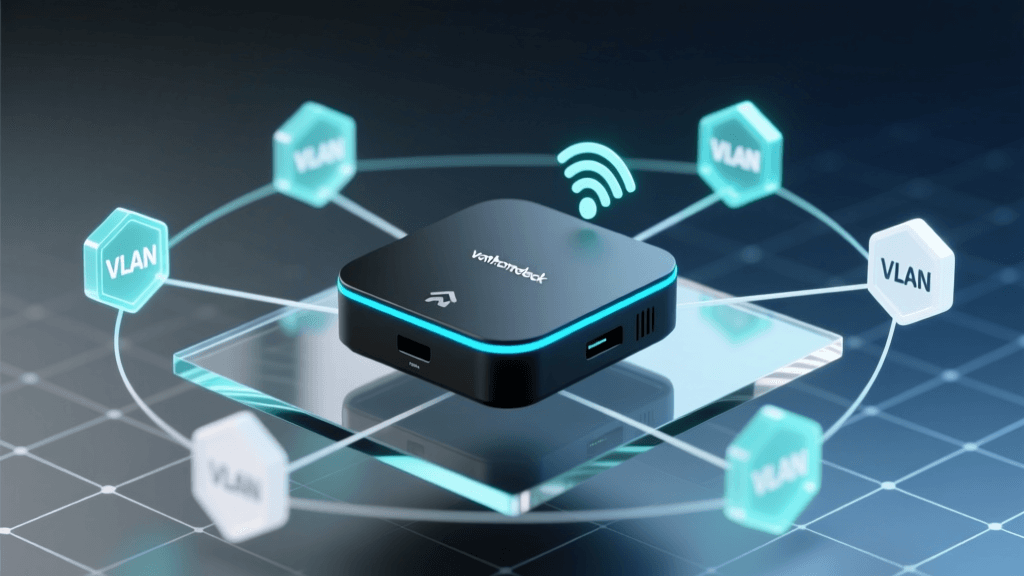
- Network Segregation: Place your bridge hub on the same VLAN and subnet as your primary Matter controller. Multicast DNS (mDNS) packets, which Matter uses for device discovery, do not cross subnet boundaries without specialized reflectors like Avahi or UDP broadcast forwarders.
- Firmware Synchronization: Bridges act as translators. If the Zigbee firmware on the end device is outdated, the bridge may fail to translate the Matter 'OnOff' cluster commands correctly. Always update legacy device firmware via the native app before exposing them to the Matter fabric.
Advanced Network Troubleshooting: mDNS and IPv6
Unlike legacy smart home protocols that relied heavily on cloud-based polling or proprietary local discovery, Matter is built on standard IP networking. Specifically, it relies on IPv6 for Thread devices and Multicast DNS (mDNS) for Wi-Fi device discovery. If your home network infrastructure is not configured to handle these protocols, your Matter migration will stall entirely.
The IPv6 Requirement for Thread
Thread is an IPv6-only protocol. It uses 6LoWPAN to compress IPv6 headers for low-power wireless transmission. If your primary Wi-Fi router has IPv6 disabled, or if your ISP uses a broken CGNAT (Carrier-Grade NAT) implementation that drops local IPv6 routing, your Thread Border Router will fail to route packets to your controller. To fix this, log into your router's admin panel (e.g., UniFi, pfSense, or ASUS) and ensure that 'Local IPv6 Routing' and 'SLAAC' (Stateless Address Autoconfiguration) are enabled. You do not necessarily need global IPv6 internet routing, but local LAN IPv6 routing is mandatory.
mDNS Flooding and IGMP Snooping
Matter devices announce their presence and state changes using mDNS (Bonjour). In a large smart home with 50+ Matter devices, the sheer volume of multicast traffic can overwhelm consumer-grade Wi-Fi access points, leading to dropped packets and 'No Response' errors in your controller app. To resolve this:
- Enable IGMP Snooping: On your managed network switches and Wi-Fi controllers, enable IGMP Snooping. This prevents multicast traffic from being broadcast to every port on the network, directing it only to devices that have explicitly requested it (like your smart home hub).
- Adjust mDNS TTL: If you are running a prosumer network (like Ubiquiti UniFi), ensure that the mDNS reflector service is active if your hubs and devices are on different VLANs, but be cautious of mDNS loops.
Step-by-Step Workflow for Unresponsive Migrated Devices
When a specific device refuses to complete the Matter commissioning process after a hub upgrade, follow this strict, 5-step troubleshooting workflow before resorting to a full network reset.
Pro-Tip for Installers: Always keep a physical log of your device's 11-digit numeric setup codes and Vendor ID (VID) / Product ID (PID). QR codes can become damaged or unreadable, and the numeric code is the most reliable fallback for manual commissioning.
- Network Isolation Check: Ensure the smartphone or tablet you are using to commission the device is connected to the exact same 2.4GHz Wi-Fi SSID as the device you are trying to pair. Matter commissioning often fails if the phone is on a 5GHz/6GHz band while the IoT device is restricted to 2.4GHz, due to mDNS discovery timeouts.
- Clear the Bluetooth Cache: Matter uses Bluetooth Low Energy (BLE) for the initial secure handshake and credential transfer. If your phone's BLE cache is corrupted, the handshake will fail. Toggle Bluetooth off and on, or restart your mobile device.
- Perform a True Factory Reset: A simple power cycle is not enough. Hold the device's physical reset button for 10-15 seconds until the LED indicator flashes in a specific commissioning pattern (usually rapid amber or blue). This clears the device's internal non-volatile memory and wipes its previous fabric certificates.
- Use the Numeric Setup Code: If the camera fails to scan the QR code, select 'More options' in your controller app and manually type the 11-digit code. This bypasses potential optical scanning errors and forces the app to initiate the BLE handshake directly.
- Controller Handoff Verification: Once paired, verify that the device is controlled by the correct fabric. In multi-admin setups (e.g., sharing a device between Apple Home and Google Home), ensure the primary controller has accepted the 'Multi-Admin' invitation. If the device appears in the app but cannot be controlled, the fabric security keys may have mismatched during the handoff. Remove the device from the secondary app and re-pair it to the primary controller first.
Authoritative Sources & Further Reading
Successfully migrating to a Matter-based smart home requires a solid understanding of networking fundamentals and protocol specifications. For the most accurate, up-to-date technical documentation, refer to the following authoritative resources:
- Connectivity Standards Alliance (CSA) - Matter Overview: The official governing body for the Matter protocol. Their developer resources and certification databases are essential for verifying device compatibility and understanding the latest specification updates.
- The Thread Group: Now operating in conjunction with the CSA, this resource provides deep-dive whitepapers on Thread mesh networking, Border Router election processes, and 802.15.4 security implementations.
- Apple Support - Set up HomeKit and Matter Accessories: A vital resource for users migrating within the Apple ecosystem, detailing specific requirements for Thread Border Routers, iOS version dependencies, and troubleshooting 'No Response' states in the Apple Home app.
Upgrading your smart home to Matter is a journey that transforms a fragmented collection of gadgets into a cohesive, local, and secure automation fabric. By methodically addressing hub conflicts, resolving Thread partitioning, and optimizing your network for IPv6 and mDNS, you can overcome the initial migration hurdles and unlock the true potential of whole-home interoperability. Whether you are bridging legacy Zigbee sensors or deploying a brand-new Thread mesh, patience and a structured troubleshooting methodology are your most valuable tools.