The Smart Home Mesh Network Paradox
Upgrading to a WiFi mesh network is often marketed as the ultimate solution for eliminating dead zones and providing seamless connectivity throughout your home. For smartphones, laptops, and streaming devices, this is generally true. However, for smart home enthusiasts and DIY installers, mesh networks frequently introduce a unique set of connectivity issues. If you have ever spent hours trying to connect a simple smart plug or smart bulb, only to be met with endless timeout errors or persistent dropouts, you have experienced the smart home mesh network paradox.
The root of this issue lies in the fundamental difference between how modern mesh systems handle high-bandwidth devices versus how low-power Internet of Things (IoT) devices communicate. While your laptop seamlessly roams between 5GHz and 6GHz bands, your smart thermostat, WiFi camera, and smart lighting rely almost exclusively on the older, more crowded 2.4GHz spectrum. When mesh systems attempt to 'optimize' your network, they often inadvertently block or complicate the handshake processes required by these IoT devices.
In this comprehensive troubleshooting guide, we will dissect the most common WiFi mesh connectivity issues affecting smart homes. From band steering dilemmas and physical node placement to advanced VLAN configurations and Zigbee coexistence, this guide provides actionable, technical solutions to stabilize your whole-home automation setup.
The 2.4GHz vs. 5GHz Band Steering Dilemma
Most modern mesh systems, such as Eero, Netgear Orbi, and Asus ZenWiFi, utilize a feature known as 'Band Steering' or 'Smart Connect.' This technology combines the 2.4GHz and 5GHz bands under a single Service Set Identifier (SSID). The router's Self-Organizing Network (SON) algorithm then decides which band a device should connect to based on signal strength and capability.
The problem arises during the provisioning phase of a new smart home device. Most IoT companion apps require your smartphone to be on the exact same network and frequency band as the target device to broadcast the local WiFi credentials. If your smartphone is connected to the 5GHz band, and the router's SON algorithm refuses to temporarily steer your phone to the 2.4GHz band, the smart plug or camera cannot see the network credentials, resulting in a setup failure.
Solutions for Band Steering Failures
- Temporary SSID Splitting: Some mesh systems allow you to temporarily disable band steering. On Eero networks, you can access 'Developer Settings' in the app and enable '2.4GHz Temporary Network' for 10 minutes to complete your setup.
- Dedicated IoT Networks: High-end mesh routers now include dedicated IoT SSIDs. Netgear Orbi systems allow you to create a specific IoT network that broadcasts only on the 2.4GHz band, completely bypassing the band steering issue.
- The 'Distance Trick': If your router lacks IoT network features, physically walk to the edge of your property. As your 5GHz signal degrades, your smartphone will naturally drop to the 2.4GHz band. Initiate the smart device setup from this location, then walk back inside.
Mesh System IoT Compatibility Comparison
Not all mesh networks handle IoT provisioning equally. The table below compares how leading mesh systems manage 2.4GHz smart home devices and the level of control they offer to advanced users.
| Mesh System | IoT Network Feature | Band Steering Control | Best Use Case |
|---|---|---|---|
| Amazon Eero Pro 6 | Developer Settings (2.4GHz Temp) | Hidden / Advanced | Users needing quick, temporary 2.4GHz access |
| Netgear Orbi (RBK852) | Dedicated IoT SSID (2.4GHz only) | Full Control | Large homes with dozens of 2.4GHz smart plugs |
| Asus ZenWiFi XT8 | IoT Network / Guest Network Pro | Full Control (Radio Toggle) | Power users wanting VLANs and mDNS control |
| TP-Link Deco X60 | IoT Network (Beta/Recent Firmware) | Limited | Budget-conscious smart home starters |
Node Placement, Backhaul, and Signal Attenuation
A common misconception is that placing mesh nodes in every room will guarantee perfect smart home connectivity. In reality, poor node placement can severely degrade the 2.4GHz band due to backhaul congestion. Mesh nodes must communicate with each other (the backhaul). If nodes are placed too far apart, the system may fall back to using the 2.4GHz band for backhaul communication, completely saturating the spectrum and causing your smart bulbs and switches to drop offline.
Furthermore, IoT devices typically feature small, low-gain internal antennas. While a smartphone might maintain a usable connection at -75 dBm, a smart plug will often fail or drop packets at anything below -65 dBm. Understanding how building materials attenuate WiFi signals is critical for node placement.
As visualized in the chart above, materials like concrete and brick are devastating to 5GHz signals, but they also introduce significant loss to the 2.4GHz band. If your smart home hub or mesh node is separated from your smart garage door controller by a cinderblock wall, you will need to place an intermediate node in a doorway or window to establish a clear line of sight, ensuring the Received Signal Strength Indicator (RSSI) remains above -65 dBm.
Zigbee, Thread, and 2.4GHz Coexistence
Troubleshooting smart home connectivity is not limited to WiFi. Many mesh networks incorporate hubs for Zigbee or Thread (such as the Eero 6+ or Nest WiFi Pro). These protocols operate on the exact same 2.4GHz frequency as WiFi, leading to severe co-channel interference if not properly managed.
WiFi utilizes channels 1, 6, and 11 to avoid overlapping. Zigbee utilizes channels 11 through 26. If your WiFi router automatically selects Channel 6, it will completely obliterate Zigbee Channels 17, 18, 19, and 20. This results in Zigbee sensors taking seconds to report open/close states, or failing entirely.
The Golden Rule of Channel Mapping
To ensure peaceful coexistence between your WiFi mesh and your Zigbee/Thread mesh, you must manually lock your channels:
- Lock WiFi to Channel 1: This occupies the lower end of the 2.4GHz spectrum.
- Lock Zigbee to Channel 20 or 25: This pushes the Zigbee network to the upper end of the spectrum, completely avoiding WiFi overlap.
Additionally, be wary of USB 3.0 interference. The Wi-Fi Alliance specifications on Wi-Fi 6 and various engineering whitepapers have documented that unshielded USB 3.0 ports and cables emit broadband noise precisely in the 2.4GHz range. If your Zigbee dongle is plugged directly into a router or a Raspberry Pi running Home Assistant, the USB 3.0 data transfer will jam the Zigbee signal. Always use a short, shielded USB 2.0 extension cable to move the dongle away from the host device's motherboard.
Advanced Troubleshooting: IoT VLANs and mDNS
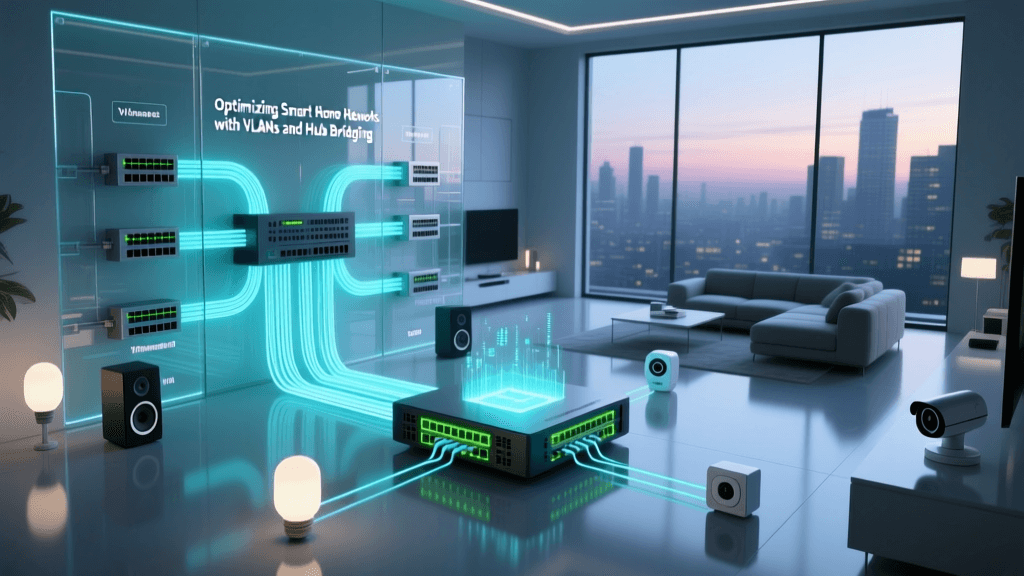
For advanced DIY installers, securing the smart home is paramount. Cheap IoT devices are notorious for lacking robust security updates. Following CISA guidelines on securing home wireless routers, best practice dictates that IoT devices should be isolated on a separate Virtual Local Area Network (VLAN) or Guest Network, preventing them from accessing your primary PCs and NAS drives.
However, isolating IoT devices introduces a massive troubleshooting headache: Multicast DNS (mDNS). Protocols like Apple AirPlay, Google Cast (Chromecast), and Spotify Connect rely on mDNS (Bonjour) to discover devices on the local network. mDNS broadcasts do not cross VLAN boundaries by default. If your smartphone is on the 'Main' VLAN and your Chromecast is on the 'IoT' VLAN, your phone will not see the TV.
Implementing an mDNS Reflector
To solve this without compromising security, you must enable an mDNS reflector or repeater. If you are using a prosumer mesh system like Ubiquiti UniFi or a firewall like pfSense, you can enable the 'mDNS Repeater' service. This service listens for mDNS broadcasts on one VLAN and repeats them to the other, allowing cross-VLAN discovery while maintaining strict firewall rules that block direct IP routing initiated by the IoT devices. For consumer mesh systems, you may need to rely on the manufacturer's built-in 'Guest Network IoT' toggles, which automatically handle the mDNS reflection behind the scenes.
Adhering to NIST cybersecurity frameworks regarding IoT baselines ensures that your network segmentation remains effective against lateral movement attacks while maintaining the usability expected in a modern smart home.
Step-by-Step Diagnostic Workflow
When a smart home device drops offline, avoid the temptation to immediately reboot the entire mesh network. Instead, follow this systematic diagnostic workflow to identify the exact point of failure:
- Check the RSSI: Use a WiFi analyzer app on your smartphone standing next to the offline device. If the 2.4GHz signal is weaker than -65 dBm, you have a physical coverage issue. Move the nearest mesh node closer or clear physical obstructions.
- Verify IP Lease and Subnet: Log into your router's admin panel and check the DHCP client list. Is the device pulling an IP address? If it has a 169.254.x.x APIPA address, it is failing to reach the DHCP server, indicating a severe layer-2 network congestion or VLAN misconfiguration.
- Ping the Gateway: If the device supports local pinging (like a smart plug running custom firmware or a Raspberry Pi), ping the router's gateway IP. High latency or packet loss points to 2.4GHz spectrum congestion, likely from a neighbor's WiFi or a running microwave oven.
- Review Cloud vs. Local Execution: Determine if the device has lost its internet connection or its local hub connection. If a smart switch fails to respond to a voice command but works via the physical wall toggle, the WiFi is fine, but the cloud API or local mDNS discovery has failed.
Conclusion
Troubleshooting smart home dropouts on a mesh WiFi network requires a shift in perspective. You must stop treating your mesh system purely as a high-speed internet pipeline and start managing it as a complex, multi-spectrum RF environment. By taking manual control of band steering, respecting the physical limitations of 2.4GHz signal attenuation, carefully mapping WiFi and Zigbee channels, and properly configuring mDNS across VLANs, you can transform an unreliable smart home into a rock-solid, automated ecosystem. Remember that in the world of IoT, a strong, dedicated 2.4GHz signal is infinitely more valuable than raw gigabit throughput.