The Hidden Cost of Poor Smart Home Connectivity
Building a reliable smart home ecosystem is an investment in both convenience and security. Whether you are installing automated Lutron lighting, a Ring security system, or Ecobee thermostats, the invisible backbone holding your home together is your WiFi network. For many homeowners, upgrading to a WiFi mesh network—typically costing between $250 and $800 for a multi-node system like the Eero Pro 6E, TP-Link Deco XE75, or Netgear Orbi—is the go-to solution for eliminating dead zones. However, simply plugging in mesh nodes does not guarantee a flawless smart home experience. In fact, improper configuration, physical interference, and backhaul bottlenecks can cause IoT devices to drop offline, triggering false alarms, unresponsive voice assistants, and broken automation routines.
According to the Wi-Fi Alliance, mesh networks are designed to dynamically route traffic and provide seamless roaming across a single network name (SSID). Yet, the reality of deploying these systems in homes filled with concrete walls, metallic insulation, and dozens of competing 2.4GHz devices requires a strategic approach. This comprehensive troubleshooting guide will walk you through diagnosing signal attenuation, optimizing node placement, resolving IoT handshake failures, and securing your network for whole-home automation.
Diagnosing Mesh Network Dropouts and Dead Zones
Before moving hardware or resetting routers, you must understand how to measure wireless signal strength. WiFi signal is measured in dBm (decibel-milliwatts), expressed as a negative number. The closer the number is to zero, the stronger the signal. Many smart home hubs and battery-operated sensors require a minimum threshold to maintain a stable connection and prevent battery drain caused by constant reconnection attempts.
Understanding Signal Attenuation Targets
- -30 to -50 dBm (Excellent): Ideal for high-bandwidth devices like 4K security cameras and smart displays.
- -51 to -65 dBm (Good): The target range for most smart home IoT devices, including smart plugs, bulbs, and thermostats.
- -66 to -75 dBm (Fair): Acceptable for basic web browsing, but smart home devices may experience latency or fail over to cellular backups.
- -76 to -90 dBm (Poor/Dead Zone): Devices will constantly drop offline. Automation routines will fail.
To diagnose your home, use a WiFi analyzer app on your smartphone or the built-in diagnostics within your mesh router's mobile app. Walk through your home and note the dBm readings in rooms with smart devices. If your smart lock reads -78 dBm, you have identified a physical coverage gap that requires node repositioning.
The Backhaul Bottleneck Explained
The 'backhaul' is the dedicated communication link between your mesh nodes and the primary router. If your mesh system uses a dual-band setup (one 2.4GHz band and one 5GHz band), your smart devices and the node-to-node communication are fighting for the same airspace. This leads to severe latency spikes. Upgrading to a tri-band or quad-band system dedicates a specific 5GHz or 6GHz band exclusively for backhaul traffic.
Step-by-Step Troubleshooting Guide
1. Node Placement and Physical Obstructions
The most common mistake DIY installers make is hiding mesh nodes in cabinets, behind televisions, or in corners to maintain home aesthetics. WiFi signals are radio waves; they do not penetrate metal, mirrors, or thick masonry well. A node placed behind a smart TV will suffer from severe signal reflection and absorption.
Pro Tip: Follow the 'Line of Sight' and 'Halfway' rules. Place your secondary mesh node halfway between the primary router and the dead zone, elevated at least 4 feet off the ground. Ensure it has a clear line of sight to the primary node, avoiding kitchens (microwave interference) and bathrooms (plumbing and mirror reflection).
2. Solving the 2.4GHz IoT Band Steering Bug
Modern mesh systems utilize 'band steering' to combine the 2.4GHz and 5GHz bands into a single SSID, automatically pushing devices to the faster 5GHz band. However, 90% of smart home IoT devices (like TP-Link Kasa plugs, Philips Hue bridges, and Wyze cams) only support 2.4GHz. During setup, your smartphone (connected to 5GHz) attempts to push the IoT device to the 2.4GHz band, but the combined SSID confuses the cheap WiFi chip inside the smart device, resulting in a 'Connection Failed' error.
The Fix: Log into your mesh router's admin app. Look for a feature called 'IoT Guest Network', 'Dedicated 2.4GHz SSID', or 'Pause 5GHz Temporarily'. Eero and Asus ZenWiFi systems allow you to create a separate 2.4GHz-only network specifically for smart home devices. Connect your phone to this network, complete the device pairing, and then move your phone back to the main network.
3. Channel Congestion and DFS Channels
If you live in a densely populated area or an apartment complex, the 2.4GHz spectrum is likely saturated. The FCC notes that unlicensed Part 15 devices must accept any interference received, meaning your neighbor's router can legally disrupt your smart garage door opener. To mitigate this, access your router's advanced settings and manually set the 2.4GHz channel to 1, 6, or 11. Avoid 'Auto' channel selection, as mesh routers often jump to crowded channels during nightly reboots.
For the 5GHz backhaul, enable DFS (Dynamic Frequency Selection) channels if your router supports it. DFS channels (52-144) are shared with radar systems and are rarely used by consumer routers, providing a pristine, uncongested highway for your mesh nodes to communicate.
Mesh System Compatibility and Interference Table
Smart homes are filled with devices that emit radio frequencies. Understanding how these interact with your WiFi mesh network is critical for troubleshooting intermittent dropouts.
| Interference Source | Affected Band | Impact on Smart Home | Mitigation Strategy |
|---|---|---|---|
| Microwave Ovens | 2.4GHz | Smart plugs and bulbs flicker or go offline during cooking. | Relocate mesh nodes away from the kitchen; use 5GHz for smart displays. |
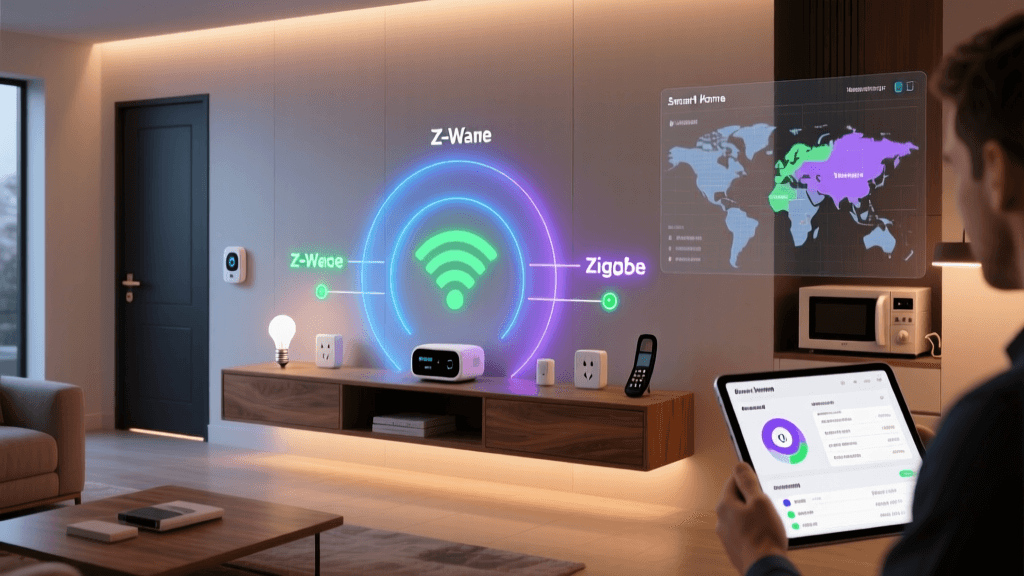
| Zigbee / Z-Wave Hubs | 2.4GHz (Zigbee) | Channel overlap causes delayed sensor reporting. | Set Zigbee hub to channel 15 or 20; set WiFi 2.4GHz to channel 1 or 11. |
| Baby Monitors / Cordless Phones | 2.4GHz / 5.8GHz | Severe packet loss for security cameras. | Replace analog monitors with WiFi-based or DECT 6.0 models. |
| Bluetooth Speakers | 2.4GHz | Minor latency in smart speaker voice responses. | Keep Bluetooth transmitters at least 3 feet from mesh nodes. |
| Tinted / Low-E Windows | All Bands | Outdoor cameras fail to connect to indoor mesh nodes. | Install a dedicated outdoor mesh node or use a wired PoE camera. |
Advanced Optimization for Whole-Home Automation
Hardwired Backhaul: MoCA and Ethernet
While wireless mesh is convenient, a hardwired backhaul transforms a good network into an enterprise-grade smart home foundation. If your home is pre-wired with Ethernet, connect every mesh node via cable and configure the system to use 'Ethernet Backhaul'. This frees up 100% of the wireless spectrum for your devices.
If you lack Ethernet but have coaxial cable outlets (used for cable TV), invest in a pair of MoCA 2.5 adapters (approx. $100-$150). MoCA technology sends gigabit network data over existing coaxial lines with less than 5ms of latency, providing a rock-solid backbone for mesh nodes located in far-flung areas like garages or basements where smart security panels and EV chargers reside.
Securing Your Mesh Network
Troubleshooting is not just about connectivity; it is also about preventing unauthorized access that can degrade network performance. IoT devices are notoriously vulnerable to botnets, which can flood your mesh network with background traffic, causing your smart lights and locks to lag.
As outlined in NIST Special Publication 800-213, IoT devices require strict network segmentation and cybersecurity considerations. Utilize your mesh router's VLAN (Virtual Local Area Network) or Guest Network features to isolate all smart home devices from your personal computers and smartphones. If a cheap smart bulb is compromised, the attacker remains trapped in the IoT VLAN and cannot access your home office NAS or personal banking data.
Firmware and App Troubleshooting
Mesh networks are heavily reliant on cloud-based controllers and mobile apps. If your entire smart home goes offline simultaneously, the issue may not be local interference, but a failed firmware update or a DNS routing error.
- Check Cloud Status: Visit the manufacturer's status page (e.g., Amazon for Eero, TP-Link cloud status) to ensure their authentication servers are online.
- DNS Reassignment: Change your mesh router's DNS settings from the ISP default to Cloudflare (1.1.1.1) or Google (8.8.8.8). This often resolves issues where smart devices connect to WiFi but report 'No Internet' due to ISP DNS timeouts.
- Reboot Hierarchy: When performing a hard reset, always follow the correct order: Modem -> Primary Mesh Node -> Secondary Mesh Nodes -> Smart Home Hubs. Allow 3 minutes between each step to ensure DHCP leases and IP assignments propagate correctly.
Conclusion
Troubleshooting a WiFi mesh network for a smart home requires looking beyond simple 'bars of service' on a smartphone. By understanding dBm thresholds, eliminating backhaul bottlenecks, segregating 2.4GHz IoT devices, and mitigating physical interference, you can build a resilient automation ecosystem. Whether you are running a budget-friendly TP-Link Deco setup or a premium Netgear Orbi quad-band system, applying these structured diagnostic steps will ensure your smart locks, cameras, and lighting routines operate seamlessly, 24/7.