The Core Conflict: Why Mesh Networks Frustrate IoT Devices
Setting up a smart home is an exciting journey toward automation, convenience, and energy efficiency. However, many DIY installers and homeowners quickly encounter a frustrating paradox: upgrading to a premium WiFi mesh network to eliminate dead zones often causes smart home devices to drop offline. You invest in a top-tier system like the Eero Pro 6, TP-Link Deco XE75, or Netgear Orbi, only to find that your Philips Hue bulbs, Wyze cameras, and smart plugs are constantly disconnecting.
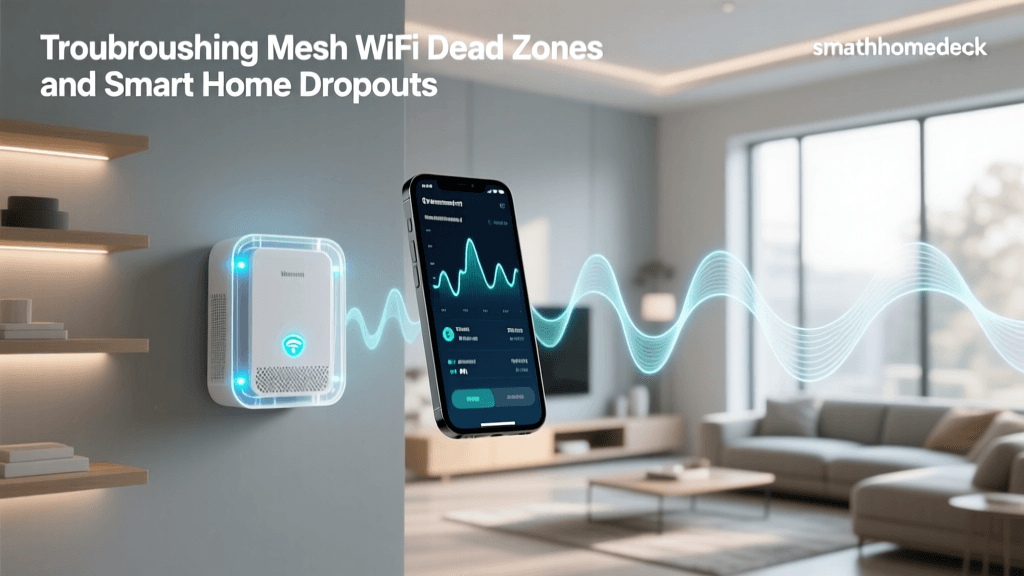
To troubleshoot WiFi mesh network dropouts effectively, we must first understand why these networks clash with Internet of Things (IoT) hardware. Mesh networks are primarily engineered for high-bandwidth, mobile devices like smartphones and laptops. They utilize advanced roaming protocols (802.11k, 802.11v, and 802.11r) to seamlessly hand off your phone from one node to another as you walk through your house. Smart home devices, however, are largely stationary, low-power, and rely on older, simpler WiFi radios. When a mesh router attempts to apply aggressive band steering or roaming protocols to a stationary smart plug, the device becomes confused, drops its connection, and fails to reconnect automatically.
Step 1: Defeating Band Steering and SSID Confusion
The most common culprit behind smart home connectivity issues is 'band steering.' Modern mesh systems combine the 2.4GHz and 5GHz (and sometimes 6GHz) frequency bands under a single Service Set Identifier (SSID), or network name. The router's software then attempts to steer capable devices to the faster 5GHz band, leaving the 2.4GHz band open for legacy devices.
The problem? Almost all smart home devices—especially smart bulbs, plugs, and switches—only possess 2.4GHz radios. When a unified SSID broadcasts both 5GHz and 2.4GHz beacon frames, cheap IoT chips (like the ubiquitous ESP8266 or ESP32) often become overwhelmed. They may attempt to connect to the 5GHz signal, fail, and enter a boot loop, or they may connect to the 2.4GHz band but drop offline the moment the mesh router sends a probe request attempting to steer them elsewhere.
The Solution: Create a Dedicated IoT SSID
To resolve this, you must separate your IoT devices from your primary network. Most modern mesh systems offer a way to do this without completely splitting your main network:
- Eero: Use the 'IoT Network' feature in the Eero app. This creates a hidden, isolated network specifically for smart home devices, utilizing WPA2 security which is more compatible with older IoT hardware.
- TP-Link Deco: Navigate to the IoT Network settings in the Deco app. You can assign a dedicated 2.4GHz-only SSID for your smart devices, ensuring the mesh nodes never attempt to steer them to 5GHz.
- Netgear Orbi: Use the 'IoT Network' setup in the Orbi app or web interface to create a separate SSID that restricts devices to the 2.4GHz band.
According to the Wi-Fi Alliance, while WiFi 6 introduces Target Wake Time (TWT) to help IoT devices save battery, proper network segmentation remains the most reliable way to ensure legacy smart devices maintain stable connections on modern mesh networks.
Step 2: Optimizing Node Placement and Wireless Backhaul
Mesh networks rely on 'backhaul'—the connection between the mesh nodes themselves. If your nodes are communicating wirelessly, they consume a significant portion of the available 2.4GHz and 5GHz spectrum just to talk to each other. This leaves very little airtime for your smart home devices, resulting in latency and dropouts.
Furthermore, smart home devices often have incredibly weak internal antennas. A smartphone might maintain a usable connection at -80 dBm, but a smart plug will likely drop offline at -75 dBm. When placing mesh nodes, you must prioritize signal strength for the IoT devices in that specific zone.
Ideal Signal Strengths (dBm) for Smart Home Nodes
| Signal Strength (dBm) | Quality | Impact on Smart Home Devices |
|---|---|---|
| -30 to -50 dBm | Excellent | Perfect for high-bandwidth IoT (WiFi cameras, smart displays). |
| -50 to -65 dBm | Good | Reliable for all smart home devices, including battery-powered sensors. |
| -65 to -75 dBm | Fair | Acceptable for smart bulbs and plugs; video doorbells may experience lag. |
| -75 to -85 dBm | Poor | Frequent dropouts. Devices will fail to execute automation routines reliably. |
| -85 to -95 dBm | Unusable | Devices will fail to pair or will immediately drop off the network. |
Pro Tip: Whenever possible, wire your mesh nodes together using Ethernet (wired backhaul) or MoCA adapters. This completely frees up the wireless spectrum, allowing your mesh nodes to dedicate 100% of their wireless radios to serving your smart home devices and mobile phones.
Step 3: Adjusting DHCP Lease Times and IP Reservations
Dynamic Host Configuration Protocol (DHCP) is the system your router uses to assign IP addresses to devices. By default, most consumer mesh routers set the DHCP lease time to 24 hours. This means that once a day, every single device on your network must contact the router to renew its IP address lease.
For a smartphone, this is invisible. For a battery-powered WiFi doorbell or a smart bulb that enters a deep sleep state to conserve energy, this can be disastrous. If the device is asleep when its lease expires, the router assumes it has left the network and reassigns its IP address to another device. When the smart bulb wakes up, it experiences an IP conflict and drops offline, requiring a physical power cycle to reconnect.
The IETF RFC 2131 standard outlines how DHCP lease renewals function, emphasizing that clients must be awake to negotiate extensions. To prevent this in a smart home environment:
- Extend the DHCP Lease Time: Log into your mesh router's advanced settings and change the DHCP lease time from 24 hours to 1 week (168 hours) or even 2 weeks. This drastically reduces the frequency of renewal requests.
- Use Static IP Reservations: For critical smart home hubs (like Samsung SmartThings, Hubitat, or Home Assistant), assign a static IP reservation based on their MAC address. This guarantees they will never lose their network identity, ensuring local automations continue to run even if the internet goes down.
Step 4: Managing 2.4GHz Interference and Channel Widths
The 2.4GHz spectrum is incredibly crowded. Not only are you competing with your neighbors' WiFi networks, but you are also competing with Bluetooth, microwaves, and crucially, your own Zigbee and Z-Wave networks. Zigbee operates on the exact same 2.4GHz frequency as WiFi. If your mesh router is broadcasting a wide 40MHz channel on Channel 6, it will completely blanket the frequencies used by your Zigbee smart sensors, causing massive interference and dropouts for both networks.
Channel Planning for Harmony
To troubleshoot this, you need to manually separate your WiFi channels from your Zigbee channels:
- Set 2.4GHz Channel Width to 20MHz: Never use 40MHz channel widths on the 2.4GHz band in a smart home. A 20MHz width reduces the noise floor and leaves room for other protocols to breathe.
- Force WiFi to Channel 1 or 11: In your mesh router's advanced wireless settings, disable 'Auto' channel selection for the 2.4GHz band and lock it to Channel 1 or Channel 11.
- Adjust Zigbee Channels: If your WiFi is on Channel 1, set your Zigbee hub (via its developer settings or app) to Zigbee Channel 15 or 20. This ensures the two networks are physically operating on different wavelengths within the same room.
Additionally, when onboarding new WiFi IoT devices, look for networks that support modern provisioning standards. The Wi-Fi Alliance Easy Connect (DPP) standard allows for secure, seamless onboarding of IoT devices using QR codes, bypassing the clunky and error-prone SmartConfig or SoftAP provisioning methods that often lead to initial setup failures on mesh networks.
Visualizing Network Stability
To understand the impact of these troubleshooting steps, consider the following data comparing average weekly device disconnects based on network configuration in a typical 50-device smart home.
As the chart illustrates, simply separating your network into a dedicated IoT VLAN or SSID reduces dropouts by over 90% compared to leaving the mesh system on its default unified settings.
Top Mesh Systems for Smart Home Stability
If you are currently shopping for a mesh system or considering an upgrade to resolve persistent connectivity issues, here are the top performers for smart home environments, including current market cost ranges:
1. Eero Pro 6E (Amazon)
Cost Range: $400 - $600 (for a 2-pack)
Why it works: Eero's software is heavily optimized for smart homes, largely because Amazon owns the ecosystem. The built-in 'IoT Network' feature is the easiest to configure in the industry. It also supports Thread and Zigbee natively, acting as a hub and reducing the need for extra dongles.
2. TP-Link Deco XE75 (WiFi 6E)
Cost Range: $350 - $500 (for a 2-pack)
Why it works: The XE75 offers incredible value and utilizes the 6GHz band for wireless backhaul. This leaves the 2.4GHz and 5GHz bands completely open for your IoT devices and phones. The Deco app allows for robust IoT VLAN creation and WPA2/WPA3 transition modes.
3. Netgear Orbi RBKE963 (Quad-Band)
Cost Range: $1,000 - $1,500 (for a 2-pack)
Why it works: This is the nuclear option. With four distinct wireless bands, the Orbi dedicates an entire 5GHz band solely to backhaul. It offers enterprise-level DHCP controls, VLAN tagging, and massive capacity for homes with over 100 smart devices. However, the premium price tag makes it overkill for smaller setups.
The Ultimate Mesh Troubleshooting Checklist
Before you call customer support or replace your hardware, run through this quick checklist to eliminate the most common smart home mesh dropouts:
- Disable WPA3 for IoT: Many older smart plugs and bulbs physically cannot handshake with WPA3-SAE security. Ensure your IoT SSID is set to WPA2-Personal (AES).
- Enable UPnP (with caution) or use Port Forwarding: If your WiFi security cameras are dropping from remote viewing apps, ensure UPnP is enabled, or manually forward the required ports for your specific camera brand.
- Check for Firmware Updates: Mesh nodes and IoT devices both receive OTA (Over-The-Air) updates. A known bug in a router's firmware can cause DHCP leaks; always ensure your mesh nodes are on the latest stable release.
- Limit Client Connections per Node: Some mesh routers throttle performance if a single node has more than 30-40 clients connected. If you have a dense cluster of smart bulbs in one room, ensure the nearest mesh node is rated for high client density.
- Reboot on a Schedule: While mesh systems are designed to run 24/7, consumer-grade memory leaks happen. Schedule an automatic router reboot once a week at 3:00 AM to clear the RAM and refresh the DHCP table.
Conclusion
Troubleshooting WiFi mesh network dropouts requires a shift in mindset. You must stop treating your smart home devices like smartphones and start treating them like specialized, low-power industrial sensors. By defeating band steering through dedicated IoT SSIDs, optimizing your node placement for 2.4GHz signal strength, extending DHCP lease times, and carefully managing channel interference, you can transform an unreliable smart home into a rock-solid automation fortress. A well-tuned mesh network doesn't just provide coverage; it provides the stable foundation your smart home needs to operate seamlessly in the background.