The Hidden Culprits Behind Smart Home Dropouts
Nothing undermines the promise of a seamless smart home faster than a mesh network that constantly drops offline. You press a smart switch, and the light responds two seconds later—or not at all. Your motion sensor fails to trigger the hallway lights, and your smart thermostat mysteriously disconnects from the hub. For DIY installers and homeowners, these intermittent failures are incredibly frustrating. However, the root cause is rarely a defective device. In the vast majority of cases, smart home dropouts stem from RF (Radio Frequency) interference, poor network topology, or physical signal attenuation.
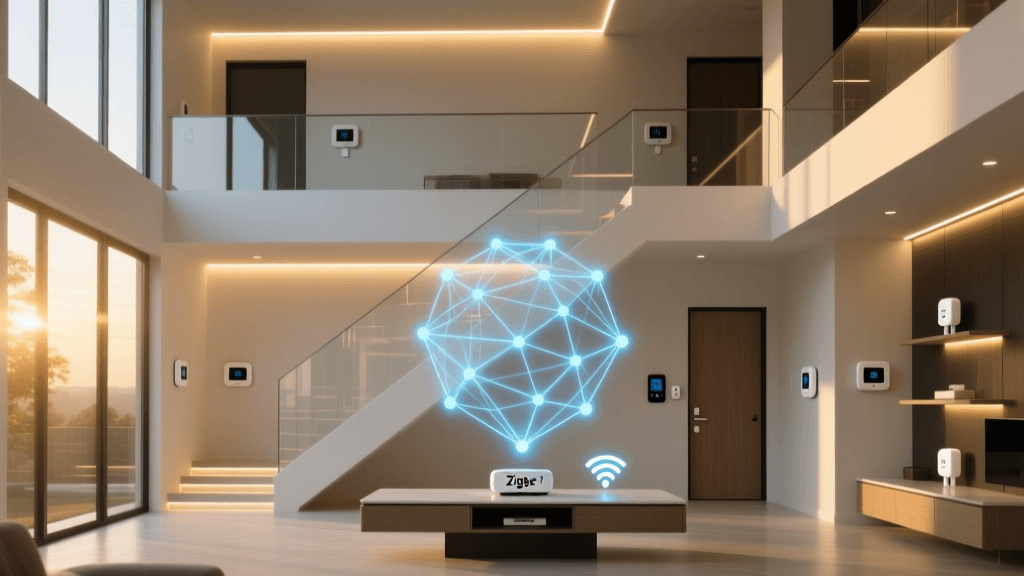
Troubleshooting a Zigbee or Z-Wave network requires a methodical approach. Unlike Wi-Fi, which relies on a central router blasting a high-power signal to all devices, mesh networks depend on a delicate web of interconnected nodes. When one node experiences interference or fails to route traffic efficiently, the entire mesh can suffer. In this comprehensive guide, we will explore the technical reasons behind mesh network dropouts and provide actionable, step-by-step solutions to stabilize your smart home infrastructure.
Understanding Mesh Topologies: Zigbee vs. Z-Wave
Before diving into troubleshooting, it is crucial to understand how your devices communicate. Both Zigbee and Z-Wave utilize mesh networking, but they operate on entirely different frequencies and have distinct routing behaviors.
Zigbee: The 2.4GHz Crowded Highway
Zigbee operates on the 2.4GHz ISM band, which is the exact same frequency used by Wi-Fi, Bluetooth, microwaves, and wireless baby monitors. According to the Connectivity Standards Alliance (CSA), Zigbee's low-power, low-data-rate design makes it highly efficient for smart home sensors and switches. However, its placement in the 2.4GHz spectrum makes it highly susceptible to interference from high-bandwidth Wi-Fi networks. Zigbee networks consist of a Coordinator (your hub), Routers (mains-powered devices like smart plugs and bulbs), and End Devices (battery-powered sensors).
Z-Wave: The Sub-GHz Advantage
Z-Wave operates in the sub-GHz frequency band (908.42 MHz in North America, 868.42 MHz in Europe). As detailed by the Z-Wave Alliance, this lower frequency allows Z-Wave signals to penetrate walls and solid objects much more effectively than Zigbee or Wi-Fi. Furthermore, because it avoids the 2.4GHz band, Z-Wave is virtually immune to Wi-Fi interference. However, Z-Wave networks require manual maintenance, such as 'healing' the network when devices are moved, which is a common source of dropout issues for new installers.
The 2.4GHz Spectrum War: Wi-Fi and Zigbee Coexistence
The most common cause of Zigbee dropouts is Wi-Fi channel overlap. Wi-Fi and Zigbee divide the 2.4GHz spectrum into channels, but their channel widths and alignments do not match perfectly. A standard Wi-Fi channel is 20MHz or 40MHz wide, while a Zigbee channel is only 2MHz wide.
If your Wi-Fi router is set to Channel 1 (centered at 2.412 GHz), it will completely swallow Zigbee Channels 11 through 14. If your Zigbee coordinator is attempting to communicate on Channel 11, the Wi-Fi traffic will act like a loud noise drowning out a whisper. To resolve this, you must separate the protocols.
- Set Wi-Fi to Channel 1, 6, or 11: These are the only non-overlapping Wi-Fi channels.
- Set Zigbee to Channel 15, 20, or 25: These Zigbee channels fall perfectly into the 'gaps' between the primary Wi-Fi channels, ensuring minimal cross-talk.
Pro Tip: Never use Wi-Fi auto-channel selection if you have a dense Zigbee network. Routers will frequently jump channels and inadvertently land on top of your Zigbee coordinator's frequency, causing sudden, unexplained device dropouts.
Physical Obstructions and Signal Attenuation
RF signals degrade as they pass through physical materials. While Z-Wave handles physical obstructions better than Zigbee, both protocols suffer from signal attenuation when forced to pass through dense building materials. Understanding the dB (decibel) loss of common household materials is critical for placing your hub and repeaters effectively.
As visualized above, metal and concrete are the ultimate mesh killers. If your smart home hub is placed in a basement inside a metal server rack, or behind a large mirror (which has a metallic backing), the signal will bounce back, creating a dead zone. Always place your primary coordinator in a central, elevated location, away from large appliances, HVAC ducts, and metal enclosures.
The USB 3.0 Interference Phenomenon
If you are running a local smart home hub like Home Assistant on a Raspberry Pi, Intel NUC, or Minisforum PC, you may be experiencing USB 3.0 radiated interference. When data transfers occur over USB 3.0 ports, the connectors and cables emit broad-spectrum RF noise that heavily impacts the 2.4GHz band. This noise floor can completely deafen a Zigbee coordinator plugged directly into the machine's USB port.
The Home Assistant Z-Wave JS documentation explicitly warns users about this phenomenon, noting that poor placement of USB dongles leads to massive network instability. The fix is remarkably simple and inexpensive: use a high-quality, shielded USB 2.0 extension cable (typically 3 to 6 feet long) to move your Zigbee or Z-Wave coordinator away from the computer's motherboard and active USB 3.0 ports. This single hardware adjustment resolves a significant percentage of 'mysterious' dropout issues in DIY setups.
Step-by-Step Troubleshooting Workflow
When devices begin dropping off the network, follow this systematic workflow to identify and eliminate the bottleneck.
Step 1: Map Your Network and Analyze LQI
Using platforms like Zigbee2MQTT or Z-Wave JS UI, generate a visual network map. Pay close attention to the LQI (Link Quality Indicator) values on the connection lines. LQI ranges from 0 to 255.
- 150 - 255: Excellent connection. No action needed.
- 100 - 149: Good connection. Stable for daily use.
- 50 - 99: Marginal connection. Prone to latency and occasional dropouts.
- Below 50: Critical. Device will frequently fall off the network.
If an End Device (like a battery-powered door sensor) has a low LQI, check the routing path. Is it connecting directly to the hub through two brick walls? Or is it connecting to a nearby smart bulb (Router)? If it lacks a nearby Router, you need to add one.
Step 2: Optimize Channel Selection
Use a Wi-Fi analyzer app on your smartphone to scan the 2.4GHz environment in your home. Identify which channels your neighbors' routers are using. Once you have identified the clearest Wi-Fi channel, lock your router to that channel, and manually set your Zigbee coordinator to a non-overlapping channel (15, 20, or 25). Note that changing a Zigbee channel requires re-pairing all devices, so plan this step carefully during initial installation.
Step 3: Heal the Z-Wave Network
Unlike Zigbee, which dynamically updates routing tables on the fly, Z-Wave relies on a stored routing table. If you move a Z-Wave smart plug to a different room, or if a frequently used routing node loses power, the network will attempt to send signals to the old location, resulting in dropouts. To fix this, you must initiate a 'Heal Network' command via your Z-Wave controller (Hubitat, Home Assistant, or SmartThings). This forces the controller to ping every device and recalculate the most efficient routing paths based on the current physical layout.
Step 4: Deploy Strategic Mains-Powered Repeaters
Battery-powered devices cannot route signals; they only transmit and receive. To build a robust mesh, you must strategically place mains-powered devices (which act as Routers/Repeaters) to bridge gaps in the network. Placing a smart plug in a hallway can bridge the signal from the living room hub to a bedroom sensor.
Recommended Hardware for Network Stabilization
Investing in high-quality coordinators and dedicated repeaters is essential for a whole-home automation setup. Below is a comparison of top-tier hardware favored by professional installers and advanced DIYers.
| Device | Protocol | Cost Range | Best Use Case |
|---|---|---|---|
| Sonoff Zigbee 3.0 USB Dongle Plus (P) | Zigbee | $40 - $50 | Primary Coordinator (CC2652P Chip) |
| Home Assistant Connect ZBT-1 | Zigbee / Thread | $25 - $35 | Multi-Protocol Hub / Future-proofing |
| Aeotec Range Extender 7 | Z-Wave Plus V2 | $30 - $40 | Routing / Signal Boosting |
| IKEA TRADFRI Signal Repeater | Zigbee | $10 - $15 | Budget Mesh Extension |
| Zooz Z-Wave Plus S2 Power Strip | Z-Wave | $50 - $60 | Multi-Device Routing & Control |
When selecting a Zigbee coordinator, always look for the Texas Instruments CC2652P chipset (or the newer Silicon Labs EFR32MG21). These chips feature built-in power amplifiers that significantly boost the transmit power, providing a stronger baseline signal for your mesh network compared to older CC2531-based dongles.
Advanced Fixes: Antenna Placement and Orientation
Many high-end hubs and USB coordinators feature external SMA antennas. The orientation of these antennas matters. RF signals from a dipole antenna radiate outward in a donut shape, perpendicular to the antenna shaft. Therefore, if your devices are all on the same floor as your hub, the antenna should be pointed straight up (vertical). If you have devices in the basement or attic, angling the antenna horizontally can help push the signal up or down through the floorboards.
Additionally, ensure that your smart home hub is not tucked behind a television or inside an AV cabinet. The metal chassis of an AV receiver or the EMI (Electromagnetic Interference) generated by a smart TV's power supply can severely degrade the hub's receiving sensitivity, causing it to 'miss' the low-power transmissions from battery-operated sensors.
Summary Checklist for Installers
To ensure a bulletproof smart home installation, run through this final checklist before closing up walls or finalizing your automation workflows:
- Verify Wi-Fi and Zigbee channels do not overlap (Use Wi-Fi 1, 6, 11 and Zigbee 15, 20, 25).
- Use a shielded USB extension cable for all PC-based Zigbee/Z-Wave coordinators.
- Place the primary hub in a central, elevated location, free from metal enclosures.
- Ensure every room has at least one mains-powered Zigbee bulb, switch, or plug to act as a router.
- Perform a Z-Wave Network Heal after physically moving any repeating devices.
- Check LQI values in your hub's software; add repeaters to any area where LQI consistently drops below 80.
By understanding the physics of RF propagation and the specific quirks of mesh networking protocols, you can transform a frustrating, unreliable smart home into a rock-solid automation platform that responds instantly to every command.