The Foundation: Why Your Network and Hub Matter
Setting up your first smart home is an exciting journey, but many beginners make the critical mistake of buying smart devices before establishing a robust infrastructure. A smart home is only as reliable as the network it operates on and the central hub that commands it. Without a solid foundation, you will experience delayed automations, dropped connections, and immense frustration. This comprehensive guide will walk you through the essential steps of building a resilient network and selecting the right smart hub to support your growing ecosystem.
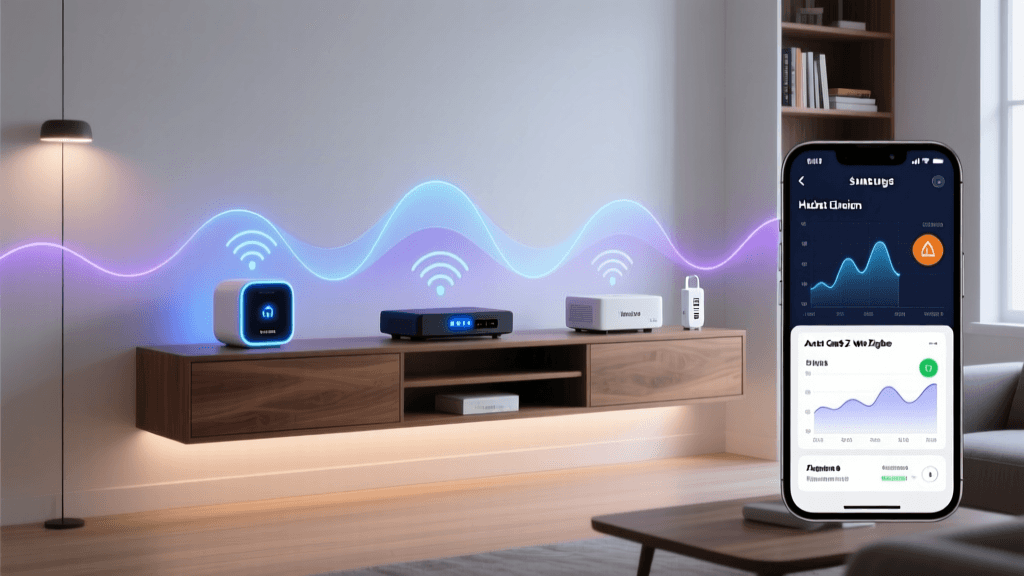
Modern smart homes rely heavily on local processing and low-latency communication. While older devices relied entirely on cloud servers, the industry is rapidly shifting toward local protocols like Thread and the universal Matter protocol. This shift means your home network and local hub are now more important than ever for ensuring your devices respond instantly, even if your internet connection goes down.
Phase 1: Upgrading to a Mesh Wi-Fi Network
Most Internet Service Providers (ISPs) supply a standard combination modem-router. While these are sufficient for browsing the web on a laptop, they are notoriously inadequate for managing dozens of low-power IoT (Internet of Things) devices. Smart bulbs, plugs, and sensors require a stable 2.4GHz signal that can penetrate walls and reach the far corners of your home.
Why Mesh Wi-Fi is Essential for IoT
According to the Wi-Fi Alliance, mesh networks utilize multiple nodes to create a single, seamless network blanket across your property. Unlike traditional range extenders that halve your bandwidth and create separate network names (SSIDs), mesh systems use dedicated backhaul channels and intelligent routing to maintain strong signal strength everywhere.
- Capacity: Standard routers handle 20-30 devices before struggling. Mesh systems like the Eero Pro 6E or TP-Link Deco XE75 can handle over 100 IoT endpoints simultaneously.
- Coverage: A 3-node mesh system can cover up to 6,500 square feet, ensuring your backyard smart lights and garage door sensors stay connected.
- Band Steering: Advanced mesh systems automatically route smart home devices to the 2.4GHz band (which offers better range and wall penetration) while keeping your phones and streaming devices on the faster 5GHz or 6GHz bands.
Recommended Hardware and Cost Ranges
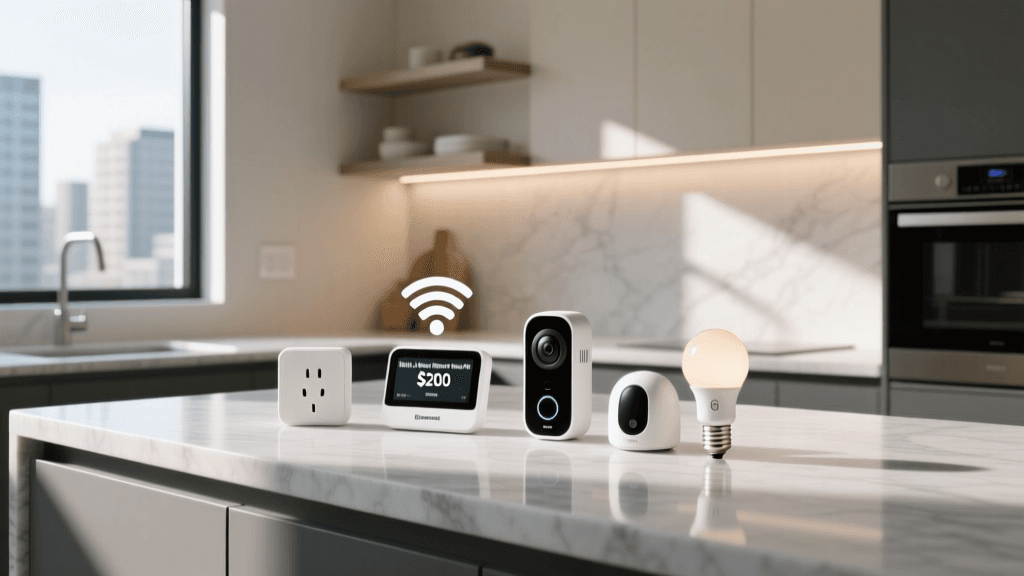
For a standard 2,000 to 3,000 square foot home, a 2-pack or 3-pack mesh system is ideal. Expect to spend between $150 and $300 for a reliable Wi-Fi 6 mesh system. The Amazon Eero 6 (approx. $150 for a 3-pack) is a favorite for beginners due to its simple app and built-in Zigbee hub capabilities. For larger homes or those with thick masonry walls, the Asus ZenWiFi AX (approx. $250-$350) offers superior backhaul performance and advanced IoT network segmentation features.
Phase 2: Selecting Your Smart Hub Ecosystem
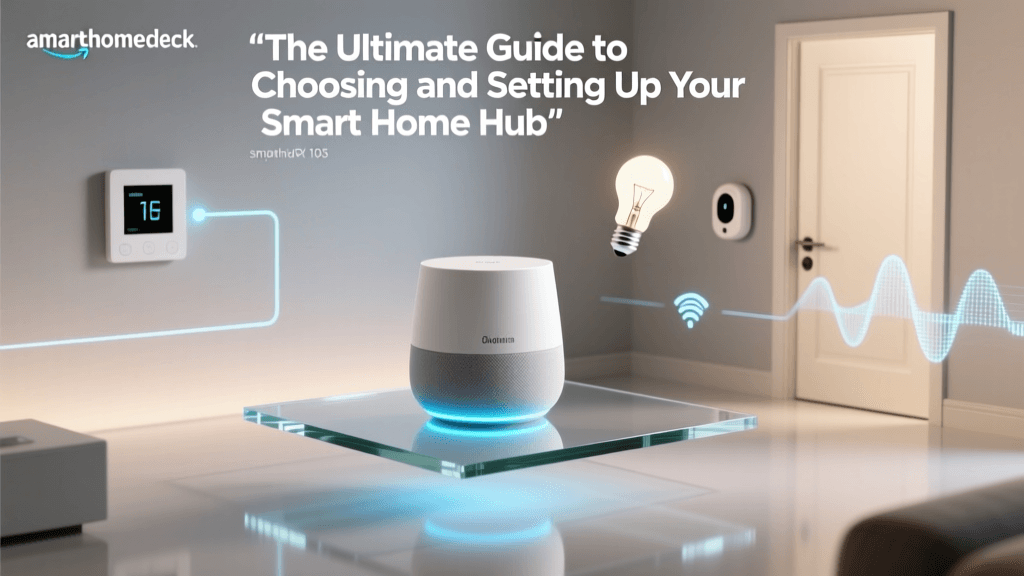
A smart hub acts as the brain of your home. It translates commands from your phone or voice assistant into the specific radio frequencies (Zigbee, Z-Wave, Thread, or Wi-Fi) that your devices understand. With the advent of Matter, the line between ecosystems is blurring, but choosing a primary hub platform will dictate your app experience and automation capabilities.
Pro Tip: When choosing a hub, prioritize models that double as 'Thread Border Routers.' Thread is a low-power, mesh-networking protocol that allows devices to talk to each other locally without clogging up your Wi-Fi bandwidth.
Hub Comparison Table
| Hub Model | Supported Protocols | Thread Border Router? | Avg. Cost | Best For |
|---|---|---|---|---|
| Apple HomePod (2nd Gen) | Wi-Fi, Thread, Matter, Zigbee (via Bridge) | Yes | $299 | Apple Ecosystem & Privacy |
| Amazon Echo (4th Gen) | Wi-Fi, Zigbee, Matter, Thread | Yes | $99 | Alexa Voice Control & Budget |
| Samsung SmartThings Station | Wi-Fi, Thread, Matter, Zigbee | Yes | $69 | Advanced Automations & Sensors |
| Aeotec Smart Home Hub | Z-Wave, Zigbee, Wi-Fi, Matter | No | $139 | Legacy Z-Wave Device Integration |
Phase 3: Strategic Placement and Wiring Basics
Even the most expensive hub and mesh system will fail if placed poorly. Radio frequency (RF) interference and physical barriers are the enemies of smart home reliability.
Optimal Hub Placement
Your central hub should be placed as close to the geometric center of your home as possible. Avoid hiding the hub inside metal media cabinets, behind televisions, or near microwaves and cordless phones, which emit heavy 2.4GHz interference. Elevate the hub at least three feet off the ground to clear furniture and human traffic paths, which can absorb RF signals.
Mesh Node Positioning
When placing mesh Wi-Fi nodes, avoid putting them in dead zones. A node needs a strong signal from the primary router to repeat it effectively. Place nodes halfway between your main router and the dead zone. For multi-story homes, place nodes in a vertical zigzag pattern (e.g., floor 1 left side, floor 2 right side) to utilize stairwells for signal propagation, as wood and drywall are much more permeable to Wi-Fi than concrete floors.
Smart Home Protocol Market Share
Phase 4: Network Security and IoT Segmentation
Smart home devices are notorious for having weaker security protocols than laptops or smartphones. Many IoT devices do not support advanced encryption standards, making them potential entry points for malicious actors. The Federal Trade Commission (FTC) strongly recommends securing your home network to protect against unauthorized access to your personal data and physical home environment.
Creating an IoT Guest Network
Most modern mesh systems and routers allow you to create a 'Guest Network' or an 'IoT VLAN' (Virtual Local Area Network). This is a crucial step for beginners.
- Isolate Devices: Connect all your smart bulbs, plugs, and cameras to the IoT network. This prevents a compromised smart bulb from being used as a bridge to access your personal computers or NAS (Network Attached Storage) drives on the main network.
- Disable Inter-Device Communication: If your router allows it, enable 'AP Isolation' or 'Block LAN to LAN' on the IoT network. This ensures devices can only talk to the internet and your hub, not to each other.
- Use WPA3 or WPA2-AES: Ensure your network is using modern encryption. Avoid WEP or WPA, which are easily cracked.
- Change Default Passwords: Never leave the default admin password on your router or hub. Use a password manager to generate a strong, unique passphrase.
Phase 5: Step-by-Step: Pairing Your First Matter Device
Matter is revolutionizing how we set up devices by eliminating the need for proprietary apps and cloud accounts for basic pairing. Let us walk through setting up your first Matter-compatible device, such as a smart plug or a color-changing bulb.
The Commissioning Process
- Power the Device: Plug in your smart device and wait for it to enter pairing mode. This is usually indicated by a rapidly blinking LED light.
- Scan the QR Code: Open your primary smart home app (Apple Home, Google Home, or SmartThings). Tap the '+' or 'Add Device' button. Use your phone's camera to scan the Matter QR code printed on the device or its packaging.
- Network Assignment: The app will securely pass your Wi-Fi credentials (or Thread network keys) to the device. If the device is Thread-enabled, it will automatically join your hub's Thread mesh network without needing your Wi-Fi password.
- Room Assignment: Assign the device to a specific room (e.g., 'Living Room') and give it a clear, descriptive name like 'Living Room Floor Lamp'. Clear naming is vital for voice assistant accuracy later on.
Troubleshooting Common Setup Roadblocks
Even with perfect planning, DIY installers frequently encounter pairing issues. Here is how to solve the most common roadblocks:
The 2.4GHz Band Steering Issue
Symptom: Your Wi-Fi smart plug fails to connect during setup, timing out repeatedly.
Cause: Many budget IoT devices only support 2.4GHz Wi-Fi. If your mesh system uses 'Band Steering' (combining 2.4GHz and 5GHz under one network name), the device's cheap Wi-Fi chip may get confused during the handshake process.
Solution: Temporarily pause the 5GHz band in your router's admin settings, or create a dedicated 2.4GHz-only IoT SSID specifically for pairing stubborn devices. Once paired, most devices will remember the network and function fine even if 5GHz is re-enabled.
Thread Network Fragmentation
Symptom: Thread devices become unresponsive when you add a second Thread Border Router (e.g., adding an Apple TV to a home that already has a HomePod Mini).
Cause: The devices are confused by multiple Thread networks operating on different channels.
Solution: Ensure all your Thread Border Routers are logged into the exact same ecosystem account and are running the latest firmware. Modern updates from Apple and Google have vastly improved Thread Border Router credential sharing, but a hard reboot of all hubs usually forces them to sync and merge into a single, cohesive Thread mesh.
Conclusion: Expanding Your Ecosystem
Setting up your first smart home is a marathon, not a sprint. By investing time upfront to install a high-capacity mesh Wi-Fi network, selecting a hub that supports modern local protocols like Thread and Matter, and segmenting your network for security, you are building a foundation that will scale effortlessly. Once your infrastructure is solid, adding subsequent devices—from smart locks to motorized blinds—becomes a seamless, plug-and-play experience. Take your time, map out your device locations, and enjoy the process of bringing your home into the future.