Welcome to the Smart Home Installation Complete Guide
Building a reliable, automated smart home is one of the most rewarding DIY projects a homeowner can undertake. However, the difference between a frustrating collection of disconnected gadgets and a seamless, automated living space comes down to one critical foundation: your network and smart home hub. In this installment of the SmartHomeDeck Smart Home Installation Complete Guide, we will walk you through the essential first steps of assessing your network readiness, selecting the right central hub, understanding IoT protocols, and executing a flawless initial setup.
Whether you are wiring a new build or retrofitting a century-old home, the principles of network segmentation, protocol compatibility, and hub placement remain universal. Let us dive into the technical and practical steps required to build a rock-solid smart home foundation.
Assessing Your Network Readiness
Before you unbox a single smart switch or sensor, you must evaluate your home network. Smart homes are incredibly demanding on local bandwidth and router processing power. A standard ISP-provided gateway will quickly bottleneck when you introduce 40+ IoT devices, leading to dropped connections and delayed automations.
Upgrading to Wi-Fi 6 and Mesh Architecture
If your current router is older than three years, it is time for an upgrade. According to the Wi-Fi Alliance, Wi-Fi 6 (802.11ax) introduces OFDMA (Orthogonal Frequency-Division Multiple Access) and MU-MIMO, which allow the router to communicate with multiple low-bandwidth IoT devices simultaneously without clogging the network queue. This is a massive leap over Wi-Fi 5, which processes device requests sequentially.
For homes larger than 1,500 square feet, or those with dense building materials like brick or concrete, a mesh network is mandatory. Systems like the Eero Pro 6 or TP-Link Deco XE75 provide seamless roaming and ensure that a smart plug in the farthest corner of your basement maintains a stable connection to your hub.
Network Segmentation for IoT Security
Security is paramount when installing smart home devices. Many budget IoT devices lack robust onboard security and can serve as entry points for malicious actors. To mitigate this, you must configure a dedicated IoT network. Most modern mesh systems and advanced routers (like the Asus RT-AX86U) allow you to create a dedicated 'IoT SSID' or Guest Network. Configure this network to operate exclusively on the 2.4GHz band (which offers better range and wall penetration for smart devices) and enable 'AP Isolation' or 'Client Isolation' to prevent your smart bulbs from communicating with your personal laptops or NAS drives.
Choosing the Right Smart Home Hub
The hub is the brain of your smart home. It translates the various wireless protocols used by your devices into a unified language that your automation software can understand. Choosing the right ecosystem depends heavily on your technical comfort level and your preferred voice assistant.
Cloud-Dependent vs. Local Processing
When selecting a hub, the most critical distinction is between cloud-dependent and local processing architectures.
- Cloud-Dependent Hubs: Devices like the older generations of smart plugs or proprietary camera ecosystems rely on remote servers to process automations. If your internet connection drops, your motion-triggered lights will stop working. Furthermore, cloud processing introduces latency, often resulting in a noticeable 1-to-2-second delay when triggering a scene.
- Local Processing Hubs: Hubs like the Home Assistant Green, Hubitat Elevation, and the Samsung SmartThings Station process automations locally on your LAN. This ensures sub-100-millisecond response times and guarantees that your home continues to function perfectly even during a total internet outage.
Top Hub Recommendations for DIY Installers
1. Home Assistant Green (Best for Power Users): Priced around $99, this plug-and-play local server is the gold standard for DIY enthusiasts. It supports virtually every protocol via USB dongles and offers unparalleled customization for complex automation workflows.
2. Samsung SmartThings Station (Best for Mainstream Users): An affordable, compact hub that acts as a Thread border router and integrates seamlessly with Matter, Zigbee, and Wi-Fi devices. It is perfect for users who want local execution without managing a Linux server.
3. Apple HomePod Mini (Best for Apple Ecosystem): If your household is strictly iOS, the HomePod mini serves as an excellent Thread border router and HomeKit hub, keeping all processing local and highly secure via the Apple Home app.
Understanding Smart Home Protocols and Matter
A major pitfall for beginners is buying devices that speak incompatible languages. Your hub must be equipped with the correct radios to talk to your end devices. Here is a breakdown of the dominant protocols you will encounter during installation.
Zigbee and Z-Wave: The Legacy Workhorses
Zigbee (operating on 2.4GHz) and Z-Wave (operating on sub-GHz frequencies like 908.42MHz in the US) are mesh networking protocols designed specifically for low-power IoT devices. According to the Z-Wave Alliance, Z-Wave's lower frequency allows it to penetrate walls and floors much more effectively than Wi-Fi or Zigbee, making it the superior choice for battery-operated door sensors and smart locks in large homes. Both protocols create a mesh network, meaning every plugged-in device (like a smart switch) acts as a repeater, extending the network's range.
Thread and Matter: The Future Standard
The introduction of Matter has fundamentally shifted the smart home landscape. As detailed by the Connectivity Standards Alliance, Matter is an application-layer protocol that unifies ecosystems, allowing an Apple HomePod to control a device originally designed for Amazon Alexa. Matter primarily runs over Thread (for low-power battery devices) and Wi-Fi (for high-bandwidth devices like cameras). Thread is an IPv6-based mesh protocol that is incredibly robust, self-healing, and requires a 'Thread Border Router' (found in modern hubs like the SmartThings Station or Apple TV 4K) to bridge the Thread mesh to your home's Wi-Fi network.
Step-by-Step Hub Installation and Configuration
Once you have selected your hub and upgraded your network, it is time for the physical installation and logical configuration. Follow these steps to ensure optimal performance.
Step 1: Optimal Physical Placement
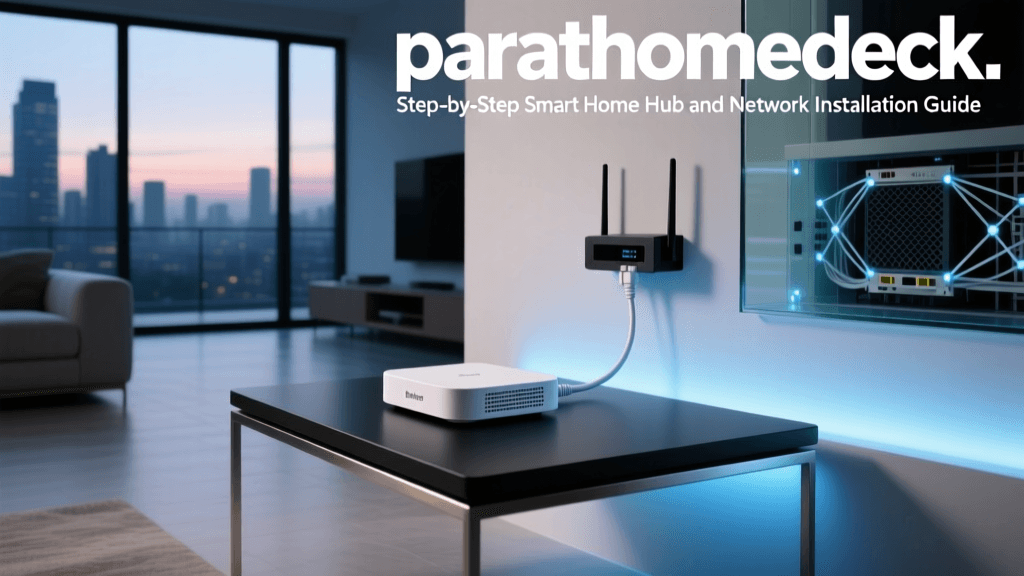
Never hide your smart home hub inside a metal media cabinet or a basement closet. Wireless signals are severely degraded by metal, concrete, and large appliances. Place your hub in a central, elevated location in your home, ideally on the main floor. Keep it at least three feet away from microwaves, baby monitors, and cordless phones, which can cause severe 2.4GHz interference, particularly for Zigbee networks.
Step 2: USB Dongle Selection (For Home Assistant/Hubitat)
If you are using a custom hub like Home Assistant, you will need a USB radio dongle. We highly recommend the Sonoff Zigbee 3.0 USB Dongle Plus (P-Version) or the Home Assistant Connect ZBT-1 (which supports both Zigbee and Thread/Matter). Use a USB 2.0 extension cable (at least 3 feet long) to move the dongle away from the hub's internal Wi-Fi/Bluetooth radios, which are notorious for causing USB 3.0 interference and degrading Zigbee performance.
Step 3: Zigbee Channel Management
If you are setting up a Zigbee network, you must manually configure the Zigbee channel to avoid overlapping with your Wi-Fi channels. Zigbee channels 11, 15, 20, and 25 are the standard non-overlapping channels. If your 2.4GHz Wi-Fi is set to channel 1, set your Zigbee network to channel 15 or 20. This simple step will eliminate 90% of the 'device dropped offline' errors that plague new installations.
Budgeting for Your Smart Home Foundation
Setting up a robust foundation requires an upfront investment, but it saves money by preventing the need to replace incompatible devices later. Below is a realistic cost breakdown for a mid-sized home (approx. 2,000 sq ft).
| Component | Recommended Product | Estimated Cost | Purpose |
|---|---|---|---|
| Mesh Router System | Eero 6+ (2-Pack) | $239 | Network foundation & IoT SSID |
| Primary Smart Hub | Home Assistant Green | $99 | Local automation processing |
| Protocol Dongle | Connect ZBT-1 (Thread/Zigbee) | $39 | Protocol bridging |
| Smart Switches (Starter) | Lutron Caseta or Inovelli (5-pack) | $250 | Lighting control & mesh repeating |
| Sensors (Starter) | Aqara Door/Window & Motion (6-pack) | $120 | Automation triggers |
Pro Tip: Always prioritize hardwired smart switches over smart bulbs for primary lighting. A smart bulb loses its smart functionality if someone flips the physical wall switch, whereas a smart switch ensures the automation network remains intact and acts as a permanent mesh repeater.
Troubleshooting Common Installation Issues
Even with meticulous planning, DIY installers often encounter a few common hurdles during the initial pairing phase.
Device Pairing Failures
If a Zigbee or Thread device refuses to pair, the issue is almost always related to network noise or distance. Bring the device within three feet of the hub for the initial pairing process. Once paired and the encryption keys are exchanged, you can move the device to its permanent location. The mesh network will automatically route the signal through nearby repeaters.
Z-Wave Inclusion Errors
Z-Wave networks require a process called 'healing' after installation. If you add a Z-Wave smart lock or thermostat and it responds sluggishly, log into your hub and initiate a 'Z-Wave Network Heal'. This forces the controller to map out the most efficient routing paths between all mains-powered Z-Wave nodes, optimizing the mesh topology.
Matter Device Commissioning Drops
When adding Matter-over-Thread devices, ensure your smartphone is connected to the same 2.4GHz Wi-Fi network as your Thread Border Router during the initial QR code scanning phase. Matter uses Bluetooth Low Energy (BLE) for initial commissioning, and having your phone's Bluetooth enabled and in close proximity to the device is mandatory for a successful handshake.
Next Steps in Your Smart Home Journey
With your network segmented, your hub installed, and your protocols configured, you have successfully laid the groundwork for a professional-grade smart home. The foundation is set. In the next sections of the SmartHomeDeck Smart Home Installation Complete Guide, we will move from the network closet to the walls and ceilings, covering the electrical wiring basics, neutral wire identification, and the physical installation of smart switches and dimmers. Stay tuned as we continue to transform your house into an intelligent, automated home.