Introduction to Advanced Scene Routines and Schedules
Smart home automation has evolved far beyond simple timed switches and basic on/off commands. Today, the true power of a connected home lies in dynamic scene routines and multi-room schedules that adapt to your biological needs and daily habits. Whether you are trying to simulate a natural sunrise to improve your morning alertness or orchestrating a complex, multi-zone climate schedule to minimize energy waste, mastering the configuration of advanced routines is essential for any DIY smart home installer.
In this comprehensive guide, we will explore the technical and practical aspects of setting up circadian lighting scenes, integrating room-specific climate schedules, and troubleshooting the underlying mesh networks that keep these automations running smoothly. By the end of this article, you will have the knowledge required to transform a collection of disparate smart devices into a cohesive, proactive living environment.
Choosing the Right Ecosystem for Complex Scheduling
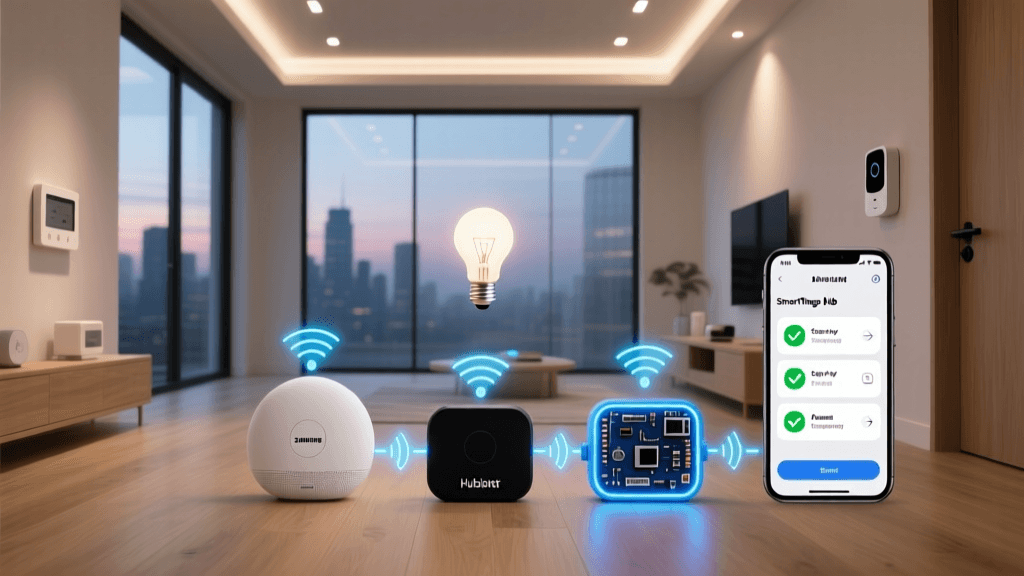
Before diving into specific device configurations, it is crucial to select a hub ecosystem capable of handling complex logic, local execution, and multi-condition triggers. Cloud-dependent routines often suffer from latency, which can result in lights turning on minutes after your scheduled wake-up time or HVAC systems failing to adjust when you leave the geofence perimeter.
| Ecosystem | Local Execution | Max Routine Complexity | Best For | Avg. Hub Cost |
|---|---|---|---|---|
| Apple HomeKit (via HomePod/A-TV) | Yes (Partial) | Medium (Adaptive Lighting built-in) | Privacy-focused users, seamless iOS integration | $99 - $299 |
| Samsung SmartThings | Yes (Edge Drivers) | High (Advanced Rules API) | Multi-brand compatibility, Z-Wave/Zigbee mix | $70 - $130 |
| Home Assistant (Yellow/Green) | Yes (100% Local) | Unlimited (YAML/Node-RED) | Power users, tinkerers, ultimate customization | $99 - $150 |
For most homeowners looking to balance ease of use with advanced scheduling, Samsung SmartThings and Apple HomeKit offer the best out-of-the-box experiences. However, if you require granular control over transition times, lux-based triggers, and local fallback routines, Home Assistant remains the undisputed champion of scene configuration.
Step-by-Step: Configuring Circadian Lighting Scenes
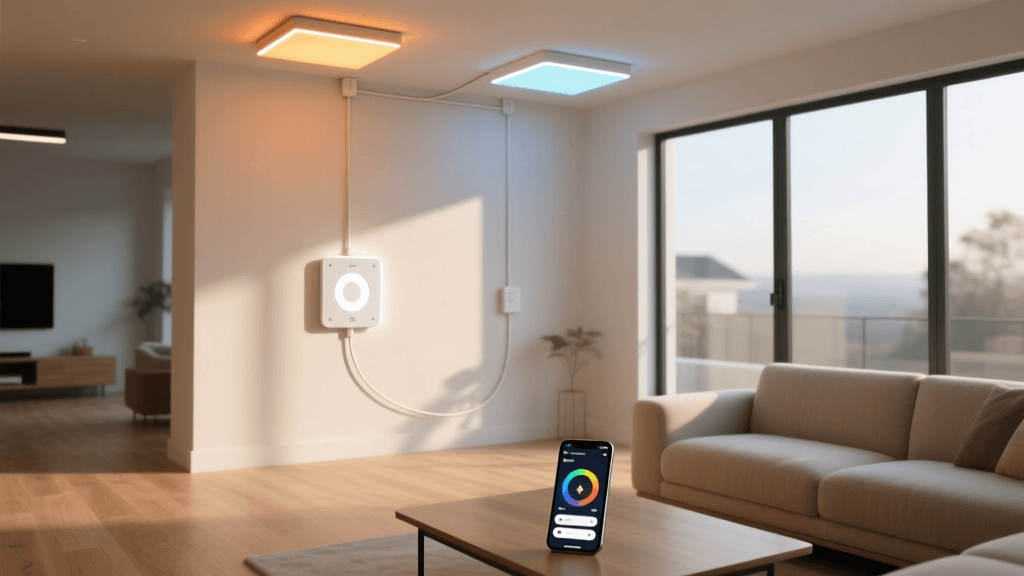
The human body relies on environmental light cues to regulate the circadian rhythm, dictating sleep-wake cycles, hormone release, and core body temperature. According to the Sleep Foundation, exposure to blue-enriched light during the day promotes alertness, while warm, dim light in the evening stimulates melatonin production. Smart lighting allows us to automate this biological necessity.
Understanding Color Temperature (Kelvins)
To create an effective circadian routine, you must utilize smart bulbs or fixtures that support tunable white (color temperature adjustment). The measurement for this is Kelvins (K).
- 2000K - 2700K: Warm white, candlelight effect. Ideal for post-sunset wind-down routines and bedroom evening scenes.
- 3000K - 3500K: Soft white. Perfect for living room relaxation and dinner-time scenes.
- 4000K - 5000K: Cool white. Best for kitchens, home offices, and morning wake-up routines.
- 6000K - 6500K: Daylight. Use sparingly for high-focus task lighting or mid-day productivity scenes.
Setting Up Philips Hue Adaptive Lighting
If you are using the Philips Hue ecosystem (which requires the Hue Bridge V2 for reliable routine execution), the native app now supports 'Natural Light' scenes. However, for true circadian automation that adjusts dynamically throughout the day without manual intervention, third-party applications like iConnectHue (iOS) or integrating the Hue Bridge into Home Assistant using the 'Circadian Lighting' custom component is highly recommended.
Configuration Steps for Home Assistant Circadian Lighting:
- Install the 'Circadian Lighting' integration via HACS (Home Assistant Community Store).
- Define your geographic location and elevation in the HA configuration to calculate accurate solar positioning.
- Create a 'Switch' entity that targets your specific Hue light groups (e.g.,
light.living_room_main). - Set the
min_colortempto 2000K andmax_colortempto 5500K to prevent the bulbs from emitting harsh blue light at night or overly dim light during peak daytime hours. - Configure a transition time of 60 seconds so the color temperature shifts imperceptibly to the human eye.
Hardwired Alternatives: Lutron Caseta
For homes where smart bulbs are impractical (e.g., multi-bulb chandeliers or recessed lighting on dimmer switches), the Lutron Caseta RA2 Select system is the gold standard. While Lutron does not natively support tunable white color temperature shifts via their standard dimmers, you can pair Lutron smart dimmers with tunable-white LED bulbs (like the Philips Hue White Ambiance BR30) and use a SmartThings or Home Assistant hub to send simultaneous commands: the Lutron dimmer handles the brightness percentage, while the hub sends a Zigbee command to the bulb for the Kelvin shift.
Advanced Trigger Logic: Combining Lux Sensors and Time
Relying solely on time-based schedules for lighting routines is a common beginner mistake. A time-based routine will turn on your bright, 5000K home office lights at 8:00 AM, regardless of whether it is a sunny Saturday or a dark, stormy Monday. To create a truly intelligent scene routine, you must incorporate illuminance (lux) sensors.
Devices like the Aeotec Multisensor 7 (Z-Wave) or the Philips Hue Outdoor Motion Sensor (Zigbee) provide real-time lux data to your hub. You can configure a routine with the following logic:
IF Time is between 07:00 and 19:00
AND Outdoor Lux Sensor reads below 1500 lux (indicating heavy overcast or an eclipse)
THEN trigger 'Daytime Focus' scene (Turn on interior lights to 4500K at 80% brightness).
This ensures your interior lighting compensates for environmental deficits, maintaining a consistent circadian stimulus for your brain regardless of the weather outside.
Multi-Room Climate Schedules and Sensor Integration
Heating and cooling account for nearly half of a typical home's energy consumption. Traditional programmable thermostats operate on a single-point average, often leaving bedrooms too hot or home offices too cold. Multi-room climate schedules utilize remote room sensors to prioritize specific zones based on the time of day and occupancy.
Configuring Ecobee SmartSensors for Zoned Schedules
The Ecobee SmartThermostat Premium paired with its SmartSensors is an excellent platform for multi-room scheduling. Ecobee's 'Smart Home & Away' and custom 'Comfort Settings' allow you to dictate which sensors participate in the temperature averaging during specific routines.
- Morning Routine (6:00 AM - 8:00 AM): Configure the 'Morning' comfort setting to only participate the Master Bedroom sensor and the Hallway sensor. This ensures the system fires up the HVAC to warm the bedroom before your alarm goes off, ignoring the cold, unused living room.
- Daytime Routine (8:00 AM - 5:00 PM): Switch to 'Away' or 'Work From Home'. If working from home, set the schedule to prioritize the Home Office sensor. If the office temperature drops below 68°F (20°C), the system will engage the heating, even if the main floor thermostat reads a comfortable 72°F.
- Evening Routine (5:00 PM - 10:00 PM): Enable 'Follow Me' logic. The thermostat will dynamically average the temperature of any room where motion is currently detected, ensuring comfort wherever the family is gathered.
Visualizing Energy Savings with Smart Schedules
Implementing dynamic, sensor-driven schedules does more than improve comfort; it yields significant financial returns. According to ENERGY STAR, properly configured smart thermostats can save homeowners roughly 8% on heating and cooling bills annually, but advanced multi-room zoning and AI-driven geofencing can push these savings even higher by eliminating conditioning in unoccupied zones.
As illustrated above, moving from a static, time-based schedule to an AI-driven, multi-room sensor routine can more than quintuple your annual HVAC savings. The initial investment in room sensors (typically $40-$80 per pack) pays for itself within the first 12 to 18 months of operation.
Voice Assistant Integration for Scene Overrides
A common frustration with complex automated schedules is the 'override conflict.' For example, if your 'Goodnight' routine is scheduled to turn off all lights and drop the thermostat to 65°F at 10:30 PM, but you are still reading in bed, the automation will rudely plunge you into darkness.
To solve this, you must configure voice assistant overrides that pause or adjust the underlying schedule logic without breaking it.
- Create a 'Late Night' Virtual Switch: In your hub (SmartThings or Home Assistant), create a virtual toggle switch named 'Late Night Mode'.
- Condition Your Routines: Edit your 10:30 PM 'Goodnight' routine to include a condition: Only execute IF 'Late Night Mode' is OFF.
- Voice Command Mapping: Link an Alexa or Google Home voice command ('Alexa, I am staying up late') to turn ON the 'Late Night Mode' virtual switch and activate a localized 'Reading Scene' (e.g., bedside lamp at 2000K, 30% brightness).
- Auto-Reset: Create a secondary routine that triggers at 2:00 AM to turn OFF 'Late Night Mode' and ensure the home is secured and the thermostat is set back to the sleep temperature, acting as a fail-safe in case you fall asleep reading.
Troubleshooting Routine Latency and Execution Failures
Even the most beautifully designed scene routines can fail if the underlying network infrastructure is flawed. When automations trigger late or devices fail to respond, the issue usually lies in mesh network congestion or hub polling rates.
Zigbee vs. Z-Wave vs. Thread for Routine Reliability
When configuring multi-device scenes (e.g., turning on 15 lights and adjusting the thermostat simultaneously), the protocol you use dictates the execution speed.
- Zigbee (e.g., Philips Hue, IKEA Dirigera): Excellent for high-bandwidth lighting scenes. However, Zigbee meshes can suffer from 'broadcast storms' if you command too many devices at the exact same millisecond. Fix: Introduce a 200ms staggered delay between device commands in your hub's routine settings.
- Z-Wave (e.g., Aeotec, Zooz): Operates on a sub-GHz frequency, avoiding Wi-Fi interference. Z-Wave is superior for critical, single-point routines like smart locks and HVAC scheduling. Ensure your Z-Wave mesh has at least 5-7 hardwired repeater devices to guarantee instant command routing.
- Thread/Matter (e.g., Nanoleaf, Eve): The newest standard, offering low-latency, IP-based mesh networking. Thread is rapidly becoming the preferred protocol for scene routines because it allows border routers (like Apple TV or Nest Hubs) to process commands locally with near-zero latency.
Handling Hub Polling and Cloud Latency
If your climate schedule relies on a cloud-based weather API to adjust the indoor temperature based on the outdoor forecast, API rate limits can cause routine failures. Many free weather APIs limit requests to 100 per day. If your hub polls the API every 10 minutes, you will hit the limit and the routine will fail silently. Best Practice: Configure your hub to pull weather data only once every 3 hours, or use a local weather station integration (like an Ambient Weather WS-2902 connected via local Wi-Fi API) to eliminate cloud dependencies entirely.
Conclusion
Creating advanced scene routines and multi-room schedules is the pinnacle of smart home installation. By moving beyond basic timers and embracing circadian lighting logic, lux-based environmental triggers, and zoned climate sensors, you transform your home from a reactive space into a proactive, health-enhancing environment. While the initial configuration requires a solid understanding of hub ecosystems, mesh network protocols, and conditional logic, the resulting improvements in daily comfort, sleep hygiene, and energy efficiency make the investment of time entirely worthwhile. Start with a single room, perfect your circadian and climate logic, and gradually expand your routines to encompass the entire home.