Introduction to Whole-Home Smart Lighting
Upgrading to a whole-home smart lighting system is one of the most impactful DIY projects you can undertake. It not only enhances the ambiance and convenience of your living spaces but also significantly improves energy efficiency and home security. However, transitioning from standard toggle switches to a fully integrated smart ecosystem requires careful planning, a basic understanding of residential electrical wiring, and strategic hub placement.
This comprehensive, step-by-step guide will walk you through the entire installation process. We will focus primarily on the two most robust and popular ecosystems on the market: Lutron Caseta (for hardwired in-wall switches) and Philips Hue (for smart bulbs and accent lighting). Whether you are outfitting a single bedroom or wiring an entire multi-story home, these steps will ensure a safe, reliable, and fully automated setup.
Safety First: Working with residential electricity carries inherent risks. Always turn off the power at the main circuit breaker before opening any electrical boxes. If you are unsure about your home's wiring or local electrical codes, consult a licensed electrician.
Phase 1: Planning and Electrical Assessment
Before purchasing any equipment, you must audit your existing electrical infrastructure. Smart switches have specific requirements that standard mechanical switches do not. The most critical factor is the presence of a neutral wire.
Identifying Neutral Wires and Switch Types
Most modern smart switches require a neutral wire (typically a bundle of white wires in the back of the electrical box) to keep the internal radio and Wi-Fi/Zigbee chips powered even when the lights are turned off. Homes built before the 1980s often lack neutral wires in their switch boxes. If your home lacks neutrals, you will need to use specific neutral-free switches, such as the Lutron Caseta PD-6ANS, or rely entirely on smart bulbs.
Next, identify your switch types:
- Single-Pole: One switch controls the light. Standard wiring includes a Line (power in), Load (power out to light), Ground, and Neutral.
- 3-Way: Two switches control the same light (e.g., top and bottom of a staircase). This requires traveler wires and specific smart 3-way wiring diagrams or the use of wireless Pico remotes.
Ecosystem Comparison
Choosing the right hardware is essential for long-term reliability. Below is a comparison of the top smart lighting ecosystems for whole-home installations.
| Feature | Lutron Caseta | Philips Hue | Leviton Decora Smart |
|---|---|---|---|
| Primary Tech | Clear Connect RF (Sub-GHz) | Zigbee Mesh | Wi-Fi / Thread / Zigbee |
| Hub Required? | Yes (Smart Bridge) | Yes (Hue Bridge) | Varies by model |
| Best Use Case | In-wall hardwired switches | Color bulbs, lamps, accents | Wi-Fi enabled single rooms |
| Reliability | Exceptional (dedicated mesh) | Excellent (Zigbee mesh) | Good (depends on Wi-Fi) |
| 3-Way Solution | Pico Remote + Wallplate | Hue Dimmer Switch / Friends | Wired 3-Way or Companion |
Cost Estimation by Ecosystem
Budgeting is a major part of whole-home planning. Hardwired switches generally cost more upfront per room but save money over time compared to replacing every single bulb with a smart alternative. The chart below illustrates the estimated average cost per room for a complete setup across major brands.
Phase 2: Hub Placement and Network Configuration
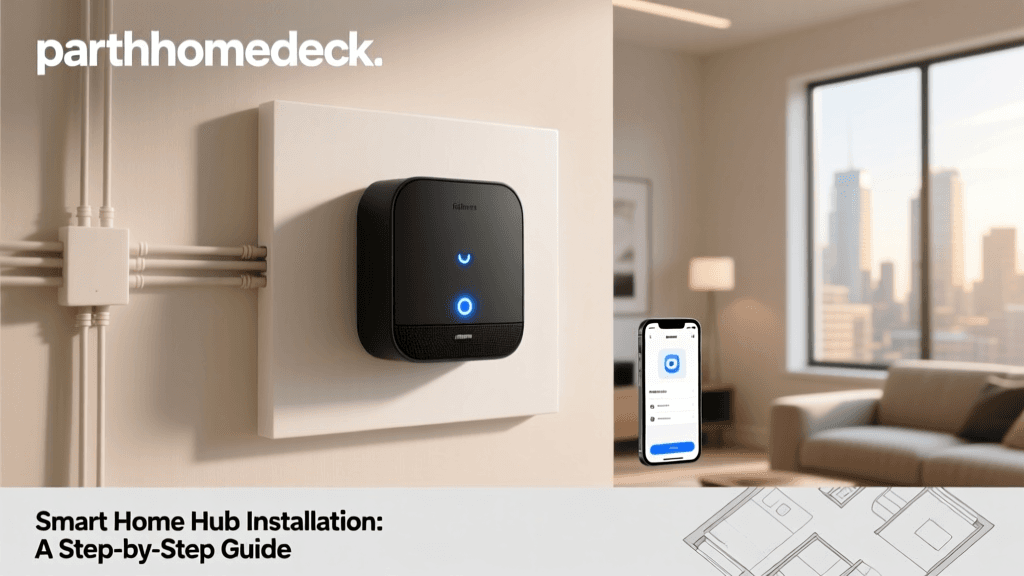
Both Lutron Caseta and Philips Hue rely on a central hub (or bridge) to communicate with your devices and connect to your home network. Proper hub placement is critical for mesh network coverage.
Optimal Bridge Placement
The Lutron Smart Bridge and Philips Hue Bridge do not use your home's Wi-Fi to talk to the switches and bulbs; they use dedicated radio frequencies (Clear Connect RF and Zigbee, respectively). This means they need to be placed centrally in your home to ensure the RF signal reaches every corner of your floor plan.
- Do: Place the hub in a central, elevated location (e.g., on a shelf in a central hallway or living room).
- Do: Connect the hub directly to your primary Wi-Fi router via an Ethernet cable.
- Don't: Hide the hub inside a metal media cabinet, behind a television, or in a basement corner, as metal and concrete severely degrade RF and Zigbee signals.
Network Setup
Plug the hub into your router and provide power. Download the respective app (Lutron app or Philips Hue app). The app will automatically detect the bridge on your local network. Follow the on-screen prompts to create an account, name your home, and update the hub's firmware. Firmware updates are crucial for security patches and adding support for new device protocols, such as Matter.
Phase 3: Physical Installation of Smart Switches
This phase involves working directly with your home's electrical system. Adherence to the National Fire Protection Association (NFPA 70) National Electrical Code is mandatory for safety and compliance. Always ensure your local jurisdiction does not require a permit or licensed professional for smart switch swaps.
Step 1: Kill the Power and Verify
Navigate to your main electrical panel and flip the breaker corresponding to the room you are working in to the OFF position. Use a non-contact voltage tester (NCVT) on the existing switch faceplate and inside the box to verify that the power is completely dead. Never rely solely on the wall switch being in the 'off' position.
Step 2: Remove the Old Switch and Identify Wires
Unscrew the old switch and pull it gently out of the gang box. You will typically see the following US-standard wire colors:
- Black (or Red): Line (Hot) - Brings power from the breaker.
- Black (or Blue): Load - Carries power to the light fixture.
- White: Neutral - Completes the circuit.
- Bare Copper or Green: Ground - Safety earth.
Pro Tip: If you have two black wires and aren't sure which is Line and which is Load, you can temporarily cap them safely, turn the breaker back on, and use a multimeter to test which wire reads ~120V against the ground wire. That is your Line wire. Turn the breaker back off before proceeding.
Step 3: Wire the Smart Switch
Using the wire nuts provided with your smart switch (or Wago push-in connectors, which are highly recommended for DIYers for a cleaner, more secure connection), attach the wires:
- Connect the smart switch Ground (green) to the bare copper ground wire.
- Connect the smart switch Neutral (white) to the bundle of white neutral wires in the back of the box.
- Connect the smart switch Line (black with white tag) to your identified hot line wire.
- Connect the smart switch Load (blue) to the wire leading to your light fixture.
Carefully fold the wires back into the box, ensuring no bare copper is exposed and no wires are pinched. Screw the smart switch into the gang box and attach the included wallplate.
Step 4: Handling 3-Way Switches with Pico Remotes
Rewiring a traditional 3-way circuit can be a nightmare of traveler wires. The smartest DIY solution is to install the smart switch on the main Line/Load box, cap off the traveler wires in the secondary box, and mount a wireless Lutron Pico remote over the secondary wall box using a Pico wallplate bracket. This provides full 3-way functionality without complex rewiring.
Phase 4: Smart Bulb Installation for Fixtures
While hardwired switches control overhead and recessed lighting, smart bulbs like Philips Hue are ideal for table lamps, floor lamps, and color-changing accent fixtures. According to the U.S. Department of Energy's Solid-State Lighting program, upgrading to smart LED lighting can reduce lighting energy use by up to 75% compared to incandescent bulbs, while providing vastly superior color rendering and control.
Installation and Pairing
- Screw the Philips Hue White and Color Ambiance bulbs into your standard E26 lamp bases.
- Turn the physical lamp switch ON. The bulb will blink, indicating it is in pairing mode.
- Open the Hue App, navigate to Settings > Lights, and tap the '+' icon. The app will search via the Zigbee mesh network and add the bulb.
Crucial Rule: When using smart bulbs, the physical wall switch or lamp switch must remain ON at all times. If a family member flips the physical switch off, the bulb loses power and drops off the smart network. Consider installing a Lutron Aurora dimmer over the physical lamp switch to lock it in the 'on' position while providing smart dimming capabilities.
Phase 5: App Configuration, Grouping, and Automation
The physical installation is only half the battle. The true magic of a smart home lies in the software configuration. Both the Lutron and Hue apps allow for deep customization.
Creating Rooms and Zones
Organize your devices logically. Create 'Rooms' for individual spaces (e.g., 'Master Bedroom', 'Kitchen') and 'Zones' for areas that span multiple rooms (e.g., 'Downstairs Hallway'). Naming conventions matter when using voice assistants later; avoid duplicate names like 'Lamp' and instead use 'Living Room Corner Lamp'.
Designing Scenes
Scenes allow you to set multiple lights to specific brightness and color levels with a single tap.
- Morning/Energize: 100% brightness, cool white (4000K-5000K) to simulate daylight and promote alertness.
- Evening/Relax: 40% brightness, warm white (2700K) to help the brain wind down.
- Movie Time: Overhead lights off, Hue Lightstrips behind the TV set to 10% bias lighting to reduce eye strain.
Setting Up Automations and Geofencing
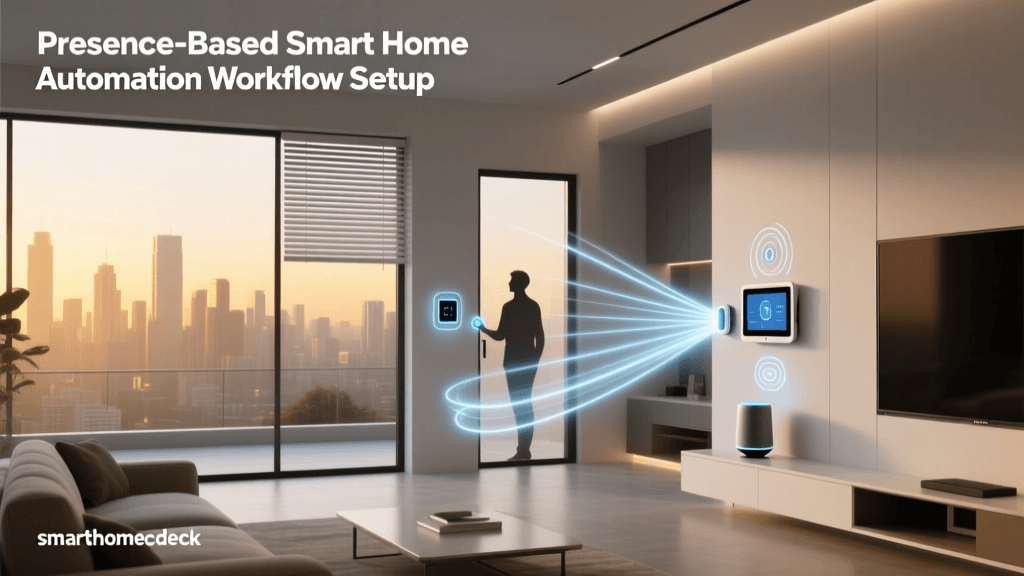
Automations make your home proactive. Use the 'Arriving Home' and 'Leaving Home' geofencing features in the apps. When your smartphone crosses a virtual perimeter around your house, the hub will automatically turn on the porch and entryway lights, and turn off all interior lights when you leave. For homes equipped with ENERGY STAR certified smart lighting, utilizing motion-sensor automations in hallways and bathrooms ensures lights are never left on accidentally, maximizing your energy savings.
Troubleshooting Common Installation Issues
Even with careful planning, DIY smart home installations can encounter hiccups. Here is how to resolve the most common issues:
1. Flickering or Buzzing LEDs
Cause: Incompatible LED bulbs on a dimmable smart switch, or the switch's minimum load requirement is not being met.
Solution: Check the manufacturer's compatibility list. If using Lutron Caseta, access the advanced settings in the app to adjust the 'High-End Trim' and 'Low-End Trim' to stop the flickering. If the total wattage of the LEDs is too low, install a Lutron LUT-MLC minimum load capacitor across the fixture's wires at the light canopy.
2. Switch Frequently Drops Offline
Cause: Wi-Fi interference (for Wi-Fi switches) or weak mesh signal (for Zigbee/Clear Connect).
Solution: Ensure your 2.4GHz Wi-Fi network is not overloaded. For mesh systems, add a smart plug or additional smart bulb halfway between the hub and the offline switch to act as a signal repeater and strengthen the mesh network.
3. 3-Way Switch Wiring Failure
Cause: Misidentifying the Line and Load wires, or incorrectly capping traveler wires.
Solution: Re-verify your Line and Load with a multimeter. Ensure all unused traveler wires in the secondary switch box are safely capped with wire nuts and tucked away. Remember, in a Pico remote setup, the secondary wall box no longer carries any active switching logic.
Conclusion
Installing a whole-home smart lighting system is a highly rewarding weekend project that dramatically elevates your home's functionality, aesthetic, and energy efficiency. By methodically assessing your electrical boxes, choosing the right ecosystem for your specific needs, and taking the time to configure scenes and automations properly, you will create a seamless living environment. Always prioritize electrical safety, adhere to local codes, and enjoy the convenience of a home that finally works for you.